

A good tweet can sink down the timeline before most of your followers have opened Twitter, and once it sinks, nobody scrolls back to find it. The fix is to bring the same tweet back up at a later hour. Doing that by hand works once or twice; doing it reliably needs a setup, and both routes are laid out below.
How do you bump a tweet on Twitter?
Select the repost icon under your own tweet to send it back up the timeline, and undo that repost before you bump the tweet again. Circleboom schedules reposts and their removal for your tweets on Twitter using the official Enterprise APIs of X, so the bump repeats without you.
→ bump tweet
What bumping a tweet means on Twitter today
To bump a tweet is to push one of your own published tweets back to the top of your followers' timelines without writing it again. On Twitter today, the standard way to do that is a repost of your own tweet.
The word comes from forums, where replying to an old thread lifted it to the top of the board. Twitter users borrowed the habit and replied under their own tweets for the same effect.
That trick still exists, but the repost has replaced it as the cleaner route. The original tweet comes back as it was, with its likes and replies attached, and no filler reply is needed.
A complete bump has three moves:
- Repost the tweet so it appears again in timelines.
- Undo the repost after a while, so it does not sit on your profile as a duplicate.
- Repost again later, for followers who were offline both times before.
Circleboom's Auto Retweet runs those three moves on Twitter as one rule set, so a bump stops being something you have to remember.
Why one showing is rarely enough
A single tweet reaches the followers who happen to be online in the hours after it goes out, and few others. Circleboom's documentation illustrates the point with a simple assumption: if roughly a third of your followers are online at a given time, the original tweet mainly reaches that third. A repost in a different part of the day puts the same tweet in front of another group.
No fixed lift follows from that. A new showing is an opportunity, and how much of it turns into replies and likes depends on the tweet.
But the direction is clear enough to plan around: each extra window puts the tweet in front of followers the earlier ones missed, and you write nothing new.
How to bump a tweet by hand on X
The manual bump takes two taps on X: select the repost icon under your own tweet, then choose Repost. To take it back, select the same icon and choose the undo option. X documents both actions in its How to Repost help page, and they work the same on your own posts as on anyone else's.
If you have never reposted anything, the basics of how to repost a tweet are worth two minutes first.
For a single bump of a single tweet, the manual route is fine. I still use it when a post needs one extra showing on the same day.
Where the manual bump breaks down
The manual route fails at the second and third bump, because each one depends on you coming back at the right time. Three things go wrong in practice:
- The undo gets forgotten, so the earlier repost stays up and the next bump cannot happen.
- The repost lands when you are free, which is rarely when your followers are most active.
- The count drifts, and one tweet either gets bumped once and abandoned or bumped too often in a burst.
A bump is only as good as its timing, and manual timing follows your schedule instead of your audience's.
That is the gap a scheduled cycle closes. Instead of returning to the tweet again and again, you set the delays once and bump your tweet automatically at the hours you picked.
Can you bump the same tweet more than once on Twitter?
Yes, you can bump the same tweet more than once, as long as each earlier repost is undone before the next one. Twitter keeps one repost of a given tweet per account at a time. While your repost stands, the repost option on that tweet is already used, so the sequence has to be repost, undo, repost.
That one-at-a-time rule is the reason a multi-bump plan needs a removal step built in. It is also where most manual attempts stall. The broader answer to whether you can retweet your tweet more than once has its own write-up on the Circleboom blog.
In Circleboom, the repeat is a counter. The Repeat this cycle setting takes a number, and the tool runs the repost and its removal that many times.
One detail from the product's settings matters here: the removal rule has its own checkbox, and if you leave it unchecked, the repost stays up permanently. That choice suits a one-time bump. For repeated bumps, keep the removal rule switched on.
Why a scheduled cycle fits the Twitter bump better than a reminder
A scheduled cycle fits the bump better because every part of a bump is a timed action, and timed actions are what a scheduler is for. Circleboom's Auto Retweet lives inside X Post Planner, the workspace where you plan your X posts, in a panel named Auto Repost / Un-RePost that opens from the post editor's toolbar.
The panel holds three settings:
- RePost after: how long after publishing the tweet is reposted, set in hours and minutes.
- Un-RePost after: how long the repost stays up before it is removed.
- Repeat this cycle: how many times the repost and its removal run.
Both the repost and its removal are standard actions on the platform's side. X's developer documentation lists the unrepost endpoint next to the repost one, and those are the actions a cycle calls on your behalf.
The official access behind each scheduled repost on Twitter
That matters for trust. Circleboom is an official X Enterprise Developer company, so the cycle you configure runs through access X has granted. It acts on an account you connected yourself, and only on the tweets you chose.
A cycle is best spent on a tweet that already performed. If you are unsure which one that is, start by learning how to see your most retweeted tweet.
Compared with a calendar reminder, the scheduled route removes the part that fails: you. Set it once and you get an automatic tweet bump that keeps its own time.
Screen demo of the auto-retweet setup: one tweet set to return to the timeline and collect further views with no manual repost.
What delays to set for a tweet bump on X
Set the repost delay to land in a different part of your followers' day, and set the removal delay long enough for that window to play out. The panel accepts any combination of hours and minutes, so the choice is editorial. Circleboom's guidance for this feature gives three useful starting points:
- Evergreen tweets: stagger the bumps a few hours apart. Reposts roughly 4 and 8 hours after the original cover the morning, afternoon and evening crowds.
- Launch tweets: a tweet published mid-morning can return in the evening and again the next morning, while the announcement is still current.
- Timely tweets: keep the cycle short. An event reminder returns once a few hours later and stops once the event is over.
One more check belongs here. A bump shares the timeline with everything else you publish, so look at your scheduled tweets before you confirm a delay. A repost that lands minutes after a brand-new tweet competes with it for the same followers' attention.
Treat the delays as a first draft: run one cycle, read the results, then widen or narrow the gap.
How to bump a tweet on Twitter with Circleboom, step by step
The setup, in the order the screens appear.
Reach the tweet you want to bump
- Log in to Circleboom and connect your Twitter account when prompted.
- Open the X Post Planner menu from the left-hand side and select Write and Plan Your Post.

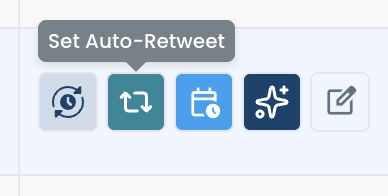
- Choose the tweet. Write a new one in the post editor, or, for a tweet that is already published, find it under Post Analytics and click the Set Auto-Retweet button in its row of action icons.
Configure the repost, the removal and the repeat
- Click the auto repost icon (the cycle arrows) in the editor toolbar to open the Auto Repost / Un-RePost panel.
- Enable RePost after with its checkbox, then set the delay with the separate hours and minutes steppers.
- Enable Un-RePost after and set how long the repost should stay visible before it is taken down.
- Set the Repeat this cycle counter, then click Schedule or Post Now to publish the tweet with the cycle attached. A scheduled time must be at least 15 minutes in the future.
The removal rule is what lets the count mean something, and a worked example shows why. This one is illustrative and uses the product's own documented settings: with RePost after at 4 hours, Un-RePost after at 2 hours and Repeat this cycle at 3, one tweet gets its original window plus three repost windows.
That is four windows in total from a single piece of writing, and the profile shows the tweet once at the end.
With the cycle running, two follow-up jobs remain: keeping your profile tidy and knowing where to check on the cycle.
How to take the repost off your profile after the bump
The repost comes off your profile when the Un-RePost after timer runs out, with no action from you. Each removal clears the repost from your timeline, so the tweet sits on your profile once, in its original position, however many times it was bumped.
Two facts about that removal are worth knowing before you rely on it:
- Un-repost removes only the repost. The original tweet stays published.
- Likes and replies that arrived during a repost window stay on the original tweet.
So a finished cycle leaves nothing to clean. The engagement is kept and the duplicates are gone.
Clearing reposts left over from earlier manual bumps
Older reposts are a separate job. If you bumped by hand for months and skipped the undo, those reposts are still on your profile. For a few of them, the guide on how to remove retweets covers the manual steps.
For a long backlog, Circleboom has a dedicated page to delete retweets in one pass. Clear the backlog first, then start cycles with the removal rule on, and the profile stays clean from there.
Where running bump cycles are listed, and how to stop one
Running cycles are listed in Sent Items inside Circleboom Twitter, and each one can be stopped there with one click. A cycle does not show while the tweet is still waiting in Outbox; it appears only after the tweet is published.
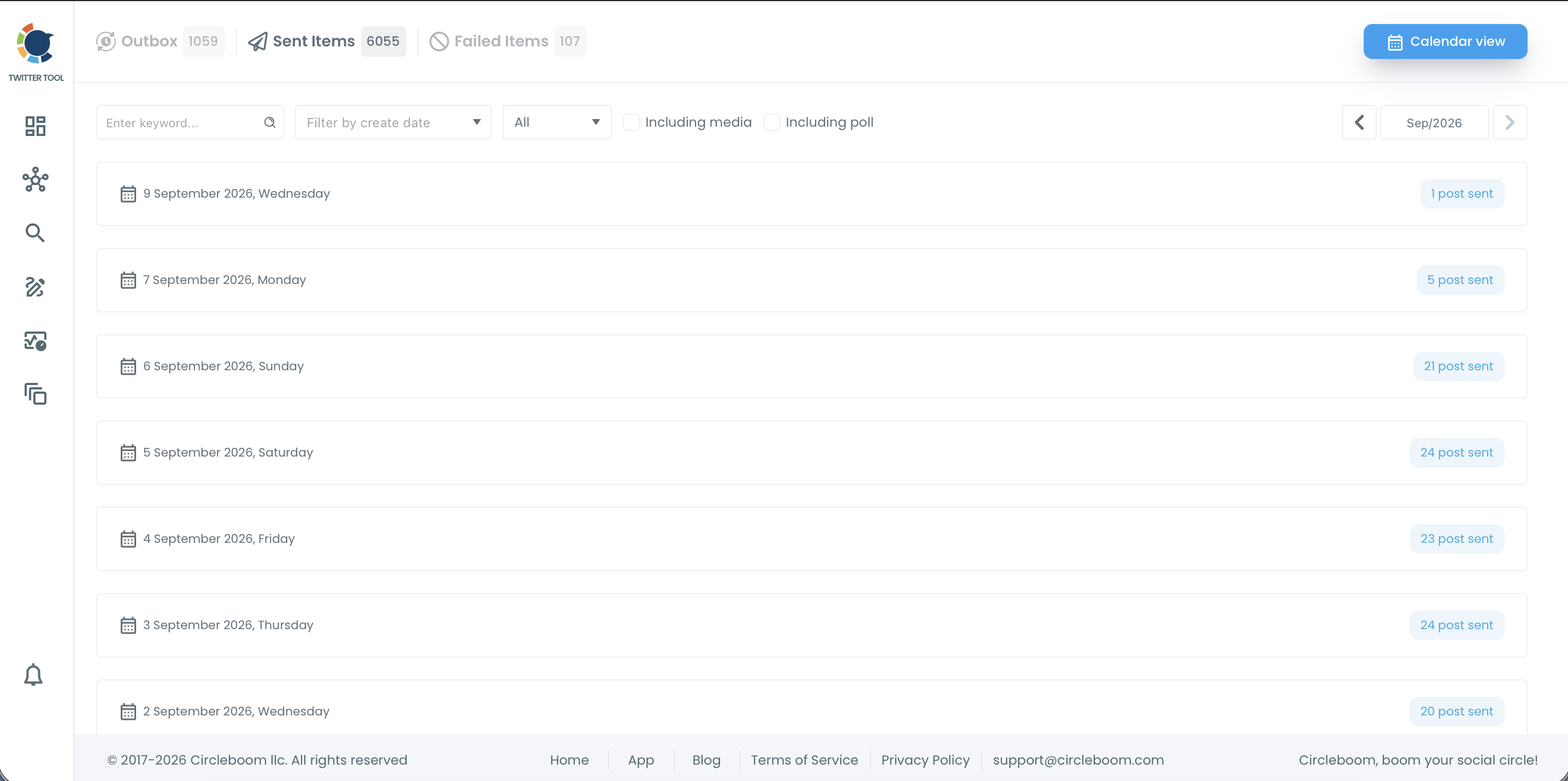
In Sent Items, each published tweet has a row of action icons. A tweet with a running cycle shows a red dot on its Auto Retweet icon. Click that icon and a panel opens with:
- the Auto Retweet status, shown as Active;
- the date and time the cycle will end;
- a Cancel Auto-RT button that stops the cycle immediately.
Circleboom's help page on viewing active Auto Retweet cycles walks through the same screen.
When a running cycle needs a second look
A cycle keeps running in the background, so it is worth a visit to Sent Items in three situations:
- The tweet's content has expired, for example an offer that ended or an event that passed.
- You deleted the original tweet. A cycle can only repost a tweet that still exists, so the remaining repeats will fail.
- Your account connection changed. A password change or revoked app permission interrupts cycles until you reconnect.
The tool does not judge whether an announcement is still valid. That review is yours, and Sent Items is where you act on it.
If the bumps are doing their job, the place to confirm it is Post Engagement Analytics. Check there whether the repeat showings brought new replies and likes or only repeated views.
Which way to bump your tweet on X: a quick decision
The right way to bump a tweet depends on how often you need to do it and how long the tweet stays relevant. The mistake I see most often is one method used for every tweet.
Match the method to the situation:
- If you need one extra showing today, repost the tweet by hand on X and undo it tonight.
- If the tweet is evergreen and already performed, give it a cycle with the removal rule on and a small repeat count.
- If the tweet is tied to a date, use one short cycle that ends before the date does, or do not bump it at all.
- If your profile is already full of old reposts, clear them first, then start cycles.
Whichever branch fits, plan the tweet bump before you tap anything. Keep the count low, keep the gaps wide, and let the removal rule tidy up behind you.
→ Schedule your first tweet bump
Bump a tweet FAQ: limits, timing and cleanup
Will bumping the same tweet several times get my account flagged as spam?
It can if the bumps are excessive, so keep cycles spaced and proportionate. Each automated repost counts as a repost action on your account, and X may flag heavy automated reposting of one tweet as spam-like behavior. Circleboom's guidance is that 3 cycles spread across a day work better than 6 reposts inside 3 hours, and X's API rate limits also apply to automated actions.
Should I bump with a quote tweet or a reply instead of a repost?
A repost is the right bump when the tweet needs no update; choose a quote or a reply when there is news to attach. A repost brings the same tweet back with its engagement in one place, and it is the only one of the three that Circleboom's Auto Retweet can repeat on a timer. A quote or a reply is a new post each time, written by hand.

