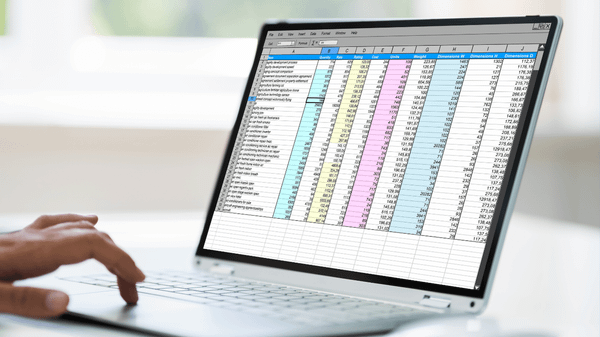
You can download tweets from X in two ways, and only one of them works for accounts you do not own. The native archive covers your own posts and arrives a day later. Circleboom pulls any public account into a spreadsheet in a single pass.
Circleboom exports tweets from any public X account into a filtered CSV, up to the 3,200 most recent posts, using X's official API. The file lands in your email and your account page, ready to open in a spreadsheet. No extension, no scraping, no copy-paste.
→ how to download tweets from X
The short answer, and the catch
Downloading tweets from X is simple until you reach the account you actually care about. If it is your own timeline, X will hand you an archive.
If it is a competitor, a client, or a source you are researching, the native export gives you nothing.
That gap is the whole reason a dedicated export exists. Circleboom closes it: you can download tweets from any public X account, yours or anyone else's, as long as the account is public.
If you have only ever wondered can I download my tweets at all, the export answers that too. The bigger value, though, is pulling accounts you do not control into one file you can sort, filter, and keep.
Why the native X archive falls short
X does offer a real download, and it helps to know its limits before you reach for anything else. The X archive download only works for the account you are logged into.
It takes 24 hours or more to generate. It arrives as a ZIP of JSON and HTML files that no spreadsheet opens cleanly.
Circleboom works the other way around. It reads any public account, returns a CSV you can sort the moment it lands, and finishes in one pass instead of a day-long wait.
The gap between the two is easy to name: any account, filtered, immediate, structured.
Both paths do stop near the same ceiling. The public API returns roughly the 3,200 most recent posts per account, so neither route is a secret door to an account's entire history.
For the manual route on desktop, this look at how to download tweets from Twitter step by step covers the archive path in detail.
How to download tweets from X with Circleboom
This is the whole of how to download tweets from X with Circleboom: connect, target, filter, export. The process is short, and each step starts with the action you take.
- Log in to Circleboom Twitter and connect the X account you will export from with official OAuth.

- Open the Essential Toolbox menu and choose Export Tweets from the tool list.

- Enter the public handle you want to pull, your own account or anyone else's.
- Set the filters that matter (date range, likes threshold, post type, language, or keyword), then run the export.
That last step is what turns a raw dump into a dataset you can actually read, which is why the filters belong before the download, not after.
Watch Circleboom export a public account's tweets to a CSV from start to finish:
What the CSV actually contains
Every export is one row per post and fifteen columns of data. You get PostId, Name, Username, ProfileId, and CreatedAt for identity and timing, then Lang and TweetType to tell tweets, retweets, and replies apart.
The rest of the columns are engagement, which is where the file earns its keep:
- CountImpression and CountLike show reach and approval.
- CountReply and CountQuote show conversation and pushback.
- CountRetweet and CountBookmark show spread and quiet saves.
- HasMedia and Text carry the format and the words themselves.
Because Circleboom is an official X Enterprise Developer, every one of those columns comes through sanctioned access rather than a browser hack. The account you are exporting is never put at risk.
If your goal is a personal safety net rather than research, the same file works as one. Here is more on how can I back up my tweets with an export you can re-run whenever you want.
Filters that turn a dump into a dataset
The filters run before the export, not after, and that ordering is what makes the output usable. Instead of downloading thousands of rows and cleaning them in a spreadsheet, you narrow the set first and let Circleboom build the CSV to match.
Five filters do the work:
- Date range, to isolate a campaign window or a single quarter.
- Engagement threshold, so you keep only posts over, say, 50 likes.
- Post type, to separate original tweets from retweets and replies.
- Language, when an account posts in more than one.
- Keyword, to pull every mention of a product, hashtag, or name.
That same filtering engine powers related exports too. If you need the people rather than the posts, export Twitter accounts pulls follower and following lists the same way.
On mobile the workflow does not change. This note on how to download tweets on iPhone shows the export running from a phone browser without an app.
Who reaches for this, and why
Most people who download tweets from X fall into one of four camps, and the filtered CSV serves all of them:
- Competitor analysts pull a rival's last few months to chart what earns replies.
- Content teams audit their own back catalog to find what to repost or retire.
- Researchers and journalists archive a public figure's posts before anything changes.
- Ordinary users grab a backup of their own account so that a suspension or an accidental delete never means starting from zero.
The reason one tool covers all four is that they need the same thing: structured rows, not screenshots. A screenshot proves a post existed.
A CSV lets you count, sort, and compare, which is the difference between a memory and a dataset. If you have been saving posts to read later, export Twitter bookmarks turns that private collection into a file the same way.
Mistakes that quietly ruin an export
The most common mistake is expecting more than 3,200 posts from a busy account. That is a platform ceiling, not a Circleboom setting, so an account that has posted 40,000 times will still return its most recent 3,200.
If you need the full history of your own account, X's archive is the only route that reaches further back.
The second mistake is pointing the export at a protected or suspended account. Only public tweets can be exported, so a locked profile returns nothing, and deleted posts are gone for good.
The third is treating the file as live. Every export is a point-in-time snapshot. Numbers like impressions and likes keep moving after you download, so if you are tracking change over time, run the export on a schedule and date each file.
The fourth is subtler: exporting everything when a filter would have answered the question in a tenth of the rows. A 3,200-row dump of a noisy account is harder to read than a 200-row file of only the posts over 100 likes.
The filters are not there to shrink the download for its own sake. They are there so the file you open is already the answer, not the raw material for one.
Your own timeline versus someone else's export
The export behaves the same whether the handle is yours or a stranger's, but the reason you run it changes what you filter for. On your own account, you are usually building a backup or auditing performance, so you keep everything and sort later.
On someone else's, you are answering a question, so you filter hard and keep only the rows that matter.
There is one real difference between the two modes, and it is about history. Your own account has an escape hatch for posts older than the 3,200 the API returns: X's archive reaches all the way back, even if it is slow and messy.
Any other account does not, so the most recent 3,200 posts are the ceiling, full stop.
That single fact should shape how you plan a research export. If a competitor posts twenty times a day, 3,200 posts is only a few months of history, so run the export early and often rather than assuming you can reconstruct a full year later.
If they post twice a week, the same 3,200 posts stretch back years, and one export covers almost everything.
Turning the exported CSV into an answer
A CSV is only worth the download if you know what to ask it. The fastest win is sorting by CountImpression to see which posts reached the most people, then reading the Text column next to the winners to spot the pattern.
Reach without a pattern is noise; reach with a repeatable format is a content plan.
The second move is a pivot on TweetType. Split the file into original tweets, retweets, and replies, and compare their average engagement. Plenty of accounts find that their replies out-earn their originals, which quietly rewrites where they should spend time.
CreatedAt is the column most people ignore and should not. Group posts by hour or weekday and line them up against likes and impressions, and the account's real posting window shows itself, not the one guessed at from a generic best-time chart.
The columns are plain on their own. Read two or three of them together and the file starts answering questions the native app never will.
When to run the export again
One export is a snapshot; a habit is a trend line. Because impressions, likes, and replies keep climbing after a post goes out, a file you pulled last week is already stale, at least for recent posts.
For a one-time backup that does not matter.
For tracking, it matters a lot.
The fix is to re-run the same filtered export on a regular rhythm and date each file. Two exports of the same account a month apart, lined up side by side, show which posts kept earning and which faded, a read no single download can give you.
Keep the filter settings identical between runs so the columns line up. Change the date range and keep everything else the same, and the comparison stays honest. This is the small discipline that separates a folder of random downloads from a real measurement habit.
Where to start
Downloading tweets from X is really two decisions: whose posts you need, and what you plan to do with them once they sit in a spreadsheet. The native archive answers the first only for your own account.
A filtered export answers it for any public account, and hands you columns you can pivot on the same afternoon.
Point Circleboom at a handle, set the filters that match your question, and let the file reach your inbox while you decide what to sort by first. Whichever handle you begin with, the shape of the work stays the same: decide the question, set the filters that answer it, and let the export do the collecting while you do the thinking.
Frequently asked questions
Can you download tweets from an account you do not own?
Yes. Circleboom exports any public X account, not just your own, so competitor and research accounts are fair game as long as they are not protected.
How far back does an export reach?
Up to the 3,200 most recent posts. That ceiling is set by X's public API, not by Circleboom, so no plan or workaround pushes past it; for your own older posts, X's archive is the only route.
What format does the download arrive in?
A CSV with fifteen columns, one row per post. It reaches your email and your Circleboom account page, and opens directly in Excel, Google Sheets, or any spreadsheet. You never have to unzip or convert anything first.