
Most advice treats editing a scheduled Instagram post as something only third-party schedulers can do. Instagram's own app can edit and reschedule its queue too, so the real question is where your post was scheduled and which queue you need to open.
What this answer covers.
• Where each scheduled Instagram queue lives, and how to open it.
• What you can change in the Instagram app and in a scheduler's Outbox.
• What happens to a post that failed or already went live.
Circleboom Publish edits scheduled Instagram posts from its Outbox, where every queued post has its own Edit and Delete buttons. Edit your scheduled Instagram posts from the Outbox.
Two routes to edit a scheduled Instagram post, compared
You edit a scheduled Instagram post in the same place you scheduled it: posts scheduled in the Instagram app are changed under Scheduled content, and posts scheduled in Circleboom Publish are changed in its Outbox. The two queues do not share posts, so the first step is always knowing which one holds yours.
The table below sets the two routes side by side, from Instagram's own help page and Circleboom Publish's product behaviour.
| Instagram app | Circleboom Publish | |
|---|---|---|
| Where the queue lives | Profile menu, then Scheduled content | Outbox, in List View or Calendar View |
| What you can change | Delete, Edit post, Reschedule or Share now | Edit or Delete each post, or Save as Draft |
| A post that failed | Not covered on Instagram's scheduling page | Failed Items, with the specific error reason |
| A post already published | Changed in the Instagram app | Sent Items, with Share Again to make an edited copy |
| How much you see at once | One account's scheduled content | Every connected account, filtered by Post Type, Platform, Social Account or Share Group |
Both routes can edit a queued post. The difference is what happens around the edit: failures, published posts and how many accounts sit in one view.
Why the last row matters most
Circleboom Publish keeps scheduled Instagram posts for every connected account in one Outbox, with separate lists for sent, failed and drafted posts. That last row of the table is the one most people underestimate until they run a second account.
If you are still choosing a route before scheduling anything, the broader walkthrough of scheduling posts on Instagram covers both starting points. Once posts are queued, being able to edit scheduled Instagram posts in the queue that holds them is what keeps a stale caption off your feed.
How do you edit a scheduled post in the Instagram app?
In the Instagram app, open your profile menu, go to Scheduled content, tap Options on the post and choose Edit post, Reschedule, Delete or Share now. Instagram's help page on scheduling and managing posts and reels lists those four options and an alternative path through Create and then Scheduled.
The same page sets the boundaries of native scheduling:
- It needs a public account.
- It allows up to 25 scheduled posts a day.
- It schedules up to 30 days in advance.
- Product tagging, collaborative posts, sponsored posts and fundraisers cannot be scheduled.
Meta Business Suite handles posts scheduled there through its own route. Its guide to saving, scheduling and rescheduling posts describes opening Content, then Posts and reels, then Scheduled, and choosing Reschedule post under Manage post, or moving the post from the Planner calendar.
That page describes rescheduling; for caption changes, check Meta's own documentation for your account.
The native route works well for one account. It shows that account's scheduled content, one post at a time.
One option in that menu deserves a note. Share now publishes the scheduled post immediately, which is the native way to bring a post forward rather than push it back. It is useful when the edit is urgent and waiting for the slot would cost more than posting early.
Which route to edit your scheduled Instagram post fits your situation
The right route depends on where the post was created and how many accounts you run. Three situations cover most readers:
| Your situation | Where to edit | What to watch |
|---|---|---|
| One account, posts scheduled from the phone | Instagram app, Scheduled content | Public account, 30-day window |
| Posts created in Meta Business Suite | Meta Business Suite, Scheduled or Planner | Its help page covers rescheduling |
| Several accounts or a mix of post types | Circleboom Publish Outbox | Per-account time zones |
Picture a café with one Instagram account and a manager who posts from a phone: the app's Scheduled content is enough.
Now picture a boutique with a main account and two regional ones, mixing Reels and feed posts. Editing there one account at a time means three separate checks, and a missed post on the third account is the one that goes out wrong.
A post can only be edited in the queue that holds it.
Moving your scheduling to one tool later does not move posts already queued in another, so finish or clear the old queue first.
Finding a queued Instagram post across accounts in Circleboom Publish
Circleboom Publish changes a queued Instagram post's caption, media or time from its Outbox, without rebuilding the post. The Outbox is reached from the dashboard's Your Outbox widget or the sidebar menu, and it carries four lists, each with a live count: Outbox, Sent Items, Failed Items and Drafts.
The List View groups posts by day with per-post Edit and Delete. The Calendar View toggles between Week and Month and filters by Post Type, Platform, Social Account and Share Group, so one account's week can be isolated from the rest.
For a review pass, the Month view is the quickest way to spot a day carrying more posts than its neighbours, which is often where a rushed caption hides. The Week view then shows the order of posts inside those days, so you can see what sits before and after the one you plan to change.
Queued posts reach the Outbox in two ways. Some are scheduled one by one in the Schedule modal. Others drop into recurring Queue slots through Post to Queue, which is how the Instagram auto poster keeps an account posting on a rhythm. Both kinds sit in the same Outbox and are edited the same way.
Deleting instead of editing
Sometimes the right edit is removal. Circleboom's help page on checking scheduled and sent items in the Outbox notes that the Outbox holds posts from both the Schedule and Articles modules. It also notes that when the list is filtered by social account, a delete only removes posts belonging to the filtered accounts.
Filter first, then delete, and the other accounts' posts stay untouched.
When a post needs fixing, you can fix scheduled Instagram posts with Circleboom Publish by opening the post from that list.
Circleboom Publish's Instagram post planner on video, where a planned week sits before any edit.
How to edit scheduled posts on Instagram in Circleboom Publish
To edit a scheduled post in Circleboom Publish, find it in the Outbox, open it with Edit, change what is wrong and confirm a date and time in the Schedule modal. The post keeps its place in your workflow; only the parts you change are different. The four steps below follow that order.
- Open Circleboom Publish from the dashboard of the workspace that holds the Instagram account, so the Outbox shows the right queue.

- Go to the Outbox through the Your Outbox widget or the sidebar menu, and find the post by its day or with a filter.
- Open the post with Edit and change the caption, the image or the video.
- Set the new date and time in the Schedule modal, using one of the suggested times or the Set Time field, then confirm with the final Schedule button.
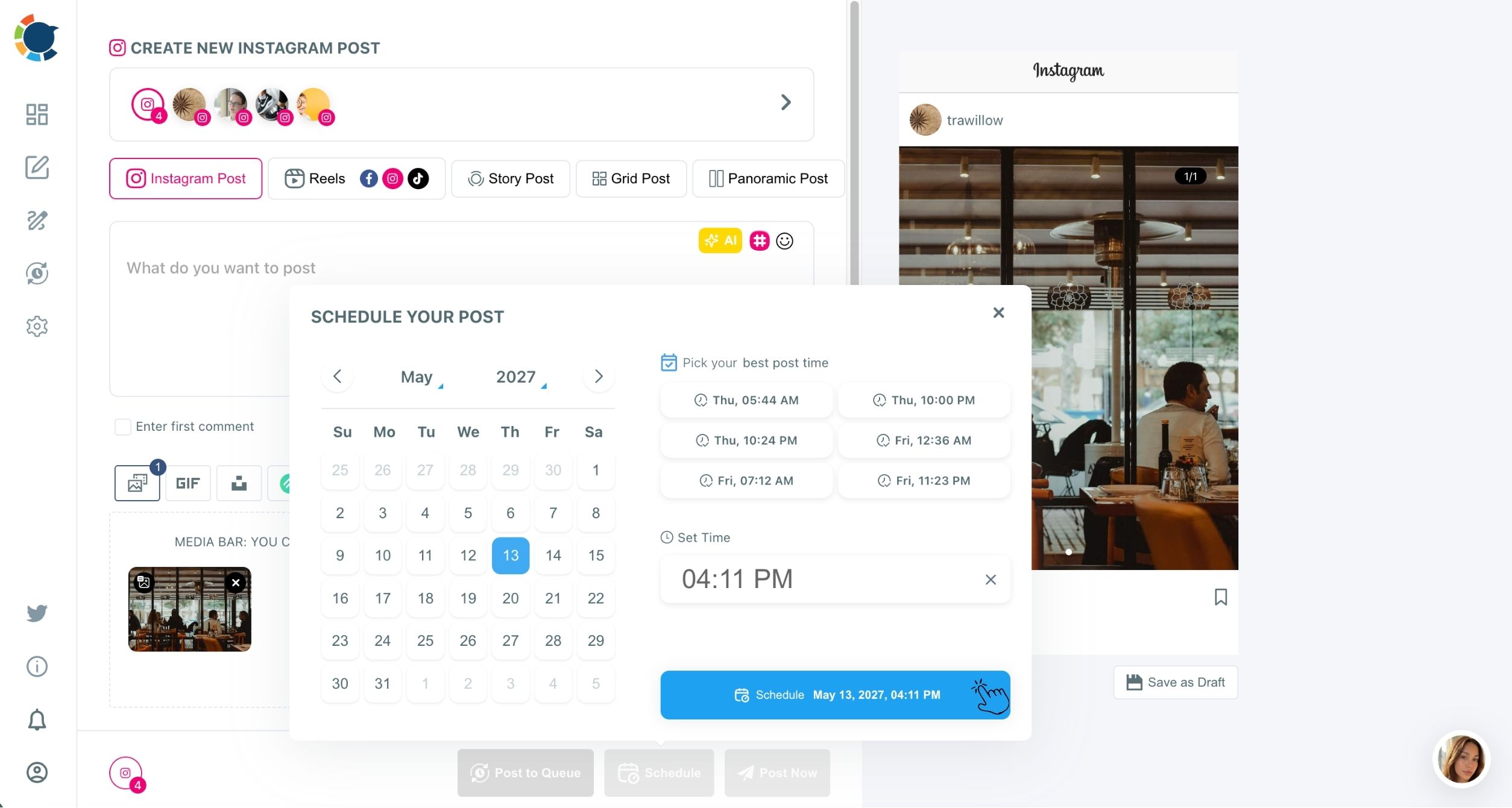
Each step narrows the change. The Outbox finds the exact post, Edit opens only that post, and the Schedule modal confirms the result with the date and time spelled out on the button before anything is saved.
In short: Outbox, Edit, change, Schedule modal, confirm.
Side cases during an edit
Three side cases come up during an edit. A post you are no longer sure about can be saved as a draft instead of deleted, which keeps it in Drafts with its caption and media intact.
When the edit adds tags, the reasoning behind adding more hashtags to an Instagram post explains where the ceiling sits.
If the post you meant to edit never published at all, the guide to troubleshooting failed Instagram posts and connection problems is where to start.
Which time zone applies when you reschedule an Instagram post?
A rescheduled post follows the time zone set for that Instagram account in Circleboom Publish's Time and Queue Settings. The setting belongs to each connected account rather than to your whole workspace.
That detail matters when you manage more than one profile. If two accounts serve audiences in different regions, each one's time zone has to be set on its own, and a post moved to 9:00 on one account is 9:00 in that account's zone, not in yours. Circleboom's help page on time zone and queue settings shows where the per-account setting lives.
I check that setting before moving any post for an account I do not run every day. A correct time in the wrong zone is still a wrong time.
The help page also explains how queued posts use that zone. In the Basic queue model you set a start time, an end time and an interval, and queued posts are spread across that window. In the Advanced model you add specific posting times per account. Either way, posts go out when they are due in the account's selected time zone.
The same settings hold each account's Queue slots, so a time zone change affects both rescheduled posts and anything that drops into the Queue later.
Does editing or rescheduling a scheduled Instagram post hurt its reach?
Reach is decided after a post goes live, by how quickly it earns likes, comments and shares, so the time you move it to matters more than the fact that you moved it. Instagram's scheduling page does not address whether the act of editing changes reach.
What you can control is timing. Instagram's feed and Reels ranking weigh early engagement, and posting into a window when your followers are active raises the odds of a strong start. The suggested slots in the Schedule modal are built from the account's own followers' activity. Those per-account suggestions come from the best Instagram posting times feature.
A suggested time does not guarantee more engagement. It removes timing as a reason a post underperforms.
Keeping the weekly rhythm after edits
Rhythm matters as well as the single slot. Instagram's Explore and Reels distribution reward consistent posting, so a round of edits that bunches three posts onto one day and leaves the next two empty works against the account even if each post looks fine. When you edit scheduled posts on Instagram in bulk, glance at the Week view afterwards and check the spacing.
So when I reschedule, I treat the move as a timing decision first. Moving a post from a strong slot to an empty one fixes the calendar and can cost the post its best audience.
Turning on Add Best Times to Post in Time and Queue Settings fills future Queue slots with the same account-specific timing, so queued posts start from a good slot rather than a convenient one.
Which Instagram queue to open first
Every scheduled Instagram post can be edited. Find the queue that holds it, and the edit is the easy part.
→ Change a queued Instagram post before it goes live
What to Know if you change a scheduled Instagram post
Should I move an edited post to a better time, not just a later one?
Yes, when the original slot is no longer right. Pick one of the suggested times in the Schedule modal rather than the next free hour. The best time to post on Instagram chart shows the general pattern, and the suggestions narrow it to your own followers.
Can I edit a post that has already been published?
Not from the queue, because a published post leaves the Outbox for Sent Items. Share Again turns it into a fresh copy you can edit. Change the caption before re-sending, since posting duplicate content on social media can cost reach.
What kind of Instagram account do I need to schedule and edit posts?
Instagram's own scheduling needs a public account. Circleboom Publish posts to a business (Professional) account; its help center names the Professional Business type, linked to a Facebook Page, as the one automated posting needs.
How far ahead can a scheduled Instagram post sit?
Instagram's app schedules up to 30 days in advance. In Circleboom Publish, a post made today can be scheduled for a date two months out, for example, which leaves a longer stretch in which an edit might be needed.
Do scheduled Reels and Stories show up in the same Outbox as feed posts?
Yes. Scheduling works the same way for all five Instagram post types in Circleboom Publish, and the Outbox's Calendar View can filter by Post Type to show one format at a time.