
You need a list of accounts you follow on X, and the platform gives you an endless scroll with no download button. This guide covers the three real ways to get that list and shows why an enriched export beats both the manual scroll and the native archive.
Manual scroll: an hour of scrolling, then a file of numeric IDs from the archive. Circleboom: a filterable CSV of every account you follow on X, names and metrics attached, in one click through official API access.
→ A full list of the accounts you follow on X
The problem is not that X hides your following list. It shows it. The problem is that the native list is unusable as data: you cannot sort it, search it by activity, or save it anywhere. The moment your goal shifts from "browse who I follow" to "get who I follow as a file," you need a different tool.
The three ways to get your following list, compared
There are exactly three routes people take, and they are not equal. Here is how they stack up on the things that matter.
| Method | Speed | What you get | Readable? | |---|---|---|---| | Manual scroll + copy | Very slow | Names, if you scroll the whole list | Partly | | Native X archive | Up to 24 hours | Numeric account IDs in `following.js` | No, until converted | | Circleboom export | Seconds | Enriched CSV with usernames and metrics | Yes |
The archive route is the one most guides recommend, so it deserves a closer look. When you request your data, X bundles a `following.js` file that stores every account you follow as a numeric ID, not a username. A single entry reads like `1489200043` with no handle attached. To make it readable, you convert each ID back into a username through a separate lookup, and only then do you have anything resembling a list of people.
That conversion step is the hidden cost the archive route never advertises. It turns a "download your data" click into a data-engineering chore.
Circleboom removes that step entirely. It reads your following list live and returns each account with its username, bio, and activity data already attached. That is why the fastest path to export your following list on X is also the only one that hands you a readable file immediately.
Why the native tools fall short
The manual method works only if you have patience and a small following count. You open the Following tab, scroll until every account loads, copy the page, and paste it into a spreadsheet, then split names and handles into columns by hand. On a list of a few thousand accounts, that is an afternoon lost, and one stalled scroll restarts the whole thing.
It also captures only what was on screen, so any account that failed to load is silently missing from your list, and you have no way to know which ones.
The archive method is more official but slower and less usable, for the ID reason above. X explains the request flow in its official archive request steps, and the wait can stretch to a full day.
Neither native route gives you what a real audit needs: activity signals. If you want to know which of the accounts you follow have gone quiet, you cannot get that from a scroll or a raw ID dump. You need each account's tweet count, join date, and engagement tier, and that is the gap a proper export fills.
The same limitation is why people ask whether you can export your Twitter followers at all, and the answer on both sides of the network is the same tool.
Short demo: pulling a full following list on X with every account named and sortable.
How to export a list of the accounts you follow on X
The process runs through Circleboom's All My Following dashboard. It loads your entire following list as a sortable, filterable table, then exports it as a CSV.
Connect your X account to Circleboom
- Log in to Circleboom Twitter and authorize your X account with official OAuth.

- Open the Follower and Following management menu from the dashboard navigation.
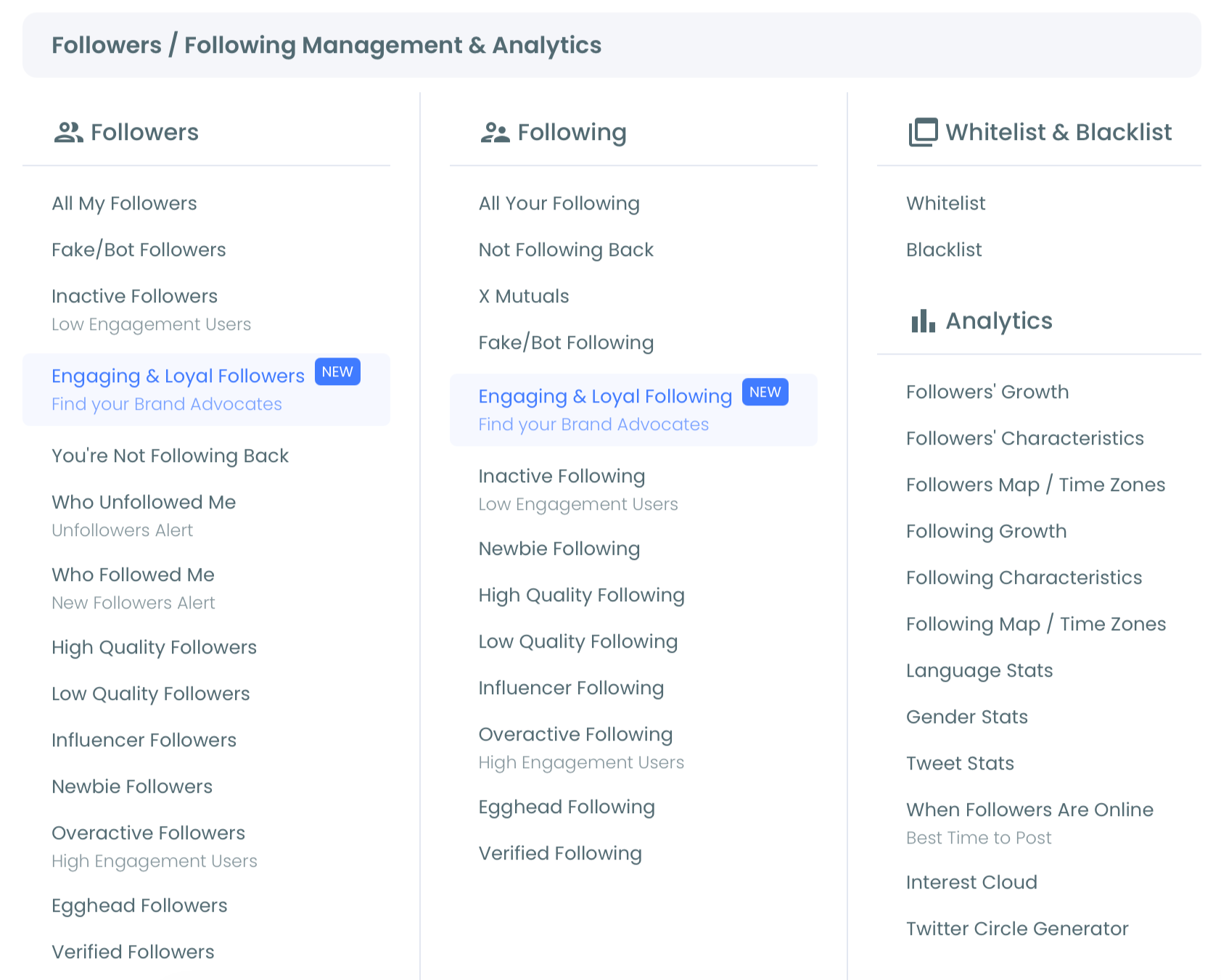
Load and shape the list
- Select All My Following to pull every account you currently follow into one table, each row enriched with username, bio, follow ratio, and engagement tier.
- Apply filters or sort columns to narrow the view by join date, tweet count, language, location, follow ratio, or quality flags such as inactive and fake.
Select and export
- Check the accounts you want, using the master checkbox for the full list or individual rows for a subset.
- Click Export to download the list as a CSV containing usernames, names, bios, counts, verification type, join dates, and quality signals.
That ordering matters. The login earns authorized access, the menu loads your complete list without the truncation that limits standard tiers, and the filter step means the file you save already reflects the exact segment you meant to keep. Skip the filter and you still get a clean, readable list, just a broader one.
Quick recap:
- Log in and connect your X account.
- Open the Follower and Following menu.
- Load All My Following.
- Filter to the segment you want.
- Export the CSV.
What the export gives you that the archive doesn't
The downloaded file is where the difference becomes obvious. Every row carries the account's ProfileId, username, display name, location, tweet count, follower and following counts, verification type, creation date, and bio, alongside flags for fake, inactive, and overactive accounts.
That structure makes the file immediately useful. You can sort by the inactive flag to see how much of your feed comes from dormant accounts, or by follow ratio to surface the lopsided profiles that often signal low-quality follows. You can filter by language to find accounts posting in a language you no longer read, or by join date to catch a wave of brand-new accounts that followed you and got a follow back on autopilot.
The same enriched format is what lets you export Twitter followers to a spreadsheet and run identical analysis on both sides of your network. Following and followers export in the same shape, so a single spreadsheet can hold both.
Circleboom pulls this data through official, authorized access and uses official X (Twitter) Enterprise APIs to do it. On an export topic, that is not a footnote. It is the difference between a complete, authorized dataset and the partial, risky data a scraper extension returns.
The format also travels well. Because the file is a standard CSV, it opens in any spreadsheet and imports into any CRM, analytics tool, or reporting workflow without conversion.
You can pivot on the engagement tier to see the split between active and dormant follows, filter by location to map where your network sits, or drop the whole file into a shared sheet for a team review. A raw archive of numeric IDs supports none of that until someone rebuilds it into usable columns first, which is exactly the work the enriched export skips.
Filter first for a cleaner file
A raw export of a few thousand accounts is still a lot to work through. The faster path is to filter inside the dashboard before you export, so the CSV lands already scoped to your question.
Combine filters to build a precise segment. Set engagement to inactive, tweet count below a low threshold, and follow ratio under a certain point, and the table narrows to high-confidence dead weight. Export that, and your file is a ready-made cleanup list rather than a full dump you sort later. The same combination approach works for any goal: sources worth keeping, verified accounts, or a single language group.
Common next steps after you have the list
An exported following list usually feeds a larger job, and the same dashboard handles most of them.
One common goal is migration. When you set up a new profile, the export becomes your source list. It lets you transfer your Twitter followings to a new account instead of rebuilding a feed from a blank timeline.
Another is ranking. Sort the file and pull the heavy hitters to see which accounts carry the most weight in your network. It works the same way you would export your most-followed accounts to surface the influential voices you already follow.
Cleaning is the most frequent follow-up. From the same view you can unfollow inactive Twitter accounts directly. The dashboard holds to X's limits of 50 unfollows every 15 minutes and up to 800 a day, and recommends 100 to 150 at a time so the activity never reads as aggressive.
If you would rather organize than remove, the same table lets you move accounts into lists or flag the accounts not following you back for review. And whatever you decide, you can save the accounts you follow on X as a backup before you touch a single follow relationship.
How often to export your following list
A one-time export answers "who do I follow right now." Running it on a schedule answers a better question: how is my following list changing.
Because Circleboom reads the list live, each export is current the moment you pull it. Save one, save another a few months later, and comparing the two files shows exactly what shifted. You see the accounts you added, the ones you dropped, and whether a past cleanup held or slowly refilled.
For most accounts, a pull every few months is enough to catch drift before the feed turns noisy. Accounts that follow aggressively, or that run follow-back campaigns, benefit from a tighter loop because their following list moves faster. The export itself costs seconds, so a regular check is cheap insurance against a feed quietly filling with dead weight.
Keeping the old files also builds a simple archive of your network over time, which is useful for reporting or for spotting when a wave of new follows arrived all at once. It is the same discipline behind a quick Twitter audit, applied to the accounts you follow rather than the ones who follow you.
The point of a schedule is not the file itself but the comparison it makes possible. A single export tells you where your following list stands. A series of them tells you where it is heading, and that trend is usually the more useful thing to know.
Your export checklist
Before you call the job done, run through this:
- Confirm your X account is connected through official OAuth.
- Load the full following list in All My Following.
- Apply any filters that match your goal, or leave the list complete.
- Export the CSV and open it to confirm usernames and metrics are present.
- Decide your next move: unfollow, list, whitelist, or archive.
That is the whole workflow, and it is the only one of the three routes that gives you a readable, decision-ready list on the first click instead of a delayed file of numbers.
Common questions about exporting your following list
Will exporting change anything on my X account?
No. Exporting reads your following list and writes a file to your device. It does not follow, unfollow, or alter any account, so your X profile stays exactly as it was.
How is this different from downloading my X archive?
The archive returns numeric account IDs on a delay of up to 24 hours and bundles everything else on your account with it. Circleboom returns just your following list, as a readable CSV with usernames and metrics, in seconds.
Can I export only part of my following list?
Yes. Apply filters such as inactive, language, or join date first, then select the filtered segment before exporting. The CSV holds exactly the accounts that match your filters.
Is a third-party tool safe for this?
It depends on the tool. Scraper extensions use unofficial methods that can put your account at risk, while Circleboom pulls everything through the official X API, so your account stays compliant and safe throughout.