

I’ve said it before: Twitter Lists are one of the most underrated features on X.
You can follow thousands of people, but a well-curated list cuts through the noise and gives you a pure signal.
It lets you track specific communities, watch experts, study competitors, and build topic-focused feeds that actually make sense.
And if you’ve ever discovered a brilliant list or spent hours building your own — adding accounts one by one, organizing niches — you know how valuable they are.
The only problem?
Twitter doesn’t let you export them.
Not even a simple “download list members” button.
No export, no backup, no data. Nothing.
 Altug Altug
If you want to use that list somewhere else — for research, growth, outreach, CRM, analytics, audience building — you’re stuck doing it manually.
Or at least… you would be, if there wasn’t an easier way.
That’s the moment I started using Circleboom Twitter to export my lists with a few clicks.
Why Exporting Twitter Lists Matters
Before we get into the “how,” let’s talk about “why.”
Lists are more useful outside Twitter than inside
When you export a list, you can:
➡️ Import members into Airtable, Notion, or a CRM
➡️ Build outreach lists for DMs or emails
➡️ Analyze bios, locations, follower counts, or join dates
➡️ Track niche experts and influencers
➡️ Use them as sources for replies, quote tweets, or targeting
➡️ Save them as backup (Twitter lists get deleted or removed silently sometimes)
When your lists live only on Twitter, they’re underused.
When you export them, they become a real asset.
But Twitter Doesn’t Support List Exports
Twitter lets you:
- Create lists
- Follow to lists
- Add or remove members
- Check list timelines
…yet it offers zero ways to export those members.
 Arif Akdogan
No CSV file.
No export function.
No API endpoint for end users.
If you wanted to export 500 members from a list manually, you’d have to copy usernames one by one — a nightmare.
That’s when I started using a tool that actually solves the problem.
The Tool I Use: Circleboom Twitter
Circleboom Twitter is a complete Twitter management platform — and the reason I can export lists easily.
Unlike random third-party tools, Circleboom is an official X Enterprise developer which uses official APIs and is fully compliant and safe.

And exporting lists is only one part of what it can do.
Circleboom lets you export:
✅ Your followers
✅ Your following
✅ Any account’s followers/following
✅ Your tweets
✅ And of course, your Twitter Lists
Its List Manager is extremely practical
With List Manager, Circleboom:
🔹 Shows all your lists (owned + subscribed)
🔹 Lets you view every member
🔹 Allows you to remove or add users
🔹 Lets you follow/unfollow list members
🔹 And gives you a clean Export button to download the list instantly
No more scrolling.
No more copying.
No more manual work.
Just export → download → use.
How to Export Twitter Lists with Circleboom (Step-by-Step)
If you want to export a list you found or one you built, here’s the exact process:
Step #1: Log in to Circleboom Twitter
Open Circleboom Twitter and log in with your X account through the official authorization screen.

Step #2: Go to the “X List Manager” on the Left Dashboard
Inside the dashboard, look at the left-side menu and click X List Manager.
You’ll see two options:
- Manage Your Lists — lists you’ve created or subscribed to
- Lists You Are On — lists where others have added your profile
Select Manage Your Lists to export your own or followed lists.
If you want to view the lists that include you, choose the second option.

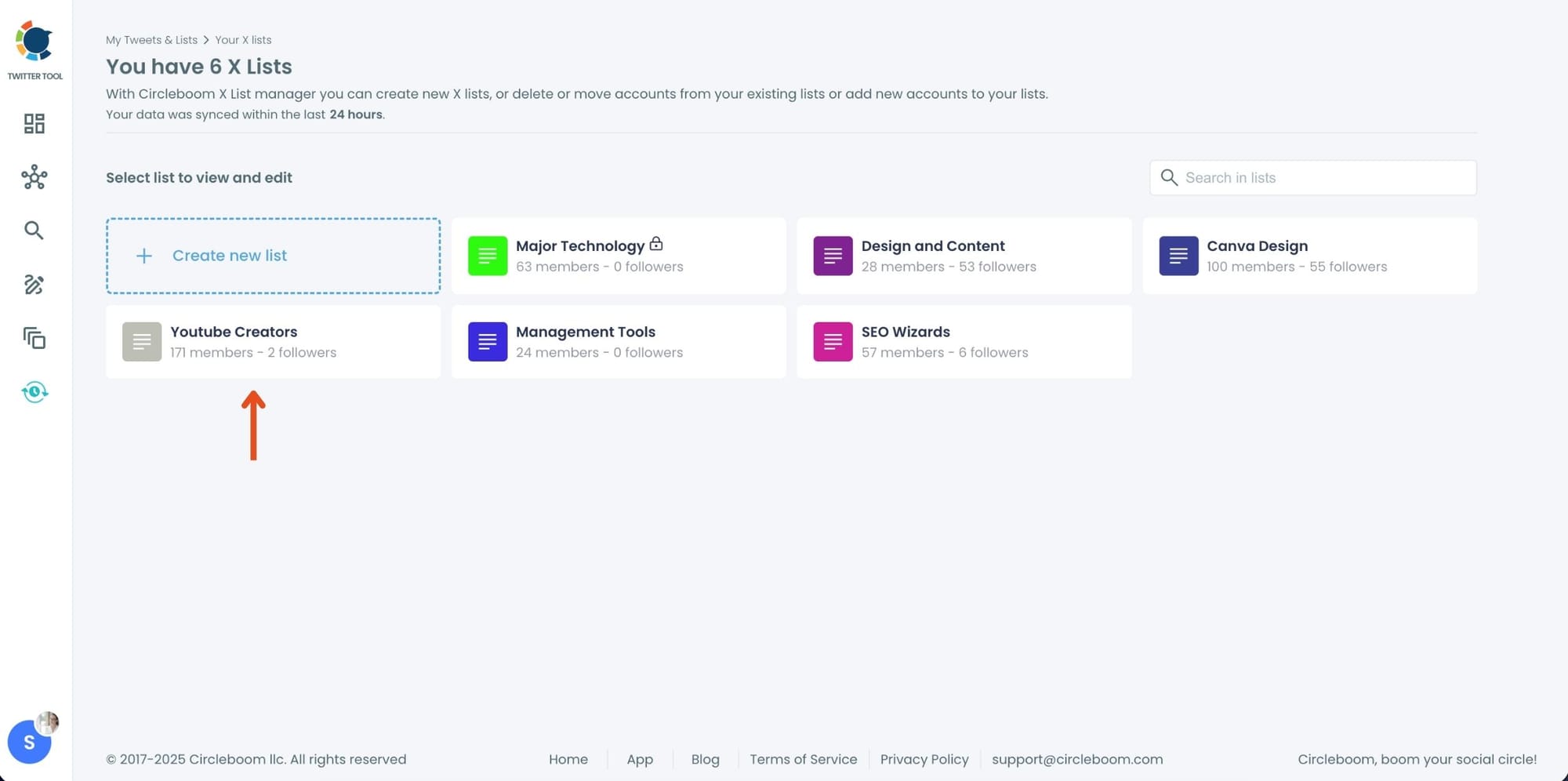
Step #3: Open the List You Want to Export
Circleboom will load all of your lists in one place.
Click the list you want to export.
Step #4: Review and Manage the List Members (Optional)
Circleboom displays all members of that list along with helpful details:
- Follower count
- Following count
- Tweet count
- Verification
- Profile info
Here you can manage the list:
- Remove accounts
- Move accounts to another list
- Add new accounts
- Follow/unfollow list members
This is useful if you want to clean up the list before exporting.
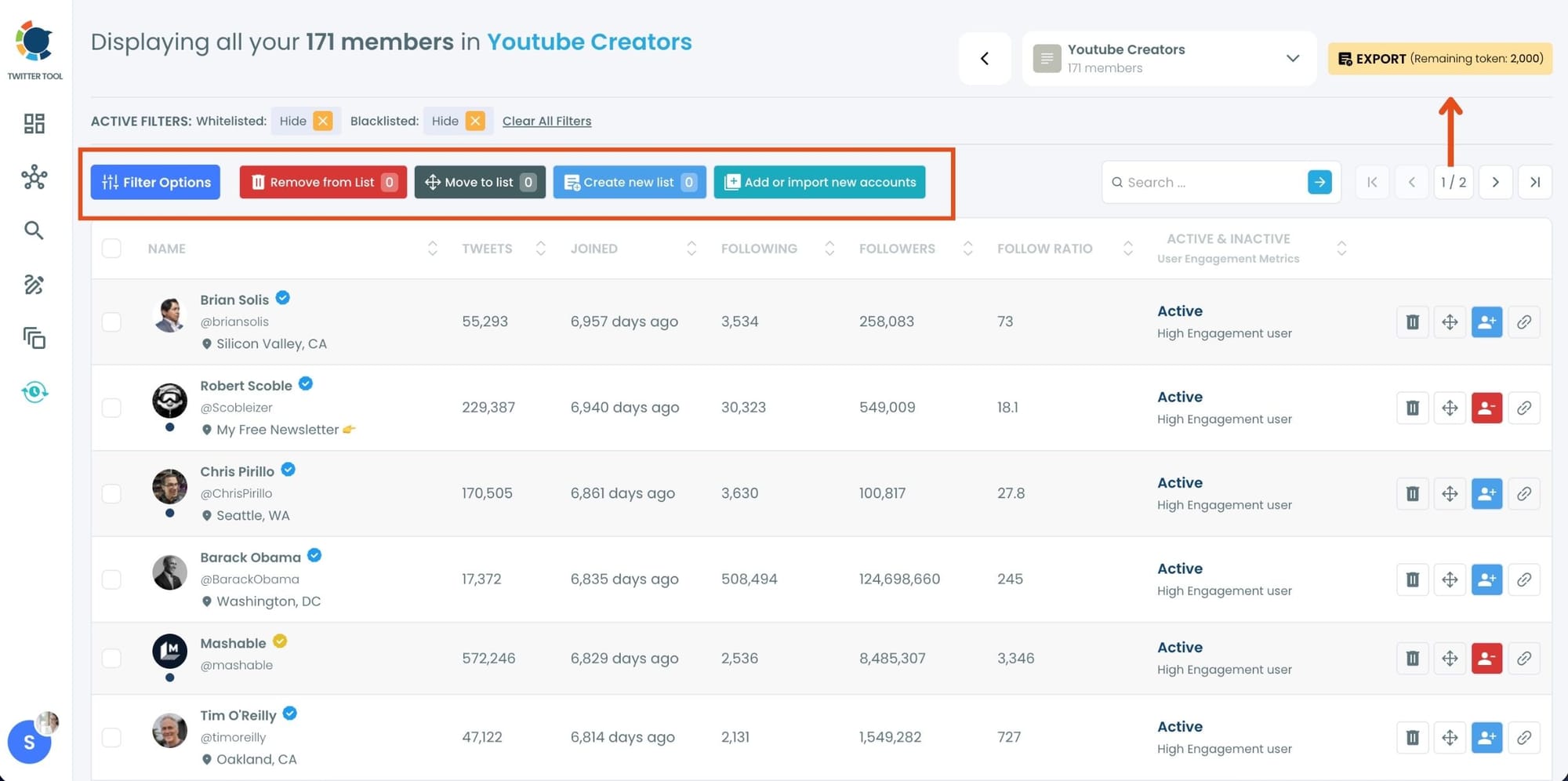
Step #5: Export the List
Click the Export button in the upper-right corner.

Circleboom will generate a detailed CSV file containing:
- Usernames
- Display names
- Profile URLs
- Follower/following counts
- Tweet count
- And more..
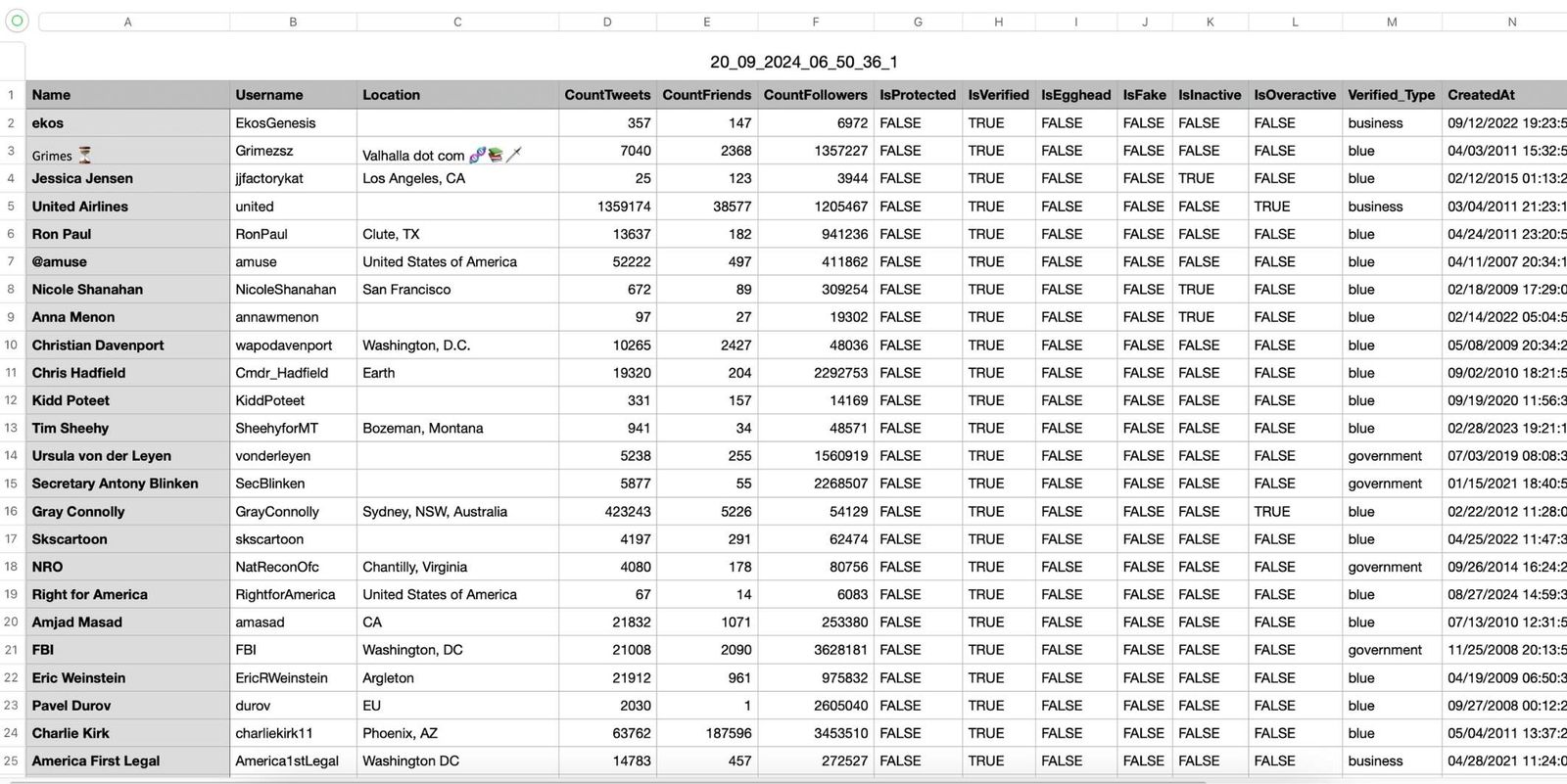
Download your file — and your export is ready to use anywhere.
Extra Use Cases for Exporting Twitter Lists
Track journalists and media: Export a list of journalists to follow for PR or product launches.
Monitor competitors: Export your “competitors” list and study their engagement patterns.
Build a customer or prospect list: Export lists of leads, founders, marketers, or buyers.
Content inspiration: Export a list of creators whose posts you want to monitor daily.
Community monitoring: Download your niche communities and keep them in your research workspace.
The possibilities are endless once the list is in your hands.
Why I Prefer Circleboom for Exporting Lists
- Safe and compliant (official X partner)
- No manual copying
- Shows all your lists in one dashboard
- Let's you manage and export in one place
- Also exports followers, followings, and tweets
It’s literally everything Twitter’s native tools should have offered but never did.
Final Thoughts
Twitter lists are powerful, especially when you curate them with intention.
But they become even more valuable when you take them outside Twitter and use them for real work: research, outreach, competitor analysis, CRM, influence mapping, or community insights.
Twitter doesn’t let you export them.
Circleboom does.
If you’ve built a list worth saving, exporting it is the smartest thing you can do.
And Circleboom makes it effortless.

