
Twitter's native search finds tweets. What it doesn't do well is help you find the people behind them.
You can search a keyword and get a list of recent posts. But the results are shallow, not sortable by account quality, and cut off after a short window of recent activity. You can't see who's been tweeting about that keyword consistently over months. You can't filter for accounts that are actually active and engaged. And you can't act on what you find without clicking into each profile individually.
With Circleboom Twitter, you can search any keyword across months of past tweet data or monitor it in real time. Either way, the accounts behind the tweets are surfaced in a structured view you can filter, analyze, and act on directly.
Can you find people who tweeted about a specific keyword?
Yes. Circleboom Twitter's keyword-based tweet search works in two modes.
Historical Tweet Search scans deep tweet data across a date range you select and returns every matching tweet along with the account behind it.
Real Time Tweet Search monitors a keyword in real time and surfaces new accounts as they post. Both modes display full account data and let you follow, add to lists, or export directly from the results.
 infocircleboom.com
What Is Circleboom Twitter?
Circleboom is an Official X Enterprise Developer. All tweet and account data is retrieved through X's official APIs using publicly available information. No scraping, no workarounds, fully compliant with platform rules.

Here's what Circleboom Twitter gives you for keyword-based account discovery:
- Search any keyword across historical tweet data using plain language AI-powered queries
- Monitor keywords in real time and catch new tweets as they happen
- View matching tweets with full engagement data including impressions, likes, retweets, and replies
- Switch to profile view to analyze account quality, age, follower count, and activity level
- Follow, add to Twitter Lists, or export discovered accounts directly from results
How to Find People Who Tweeted About a Specific Keyword with Circleboom Twitter
Step #1: Log in to Circleboom Twitter and connect your X account.
Circleboom is an Official X Enterprise Developer, meaning all tweet and account data comes directly from X’s official APIs in a safe and compliant way.

Step #2: Open the left menu and go to “Historical Tweet Search”.
You can find it under:
“X Account Search / on Tweets” → “Historical Tweet Search”
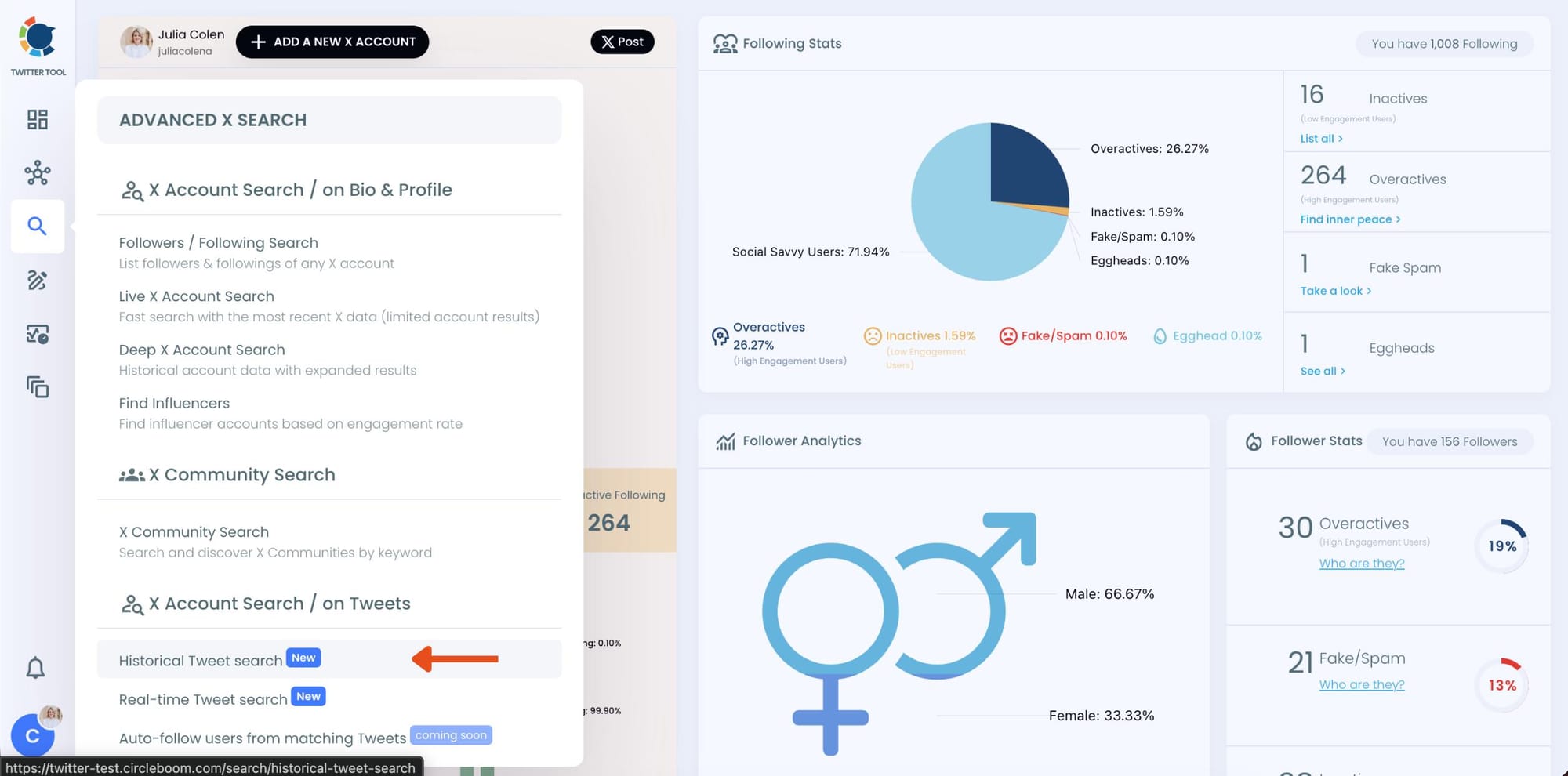
Circleboom also offers “Real-time Tweet Search” in the same section. Historical Tweet Search helps you discover people who tweeted about a keyword in the past across a selected date range, while Real-time Tweet Search continuously monitors new tweets as they happen.
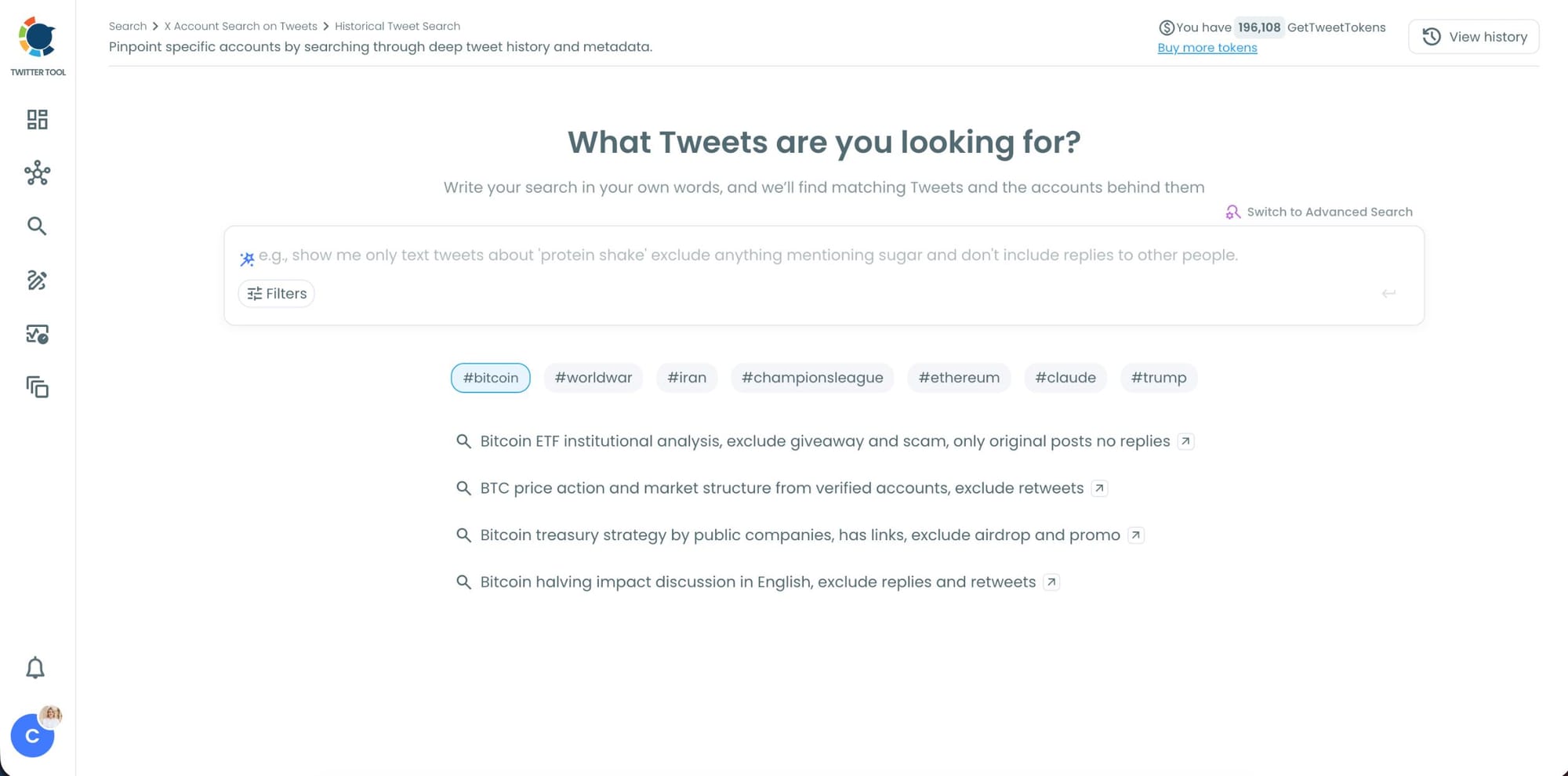
Step #3: Describe the tweets you want to find using AI Smart Search.
Instead of writing complicated Twitter search operators, you can simply type what you are looking for.
For example:
“Find tweets about people looking for a smartwatch or fitness tracker, exclude retweets.”
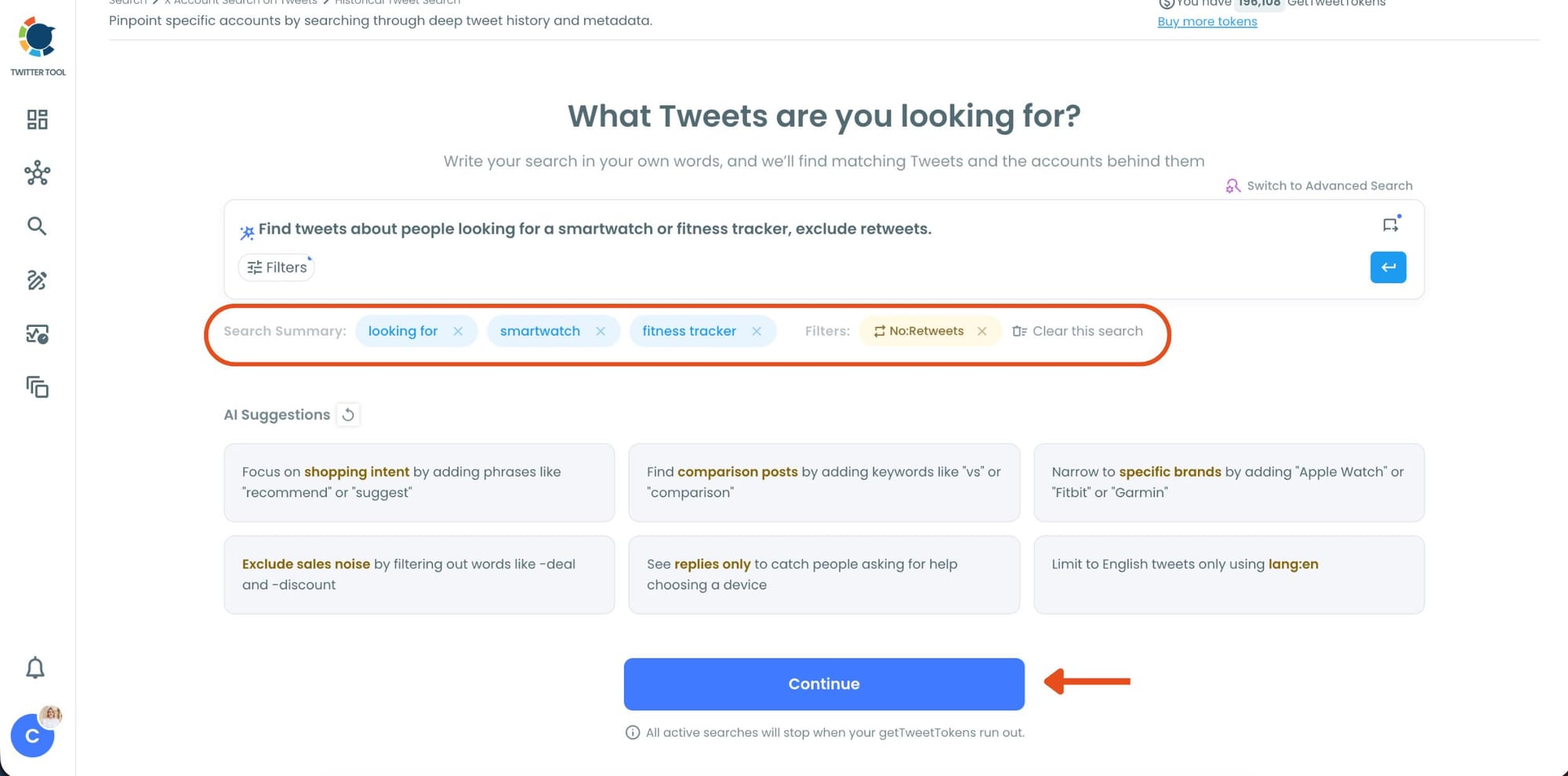
Circleboom AI automatically understands the intent behind your query, extracts the important keywords, and applies filters automatically.
Step #4: Refine your keyword monitoring search with AI suggestions and filters.
Circleboom also suggests ways to narrow your search results. You can focus on intent, comparison posts, replies, or specific languages while filtering out spam, retweets, and noise.
This helps you find more relevant people tweeting about your keyword instead of scrolling through random tweets.
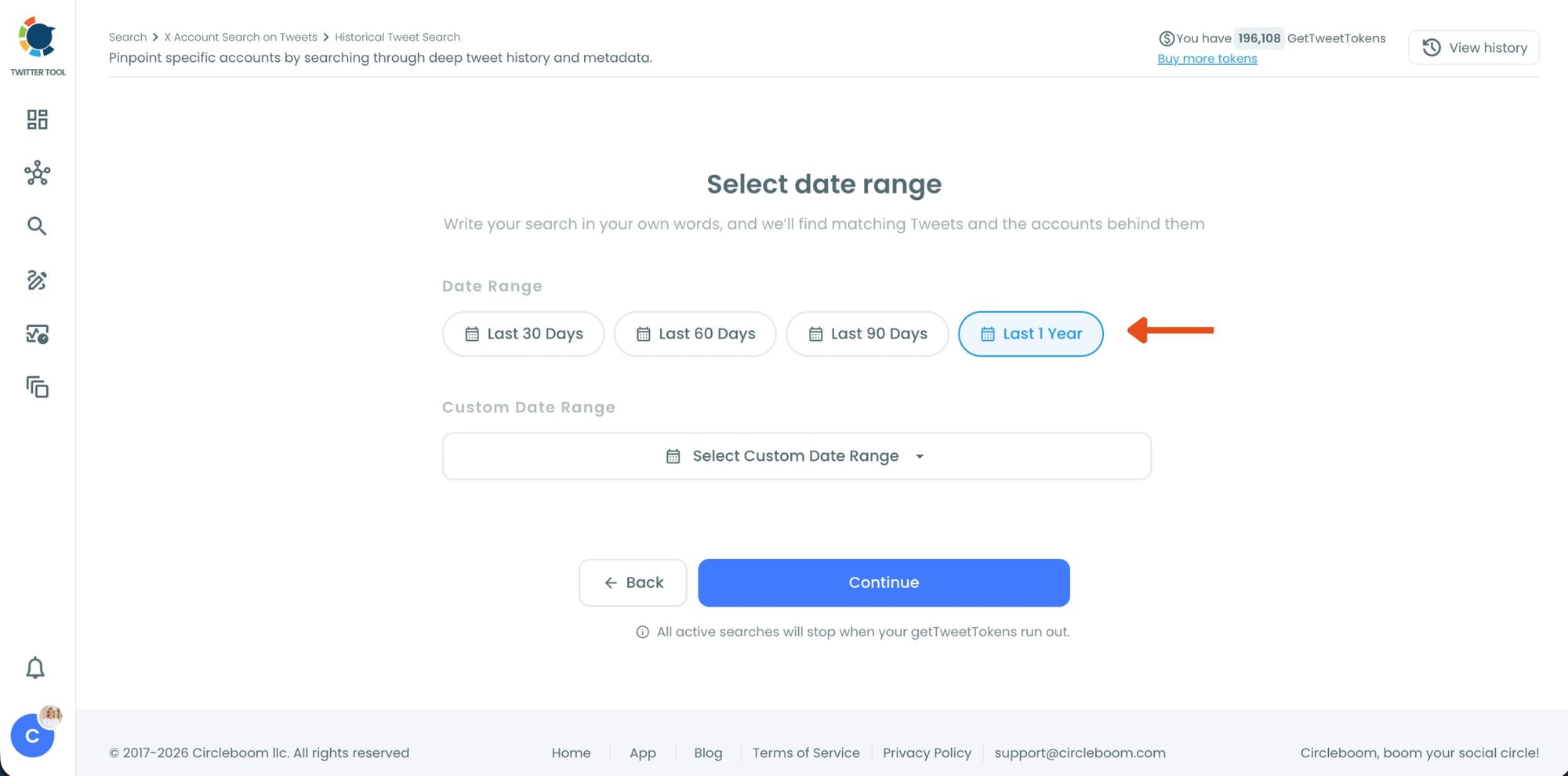
Step #5: Select your historical search date range.
You can monitor tweets from the last 30, 60, or 90 days, search across the last year, or define your own custom date range.
This makes it possible to discover people who tweeted about your topic weeks or even months ago, not just recent tweets.
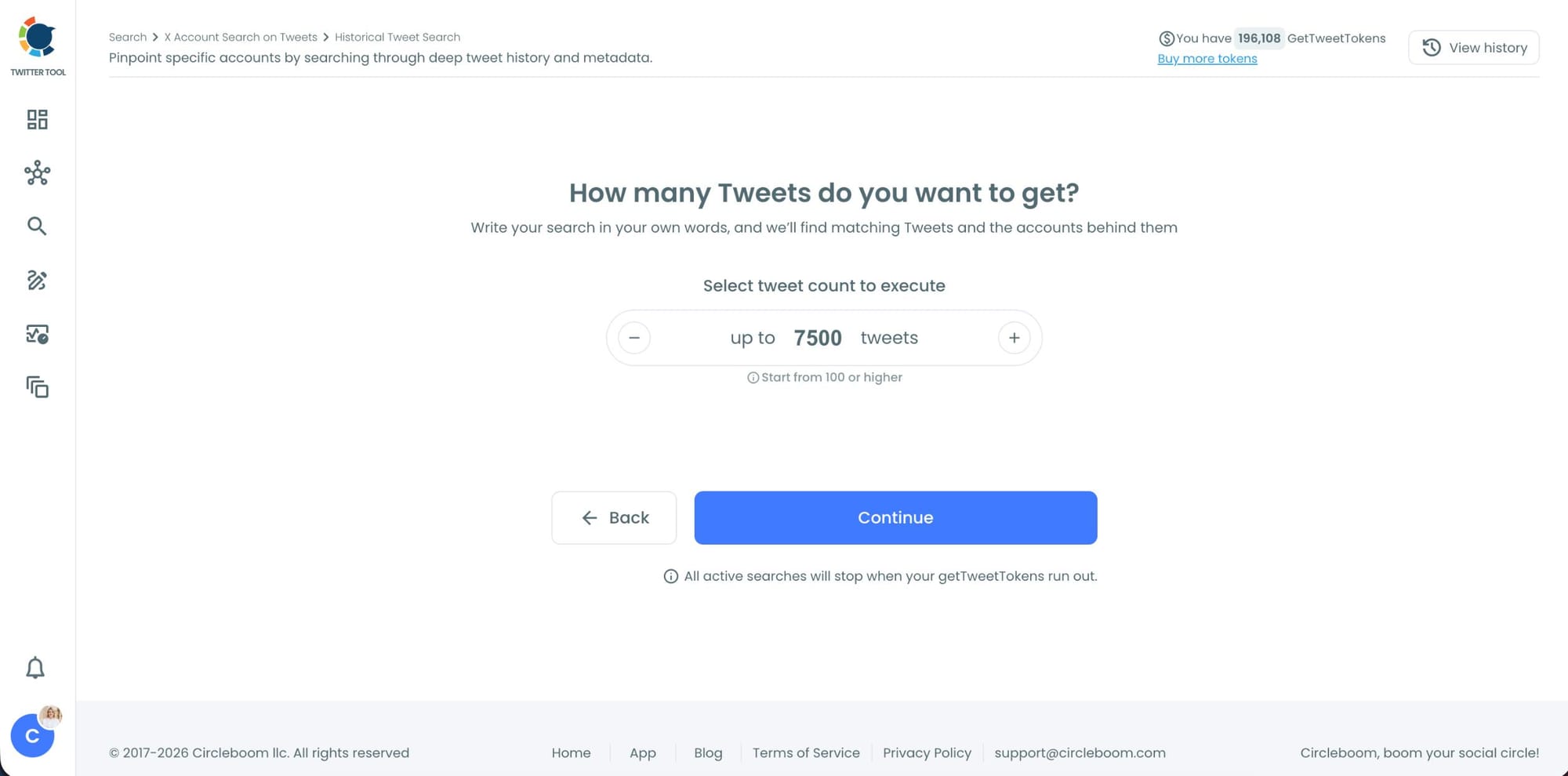
Step #6: Choose how many tweets Circleboom should collect.
Before the search starts, Circleboom lets you select the tweet volume you want to analyze.
Once you click “Continue”, Circleboom scans historical tweet data and starts collecting matching tweets together with the accounts behind them.
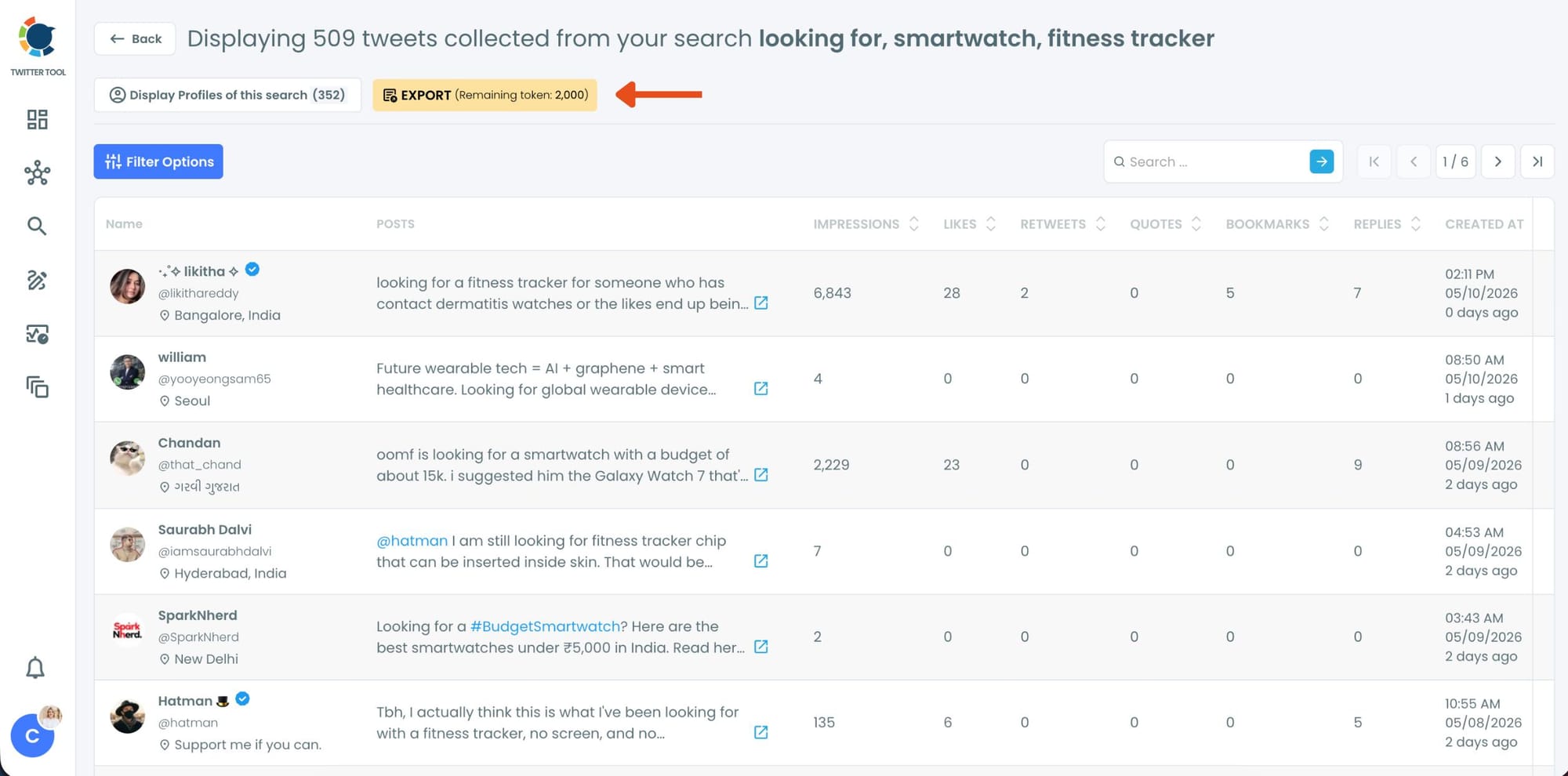
Step #7: Analyze the matching tweets and discover the accounts behind them.
Tweet View displays the matching posts together with impressions, likes, retweets, replies, bookmarks, and posting dates so you can quickly understand which conversations are getting attention.
You can also switch to Profile View to focus on the people behind those tweets.
Profile View displays follower count, following count, account age, tweet count, follow ratio, and engagement activity levels so you can evaluate account quality before interacting with them.
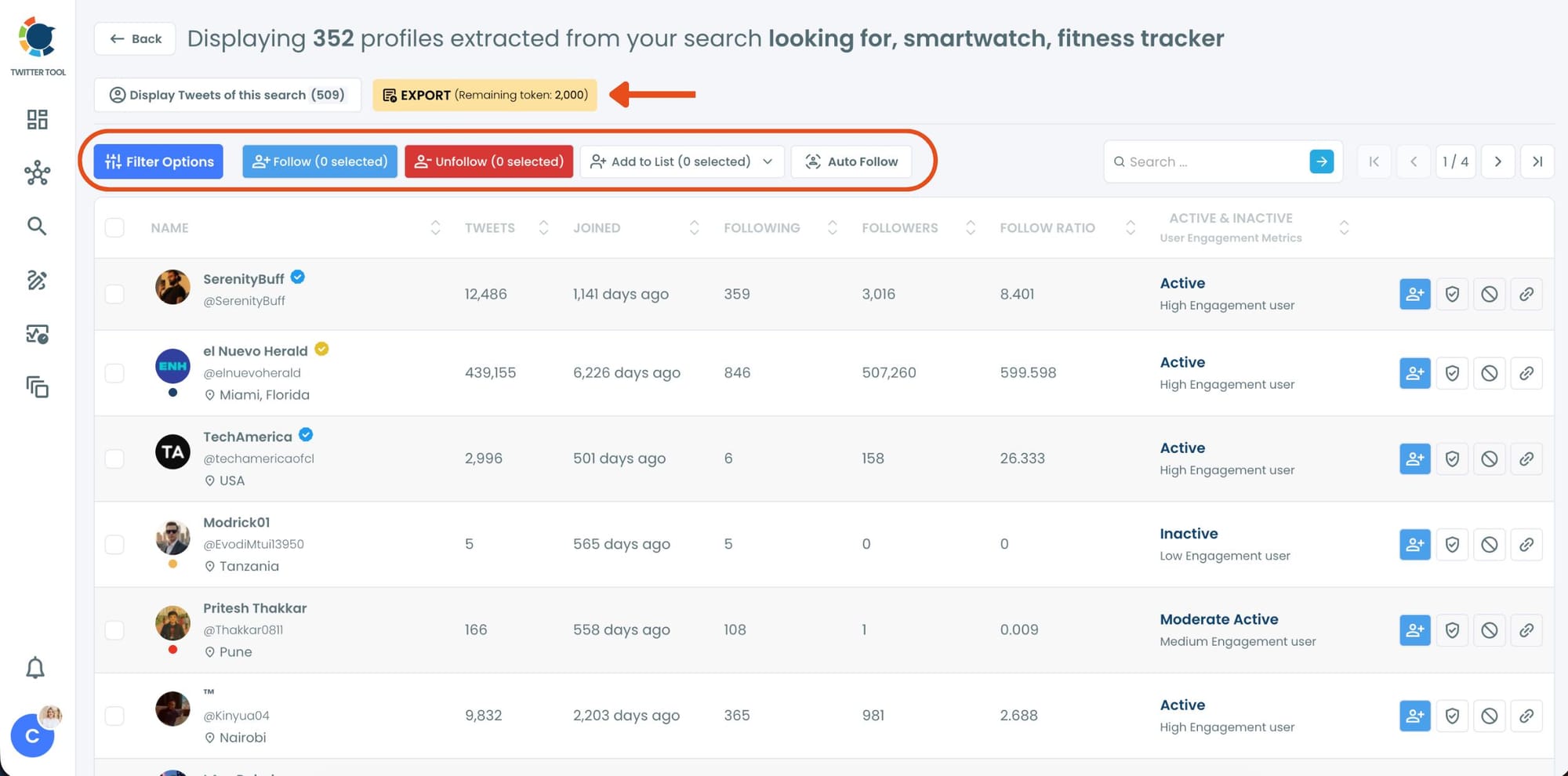
From there, you can directly follow accounts, unfollow them, add selected users into Twitter/X Lists for ongoing monitoring, auto-follow matching users, or export the collected profiles and tweets as CSV files.
Two Ways to Search: Historical and Real Time
Historical Tweet Search
Historical Tweet Search scans past tweet data and returns every account that has posted about your keyword within the date range you set. You can search the last 30, 60, or 90 days, the last year, or a custom window.
You describe what you're looking for. The AI Smart Search interprets your query, extracts the relevant terms, and applies filters automatically.
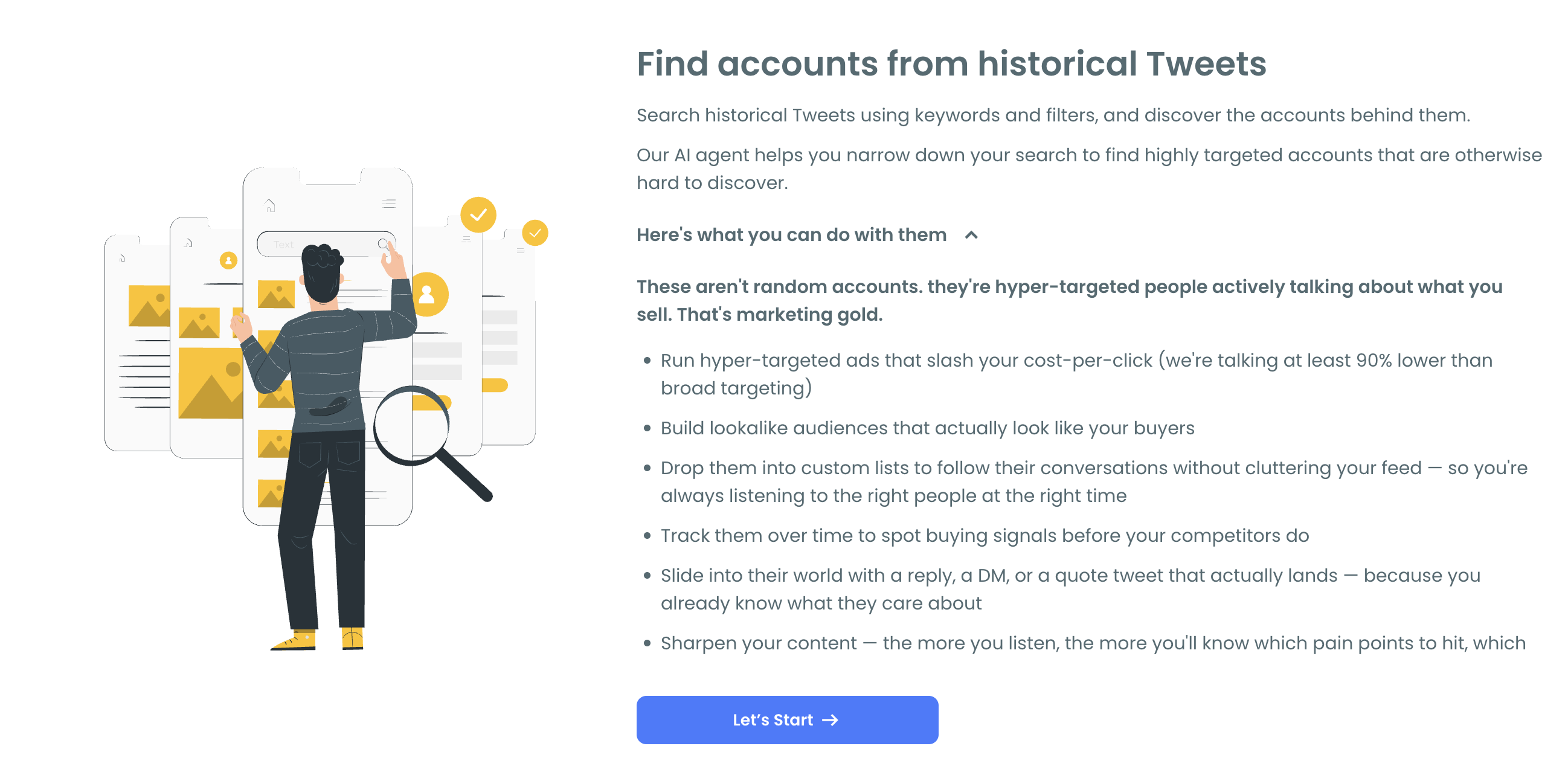
"Find people tweeting about running shoe recommendations, exclude retweets" becomes a structured search without any operator syntax. Circleboom also surfaces AI suggestions to help you refine the query: focus on shopping intent, limit to replies, exclude sales noise, filter by language.
You set how many tweets to collect before the search runs, then Circleboom scans the historical data and returns matching tweets alongside the accounts behind them.
This mode is best when you want to understand who has been talking about a topic over time, find people who expressed interest before you started looking, or build a comprehensive picture of who participates in a conversation around a keyword.
Real Time Tweet Search
Real-time Tweet Search monitors a keyword in live. When someone tweets about that keyword right now, it shows up immediately. No waiting. No delay. The account behind the tweet appears in the results as it happens.
This mode is best when you want to catch conversations at the moment they're happening, respond to people while the topic is fresh, or identify accounts that are currently active in a discussion.
📌 The two modes complement each other. Historical search gives you depth and breadth across a time window. Live search gives you immediacy. Running both on the same keyword gives you the most complete picture of who is talking about a topic and when.
Arif Akdogan
What the Results Actually Show You
Once a search runs, you get two views of the same data.
Tweet view shows the matching posts with full engagement data: impressions, likes, retweets, quotes, bookmarks, replies, and the exact timestamp. You can read the tweet in context, evaluate the intent behind it, and decide whether the account is worth engaging with.
Profile view switches the focus to the accounts behind the tweets. For each account you see follower count, following count, account age, tweet count, follow ratio, and an active or inactive status with an engagement level indicator. This is what makes the results actionable. You're not just looking at tweets. You're evaluating the people who wrote them.
From profile view you can follow accounts directly, add them to a Twitter List for ongoing monitoring, or export the full dataset as a CSV ready for CRM import, ad targeting, or outreach workflows.
Why This Is More Useful Than Native Twitter Search
Twitter's built-in keyword search returns a set of recent tweets. The results are ranked by Twitter's algorithm, not by relevance to your specific need. You can't filter by account quality. You can't sort by follower count to find the high-reach accounts. You can't search historically beyond a short recent window. And you can't take any action on the results at scale.
Circleboom Twitter's keyword search addresses all of these. The historical depth means you're not limited to what was tweeted in the last few hours. The profile view means you can evaluate accounts before engaging with them. The filter options mean you can narrow the results to the accounts that actually match your criteria. And the follow, list, and export actions mean discovery connects directly to whatever comes next.
⚠️ The more specific your keyword query, the more useful the results. A broad keyword like "fitness" returns a large dataset with varied intent. A more specific query like "looking for a fitness tracker for swimming" returns a smaller set of accounts with much clearer signal. Use the AI suggestions to help narrow your query before the search runs.
What You Can Do with the Accounts You Find
Follow them. Following someone who just tweeted about your keyword puts you in their feed at a relevant moment. If your content matches what they were tweeting about, there's a natural reason for them to notice you.
Reply to their tweet. Because you found them through a specific tweet, you know exactly what they said. A contextual reply that addresses their post directly is the highest-quality engagement you can make. It doesn't feel like outreach. It feels like someone useful showed up.
Add them to a private Twitter List. Creating a list of accounts who tweet about a specific keyword lets you monitor them over time without following or being visible to them. You see when they post again about the same topic and engage at the right moment.
Export for outreach or targeting. The full profile export as a CSV includes username, bio, follower count, account age, and activity status. Import into a CRM, build a custom audience in an ad platform, or feed into any outreach workflow you already use.
Build a recurring monitoring campaign. Set up the same keyword search to run regularly. Each time you run it, new accounts surface. The pipeline of people tweeting about your keyword keeps refreshing without repeating the setup work.
Frequently Asked Questions
Can you find people who tweeted about a specific keyword on Twitter?
Yes. Circleboom Twitter's Historical Tweet Search scans past tweet data for any keyword across a date range you define. The Real Time Tweet Search monitors the same keyword in real time. Both modes return the accounts behind matching tweets with full profile data and direct action options.
How is this different from searching on Twitter directly?
Twitter's native search returns a limited, algorithmically ranked set of recent tweets with no way to filter by account quality, search historically at depth, or take bulk actions on the results. Circleboom Twitter's keyword search goes deeper into historical data, displays structured account quality signals, and connects directly to follow, list, and export actions.
Can I search historical tweets and live tweets at the same time?
They are separate modes within Circleboom Twitter. You can run a historical search to cover past activity and then activate a live search on the same keyword to monitor new posts going forward. Together they give you a complete picture of past and present activity around any keyword.
How far back does the historical search go?
You can set the date range to the last 30, 60, or 90 days, the last year, or a custom window you define. The depth of results depends on tweet volume and the date range selected.
Can I filter the results by account quality?
Yes. After a search returns results, you can switch to profile view and filter by follower count, account age, activity level, follow ratio, and engagement status. This lets you focus on accounts that meet your specific criteria before taking any action.
Can I export the results?
Yes. Both tweet data and profile data are exportable as CSV files. The profile export includes username, bio, follower count, following count, account age, and activity status, ready to use in any external tool.
Does this work for any keyword or topic?
Yes. The search works for any keyword, phrase, hashtag, or topic you describe. The AI Smart Search interprets your query in plain language, so you don't need to know operator syntax. More specific queries return more targeted results.
Final Thoughts
People who tweet about a specific keyword are already thinking about that topic. They've raised their hand publicly. Finding them and reaching out at the right moment, with the right context, is one of the most direct paths to a real conversation on Twitter.
Circleboom Twitter's Historical Tweet Search and Real Time Tweet Search give you both the depth and the immediacy to make that possible at any scale.
Find people who tweeted about any keyword with Circleboom Twitter.
infocircleboom.com