
The conversation around an episode is loudest while it airs, and it is also the hardest time to read it. Posts get deleted or edited within minutes, a trending tag pulls in spam, and a search that starts too early drags last week's episode into tonight's results.
If you set nothing up before the opening scene, you end up scrolling instead of reading.
What you will have ready before the episode.A pre-air checklist for the tags, exclusions, start point and tweet count.A route comparison between the Latest tab, a column app and a live collection.The full setup, from search box to a list of the fans worth keeping.
Circleboom collects matching tweets about your show on X from air time forward through official X (Twitter) Enterprise APIs. Start with live tweets on a TV show.
Most mistakes in this setup happen before air time, not during it, so the checklist below comes before the steps.
Why live tweets about a TV show are hard to follow on X
Finding tweets is easy, since X shows you plenty. Reading, filtering and keeping them while the episode runs is the hard part.
Three things work against you during an airing:
- Volume arrives in bursts after every big scene, faster than a feed can be read.
- Trending tags attract posts that have nothing to do with the show.
- Live posts can be deleted, edited or made private within minutes.
A live search that starts at air time fixes all three. It gives you a growing list instead of a moving feed.
That is the job of a tool that can follow live TV show tweets from the opening scene on.
What Real-time Tweet Search does during an episode on X
Circleboom's Real-time Tweet Search collects public tweets on X that match your words from a chosen start date onward, including tweets posted after the search is set up. That forward direction is what makes it useful for live tweets about a TV show: you configure it once, before air time, and the episode's conversation keeps landing in the results.
You describe the tweets you want in plain language, and the tool can suggest refined versions of your search. The Filters panel then narrows it with controls such as:
- Keyword match type and terms to exclude.
- Language, and whether replies and posts with links count.
- Hashtags, verified accounts and media type.
- Minimum and maximum engagement counts.
Results arrive in two views. The tweets view lists each post with impressions, likes, retweets, quotes, bookmarks, replies and its time. The profiles view lists the unique accounts behind those posts.
Every search is stored in a search log, so you can reopen it later without spending tokens again.
That combination is the reason to collect tweets from a live TV show here rather than in a feed.
Is the show trending, and which hashtag are fans using on X?
Use the hashtag the network shows on screen, plus the show's title, as the base of your search for live tweets about a TV show, and check trends only as a second signal. Fans split across a series tag, an episode tag and plain character names, so a search on one tag alone misses a large part of the night.
Trends are a weak guide on their own. X's page on trends recommendations explains that it detects and ranks trends from several signals, and post count is only one of them.
So a quiet trends list says little about how many fans are posting about your show tonight.
Before you commit to a tag set, you can view Twitter trends without an account. That helps on a work laptop where you are not logged in to X.
Circleboom's Real-time Tweet Search start screen also shows trending hashtag chips under the search box. Treat them as suggestions to add, not as the official tag.
After the airing, Circleboom can also count hashtag tweets for whichever tag won the night.
The pre-air checklist for tracking a show on Twitter
Fill this in before the episode starts. Every row maps to one field or filter in the search, and each one prevents a specific mistake.
| Item | What to enter | What it prevents |
|---|---|---|
| Series hashtag | The tag the network uses all season | Missing the core conversation |
| Episode or event tag | A one-night tag if the network prints one | Missing premiere or finale chatter |
| Title and character names | The show's name and the two or three leads | Missing fans who skip hashtags |
| Terms to exclude | Spoiler-bait words, promo phrases, other meanings of the show's title | Spam and off-topic posts |
| Start point | The airing date, via the custom range | Last week's posts in tonight's list |
| Tweet count | A number your GetTweetTokens can cover for the full runtime | A search that stops mid-episode |
Two checklist rows that decide the whole night
Two rows deserve a note. The start point is where collection begins, and the search runs forward from it; a start set too far back behaves like a historical search and fills the list with older posts.
The tweet count controls how many tweets are collected, not how many different accounts you will find.
Sizing the tweet count for a weekly episode or a finale
A regular weekly episode and a finale are different sizes of night, so the count should differ too. Collection spends GetTweetTokens in proportion to the tweets gathered, and if the balance runs out mid-episode, the search stops and keeps what it already has.
Set a modest count for a regular week and a larger one for premieres and finales, and always leave some balance for an export afterwards.
The exclude row only shapes your search. It does not hide anything from your own timeline. X's advanced muting options hide muted words from the Home timeline and notifications, not from search.
Excluding a word in your search and muting it on X are two separate settings.
Latest tab, a column app or a live collection on X
Each route answers a different need, and the table makes the trade-off plain:
| Route | Keeps a growing list | Starts at a set time | Shows the accounts behind posts | Export |
|---|---|---|---|---|
| Latest tab on X | No, the feed refreshes | No | One profile at a time | No |
| Column-style app | A scrolling column per search | No | One profile at a time | Depends on the app |
| Circleboom Real-time Tweet Search | Yes, from the start point | Yes | Profiles view, each account once | Yes, as CSV |
Column dashboards are the classic second-screen setup, and the roundup of apps like TweetDeck compares the options if you prefer a live column.
A column still scrolls, though, so it shares the Latest tab's main weakness during a busy scene.
For a tag you want to watch over weeks rather than one airing, Circleboom's tool to track keywords and hashtags is the better fit. If you missed the airing entirely, a past episode is a job for Historical Tweet Search instead.
If the question after the episode is how often the tag was used, the post on a keyword and hashtag tracker explains how a running count works.
Whichever you pick, the data source matters on a night when traffic spikes. X lists Circleboom as an Enterprise developer in its customer directory, so the collection uses X's official access instead of a scraper that can drop posts at the peak.
How to find live tweets about a TV show while it airs
A short walkthrough of a live keyword search, from the plain-language box to the collected tweets, the same flow the steps below follow for a show.
The process, in the order you run it on the night.
Load the show's tag set before air time
- Open Circleboom Twitter with the account you use for the show, ideally a few minutes before the episode begins.
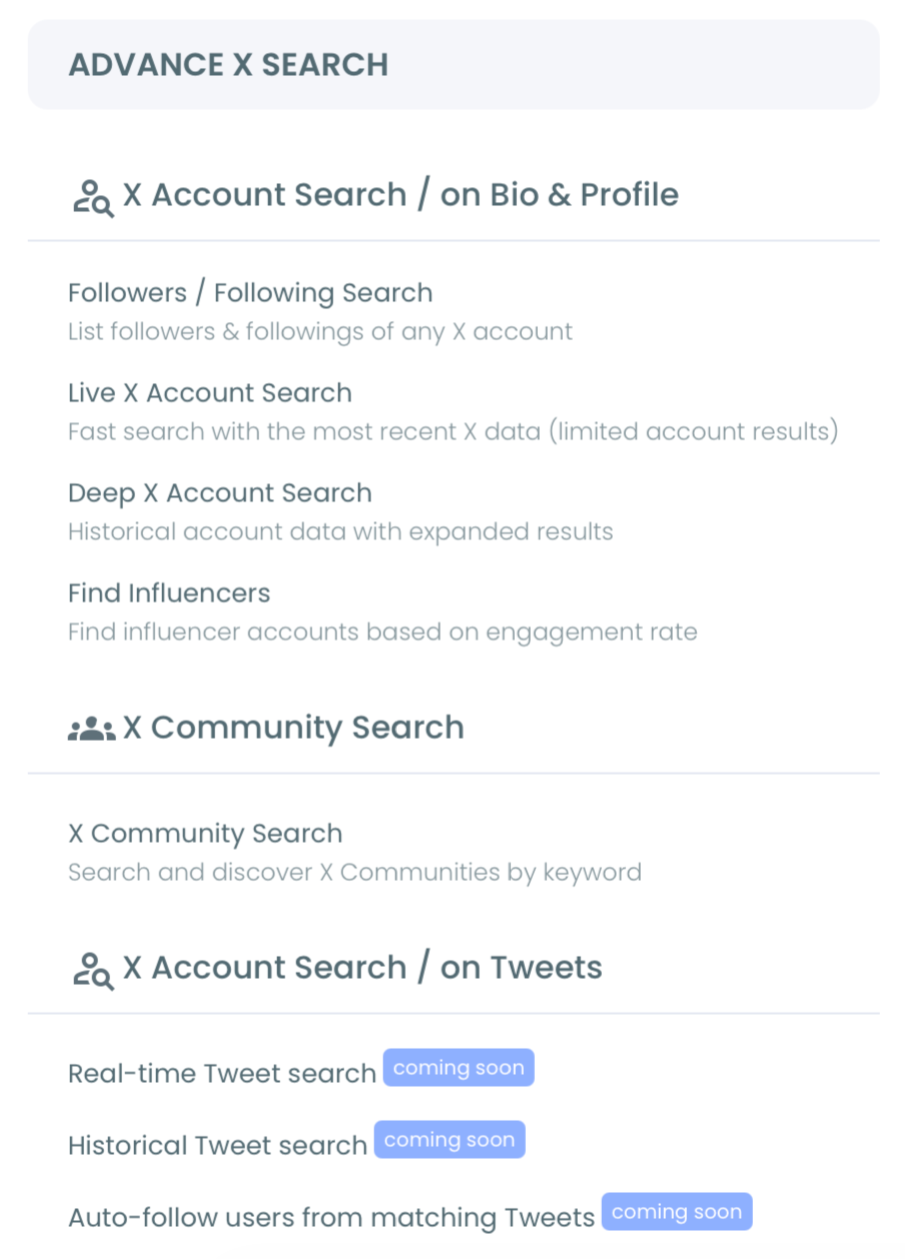
- Go to the Advanced X Search menu and choose Real-time Tweet Search.
- Type the tag set from your checklist into the search box in plain words, for example the series tag, tonight's tag, the title and the leads' names.
Filter the noise, set the window, then watch the tweets view
- Open Filters and add your exclusions, then set the language and decide whether replies count.
- Choose the start point on the date range screen, using a custom range that begins with the airing.
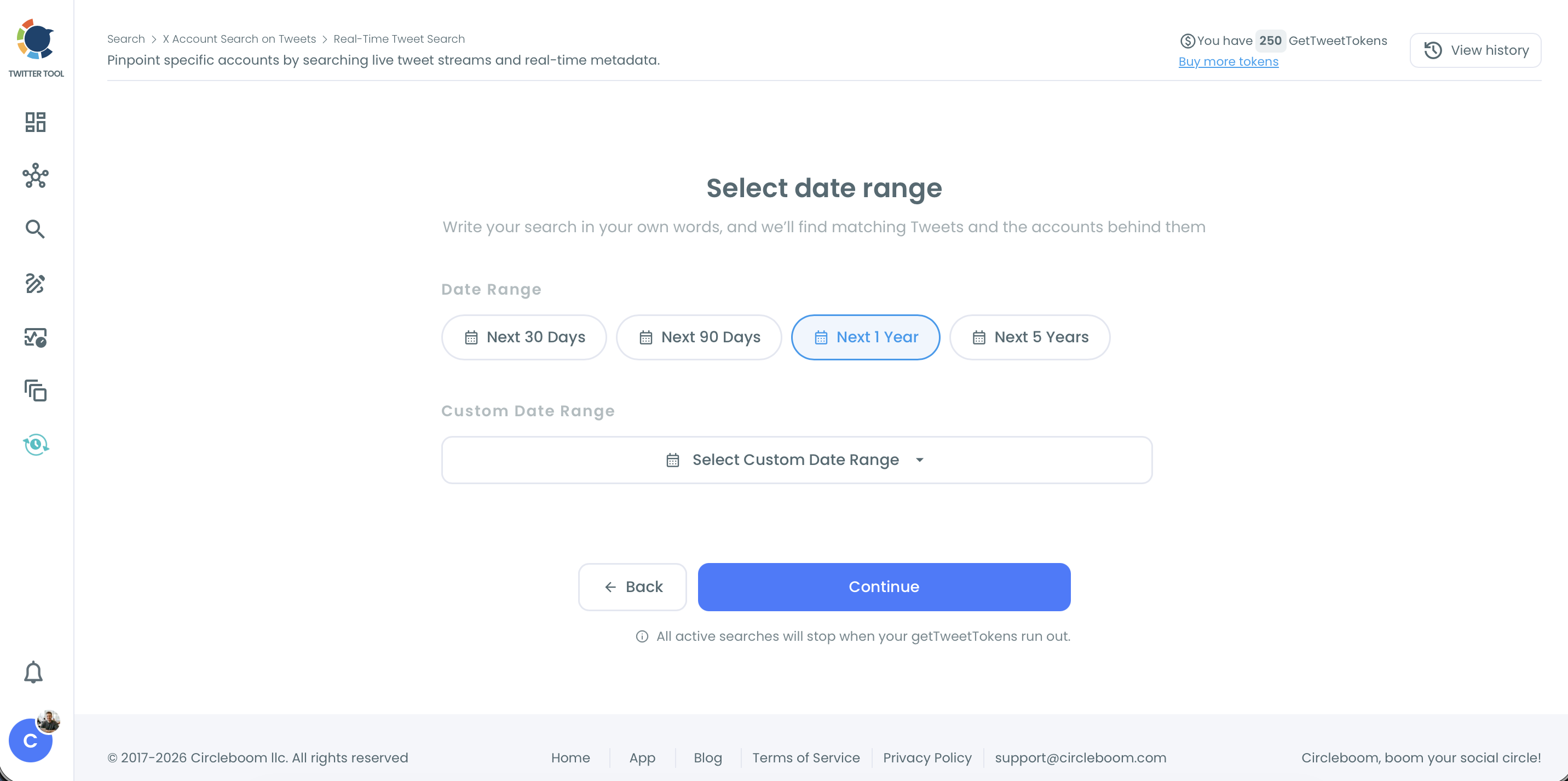
- Set the tweet count and continue, then open the tweets view and sort the Replies column so the busiest conversations rise to the top.
Excluding before you watch keeps live tweets about the TV show in the tweets view and the noise out.
Setting it all before the opening scene means the list you open at the first break needs reading, not cleaning up, and the only job left during the episode is choosing which threads to join.
Keeping the search clean when a big scene floods X
A twist or a cliffhanger brings a burst of posts, and broad words pull in a large, noisy set fast during those moments. When that happens, open Filter Options on the results and narrow the view with an exclusion or an engagement minimum rather than starting a new search.
Read the numbers with care, too. Likes and retweets in the tweets view reflect the moment they were retrieved and keep changing while the conversation is live.
Avoid drawing season-long conclusions from one noisy window of live TV show tweets.
Turning live TV show tweets into a fan list on X
The fans you find during an episode are worth keeping, and a list keeps them without filling your home feed. Switch to the profiles view, where every account behind the collected tweets appears once with followers, following, join date and an activity signal.
From there, tick the accounts that posted the sharpest takes and use Add to List. You can drop them into a list you already have, or create one on the spot and pick its visibility in the same dialog.
The Twitter List Manager is where those lists live afterwards, ready for next week's episode.
Choose the list's visibility on purpose. A private list is visible only to you, which suits a personal watch-along feed; a public list lets other fans follow your picks for the season.
When the season ends, removing quiet members from the list does not unfollow them or touch any other list, so pruning it is low risk.
If you prefer to build the list on X itself first, the walkthrough to create Twitter lists with just a few clicks covers that route.
Following is optional and gradual. Circleboom paces follows at 50 every 15 minutes with a daily limit of 400, and the rest continue the next day, so follow only the accounts you actually want in your feed.
Read before you follow. A post matching your tag is a candidate, not a verdict, so open the profile before any bulk action.
Your checklist for the next episode on Twitter
Before the next airing, run through these:
- Write the series tag, the episode tag, the title and the leads' names.
- Add three or four exclude terms for spoiler bait and spam.
- Set the start point at the airing, not days before it.
- Pick a tweet count your token balance covers, with some left for export.
- Move the best fans into a list before the credits roll.
Do those five things and the first ad break starts with a clean list instead of a scroll.
→ Have live tweets for your TV show waiting before it airs
What to know about tracking a show as it airs
Isn't the Latest tab on X enough to follow live tweets?
For casual watching, yes. For anything you want to keep, no: the Latest tab refreshes past posts, gives you no list that starts at air time, and shows accounts one profile at a time. A live collection keeps every matching tweet it gathers in one place you can sort and filter.
How do I save fan reactions before they are deleted or buried?
Export them the same night, before posts are deleted, edited or made private. Circleboom's Real-time Tweet Search can export the tweets view as a CSV file, and the export spends GetTweetTokens on top of what the collection used, so keep some balance for it.