

The word "scraping" gets used loosely when people talk about pulling Twitter data. Sometimes it means running a script to crawl public pages. Sometimes it means accessing the API programmatically. Sometimes it just means getting your own tweet history into a spreadsheet.
The distinction matters because the methods are very different, and so are the risks.
Actual web scraping of Twitter, meaning crawling X pages with a bot or a headless browser without going through the official API, violates X's Terms of Service. It has also become technically difficult: X actively detects and blocks non API access at scale. Even if a script works today, it breaks without warning. Data reliability is low, account suspension risk is real, and for any professional or research use case, the data quality is not sufficient to act on.
The legitimate path is the X API and the tools built on top of it. The data available through the official API is the same public data, structured and reliable, without ToS risk.
This article covers the four most common historical Twitter data use cases and how to handle each one.
What X Does Not Give You Natively
Before covering the methods, it is worth naming what X's native interface cannot do, because this is the exact gap the external tools fill.
X's built in search returns recent and recent and recent era tweets. Setting a precise date range for a topic search and getting structured results from six months ago is not reliably possible in the native interface. Results from the past are inconsistent, incomplete, and not exportable.
X does not let you export anything meaningful without submitting a formal account data request, which takes multiple days and delivers a raw, poorly formatted archive file rather than a clean, filterable dataset.
There is no native way to export your follower list, your following list, the accounts that retweeted a specific tweet, or your saved bookmarks as a structured CSV. There is no filtering before export. You get everything or nothing.
For any professional workflow that requires working with X data outside the platform, the native tools are not sufficient. This is why external tooling exists.
Use Case 1: Find Accounts That Discussed a Topic in the Past
The goal: You want to know which accounts were tweeting about a specific keyword, competitor, event, or pain point during a defined historical period.
Why this matters: An account that tweeted "evaluating our social media tools this quarter" eight months ago expressed a buying signal that their current profile description will never contain. A competitor's critic from last year is a warmer prospect for your solution than anyone you could find through a profile based search. Historical tweet behavior is a fundamentally different qualification signal from current bio attributes.
How to Do It with Circleboom Historical Tweet Search
Circleboom's Historical Tweet Search retrieves publicly available tweets matching your criteria through the official X Enterprise API, then extracts and deduplicates the accounts behind those tweets into a structured, actionable list.
Step 1: Open Historical Tweet Search
Inside Circleboom, navigate to the Advanced X Search section and select Historical Tweet Search.
Step 2: Write your search in plain language
The interface asks you to describe what you are looking for in your own words. You can write a natural language description and the system will suggest refined search variations. You can also switch to Advanced Search to define keyword match types, exclusions, hashtags, cashtags, language, and content toggles (replies, links, verified accounts only, media type) manually.
Step 3: Set filters and date range
Open the Filters panel to add:
- Keywords and keyword match type (exact phrase, contains, partial)
- Exclude terms to remove irrelevant noise
- Language
- Engagement thresholds (minimum likes, retweets, or impressions)
- Date range: Last 30 days, 60 days, 90 days, 1 year, or custom
The date range is what makes historical research possible. You can scope a search to the weeks surrounding a competitor's incident, the period during an industry event, or any specific window where the conversation you care about was most active.
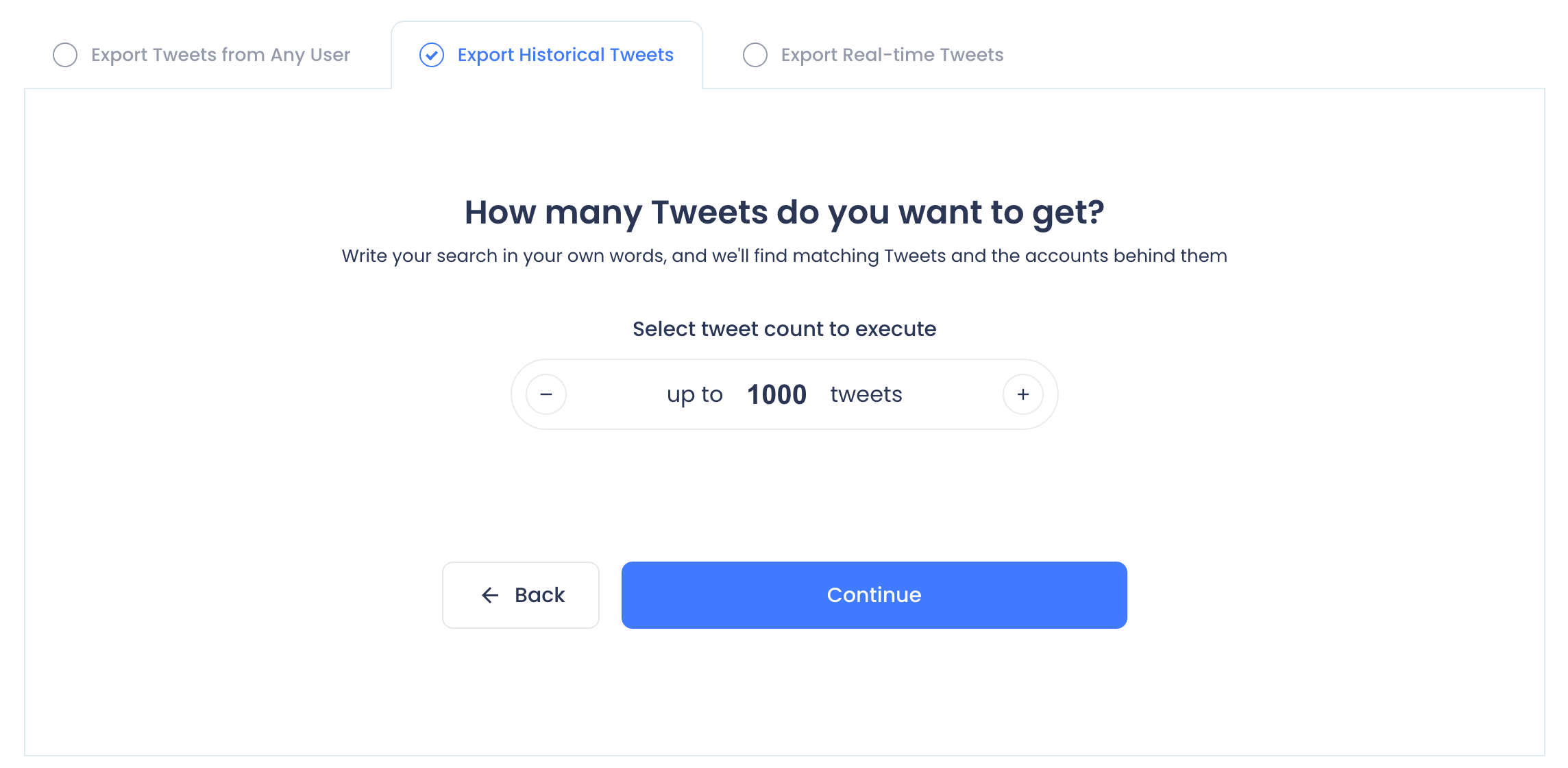
Step 4: Select how many tweets to collect
The interface shows your GetTweetTokens balance before you run the search. Token consumption is proportional to the number of tweets collected. Set the collection size based on the scope of the research and your remaining balance.
Step 5: Review the results
Results come back in two views:
The Tweet View shows the matching tweets themselves: text, author, impression count, like count, retweet count, quote count, bookmark count, reply count, and the date the tweet was created. Each tweet links directly to the original post on X.
The Profile View (accessed by clicking "Display Profiles of this search") shows the deduplicated list of every unique account that authored a matching tweet. Each account displays follower count, following count, follow ratio, tweet count, account join date, and an engagement classification. This is the primary output for most research and prospecting use cases.
Step 6: Act on the results
From the Profile View, you can:
- Filter and sort by follower count, engagement level, account age
- Follow accounts directly from the results
- Add accounts to a Twitter/X List for ongoing monitoring
- Export the full list as CSV for CRM import, research documentation, or outreach sequencing
The export produces a structured dataset: every unique account that publicly discussed the topic during the defined period, with full profile data attached.
What to watch for: Broad keyword searches return high volumes but lower average relevance. Use engagement minimums (for example, only tweets with at least 5 likes) and exclude terms to separate signal from noise before acting on the results. Also note that deleted or protected tweets cannot be retrieved, and very old content may have gaps depending on what the X Enterprise API has indexed for that date range.
Use Case 2: Export Your Own Tweet History
The goal: You want your complete tweet history as a structured spreadsheet with performance data, for content auditing, analysis, reporting, or archiving.
Why this matters: X's native analytics shows data for recent tweets but makes historical performance analysis across months or years difficult. There is no native export. Getting your tweet history into a spreadsheet lets you analyze performance trends in Excel or Google Sheets, prepare client reports, identify your highest performing historical content, or archive your published posts before making a strategic change.
How to Do It with Circleboom Export Tweets
Circleboom's Export Tweets downloads up to the most recent 3,200 tweets from any connected public account as a structured CSV, with performance data for each tweet.
Step 1: Open Export Tweets
Navigate to Export Tools in Circleboom and select Export Tweets.
Step 2: Apply filters before exporting
Filter the dataset before running the export rather than cleaning it afterward. Available filters include:
- Date range: scope the export to a specific period
- Engagement threshold: export only tweets above a minimum like, retweet, or impression count
- Post type: filter by tweet type if relevant
- Language: filter by post language
- Keywords: narrow to posts containing specific terms
Filtering to high performing tweets (for example, tweets with more than 10 likes or more than 500 impressions) produces a focused dataset for performance analysis rather than a noisy bulk file.
Step 3: Export as CSV
The export delivers a CSV file containing tweet content, publication date, impressions, likes, retweets, replies, bookmarks, link clicks, and other available fields for each tweet in the exported set. The remaining export token balance is shown before the export runs.
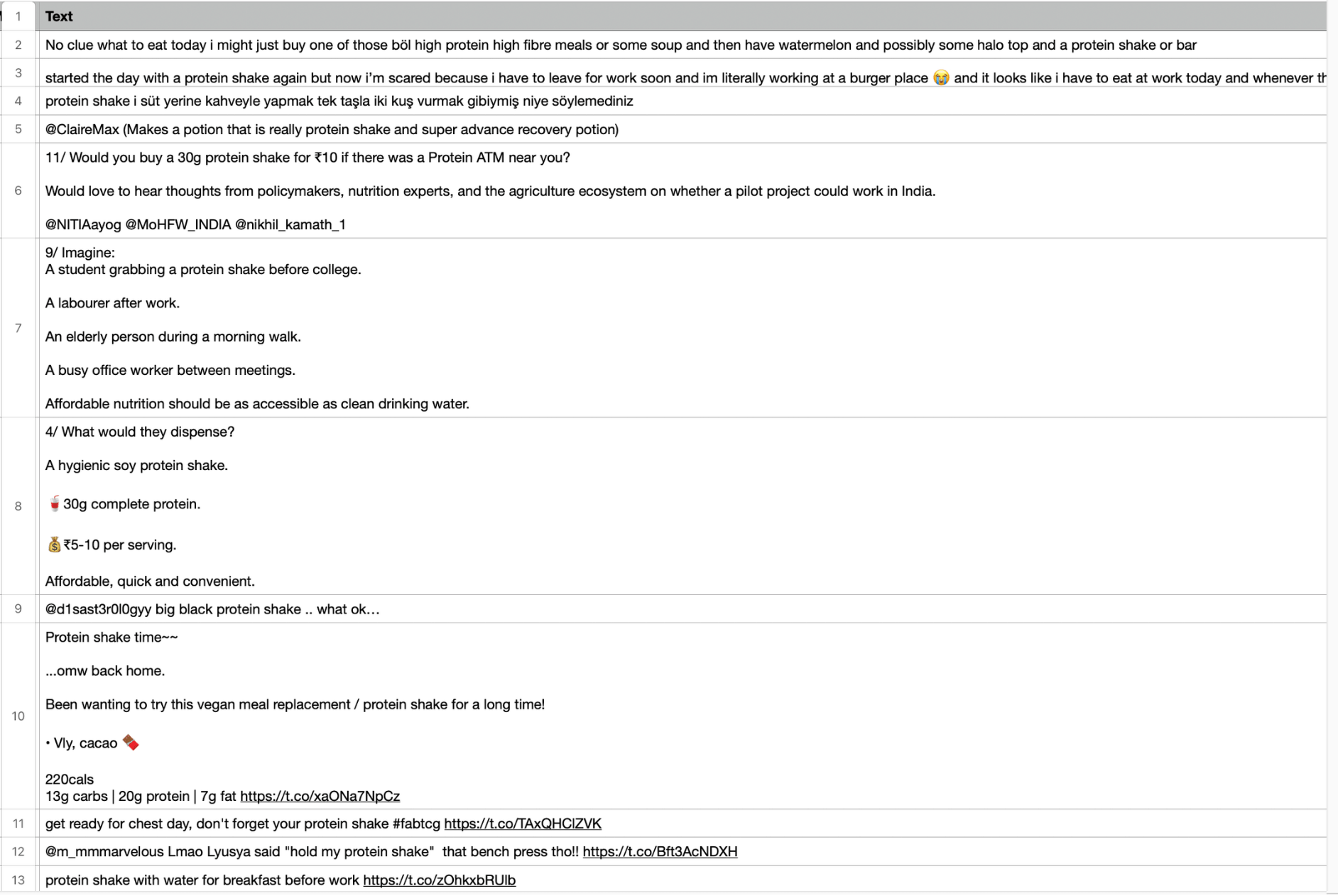
Use this for: content performance audits, identifying your strongest historical posts before planning a new content strategy, preparing structured data for a client presentation, or creating a local archive of published content that remains accessible even if X changes its analytics interface or tweets are later deleted.
Use Case 3: See Who Retweeted a Specific Tweet
The goal: You want to know which accounts amplified a specific tweet, either your own or anyone else's.
Why this matters: The accounts that retweeted a competitor's announcement, amplified a viral post in your niche, or spread a piece of content you want to learn from are a pre qualified audience. They demonstrated engagement through action, not just passive exposure. X's native interface shows a partial, unordered, unfilterable preview of retweeters. It does not show all of them and it does not let you export any of them.
How to Do It with Circleboom Export Retweeters
Circleboom's Export Accounts Who Retweeted a Tweet(s) or User(s) retrieves the full list of accounts that retweeted a specific tweet and exports them as a structured dataset with profile data.
Step 1: Open Export Tools and select Export Accounts Who Retweeted.
Step 2: Input the tweet URL or tweet ID you want to analyze. You can also input a username to retrieve retweeters across multiple tweets from that account.
Step 3: Review and filter the list. Each retweeter account shows engagement classification, follower count, follow ratio, and account age.
Step 4: Export as CSV or act directly by following, adding to a list, or adding to a Mass Block List.
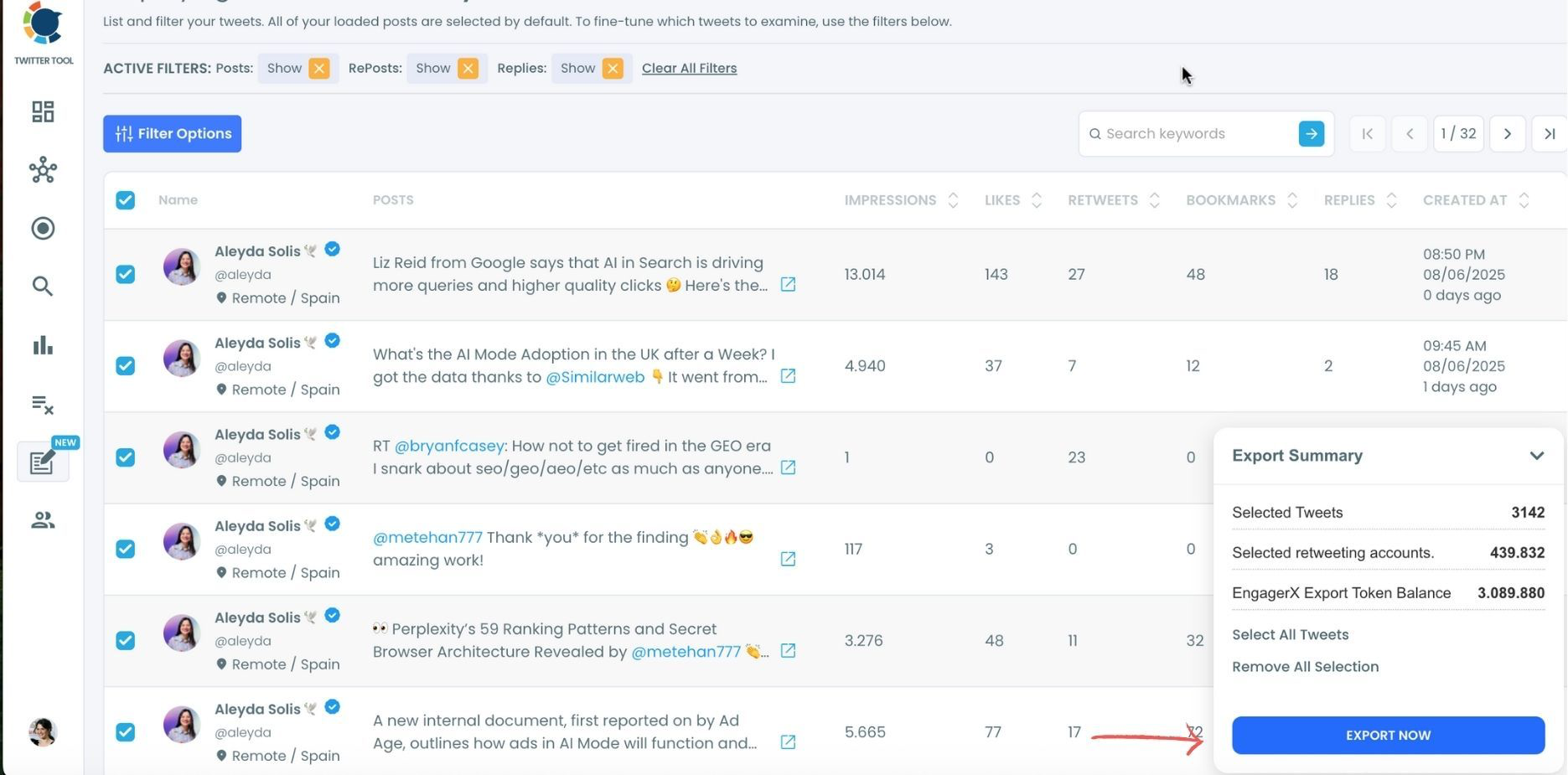
Use this for: building a prospect list from accounts that amplified a competitor's launch, finding the most relevant accounts engaging with top posts in your niche, analyzing who is spreading a piece of content in your industry, or building a lookalike audience segment based on demonstrated amplification behavior.
Use Case 4: Analyze a Competitor's or Influencer's Audience
The goal: You want to see the full follower or following list of a specific public account, with profile data for each account, filterable and exportable.
Why this matters: A competitor's follower list is a qualified audience that has already demonstrated interest in exactly the category you compete in. An influencer's following list shows who they are learning from. X's native interface shows followers in a partial, uncurated feed with no filtering, no structured data, and no export.
How to Do It with Circleboom Export Followers or Following
Circleboom's Export Followers or Following downloads the complete follower or following list of any public X account as a structured CSV.
Step 1: Open Export Tools and select Export Followers or Export Following.
Step 2: Enter the target username. This can be your own account or any other public X account.
Step 3: Apply filters before exporting. Scope the export to accounts above a follower count threshold, within a specific engagement tier, active within a recent period, or joined after a specific date.
Step 4: Export as CSV. The file includes tweet count, account age, follower and following counts, follow ratio, and engagement classification for every account in the list.
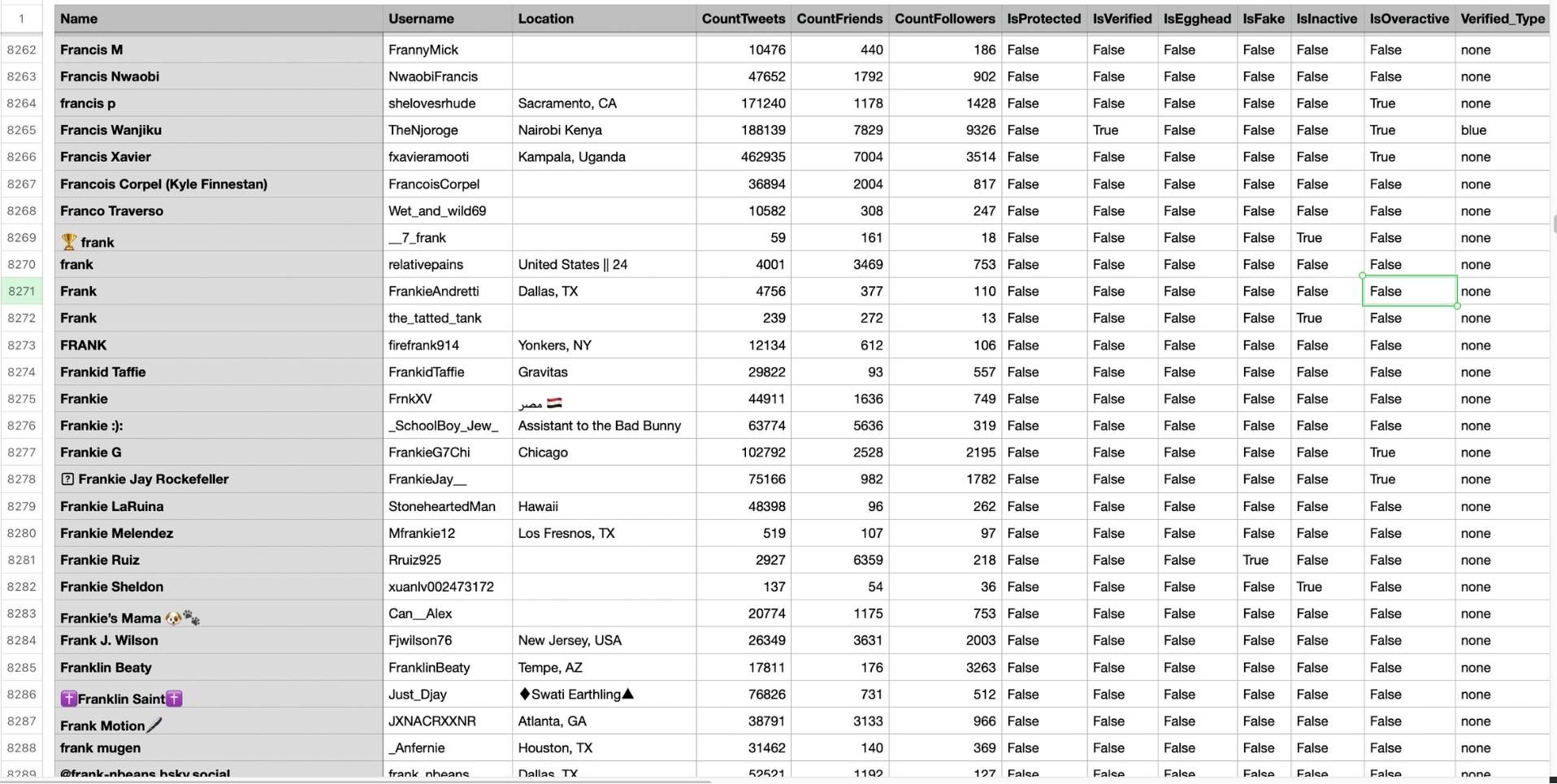
Use this for: building a prospect list from a competitor's audience, analyzing your own follower composition at a defined point in time for CRM import, identifying the accounts an influencer follows as a research signal, or creating an audience snapshot for reporting or targeting purposes.
Practical Notes on Limits and Data Reliability
On GetTweetTokens: Historical Tweet Search and tweet exports in Circleboom consume tokens from your account balance proportional to the data collected. Your remaining token balance is shown before each search or export runs. If tokens run out mid collection, the active search stops at that point and partial results are saved and accessible. Export also consumes tokens separately from the search.
On data gaps: Only publicly available tweets can be retrieved. Private, protected, or deleted tweets are not included. Historical coverage depends on what the X Enterprise API has indexed for the specified date range. Very old content or rapidly deleted tweets may have gaps. Edited tweets may appear in their original or edited form.
On result quality: Requested tweet count controls collection size, not the number of unique accounts extracted. 500 tweets from 50 accounts returns 50 profiles; 500 tweets from 500 accounts returns 500. Review profiles before bulk follow or list actions: keyword match does not guarantee that the account's intent or context matches your goal.
On account state: Accounts that have been suspended, deactivated, or converted to private since their historical tweets were posted may still appear in tweet results. Their current state may differ from what was retrieved.
Frequently Asked Questions
Is collecting historical Twitter data legal?
Accessing public Twitter data through the official X API is compliant with X's Terms of Service. X provides official API access specifically for this purpose, and tools like Circleboom operate through official X Enterprise Developer status. What is not permitted is web scraping: crawling X pages with bots or headless browsers without API access, which violates the ToS regardless of whether the data being accessed is technically public.
How far back can you search historical tweets?
Through Circleboom's Historical Tweet Search, you can select a custom date range. Predefined options include Last 30 days, 60 days, 90 days, and 1 year. Custom date ranges extend further depending on what the X Enterprise API has indexed. Coverage depth depends on the topic, the keyword volume, and the indexing history for that date range.
Can I export all my tweets from Twitter?
Circleboom's Export Tweets feature downloads up to the most recent 3,200 tweets of a connected account as a CSV, with performance data for each tweet. This covers the range available through the X API. For older tweet history beyond this range, X's own account data archive request returns a raw dump of your complete history, though it is not structured or filterable in the same way.
Can I see who retweeted someone else's tweet?
Yes. Circleboom's Export Accounts Who Retweeted a Tweet(s) or User(s) retrieves the full retweeter list for any public tweet, not only your own tweets. Input the tweet URL or tweet ID and Circleboom returns all accounts that retweeted it with profile data attached.
Can I export a competitor's Twitter followers?
Yes. Circleboom's Export Followers or Following works on any public X account. Input the target username and Circleboom retrieves the full follower or following list with profile data, filterable and exportable as CSV.
What is the difference between Historical Tweet Search and Real time Tweet Search in Circleboom?
Historical Tweet Search queries a deep archive of past tweets within a date range you specify. It is designed for use cases where the relevant signal happened in the past and recency matters less than the content of the tweet. Real time Tweet Search collects live tweets from a start date you define, forward. It is designed for time sensitive use cases where finding accounts while the conversation is still active is part of the value: a competitor's incident, a live event, a campaign launch. The two features are often used together: Historical Search reconstructs who was saying something in the past; Real time Search captures who is saying it now.
What is the difference between tweet content search and follower/following export?
Tweet content search (Historical Tweet Search) starts from what people said. It retrieves tweets matching your keywords and extracts the accounts behind them. Follower and following export starts from a specific account's relationship graph. It retrieves every account that follows or is followed by a specific account. They serve different research questions and are often complementary: content search surfaces accounts with demonstrated behavioral intent; follower export surfaces accounts with declared relationship affinity.
Where to Start
The right entry point depends on what you are actually trying to answer.
If you want to find accounts that have publicly discussed a specific topic, competitor, or pain point in the past, start with Historical Tweet Search. Define the date range first, before the keywords: knowing the "when" usually produces better results than broad keyword searches with no time constraint.
If you want your own tweet history in a spreadsheet for analysis or reporting, use Export Tweets with date and engagement filters applied before running the export.
If you want to see who amplified a specific piece of content, use Export Retweeters on that tweet.
If you want to analyze a competitor's or influencer's audience, use Export Followers or Following with quality filters applied before downloading.
All four are available inside Circleboom and access data through the official X Enterprise API, which means the data is reliable, the coverage is structured, and the workflow does not carry the platform risk that unauthorized scraping does.




)


