

Posting multiple photos on LinkedIn is something many people do, but very few do well. At first glance, it looks like a simple feature. You select a few images, upload them, add a caption, and post.
But once you start caring about presentation, engagement, and consistency, you quickly realize that the native way has limitations.
If you are sharing updates occasionally, LinkedIn’s built-in option is enough. But if you are creating content regularly, especially for branding, education, or thought leadership, you need a more structured approach.
 Arif Akdogan
Let’s start with how LinkedIn handles multi-photo posts, then look at why that approach often underperforms, and finally how I improved the process.
How to Post Multiple Photos on LinkedIn Using LinkedIn Itself
LinkedIn allows users to upload more than one image in a single post, both on desktop and mobile.
The process is straightforward. You start a new post, click the image icon, select multiple photos from your device, arrange their order if needed, write your caption, and publish.
This works well for simple use cases such as:
- Event recaps
- Team or office photos
- Product snapshots
- Casual behind-the-scenes content
So from a technical standpoint, yes, LinkedIn fully supports posting multiple photos.
Why Native Multi-Photo Posts Often Underperform
The real issue is not whether you can post multiple images, but how those images are displayed and perceived.
❌ When you upload multiple photos directly to LinkedIn, they are treated as regular standalone images. There is no sense of flow or structure between them. Each image competes for attention instead of guiding the viewer through a visual story.
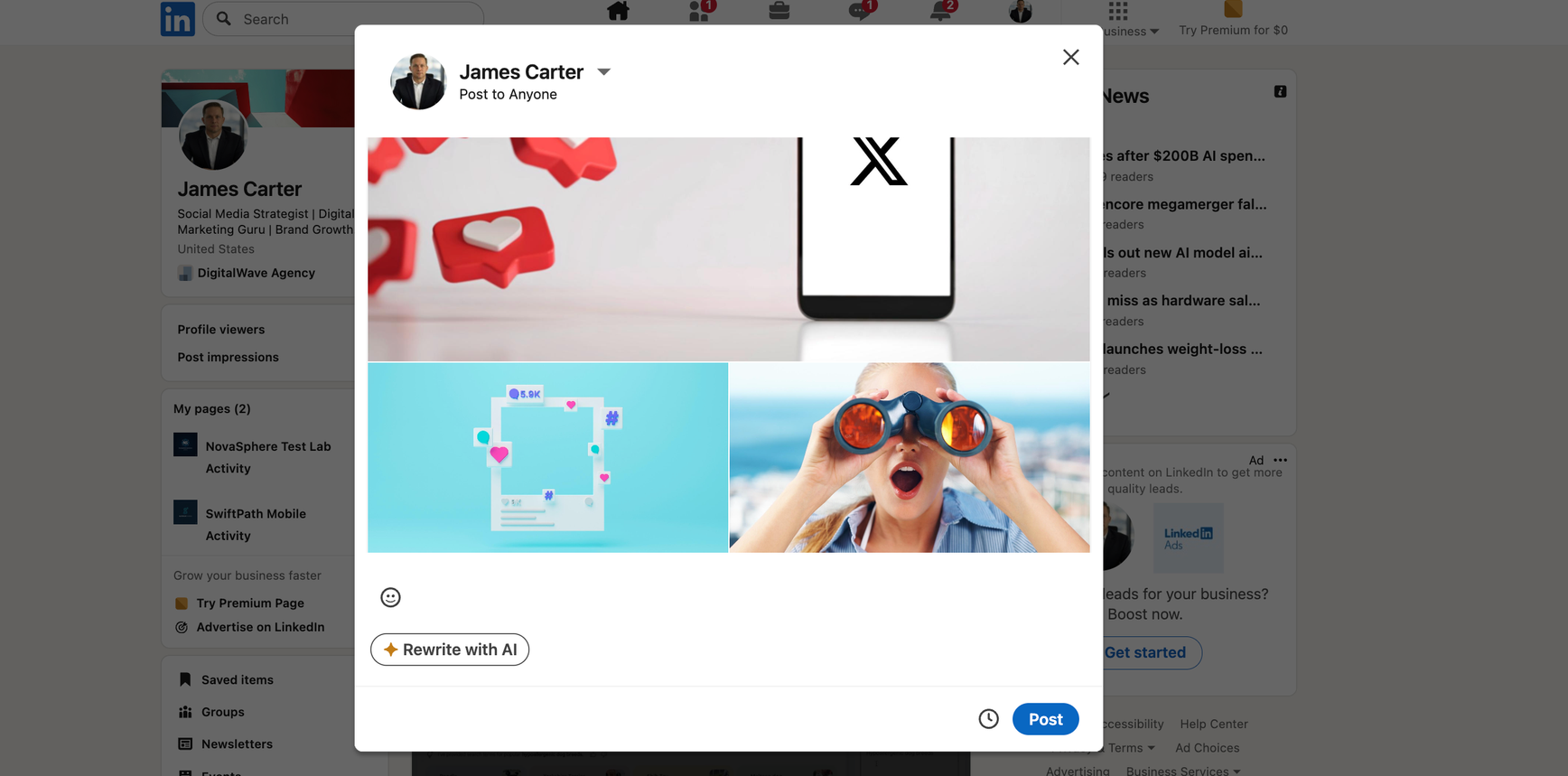
Over time, a few problems become clear.
⛔ Visual consistency is hard to maintain. Images often have different sizes, aspect ratios, and text placements. This makes the post look unpolished.
⛔ There is no true carousel experience. If you want to explain something step by step or build a narrative, the images do not feel connected.
⛔ The workflow becomes messy. You end up using one tool to resize images, another to add text, another to design templates, and then LinkedIn just to publish. This wastes time and breaks focus.
If you care about brand perception and engagement, this approach quickly becomes inefficient.
A Better Workflow for Multi-Photo LinkedIn Posts
To solve these problems, I use Circleboom Publish.

Circleboom Publish is a social media management tool that allows you to create, design, and schedule posts across multiple platforms, including LinkedIn.
What makes it especially useful for LinkedIn is how it handles visuals and carousels.
Instead of just uploading images, you can actually design multi-image and carousel-style posts in a structured way.
Creating Professional Carousel-Style Visuals in One Place
One of the biggest advantages of Circleboom Publish is that it removes the need to jump between tools.
Inside the post creation screen, you can access built-in integrations such as:
- PostNitro for carousel creation
- Canva for custom designs
- Unsplash for high-quality stock images
- Giphy for animated visuals
This means you can find images, design slides, add text, and arrange visuals without leaving the platform.
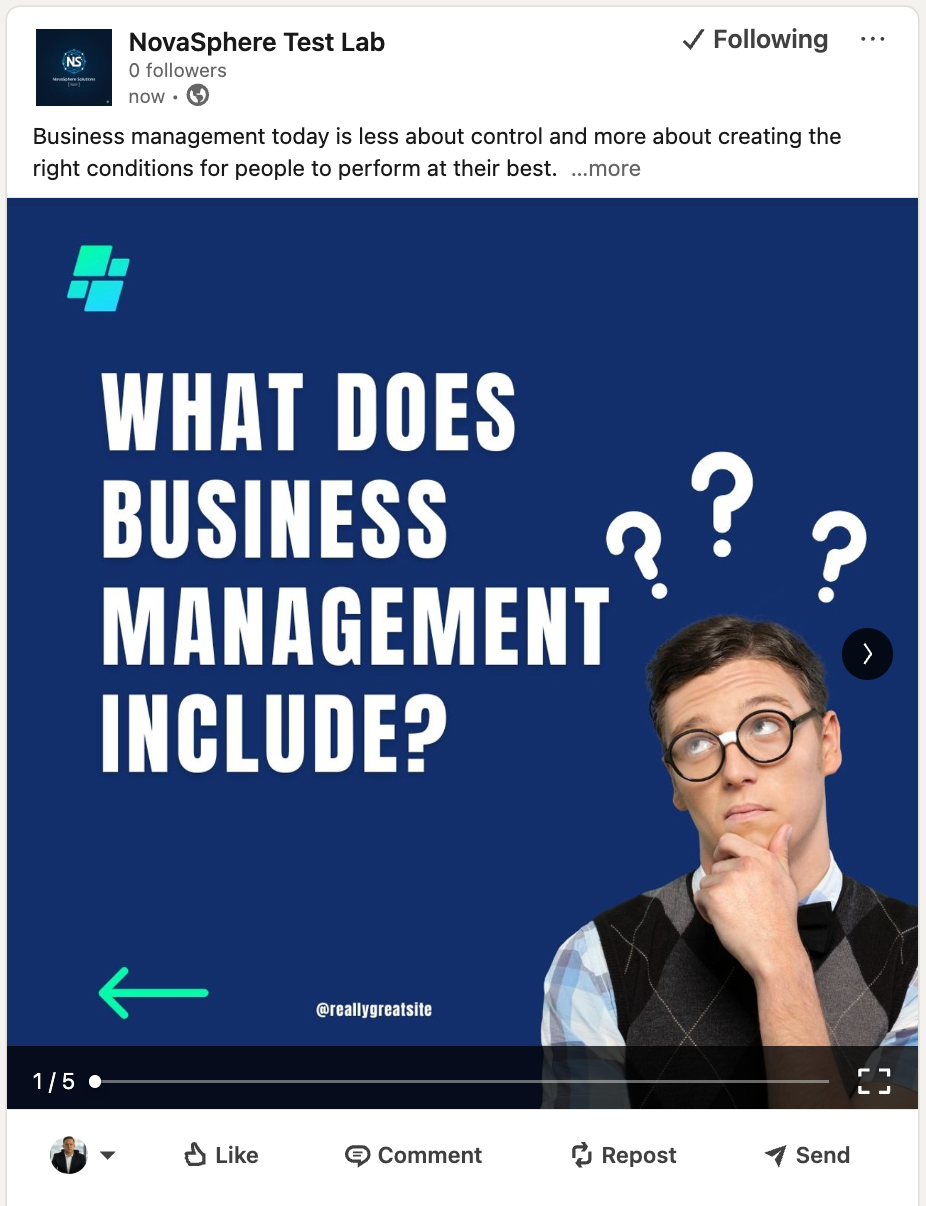
There is also an AI-powered carousel generator. This feature helps turn your images into clean, slide-like visuals using ready-to-use templates. It is especially helpful when you want your LinkedIn content to feel structured and professional without spending too much time on design.
Why Timing Is Just as Important as Design
Even the best-designed post can underperform if it is shared at the wrong time.
LinkedIn content depends heavily on early engagement. If your followers are not online when you post, your images may never get the attention they deserve.
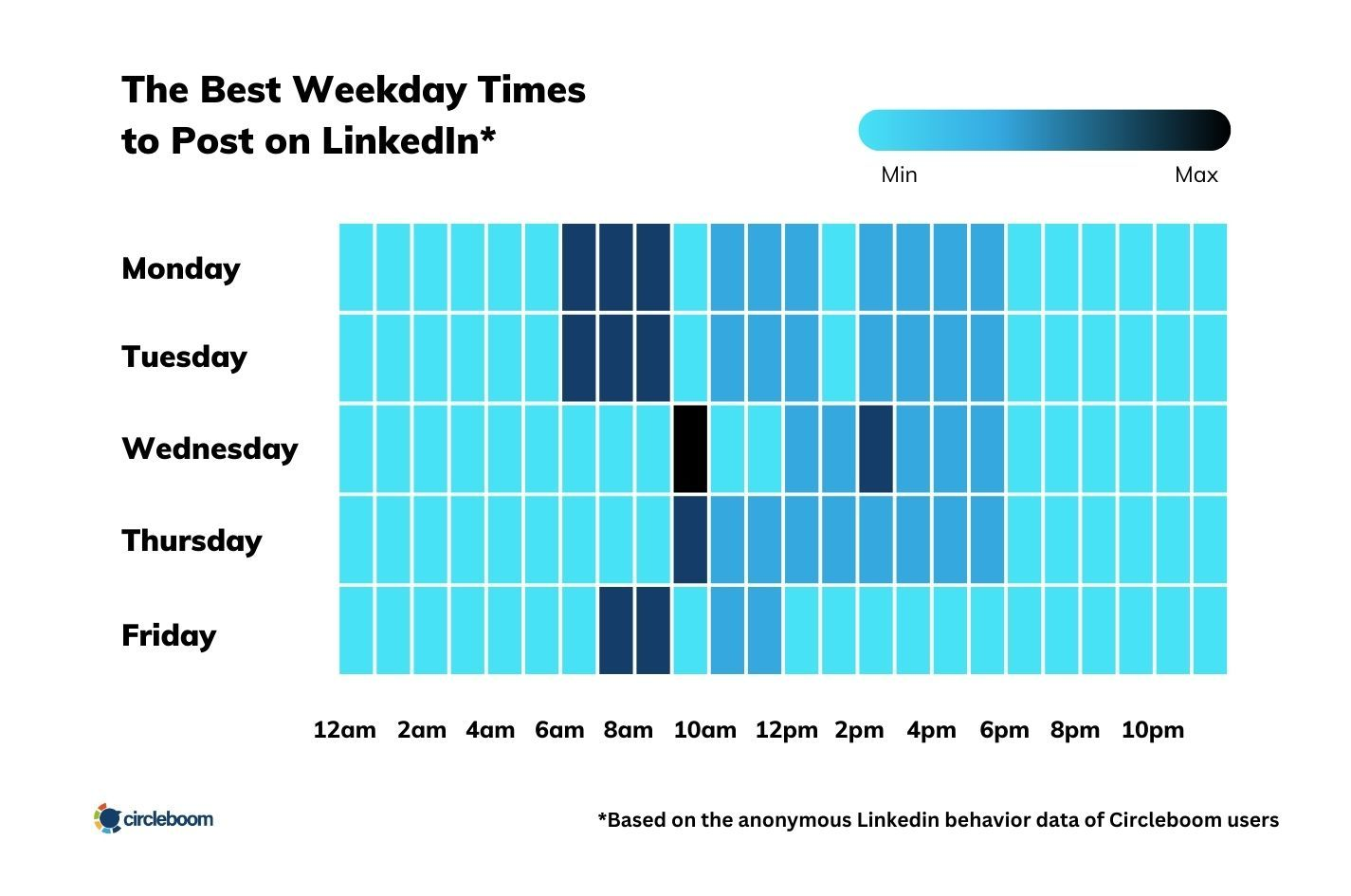
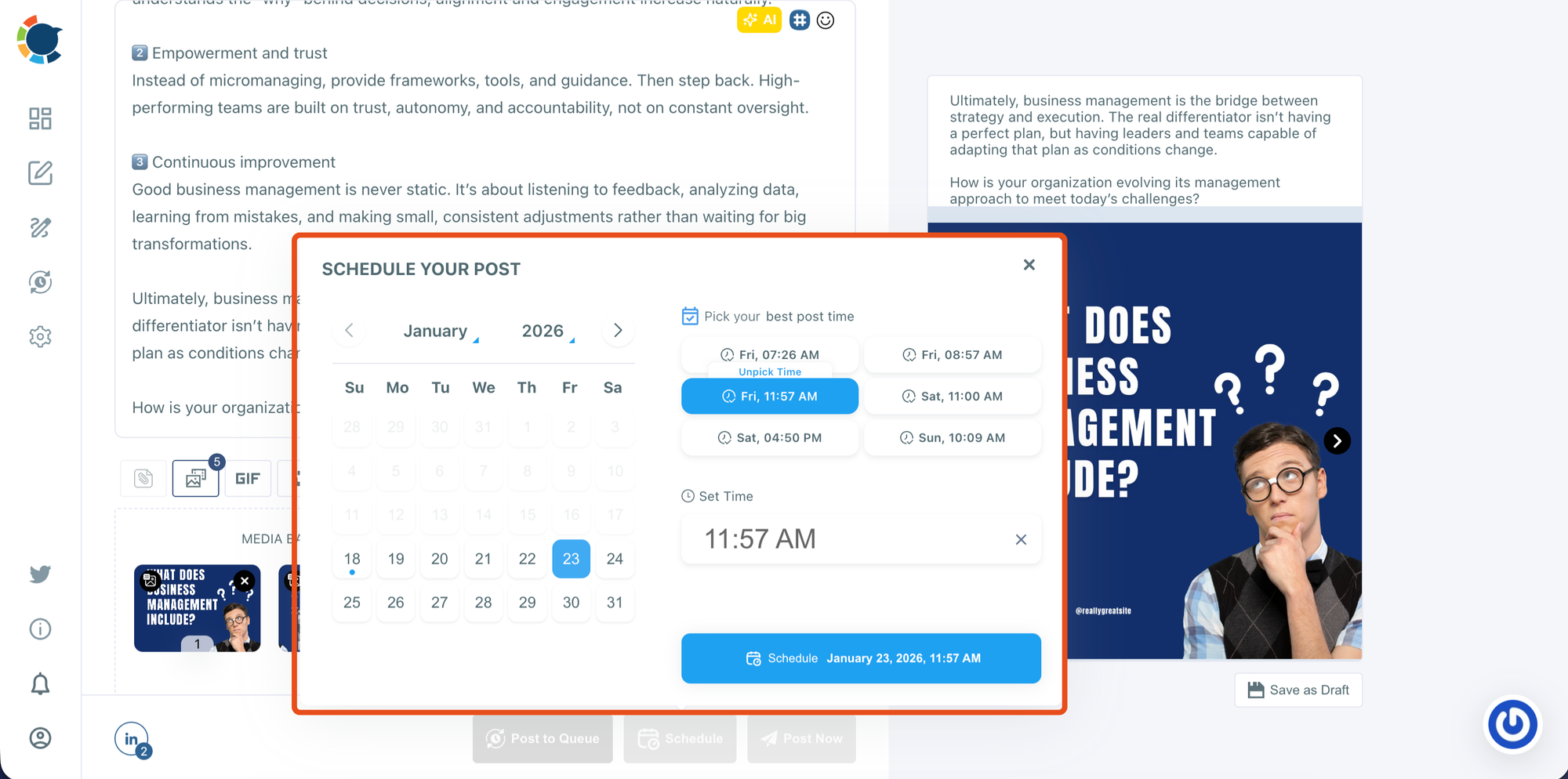
Circleboom Publish analyzes follower activity and identifies when your audience is most active. Based on this data, it suggests the best times to post.
Instead of posting randomly, you can schedule your multi-photo or carousel posts for moments when your followers are more likely to see and interact with them. This small change often leads to noticeably better engagement.
The content stays the same. The visibility improves.
Step-by-Step: How to Post Multiple Photos on LinkedIn with Circleboom Publish
Step #1: Start a new LinkedIn post
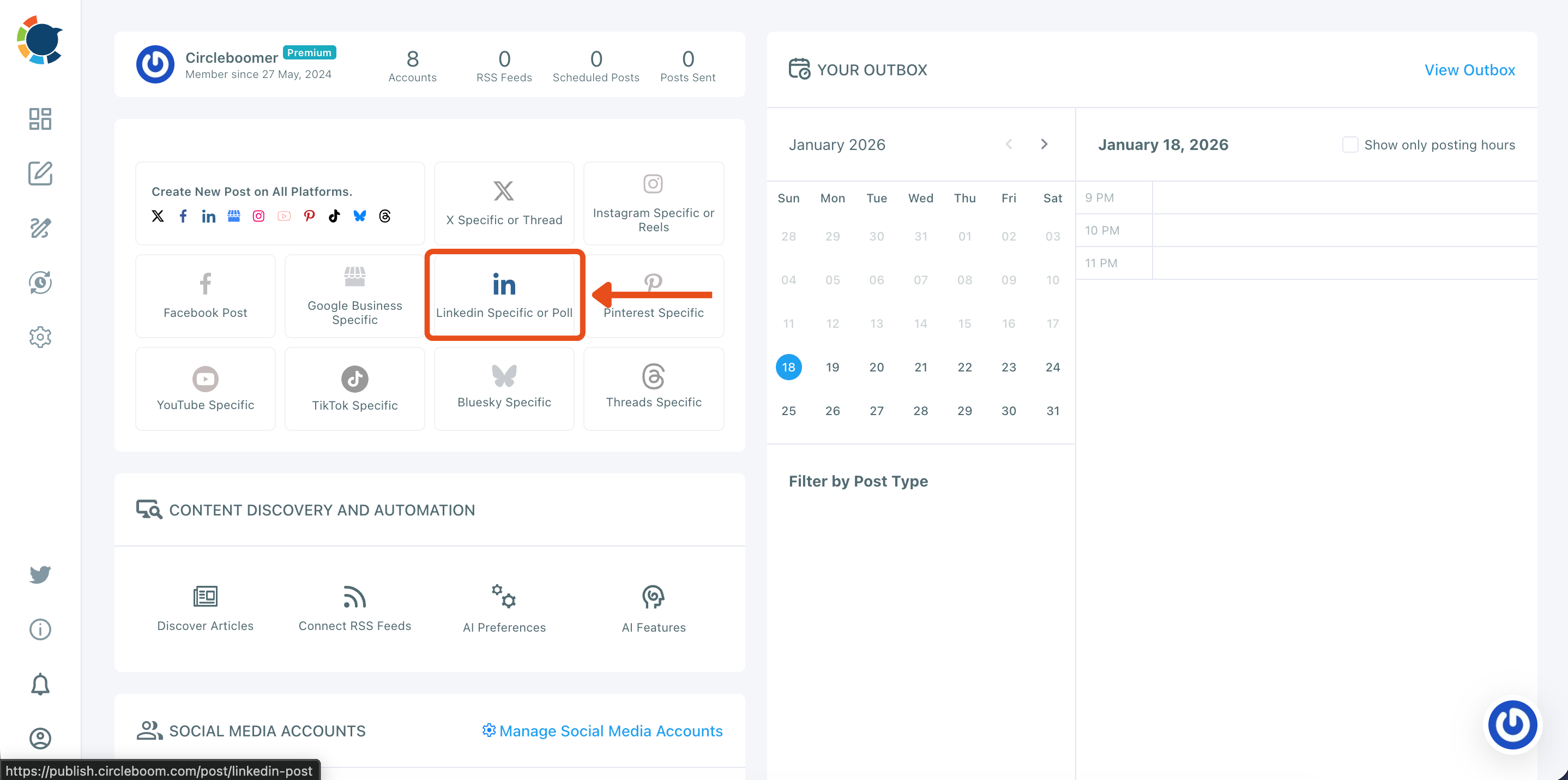
From your Circleboom Publish dashboard, go to the “Create New Post” area and click LinkedIn Specific or Poll.
This opens the LinkedIn composer so you can create a post designed specifically for LinkedIn.
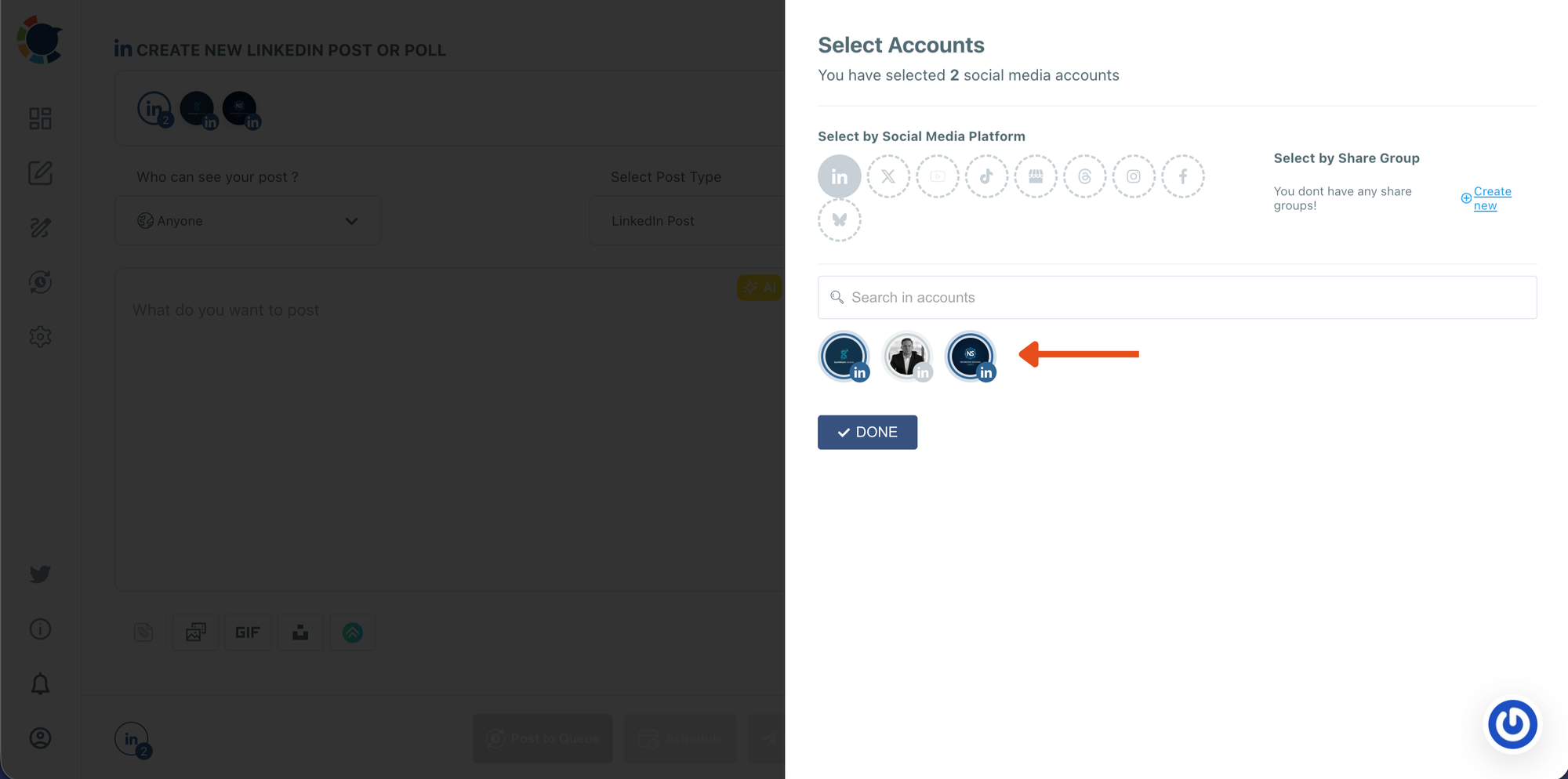
Step #2: Select the LinkedIn account(s) you want to publish from
In the Select Accounts panel, choose the LinkedIn profile or page you want to use.
If you manage multiple accounts, you can select more than one. When you’re ready, click DONE to move forward.
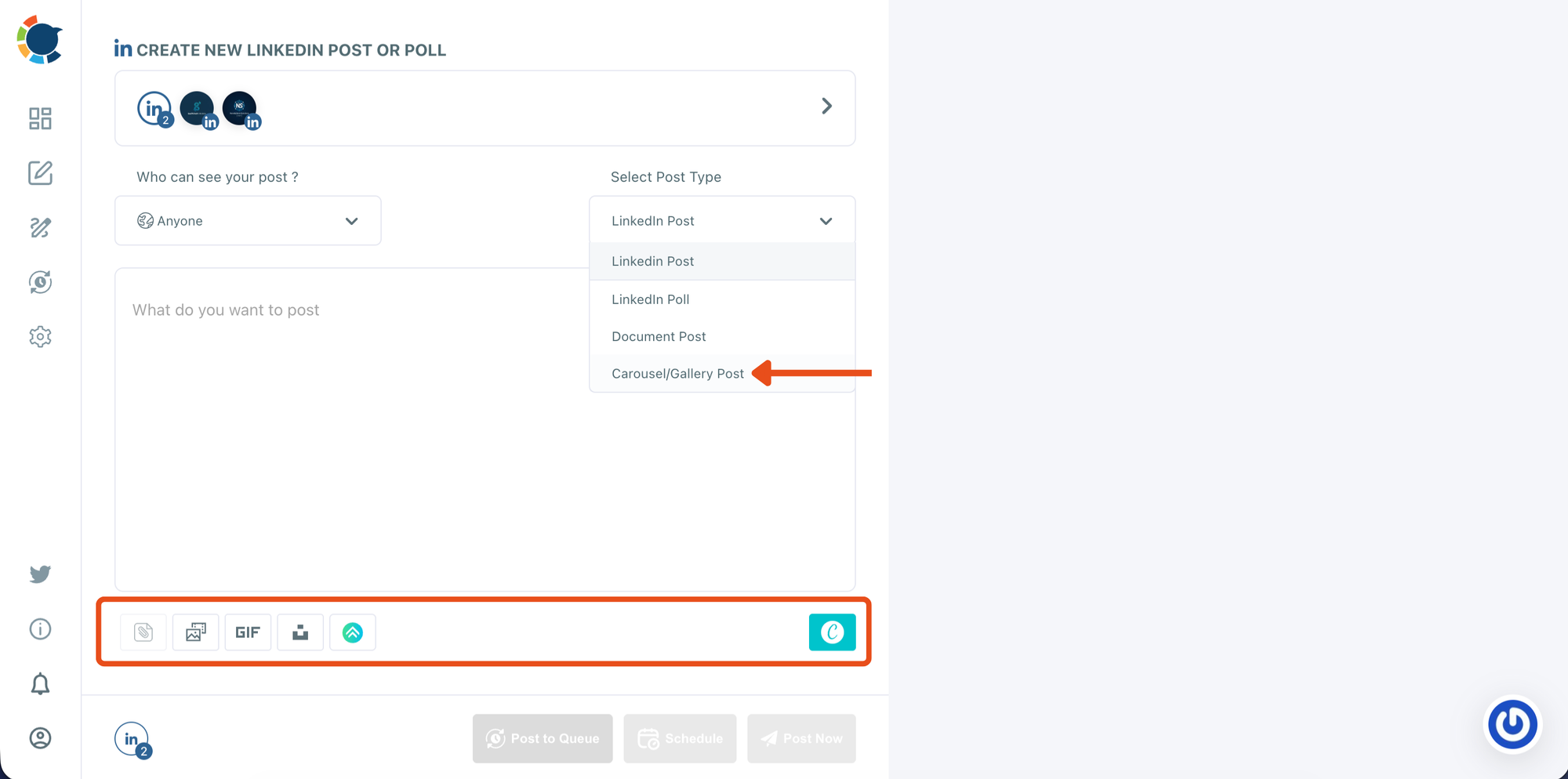
Step #3: Choose the Carousel/Gallery post type
Inside the LinkedIn composer, open the Select Post Type dropdown and select Carousel/Gallery Post.
This enables carousel publishing and prepares the media area where you’ll upload your slide images.
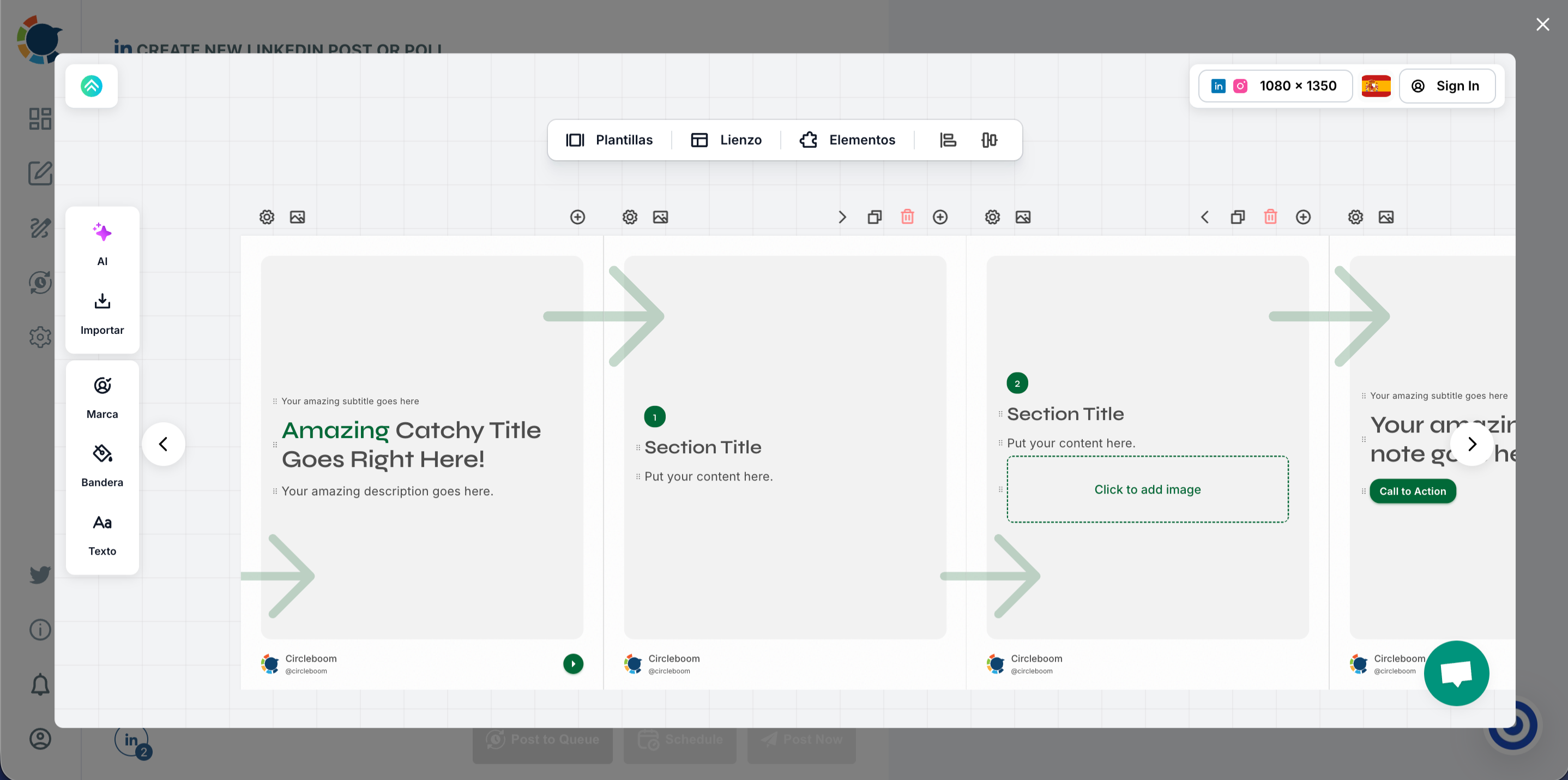
Step #4: Design your carousel slides in the editor
Open the integrated design editor and pick a carousel template.
Edit each slide by updating titles, adding visuals, adjusting layout, and keeping your branding consistent across all pages.
Once finished, export or save your slides so they’re ready to upload.
Step #5: Upload your carousel slides and write your LinkedIn caption
Or upload your slide images into the media bar (drag-and-drop or click to upload).
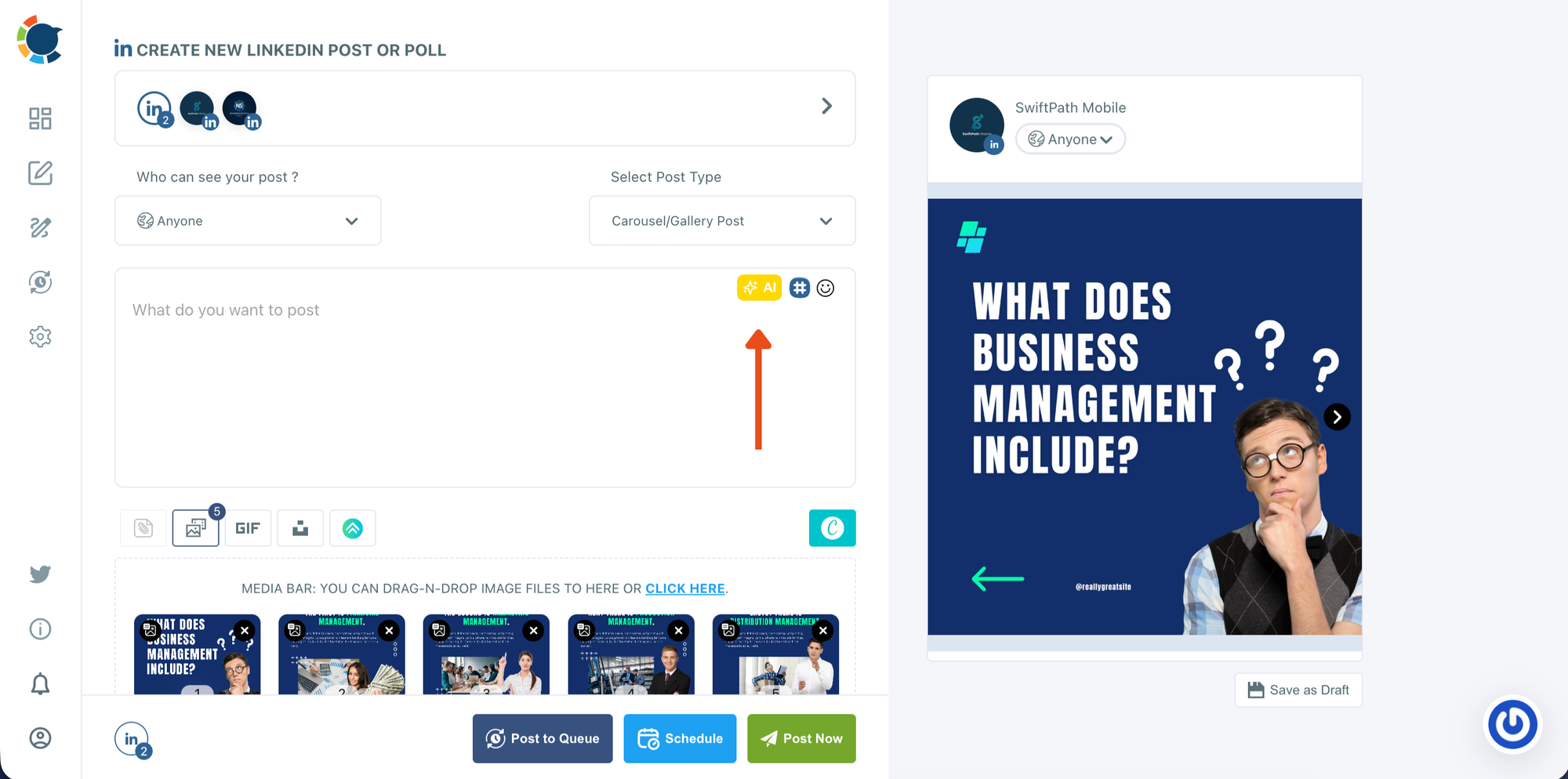
Check the preview on the right to confirm the slide order and how the carousel will appear on LinkedIn. Then write your caption in the text box.
If needed, use the AI option to generate or refine your copy based on the carousel topic.
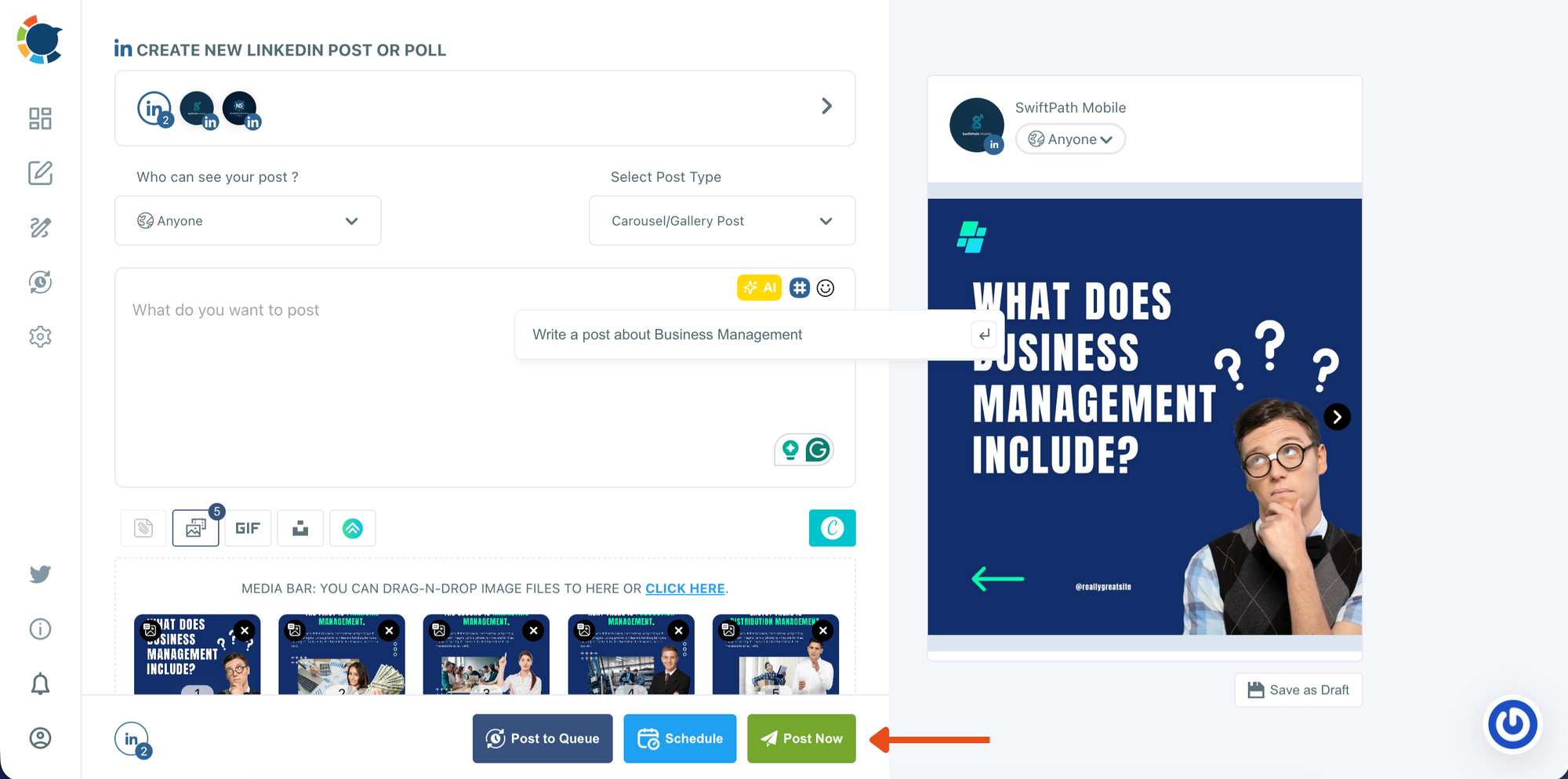
Step #6: Decide whether to post now or schedule for later
When everything looks ready, choose how you want to publish:
- Post Now to publish immediately
- Schedule to set a date and time for later
This step is where you move from final review into publishing mode.
In the scheduling window, select the date from the calendar. Choose one of the suggested best-time options or manually set your own time. Then click Schedule to confirm and add your carousel post to your publishing plan.
Everything happens in a single dashboard, which makes the process faster and more consistent.
Tips to Make Multi-Photo LinkedIn Posts Perform Better
Some simple practices make a big difference over time:
- Focus on one clear idea per post
- Use the first image as a strong hook
- Keep fonts, spacing, and colors consistent
- Let visuals explain the message instead of long captions
- Share posts when your audience is active
These details help your content feel intentional instead of random.
Final Thoughts
Posting multiple photos on LinkedIn is easy. Posting them in a way that looks professional, feels cohesive, and performs well takes a better system.
LinkedIn’s native upload option works for quick updates, but it falls short when you want to create visual stories or carousel-style content. Designing your visuals properly and sharing them at the right time changes how people interact with your posts.
For me, Circleboom Publish turned multi-photo posting into a repeatable and efficient workflow, which is what makes long-term content creation sustainable.

