
You remember the tweet. You just cannot find it again.
X's search will show the last few posts an account made about a topic and then quietly stop, and it gives you no way to save what it did show.
That is the wall most people hit when they try to search one person's tweets for a keyword, and it is a solvable one.
Circleboom's Historical Tweet Search reads a person's public tweets by keyword, then hands you both the matching posts and the accounts behind them on X through official X API access. Set a username to audit one person, or drop it to sweep a whole topic, and scope everything by date range, language, and engagement. Every result exports to CSV, which is the part X's own search will not do.
→ search someone's tweets for keywords
Why X's built-in search leaves you stuck
X does support keyword search inside one account. The `from:username keyword` operator works, and X's advanced search operators are documented on the platform itself. So why does it feel broken so often?
Two reasons. First, native search reads a shallow live index, so it returns recent matches and loses depth quickly, which means an account's older tweets about your keyword may simply not appear.
Second, there is no export. You cannot download the tweets, and you cannot download the accounts that wrote them.
To do serious work you need a way to pull a person's keyword tweets and keep them, and that is exactly the gap this walkthrough closes.
What you need before you start
The setup is short. You need:
- a Circleboom account connected to any X login
- the keyword or phrase you want to trace
- a rough sense of the time window that matters, whether that is the past month or the past three years
It also helps to decide upfront whether you are auditing one person or scanning everyone. That single choice, one username versus none, changes the whole shape of the result.
If your real question is about what people wrote in their bios rather than their tweets, that is a separate job. You may also want to search Twitter history broadly first, just to confirm the keyword has the volume worth chasing.
Watch the historical keyword search run from query to exported account list:
How to search someone's tweets for keywords on X
Here is the full sequence. Because Circleboom is an official X Enterprise Developer, every tweet in the result comes through sanctioned data access, so nothing here risks your account or breaks X's rules.
When you are ready to collect every tweet an account posted about a keyword, run these five steps in order.
Point the search at the right account and word
- Log in to Circleboom Twitter and connect the X account you want to search from.

- Open the Advanced X Search menu and select Historical Tweet Search.
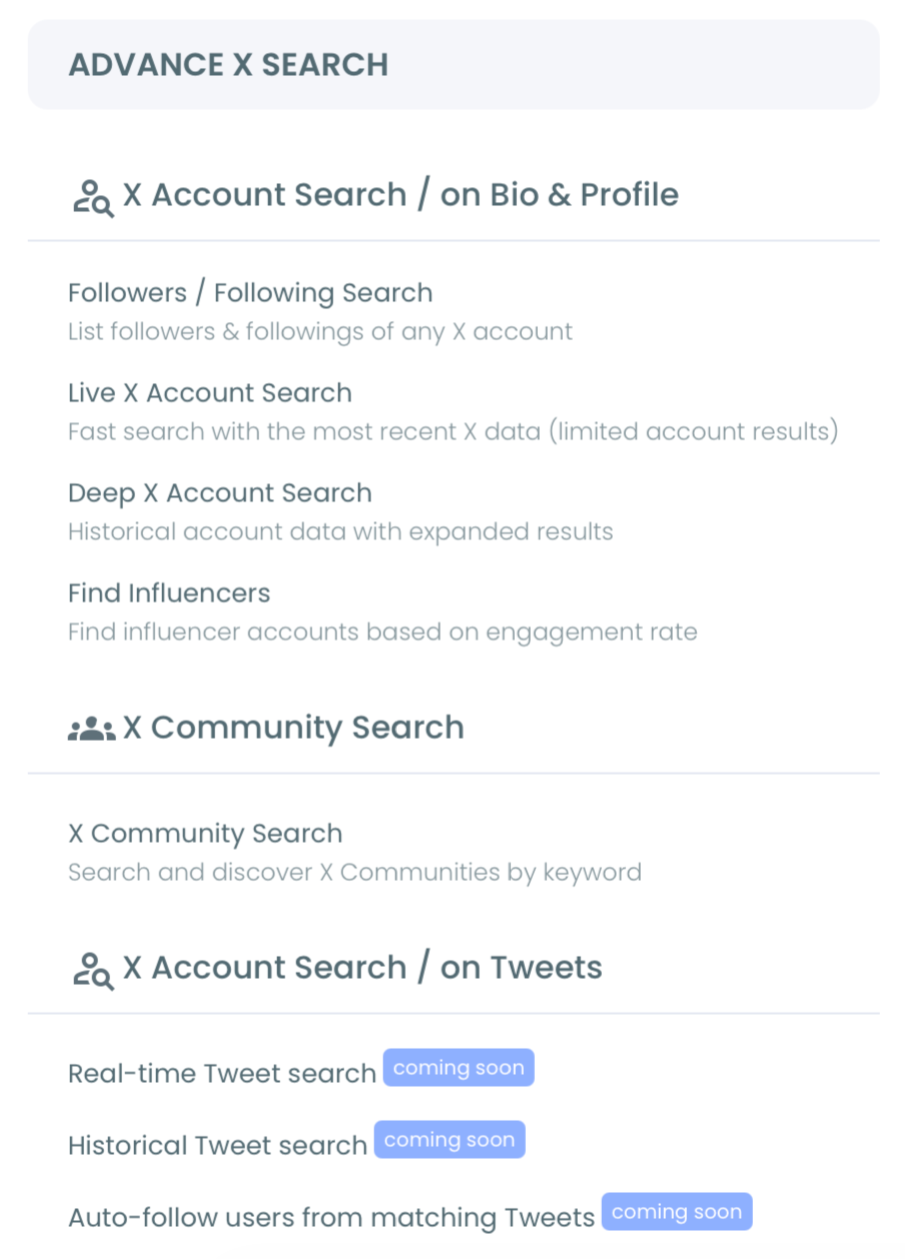
- Enter your keyword in plain language, and add the username if you want one person's history rather than a topic-wide sweep.
Filter the history and pull the list
- Set the match type, exclude terms, language, and engagement minimums, then choose a date range and how many tweets to collect.
- Read the matching tweets, click Display Profiles to switch to the account view, and export either view as a CSV.
Run in that order and you never waste a collection: you shape the query first, then spend tokens only on tweets that already fit your filters.
Choose the right filters for the job
Filters are what separate a clean result from a noisy one, so treat them as part of the search, not an afterthought. Match type controls precision: exact phrase for names and slogans, contains for broad topics.
Exclude terms remove the wrong meanings of a word before they ever reach your screen.
Engagement minimums do the heaviest lifting. A floor on likes or retweets drops the throwaway mentions and keeps the posts that actually reached people.
If your goal is to study a single account's patterns in depth, it is worth reading up on how to analyze someone's tweets.
That way the filters you pick match the question you are really asking.
Search a single account, or a whole topic
The same screen does two very different jobs. Enter a username and you get that account's public tweets about your keyword, bounded by your date range, which is effectively a searchable archive of one person.
Leave the username blank and the identical query becomes topic discovery, returning every account that tweeted the phrase.
That flexibility covers a lot of ground. It is also useful for narrower personal questions, like when you want to find your retweets of a certain account rather than a stranger's originals.
The mechanics do not change; only the username field and the filters do.
A worked example: building a competitor list
Here is the sequence in practice. Say you sell a scheduling tool and want accounts that are unhappy with a named rival.
Set the keyword to the rival's name, use contains match, and include words like "switching," "cancel," or "frustrated." Scope the date range to the past twelve months so you catch recent dissatisfaction, not ancient history.
Add an engagement floor of a few likes to skip the tweets nobody saw, and exclude the rival's own support handle so their replies do not flood the result. Run the collection, then click Display Profiles.
What comes back is a list of accounts that publicly said the alternative let them down, each one warmer than a cold contact. Export that list to CSV, drop it into your outreach flow, and you have built a prospect list from what people actually said.
The same recipe adapts to hiring posts, event hashtags, or product questions.
Turn the matching tweets into an account list
Once the tweets are collected, the profile view is where the value lands. Click Display Profiles and the tool collapses the matches into a deduplicated list of the accounts behind them, each row showing follower count, join date, follow ratio, and activity level.
From there the list becomes action: export it to CSV, follow the accounts that matter, or add them to an X List for ongoing watching.
Prefer to monitor a keyword as it happens instead of pulling its past?
The real-time tweet tracker watches new posts arrive live.
It is the forward-looking companion to this backward-looking search.
How collection size and tokens work
One number confuses new users more than any other: the tweet count you choose is not the number of accounts you get back. Collection size controls how many tweets are gathered, and those tweets can come from a few prolific accounts or a wide crowd.
Collect 500 tweets and, depending on the keyword, you might extract 50 unique accounts or nearly 500.
Tokens follow the tweets, not the accounts. Circleboom spends GetTweetTokens in proportion to how many tweets you gather, and export spends them too, so the balance is worth watching on large pulls.
If tokens run out mid-collection, the search stops where it is and keeps the partial result rather than discarding it.
The practical takeaway: start with a modest collection to test your filters, confirm the accounts look right, then scale the count up once you trust the query.
It is cheaper to refine a small search twice than to burn a large one on a keyword that was too broad.
Read the tweet, not just the keyword
A keyword match is a starting point, not a verdict.
The tool found the word; it did not judge whether the person meant it the way you hoped.
Someone who tweeted your keyword sarcastically, or quoted it to disagree, still lands in the result, so a quick read of the actual tweet text saves you from acting on a false positive.
This matters most before bulk actions. Following two hundred accounts because they used a phrase, without reading how they used it, is how a clean list turns into an irrelevant one.
Skim the tweet preview in the results table, open the ones that look borderline, and deselect anything that clearly does not fit. The metadata helps here too: a tweet with real engagement was usually a genuine statement, while a zero-interaction post is more likely noise.
Two minutes of reading before you export is the cheapest quality control the workflow offers.
When to search profiles instead of tweets
Tweet search answers what someone said. Sometimes the better question is who describes themselves a certain way, and that lives in bios, not posts. A recruiter hunting for a job title, or a marketer looking for a niche self-description, is really searching profile text.
For those cases, Circleboom's search Twitter bios and profiles tool matches on the profile itself. There is a healthy debate about the best way to search Twitter bios and profiles.
The rule of thumb is simple: search tweets for intent and behavior, and search bios for identity and role.
Common gotchas when reading historical tweets
A few things trip people up, so plan for them. Only public tweets are returned, which means protected accounts, deleted posts, and unindexed content will not appear, and a thin result is sometimes a thin record rather than a bad query.
Coverage on very old content can also have gaps.
Two more cautions. Historical tweets show past sentiment, not present mood, so an account that criticized something a year ago may have moved on.
And engagement counts reflect the moment of retrieval, so read them as a ranking signal rather than a fixed number. Review profiles before any bulk follow, because a keyword match confirms the tweet fit, not that the account is still active.
One more habit worth keeping: separate the archive from the trend. Historical results explain how a conversation looked in the past, which is exactly what you want for research or a content retrospective, but they are not a live pulse of current opinion.
If a decision depends on what people think today, pair the historical pull with a fresh real-time search and compare the two side by side. The gap between the old sentiment and the new one is often the single most useful finding the whole exercise produces.
Your quick checklist before you run it
Before you hit collect, run through the short list so the search returns something worth keeping.
- Confirm the keyword and pick a match type: exact phrase for names, contains for topics.
- Add the username only if you want one person's history, not a topic sweep.
- Add exclude terms and an engagement floor to cut noise before it starts.
- Set a date range that matches your real question, not the widest possible window.
- Decide whether you need the tweet view, the profile view, or both exported.
Work down that list and the tool does the rest. When you are set, start a historical keyword search and let the export give you the record X's own search never would.
What to know before you search someone's tweets
Can I search only one specific account's tweets?
Yes. Enter the username as a filter and the search returns only that account's public tweets that matched your keyword, inside the date range you selected.
Do I need the Circleboom Chrome extension for this?
No. Historical Tweet Search runs through the X Enterprise API, so keyword searching, filtering, and exporting all happen inside the web app without an extension.
How many tweets can I collect at once?
You choose the collection size before running the search. The count you pick controls how many tweets are gathered, though the number of unique accounts extracted depends on how many different people posted them.
Why are some old tweets missing from my results?
Only public, indexed tweets can be retrieved. Protected, deleted, or very old posts may not appear, so gaps usually reflect the limits of what is available rather than an error in your search.