

Your follower count moves down and X says nothing. There is no notification, no log, and no way inside the app to name the accounts that left or the day they left.
That silence is the problem this walkthrough solves, from connecting an account to setting an alert that reports future unfollows without you asking.
What this walkthrough gives you.A dated list of every account that unfollowed you, with profile context on each one.The filter sequence that separates a bot purge from a real audience loss.An email alert that reports new unfollows on a schedule you set.
All of it runs on Circleboom's unfollow tracking for X through official API access.
→ who unfollowed me on Twitter
The unfollow blind spot on X
X treats follows and unfollows asymmetrically. A new follower triggers a notification you can see, tap, and act on. An unfollow triggers nothing at all, which means the platform records the event and then hides it from the only person who cares about it.
That asymmetry is documented behavior rather than a bug.
X's own platform rules govern what third-party services may do with follow data, and Circleboom operates inside them. That is why the tracking works without putting your account at risk.
The practical cost of the blind spot is misdiagnosis.
A drop of 60 followers gets read as a content failure when it was a platform cleanup, or gets shrugged off as normal churn when it was 60 engaged accounts leaving after one post.
Circleboom removes the guesswork by naming the accounts. You can run a Twitter unfollower check and read the departures as a dated list instead of a counter.
A shorter version of this routine is written up in track your Twitter unfollowers in 3 easy steps. Keep it as a reference for later, once the setup below is finished.
What Circleboom records that X throws away
Circleboom stores snapshots of your follower list on X over time and compares each new snapshot against the one before it, so any account present yesterday and missing today lands in the unfollow list with a date attached.
That comparison runs on official API data. Circleboom is listed on X's Enterprise customer directory, so the follower snapshots are complete records pulled through sanctioned access rather than partial data assembled by scraping.
Completeness matters more here than in most audience features. A partial snapshot produces phantom unfollows: accounts that appear to have left because they were never captured in the first place.
A full snapshot produces a list you can act on.
The trend line behind those snapshots is worth watching alongside the names, and a Twitter follower count tracker charts the number that this unfollow list explains.
Each row carries the context that turns a name into a judgment:
- Display name, handle, and location.
- Total tweets and account join date.
- Following count, follower count, and follow ratio.
- An activity classification of active, moderately active, or inactive.
- Per-row buttons to unfollow, whitelist, blacklist, or open the profile.
A name alone tells you nothing. A name with a join date and a follow ratio tells you whether the loss was a person or a bot.
How to track who unfollowed me on Twitter safely
See the tracking flow before you build it: this walkthrough covers the alert setup end to end.
The process, phase by phase.
Connect the account you want tracked
- Log in to Circleboom Twitter and authorize your X account.
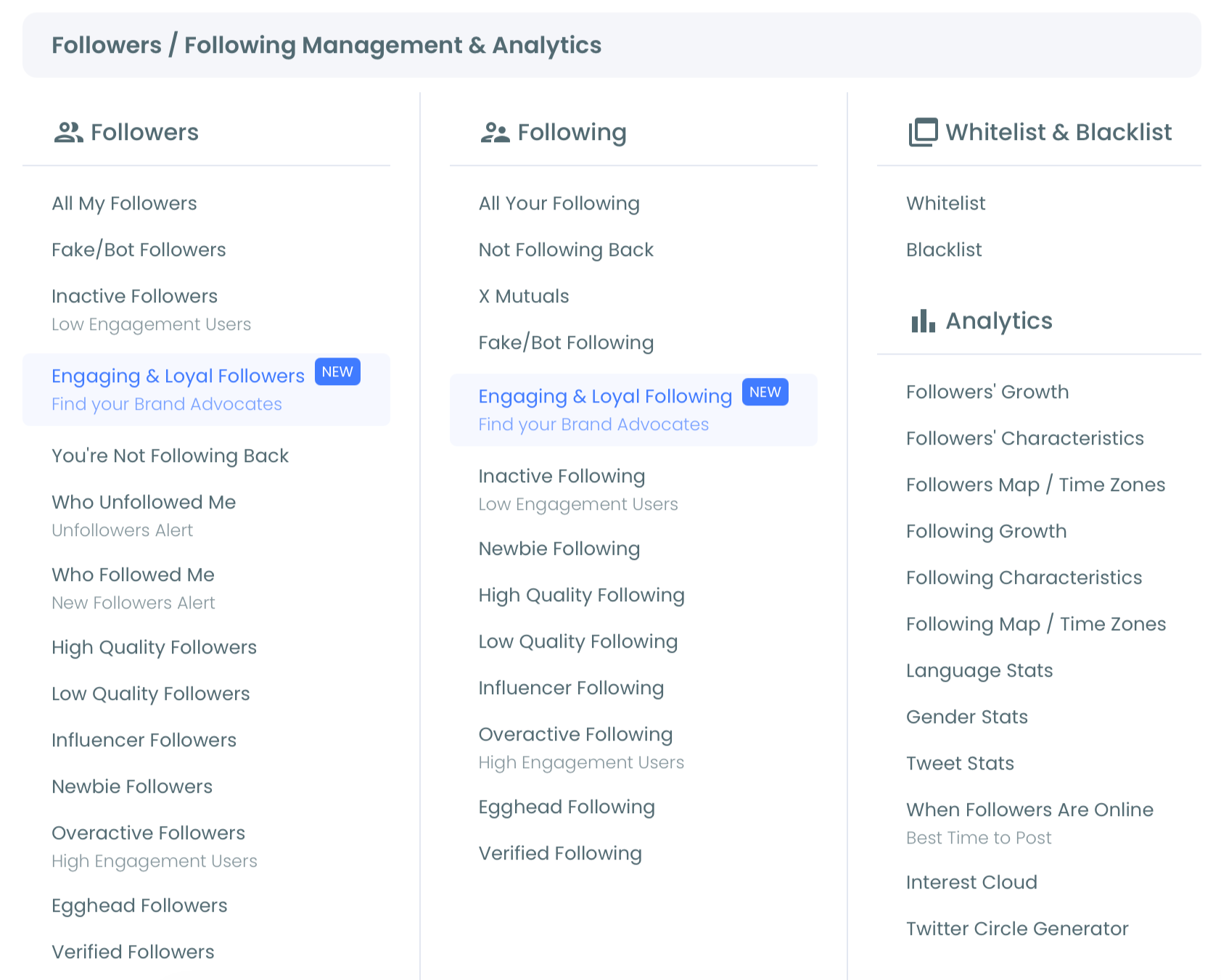
- Open the Follower and Following management menu from the dashboard.
Open the unfollow view and choose a window
- Select the Who Unfollowed Me view inside the audience insights group. The header reports the number of accounts that unfollowed you, and the table lists them below.
- Set the time period from the dropdown above the list. The default is the last day; the range runs out to the last year. Pick the window that matches what you are testing:
- A recent post or thread, last 1 to 3 days.
- A campaign or launch week, last week.
- A content pivot, last 4 weeks.
- A retention review, last 3 months to a year.
Narrow the list before you judge it
- Open Filter Options and set follower quality. Each of the five quality categories has its own control, so you can hide eggheads and fake or spam accounts, or show only inactive ones, depending on which question you are answering.
- Add the numeric filters that define value for your account. Follower count, following count, tweet count, follow ratio, and join date all take minimum and maximum values, and verification status, engagement level, language, and location narrow the segment further. Active filters appear as removable tags at the top so the current segment is never ambiguous.
- Sort the filtered table by the column that matters. Every header sorts in both directions, which makes ranking by follower count the fastest way to find the largest account that left.
Act, then automate
- Choose an action from the same screen. Unfollow accounts individually or in bulk, add them to an X List, whitelist the ones you never want caught by a bulk operation, blacklist repeat offenders, or export the segment as CSV using the token counter shown on the button.
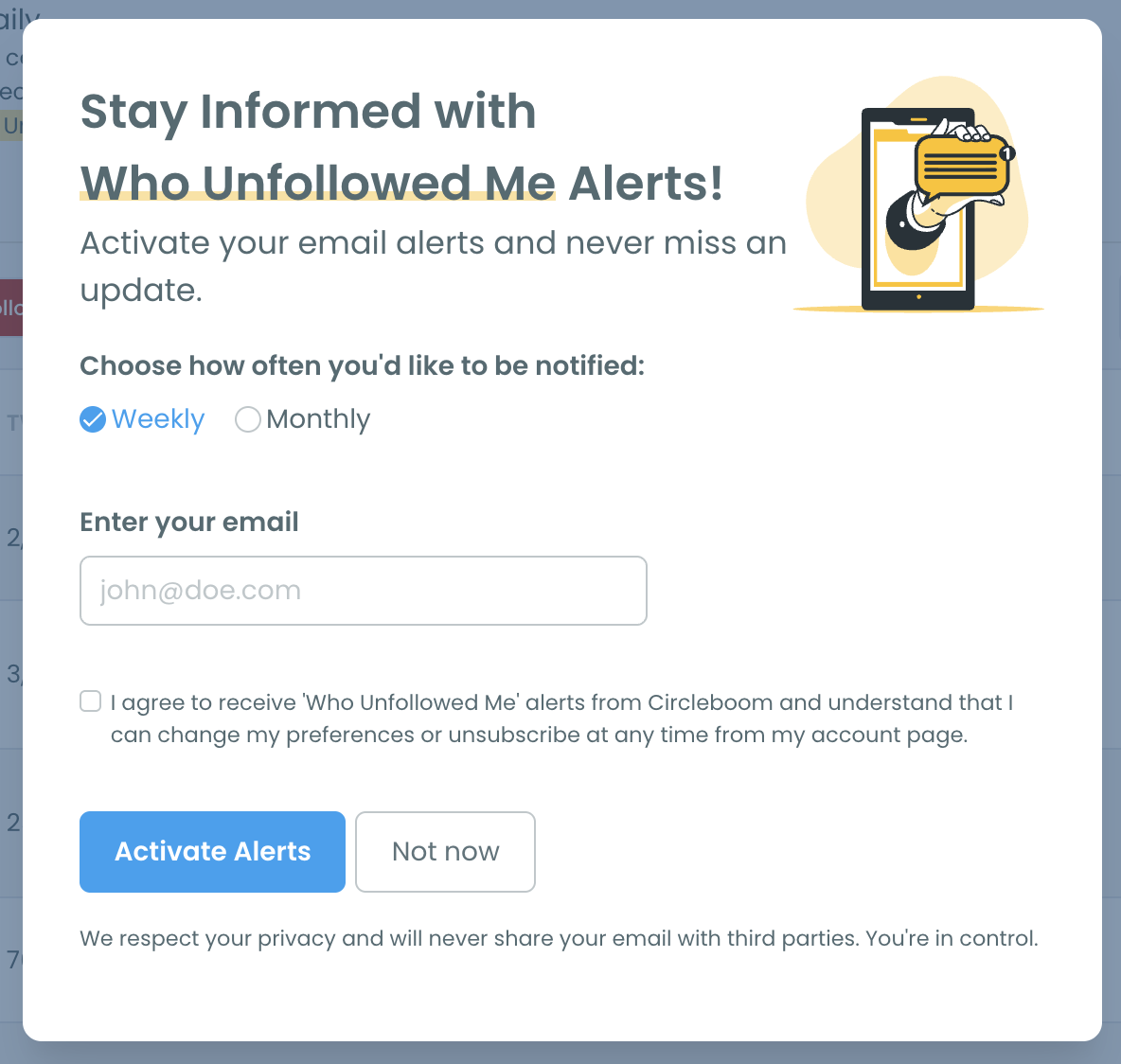
- Set up the unfollowers alert from the button at the top right of the page. Enter an email address, choose how often you want the summary, and activate it.
The whitelist step in point 8 is worth doing before anything else, not after.
A whitelisted account is excluded from bulk operations everywhere in Circleboom, not just in this view, so the accounts you never want touched stay protected across every cleanup you run later.
Building that list once costs a minute and removes the risk that a fast bulk unfollow catches a client, a partner, or an account you deliberately follow.
The sequence is built so judgment comes before action.
Connecting first earns official API access, the time window converts a list into an event, the filters tell you whether the loss was real, and only then does the unfollow or export button make sense.
Reverse any two of those and you end up acting on data you have not read.
How do you tell a bot purge from a real audience loss?
Check the join dates and the follow ratios first.
X removes inauthentic accounts from the platform periodically, and every one of those removals lands in your unfollow list looking exactly like a person choosing to leave.
The two cases separate cleanly under a filter. A bot purge produces a cluster of accounts that joined recently, published almost nothing, follow thousands, and are followed by almost no one.
Filter the list to fake, spam, and inactive quality categories and watch how much of the drop disappears into that bucket.
Size the bucket before you interpret anything. If four fifths of a drop sits in the low-quality categories, the remaining fifth is the only part worth reading, and it is usually small enough to review account by account.
A real audience loss looks like the opposite. The accounts have history, they tweet, their follow ratios are balanced, and the activity column marks them as engaged.
If a drop of that shape lines up with something you posted, the post is worth reviewing.
Readers who suspect the underlying audience was never clean should start further upstream with how many of my X followers are bots. A follower base full of automation keeps producing drops that mean nothing, and no amount of unfollow analysis will fix that.
The same quality signals cover your whole audience in Twitter follower quality and following quality. That is the wider view sitting behind the filters used here.
Reading the columns before you act
Read the table in a fixed order and it stops being intimidating. Three columns carry almost all of the signal, and the rest exist to confirm what those three already suggested.
Follow ratio is the single most useful column on the page. An account following 4,000 and followed by 30 was almost certainly running a follow-for-follow routine, and its departure carries no information about your content.
Join date does the second-most work. Accounts created within the last few weeks that have already followed and unfollowed you are churn by design, not an audience signal.
Location and language sit one level below those two. They rarely explain a single departure, but a cluster sharing one language after a positioning change points at audience fit rather than at any individual post.
The activity classification closes the loop. Losing an inactive account changes nothing about your reach, because that account was never going to see a post.
Losing an account classed as high engagement changes your distribution, and that is the case worth investigating.
Pair the unfollow window with your posting record. When the dates line up with a specific tweet, tweet stats shows how that post performed against your baseline.
That comparison is usually enough to confirm or kill the theory in one pass.
A post that underperformed and sits inside the unfollow window is a real candidate. A post that outperformed and sits in the same window almost never is, because reach and departures rise together whenever a tweet travels beyond your usual audience.
One-sided relationships are a separate job. The accounts not following back sit in their own view, because that is a cleanup question rather than a retention question.
Setting the alert so tracking runs itself
Manual checking fails for the same reason manual scrolling fails: it depends on you remembering to look on the day something happened.
The unfollowers alert removes that dependency. Circleboom emails you a summary of new unfollowers at the frequency you pick, so a normal week costs you nothing and an unusual week arrives in your inbox with names already attached.
Frequency is a judgment call rather than a rule.
Accounts posting daily and testing new formats benefit from the tighter summary, because the feedback needs to land close to the post that caused it. Accounts posting a few times a month are better served by a wider interval, where a single departure does not read as a trend.
Either way, the point is that you track every Twitter unfollow without adding a recurring task to your week.
Two practical notes on timing. Circleboom refreshes follower data from the X API daily, so a very recent unfollow appears after the next sync rather than instantly.
X API data occasionally lists an account that has not actually unfollowed, and those entries typically correct themselves in the next day's fetch, which is exactly why the product recommends reviewing a list before running a bulk action on it.
Bulk actions are paced as well. Unfollows process in batches inside X's rate limits and resume automatically the following day when a daily ceiling is reached, so a large cleanup runs gradually instead of drawing a temporary restriction.
If your tracking happens mostly on a phone, the mobile routine in track Twitter unfollowers on iPhone covers the same workflow from a smaller screen.
The alert itself has a longer write-up in Twitter unfollow alert for readers deciding on a frequency.
Your next move
Five actions turn this from reading into a working setup:
- Connect your X account and open the Who Unfollowed Me view.
- Set the window to the last week and read the list once, without acting.
- Filter to fake, spam, and inactive accounts to size the noise.
- Invert the filter to verified and high-engagement accounts to size the real loss.
- Activate the unfollowers alert so the next drop reports itself.
Do those in order and follower loss stops being a mystery counter. It becomes a dated record you can check against your own posting history, which is the only version of this data that changes a decision.
→ set up your Twitter unfollower tracking
Questions readers ask about Twitter unfollowers
Does X ever tell you when someone unfollows you?
No. X sends notifications for new followers and stays silent on unfollows, and there is no setting that changes it. Tracking the change against stored snapshots of your follower list is the only way to see the event.
How soon does a new unfollow show up in the list?
After the next daily sync. Circleboom refreshes follower data from the X API once a day, so an unfollow that happened an hour ago appears in the following day's list rather than immediately.
Can an account show up as an unfollower by mistake?
Occasionally, yes. X API data can carry small inconsistencies that place an account in the unfollow list when it has not left, and those entries usually resolve in the next day's fetch. Review the list before running any bulk action on it.
What is the difference between checking unfollowers and cleaning up accounts I follow?
The unfollow view answers who left your audience. Cleaning up your own following list is the reverse operation and lives in a separate view, since one is a retention question and the other is a feed-quality question.





%3F)
