The usual advice for an Instagram panorama, zoom out or slice it in a phone app, either shrinks the picture or eats an evening of measuring. The faster route keeps every pixel and hands the cutting to the composer.
How do you post a panorama to Instagram without cropping it?
Split the wide image into connected slides of one carousel post, so viewers reveal the full scene by swiping. Circleboom Publish does that split automatically in the Panoramic Post tab of its Instagram composer, then posts, schedules or queues the carousel for you.
→ Turn a wide photo into an Instagram panorama post
What is the swipe method for Instagram panoramas?
The swipe method posts one wide image as a single carousel whose slides join edge to edge, so the scene unfolds as the viewer swipes from left to right. Nothing is cropped away, because the width is spread across slides instead of squeezed into one frame.
Three parts define it:
- One source image: a single wide photo, not a set of separate shots.
- Connected slides: each slide continues exactly where the previous one ends.
- One post: the whole panorama lives inside one carousel post on your profile.
Instagram itself gives a wide photo two weak options. Zooming out fits the frame but leaves blank bars and a small picture. Cropping keeps the size but deletes the ends of the scene, which in a coastline, a concert crowd or a conference stage is often the point of the shot.
A wide photo needs room to stay wide, and on Instagram the swipe is where that room is.
The format also works in its own favor. The cut-off edge of each slide is an open question, and the answer sits one swipe away. A viewer who sees half a boat at the right edge has a reason to keep going, and that pull repeats at every seam.
The people who get the most from it have one thing in common, a scene that runs sideways:
- Photographers with landscapes and skylines.
- Venues, hotels and restaurants showing a whole room or garden.
- Event organizers with a stage or a crowd.
- Teams with a group photo nobody wants cropped.
- Shops with a full product line-up.
The method is old; doing it by hand is what made it rare.
If you want the swipe without the slicing, Circleboom Publish lets you post panoramas to Instagram from a single upload in its Instagram composer.
How Circleboom Publish splits a panorama into one carousel
Circleboom Publish turns one wide image into a swipeable Instagram carousel through the Panoramic Post tab, one of five post types in its Instagram composer. You upload the image once, the composer divides it into side-by-side slides, and you preview the swipe before anything goes live.
The tool is a formatting step, not an AI generator. It slices the photo you give it and adds nothing of its own, so the visual quality depends entirely on the source. No outside design software is involved, because the split happens inside the composer.
What the tab leaves to you is the editorial work. You decide which part of the scene opens the post, where the cuts fall relative to faces and text, and what the caption says.
Those choices decide whether people swipe; the split only decides whether the slides line up.
The Panoramic Post tab sits beside the composer's other post types (Instagram Post, Reels, Story Post and Grid Post), so the same screen handles your normal photos, your videos and your panoramas. Choosing the format is a click, not a switch to another app.
Once the slides exist, the post behaves like any other Instagram post in Circleboom Publish. You write the caption, add hashtags and emoji, and choose to post now, schedule it, or send it to the Queue. The Queue holds recurring time slots for each account, so a panorama sent there goes out in the next open slot without you picking a date.
For the scheduling side of the same workflow, see how to create and schedule a panoramic post for Instagram.
→ Try posting your panorama to Instagram this way
Is an Instagram panorama one post or nine?
An Instagram panorama made with the swipe method is one post. Your profile grid shows a single tile, and the rest of the scene appears only when someone opens the post and swipes.
That single-post fact is what separates a panorama from a grid split. A grid divides an image into 9 or 12 separate posts that reassemble as a block on your profile, so each tile is its own post with its own likes and comments.
Mosaic layouts work the same way, built from several posts rather than one. If that is the look you want, start with the Instagram mosaic post maker.
The engagement math follows from the single-post fact. On a panorama, every like, comment, save and share lands on the same post, so the attention the scene earns is counted in one place. A grid spreads the same attention across many tiles, and each tile is judged on its own.
Because a panorama is one post, it has no publishing-order requirement. You schedule one slot and the whole scene goes out at once, with no risk of another post landing between pieces.
It also keeps your profile tidy. A grid takes over the top rows of your profile until newer posts push it down, while a panorama occupies a single tile and leaves the rest of your grid as it was.
One upload, one post, one tile on your grid.
How many slides can an Instagram panorama have?
A panorama made in Circleboom Publish can have up to 10 slides, the carousel limit the composer splits to. That number is Circleboom's limit, and it caps how many pieces one panorama can be cut into.
Instagram's own app allows longer posts. Its help center article on multi-photo and video posts says the app lets a single feed post carry up to 20 photos and videos.
The two numbers answer different questions:
- 10: how many slides the Panoramic Post tab produces from one wide image.
- 20: how many photos and videos Instagram's app accepts in a single feed post.
Treat the 10 as a planning number, not a target. If a scene seems to need more slides than that, it is usually two photos trying to be one, and two separate posts will read better.
For a panorama, 10 is rarely the constraint. A scene cut into many slides asks the viewer for many swipes, and each extra slide shows a thinner slice of the image at full size.
Three ways to split one image for Instagram, sorted by what you have
The right Instagram splitting format depends on what you start with: a wide image, a profile moment or an idea. Each one has its own tool in the same composer, and each produces a different result on your profile.
| What you have | Format that fits | What viewers get | Watch out for |
|---|---|---|---|
| A wide photo you want people to explore | Panoramic Post | One carousel, revealed slide by slide | Needs a naturally wide, high-resolution source |
| A profile moment, like a launch or a rebrand | Grid Post, 3x3 or 3x4 | 9 or 12 posts forming one picture on your grid | Tiles must publish in exact, uninterrupted order |
| An idea, list or tutorial with no images yet | AI Carousel Generator | One carousel of designed slides | It designs new slides instead of slicing a photo |
Matching each situation to its format
A wide image. Use the swipe method. The format exists to keep width, so it fits landscapes, interiors, stages, product line-ups and banners.
A profile moment. Use a grid when the goal is a big statement someone sees on your profile page, not in the feed. For that route, see how to split an image into 9 for Instagram. The grid maker for Instagram is where that split happens.
A wide photo that is also a profile moment. Some images qualify twice, like a new storefront shot from across the street. Decide by where you want it seen.
If the goal is the feed, where followers meet it one post at a time, use the panorama. If the goal is the profile page a visitor scans, use the grid.
An idea. When there is no photo yet, the AI carousel generator builds designed slides from a written instruction. It suits tutorials, lists and before-and-after comparisons, content with natural steps rather than one continuous scene.
The common thread is the source. Slicing tools need an image worth slicing, and a generator needs an idea worth explaining. Start from what you already hold, and the format choice mostly makes itself.
How to post a panorama to Instagram with the swipe method
To post a panorama to Instagram with the swipe method, upload one wide image to the Panoramic Post tab and let the composer split it into connected carousel slides. Then check the cut lines in the preview and publish or schedule the single post. The four steps below run that process in Circleboom Publish.
- Log in to Circleboom and pick the Instagram business account that will carry the panorama.
- Open the Instagram composer from the Instagram Specific or Reels card, which opens Create New Instagram Post.
- Select the Panoramic Post tab and upload the wide image, and the composer divides it into connected carousel slides.
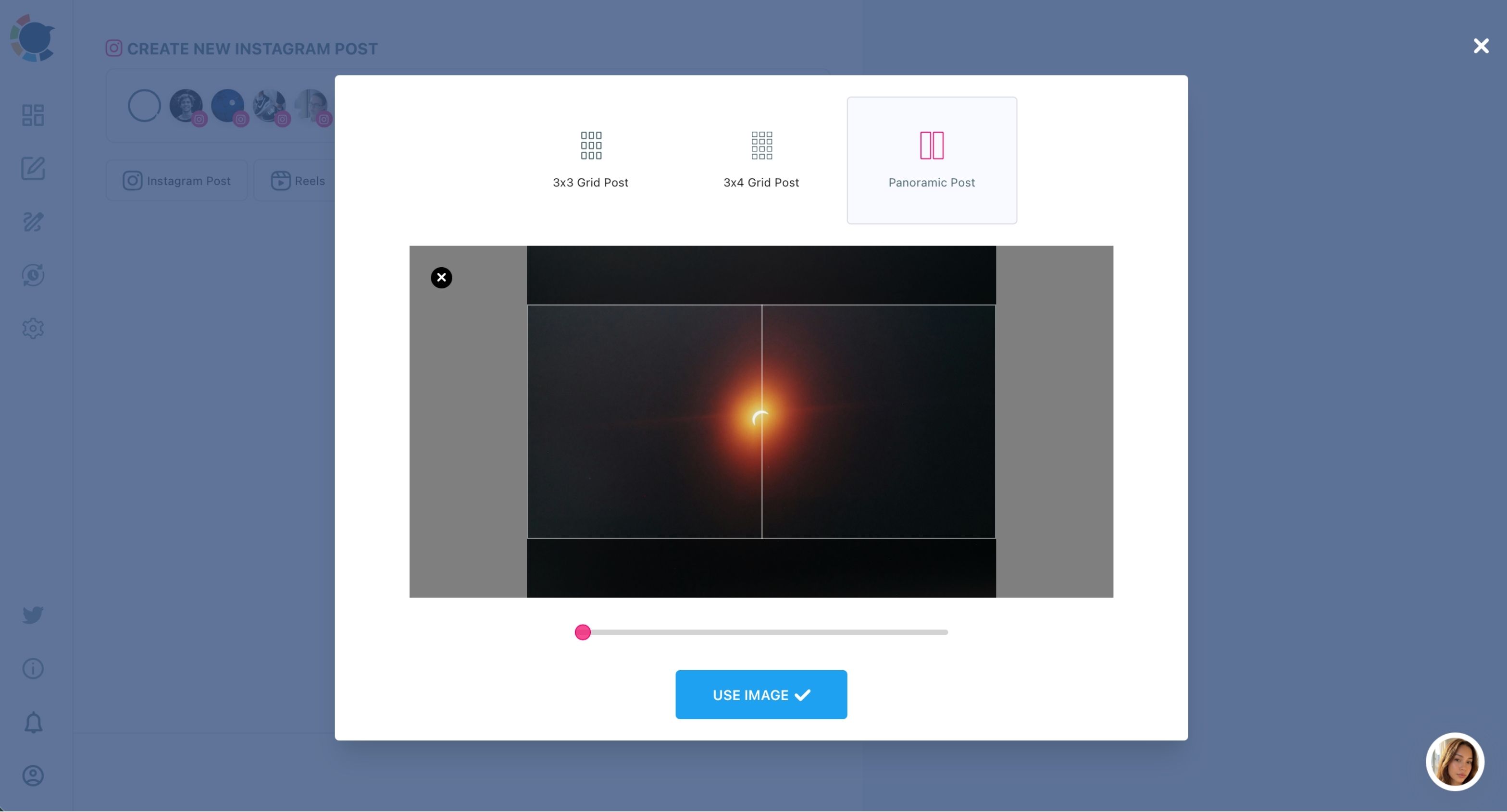
- Preview the swipe, write the caption, and publish. Keep faces and text off the cut lines, write a caption that asks people to swipe, then post now, schedule a suggested best time, or send it to the Queue.
The order matters because the preview is the last point where a badly placed cut can be fixed cheaply, and the caption is easier to write once you know which slide opens the post. Scheduling at a suggested best time means the first viewers see the panorama while they are online.
In one line: upload once, check the cuts, caption with a swipe prompt, schedule.
How to tell whether the panorama format worked on Instagram
Judge a panorama by comparing it with your other formats a few weeks after posting, using saves, shares and reach rather than likes alone. A single post rarely proves anything, so look at the format across several posts.
Circleboom Publish's Instagram content performance analytics gives you three views for that comparison:
- Overview and graphs: two metrics charted at once over a time range, with period-over-period change.
- Post engagement analytics: a sortable table of every published post, ranked by any metric.
- Video analytics: a retention funnel for Reels, useful when you compare panoramas against video.
Sort the post table by saves and shares, then read where your panoramas land against single photos and other carousels.
An illustrative example: say last month held 3 panoramas, 6 regular carousels and 10 single photos. If the panoramas average more saves per post than the single photos, the format is earning its place, even if one of them had fewer likes.
If they average fewer, the format may still be fine. The first slide is the place to look, followed by the seams and the caption.
Saves and shares are Instagram signals that a post was worth keeping or sending to someone, which matters more for a format built to be explored.
I read the result in two directions. If panoramas sit near the top, plan more wide shots into the calendar and schedule Instagram carousel posts around them. If they sit low, check the first slide before blaming the format, since it is the only slide people see before they decide to swipe.
A panorama asks for several swipes, and each one counts as an action on the post, so a strong one collects more interaction per viewer than a single photo can.
Do not let one strong result turn your feed into nothing but panoramas. The format works best as a change of pace between regular posts, carousels, Reels and the occasional grid, where its rarity is part of what makes people stop.
The Instagram swipe method in one sentence
One wide photo, cut into connected slides of a single carousel, posted at the right time and judged against your other formats, is how a panorama keeps its full width on Instagram.
→ Post your panorama to Instagram as one carousel
Panoramic post FAQ
What kind of image works best for an Instagram panorama?
A naturally wide, high-resolution image works best. Each slide shows only part of the image at full size, so a low-resolution file looks soft once split; in the Instagram composer, feed images are JPG files of up to 8 MB.
Can I slice the panorama myself in an image splitter app?
You can, but you take on the measuring. An Instagram image splitter app cuts the pieces, and you still export each one and upload them in exact order; a few pixels off and the seams show. I would only slice by hand when I need a cut no tool offers.
Can I schedule a panorama weeks ahead?
Yes. Scheduling works the same for every Instagram post type in Circleboom Publish, so a panorama prepared today can be set for a date weeks or even two months out, or saved as a draft until it is ready.
Can I post the same panorama to more than one Instagram account?
Yes. The composer's account selector is scoped to Instagram and lets you pick several accounts together, so one panorama goes to each of them in one pass. Give each account its own caption so the posts do not read identically.