
You want a consistent daily presence on Twitter without the daily presence cost. The constraint isn't motivation; it's tooling. Native X scheduling works one tweet at a time on desktop, with no bulk import and no CSV support, which scales linearly with the number of tweets you want to schedule.
Circleboom's Bulk Schedule feature accepts up to 1,000 tweets in a single CSV upload through official X Enterprise APIs, so a 30-minute weekly session can produce a fully scheduled week (or a fully scheduled month). The six-step workflow below covers connection, CSV setup, time-slot assignment, validation, upload, and monitoring.
What this guide gives you.A CSV template that bulk-schedules up to 1,000 tweets at once via official API.The exact time-slot-assignment discipline that matches your audience's peak engagement windows.A 6-step workflow that turns a 30-minute weekly session into a week of consistent posting.
Built on Circleboom's Bulk Schedule feature, delivered through official X Enterprise APIs. Start with post on Twitter daily.
Why Bulk Scheduling Beats Live Posting
The "always be live" framing for Twitter is folklore. X's algorithm doesn't reward live presence; it rewards engagement velocity in the first hour after publish.
A tweet posted into a peak engagement window from a scheduler will outperform a tweet posted into a dead window live, every time, because the first-sample-engagement signal is what triggers wider algorithmic distribution. Live posting is only the right strategy if your peak engagement windows happen to align with your own active hours, which is true for almost no one.
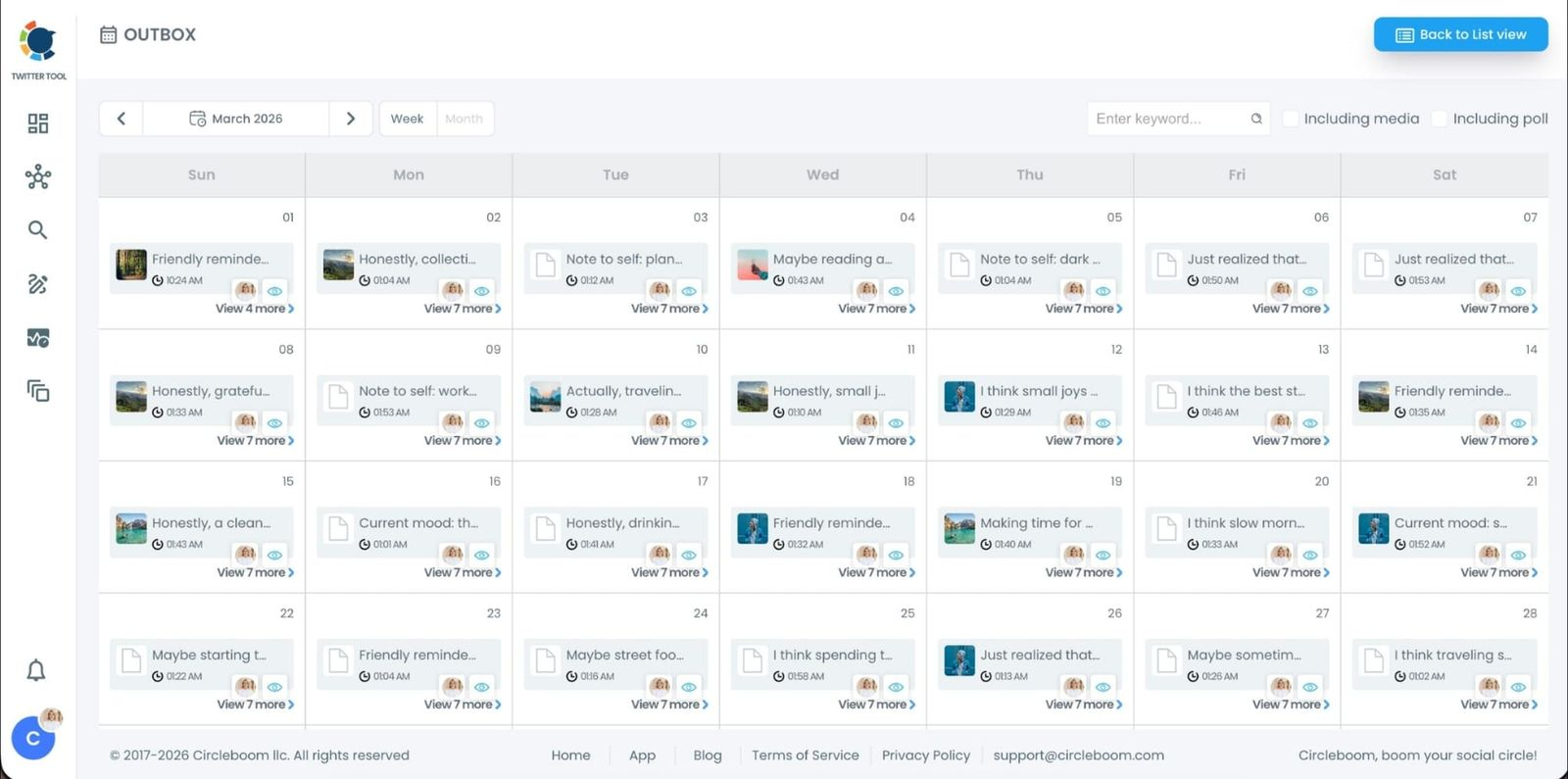
Bulk scheduling also solves the consistency problem mechanically. The hardest part of posting daily isn't writing tweets; it's remembering to post them on days you're busy, traveling, or off-platform. A scheduled queue runs whether or not you're paying attention, which removes the showing-up cost entirely. Combined with a Twitter content calendar template for structural planning, the workflow becomes: plan structure → batch-write content → upload CSV → walk away.
Circleboom is listed in X's enterprise customer directory as an official Enterprise developer, so the bulk-scheduling operation runs through authorized API access rather than scraping or workarounds. The Enterprise piece matters because it's what keeps your account safe when running automation at scale; unofficial scrapers and scheduling tools sit in a gray zone that X has periodically cracked down on.
How to Set Up Daily Bulk Scheduling
The process, step by step.
Video walkthrough: how the bulk-schedule flow stacks with cross-posting to Instagram, LinkedIn, and Bluesky in one upload.
Phase 1: Connect and prepare
- Log in to Circleboom Twitter and authorize with official OAuth. The connection runs through Enterprise API access.
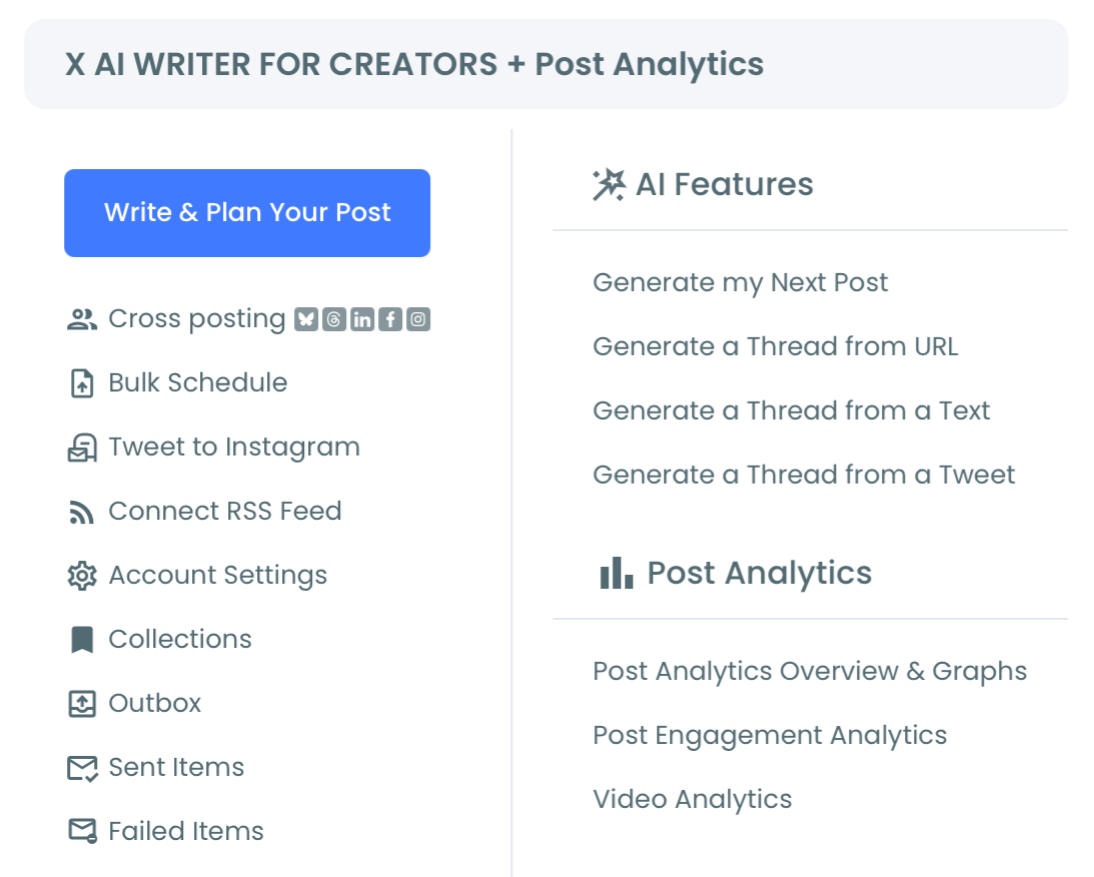
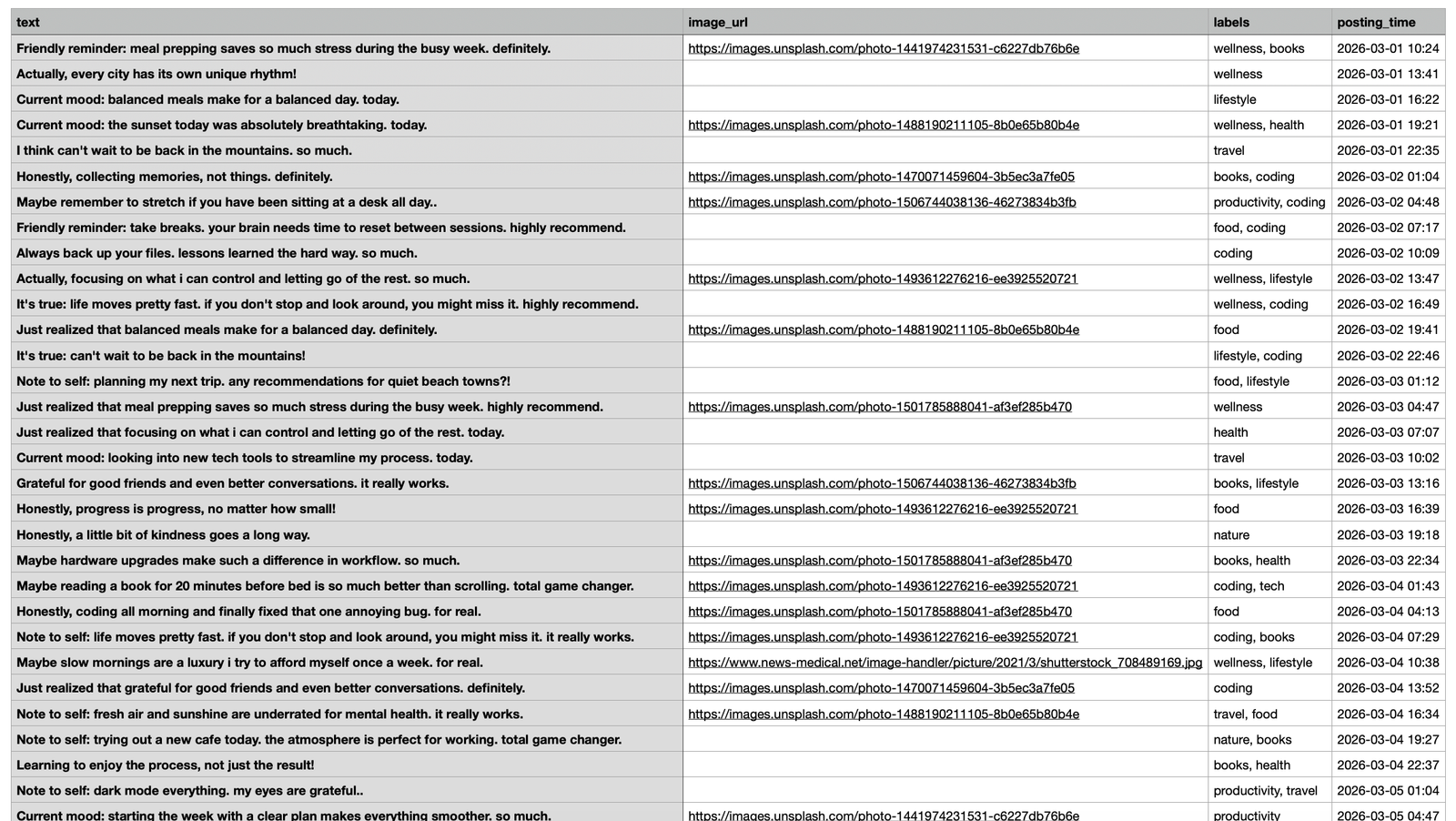
- Open the X Post Planner menu from the sidebar and select Bulk Schedule. Download the CSV template from the dashboard; the columns cover tweet text, scheduled date, scheduled time, and optional media URL.
Phase 2: Write and slot
- Write your tweets in the spreadsheet first, before assigning times. Most accounts find that batch-writing 5 to 10 tweets in a single sitting produces stronger content than writing one tweet at a time, because the cross-tweet structural patterns become visible (which formats are repeating, which hooks are working, which ideas need separating).
- Assign each tweet a time slot based on your audience's peak engagement hours. Pull your peak windows from Circleboom's When Followers Are Online heatmap, then drop the highest-priority tweets into your primary peak and the next-priority into your secondary peak. Avoid scheduling into dead windows unless the content is genuinely low-stakes.
Phase 3: Upload and monitor
- Upload the CSV through the Bulk Schedule dashboard. Circleboom parses the file, validates each tweet against X's character limit and media specs, and shows a schedule preview. Errors (over-length tweets, malformed media URLs, time conflicts) appear in the preview before the schedule locks.
- Confirm and monitor the Outbox. The Outbox view shows every scheduled tweet with edit, reschedule, and bulk-delete actions. You can adjust any tweet between batch sessions, and the Failed Items view catches any tweets that didn't publish so you can recover them with one-click reschedule.
The reason the order matters is this: connection earns API access, the template establishes the data structure, batch-writing produces stronger content than ad-hoc writing, slot-assignment matches content to audience-activity windows, the upload validates everything before publishing, and the Outbox lets you adjust without breaking the queue. The Bulk Schedule tweets workflow and the Twitter scheduler comparison stack: the bulk feature is what separates a usable scheduler from a toy one.
Quick recap:
- Connect with official OAuth.
- Download the CSV template.
- Write tweets in batch.
- Assign time slots from your peak engagement heatmap.
- Upload and validate.
- Monitor the Outbox.
What You'll See After One Pass
The first measurable change is consistency. You go from posting whenever you're online (uneven, weekday-biased, gap-prone) to posting on schedule every day. The consistency itself becomes a signal X's algorithm reads positively, because the platform rewards accounts that show up reliably rather than in bursts.
The second change is in engagement rate. Posting into peak windows consistently produces stronger first-sample engagement, which the algorithm reads as resonance and distributes more widely. Most accounts see a measurable lift within two to four weeks of switching to peak-targeted scheduling.
The third change is in time leverage. The 30-minute weekly batch session replaces what was previously a series of 5-to-10-minute live-posting moments scattered across the week. The total time spent on posting drops by maybe two-thirds, and the cognitive load of "should I post this now?" disappears entirely.
For accounts running other platforms in parallel, the same Circleboom dashboard handles Cross Posting to LinkedIn, Bluesky, Facebook, Instagram, and Threads from the same composer. The 30-minute session expands to maybe 45 minutes total for full multi-platform coverage.
This matters more than it sounds because the planning headspace is shared across platforms even when the specific tweets differ; you're not "writing for X" then "writing for LinkedIn" as two separate cognitive tasks, you're planning your week of content and slotting it appropriately. The compounding time savings unlock writing time you can spend on stronger drafts instead of distribution.
The auto-post on Twitter mechanism and the bulk-schedule-tweets-with-images flow round out the toolset. And for niche needs like scheduling Twitter threads, the same dashboard handles the multi-tweet reply-chain structure properly.
Your Next Action
If you only run one workflow change this month, run this one. The compounding effect on consistency, engagement rate, and time leverage makes bulk scheduling one of the highest-ROI tooling shifts you can make.
- Run the 6-step workflow this Sunday.
- Schedule the next week of content into your peak engagement windows.
- Use Auto Retweet on your top-decile existing tweets for additional reach.
- Monitor engagement rate over the next month for the lift.
- Add a parallel platform (LinkedIn or Bluesky) to the workflow once Twitter is dialed in.
Accounts wondering whether they can schedule DMs on Twitter/X often hit the same scheduling-tool gap; the same Circleboom dashboard solves both. And Twitter automation tools that save time covers the broader category for accounts that want a deeper look at the workflow ecosystem.
What to Know Before You Start
Is bulk-scheduled posting safe for my X account?
Yes. Circleboom runs through authorized Enterprise API access and the bulk-scheduling operation uses the same scheduling endpoint X exposes to native users. The bulk layer handles CSV parsing and batched submission at safe pacing; the underlying API call is identical to what you'd send manually.
What CSV format does Circleboom expect?
The template downloads directly from the Bulk Schedule dashboard. Standard columns are tweet text, scheduled date (YYYY-MM-DD), scheduled time (HH:MM in your timezone), and an optional media URL. Most spreadsheet tools (Google Sheets, Excel) export to the right format with one click.
Can I bulk-schedule the same tweet across multiple accounts?
Yes, through the multi-account view inside Circleboom. The bulk CSV uploads to the active account's queue; you can switch accounts in the dashboard and run another upload for a second account. For agencies and creators managing multiple X accounts, this is a common workflow.
What's the upper limit on scheduled tweets?
1,000 tweets per CSV upload, with no cap on total scheduled tweets across multiple uploads. Most accounts hit the per-CSV limit only when batch-loading multiple months in one session; weekly or monthly cadence stays well under the cap.
How does this work with X's edit window?
After a scheduled tweet publishes, it's a regular tweet on your account and subject to X's native edit window (currently limited and time-bound per X's rules). Pre-publish edits happen inside Circleboom's Outbox; post-publish edits use X's native edit feature.
Will my account get flagged for posting too consistently?
No. X penalizes inauthentic behavior (bot patterns, scraping, suspicious automation), not consistent human-quality posting. Scheduling your own tweets is a supported behavior; it's the same operation X exposes natively, just at scale.