
X's search box has a short memory. Type a keyword and it hands you a few hours of loud recent tweets, quietly drops everything older, and gives you no way to download the accounts behind them.
For a live scroll that is fine. For research, prospecting, or reporting, the three gaps (no depth, no export, no roster) are the whole problem.
This guide walks the fix step by step.
The gap: X's own search shows you recent tweets, forgets the rest, and exports none of it. Circleboom lets you search tweets for keywords on X through the X Enterprise API, and it returns the matching tweets plus the accounts behind them. Pick a date window for Historical mode, or a start date for the Real-time monitor.
→ Start a keyword search on past tweets
Why the native search box falls short
Run a keyword in X's advanced search page and watch what happens. You get a feed. You can scroll it, and that is the end of the road: no date-accurate archive, no CSV, no list of who posted.
That third gap is the one that costs you. A keyword search is only worth running because of the people it reaches, not the sentences they typed.
The person asking for a recommendation is a lead. The account venting about a rival is a prospect.
Circleboom's job is to collect the tweets a keyword returns and then pull the authors into a table you can sort, filter, and download.
How keyword search actually works in Circleboom
There are two modes, and the mechanical difference is direction. Historical Tweet Search queries a fixed window in the past: you choose a range, and it returns the matching tweets from inside it.
Real-time Tweet Search anchors to a start date and collects forward, gathering live tweets as they post.
The manual alternative shows why this matters. Doing it by hand means scrolling X search, copying usernames into a spreadsheet, losing your place, and starting over tomorrow because the feed refreshed.
There is no date control and no dedupe. Circleboom replaces that with one query, a saved search log, and a deduplicated roster.
If your topic is hashtag-driven, our post on the keyword and hashtag tracker covers the tracking side of the same workflow.
How to write a keyword that actually works
A keyword search is only as good as the keyword. The most common miss is searching the category label instead of the language people use.
Nobody tweets "social media management software"; they tweet "why is my scheduler down again." Search the second phrasing and the results fill up with real intent.
Start from the words your audience would type in the moment they have the problem, the question, or the opinion. Write two or three variants and run each.
A complaint phrasing, a recommendation phrasing, and a comparison phrasing often return three different account pools, all worth having.
Then subtract. Add exclude terms for the unrelated brands and homographs that share your keyword.
Set a match type so a two-word phrase stays together instead of splitting across the tweet. The aim is a keyword tight enough that most matches are relevant before any human review starts.
The compliant data path
Circleboom operates as a verified Enterprise partner, so every keyword search reads sanctioned data and stays on the right side of X's rules. No scraping, no unofficial endpoints, no risk to your account.
That matters most when you plan to act on the roster. Following, listing, and exporting hundreds of accounts is only safe when the data underneath came through the X Enterprise API in the first place.
You can search tweets for keywords in plain language, and the app offers refined query suggestions as you type.
How to search tweets for keywords step by step
The flow splits into two phases: build the query, then set the window and collect.
Build the keyword query
- Open Circleboom Twitter Management and log in to Circleboom.

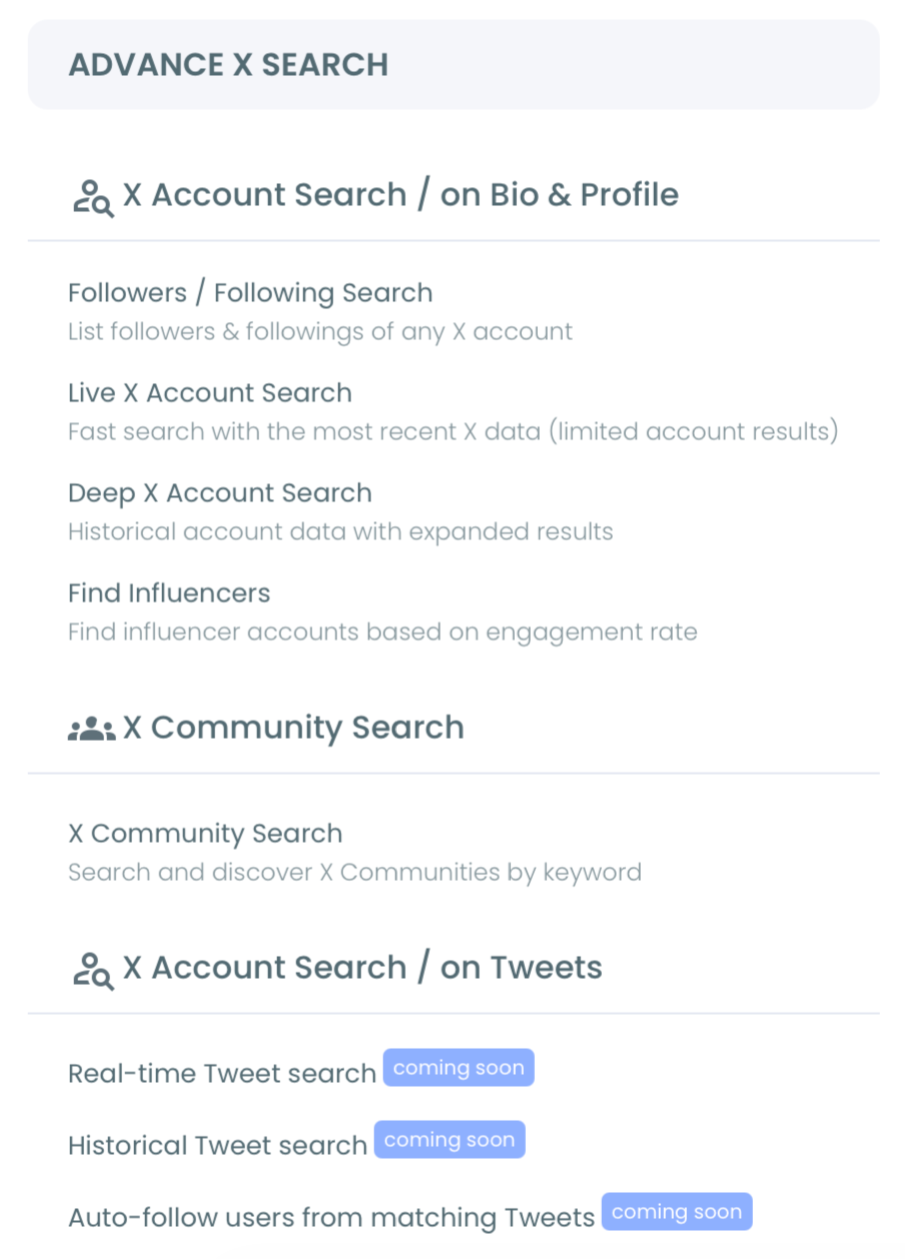
- Open the Advanced X Search menu and select Historical Tweet Search.
- Type your keyword in plain language, then add exclude terms, a language, a match type, or an engagement minimum.
Set the window and collect the accounts
- Choose a date range, from the last 30 days up to a full year or a custom window, and set how many tweets to collect. Then run the search.
- Open the profile view, review the accounts behind the tweets, and export them as CSV.
Run it once and you have a date-scoped keyword archive plus the account list, which is the exact pairing the native box will not produce.
See a historical keyword search set up end to end:
Filters that keep the roster clean
A broad keyword returns a flood. The filter panel is how you cut it down before the accounts pile up, and the filters stack.
Match type sets how tightly the keyword binds: exact phrase, contains, or partial. Exclude terms remove the collisions, like a brand name that doubles as a common word.
Language scopes a global keyword to your market. You can drop replies, keep only tweets carrying links, and limit to verified accounts.
The sharpest control is the engagement minimum. Set a floor on likes, retweets, or impressions and the noise falls away, leaving the tweets that actually traveled.
For a hashtag-heavy topic, the Twitter hashtag counter gives you volume figures alongside the raw list.
Switching to the real-time monitor
Historical mode answers "what was said." Real-time mode answers "what is being said," and it is the tool to reach for when timing is the whole point.
Set a start date (last 24 hours, 7 days, 30 days, or custom) and Circleboom collects matching live tweets from that moment forward.
This is how you monitor a keyword during a launch, an event, or a competitor's rough day. You can even turn on Auto Follow so accounts posting about the keyword are followed as they appear.
To keep an eye on brand mentions specifically, the track Twitter mentions view narrows the live stream to your own name.
Many teams also follow a hashtag on Twitter as a lighter version of the same live-watch habit. They switch to keyword search when they need the full account roster behind the tag, not just a running feed of it.
A quick example: watching a competitor's bad day
Say a competitor's checkout breaks during a sale. Within minutes, frustrated customers start tweeting about it by name.
Set Real-time Tweet Search to a start date of today, enter the competitor's brand as the keyword, and add an engagement floor so you catch the posts with reach.
The search collects every matching tweet from that moment forward. As it runs, switch to the profile view and watch the account list grow: the exact people publicly unhappy with the alternative you sell against. Review the rows for relevance, then export.
By the time the outage is fixed, you have a clean list of warm prospects who described their pain in their own words. That is a keyword search doing the one thing the native box cannot: turning a live moment into contacts you can reach.
What each search returns
Every search produces two linked views. The tweet view lists the matching posts with impressions, likes, retweets, quotes, bookmarks, replies, and a timestamp, each linking back to the original on X. This is the content record, useful for language study and reporting.
The profile view is the working output. It shows each unique account once, with follower count, following count, follow ratio, tweet count, join date, and an active or inactive marker.
Per-row you can follow, whitelist, or open the profile; in bulk you can follow, add to a Twitter List, or export to CSV. That CSV is the segment you carry into a CRM or an outreach sequence.
GetTweetTokens: how collection is priced
Collection runs on GetTweetTokens. Each search spends tokens in proportion to the tweets it gathers, so a 200-tweet pull costs less than a 2,000-tweet pull. The balance shows during setup and ticks down as the search runs.
Two rules keep the cost predictable. Results are saved to a search log, so reopening a past search does not spend tokens again. And export draws tokens separately from collection, so check the remaining balance before you download a large profile set.
If the balance runs out mid-collection, the search stops at that point and the partial results are still saved. A keyword pull never fails silently: you keep whatever was gathered up to the moment the tokens ran dry, then top up and continue.
Common ways teams use the roster
The account list feeds real jobs. Sales pulls prospects who described a pain point in their own words.
Community managers build event lists. Researchers reconstruct how a topic shifted over a date range, which pairs naturally with data mining and sentiment analysis on Twitter as the next analytical step.
Marketers use it to size and target campaigns. If your topic runs on hashtags, the older playbook on how to follow a hashtag on Twitter still holds up as a companion habit to keyword search.
The point is constant: a keyword is only valuable once it becomes people you can reach.
Things to watch before you run it
Tweet count is not account count. Collecting 500 tweets from fifty prolific accounts returns fifty profiles, so set the count to the account volume you need.
Only public tweets appear, so protected, private, and deleted posts stay out of reach, and very old or quickly deleted content may leave gaps in the archive.
Review before you act. A keyword match is a signal, not proof, so scan the profile view before a bulk follow.
And keep the keyword sharp: a single generic word floods the result with low-relevance posts, and no filter fully rescues it. If a keyword is too broad, split it into two or three specific ones and merge the exports.
One more habit worth building: date your searches. A keyword you ran last month against a 90-day window is not the same list you would get today, because the conversation kept moving.
Re-run the search on a fresh window when the topic matters, and keep the older export as a snapshot of how the discussion looked back then.
Your keyword search checklist
Before you run a keyword search, line up these five decisions:
- Pick the mode: Historical for past conversation, Real-time for live mentions.
- Write the keyword the way people phrase it, not the category label.
- Add exclude terms and an engagement floor so the list stays clean.
- Set the date window or the start date to frame the question.
- Decide the tweet count, then plan to export the profile view.
Get those right and the first run hands you a qualified account list, not a scroll of loose text. The accounts behind the tweets are the deliverable, and they leave in a CSV you can use the same day.
→ Run your historical keyword search
What to know about keyword search on X
Can I search tweets older than the last few days?
Yes. Historical Tweet Search queries a date window you set, from the last 30 days up to a full year or a custom range, so older conversation stays fully reachable.
Does the search give me the accounts or just the tweets?
Both. Each search returns a tweet view and a deduplicated profile view, and the profile view exports to CSV with follow, list, and filter actions attached.
What is the difference between the two modes?
Historical mode queries a fixed window in the past. Real-time mode anchors to a start date and collects live tweets forward from that moment, so you catch mentions as they post.
Is keyword search safe for my account?
Yes. Every search reads data through the X Enterprise API, so there is no scraping and no unofficial access, and bulk follow or list actions run on sanctioned data.