
Plenty of scheduling-tool pages imply that Google Business Profile cannot schedule posts. It can: Google's own dashboard has a "Schedule this post" switch, so the real decision is between that native button and a batch workflow.
Native: Google's dashboard schedules each post for a later date and time and can repeat it weekly or monthly. Circleboom Publish: schedules a whole week of Google Business Profile updates, Events and Offers in one sitting, each at a suggested best time, and shows the batch on one calendar.
→ Bulk schedule posts on Google My Business
Can I schedule posts on Google My Business? Below: both routes side by side, then a four-step how-to.
Google's native scheduler vs a Circleboom Publish batch
Google Business Profile schedules posts natively, and Circleboom Publish adds a batch layer on top: suggested times per profile, one composer for every post type, and a calendar of the whole week. The table compares the two routes using Google's help page on managing posts on a Business Profile and Circleboom Publish's documented behavior.
| Task | Google Business Profile dashboard | Circleboom Publish |
|---|---|---|
| Schedule one post | "Schedule this post", then a date and time | Schedule modal with a month calendar and Set Time |
| Repeat a post | "Repeats" menu: weekly, monthly or custom | Queue slots per profile, or one copy per future date |
| Suggested posting times | Not described on Google's help page | "Pick your best post time": six suggestions per profile |
| Post types | Update, Offer, Event | Standard, Event, Offer in one composer |
| Several profiles | Share a post to other profiles you manage | Multi-profile select, saved Share Groups, team approval |
| Review the week | Not described on Google's help page | Outbox Calendar View by week or month, with filters |
| Other platforms | Google only | Same Outbox for Facebook, Instagram and more |
The native button schedules posts; a batch tool schedules a week. That is the whole difference, and it decides which route fits you.
Google's dashboard is a fair choice for a single location that posts a few times a month. The batch route earns its place once the plan is six or so posts a week, several locations, or a calendar of Events and Offers.
Which route fits your listing?
Three situations cover most owners, and each points to a different route:
| Your situation | Route that fits | Why |
|---|---|---|
| One location, a few posts a month | Google's own "Schedule this post" | Low volume needs no planning layer |
| One location, about six posts a week | A weekly batch in Circleboom Publish | One sitting, suggested times, one calendar |
| Several locations or an agency | A batch plus Share Groups and the Queue | Same post to many profiles, each with its own slots |
The middle row is where the difference shows first. Six separate decisions a week is where scheduling Google My Business posts natively starts to feel like a daily chore again, even though each individual post is easy.
Other tools connect to Google too. For one example of how a different scheduler approaches the platform, see Later and Google My Business.
For a broader view of the tool landscape, the comparison of Circleboom vs Buffer for Google Business Profile scheduling puts the two side by side for this platform.
Why a batch beats posting one by one
Circleboom Publish is a Google Business Profile scheduler that lets an owner write a week of posts in one session and give each its own date and time.
A second fact matters as much: Circleboom Publish suggests posting times for each connected Google Business Profile from that profile's own customer activity, since a Google listing has no followers to time posts around.
The reason batching matters on Google is decay. Each Google post has a short shelf life: after about a week, few people see it. So a profile has to post on a steady rhythm to keep looking active to Google's local results and to customers on Search and Maps.
Posting daily by hand rarely survives a busy month.
That is why owners who schedule Google My Business posts in bulk keep their listings current with an hour or two a week instead of a few minutes every day. The wider benefits of using social media scheduling tools apply here too, with one Google-specific twist: the schedule protects the listing from looking abandoned.
How Google shows a scheduled post
Where a post appears also shapes the schedule. Google's help page says posts show in the Updates or Overview tabs of the profile on mobile and in the "From the owner" section on a computer, across Search and Maps. It also notes that posts older than six months are archived unless a date range is set, which is one more reason Events and Offers carry their own dates.
Timing and cadence for a Google batch
Timing still counts, just differently than on a feed. A lunch spot's Offer is worth timing for late morning, as people decide where to eat, and a weekend brunch Event for Thursday evening, when plans get made. The suggested slots in the Schedule modal reflect when each profile's own customers are searching, viewing and calling.
A useful cadence to aim for is about six posts a week: every weekday plus Sunday, skipping Saturday. Circleboom's data from its users shows most Google Business Profile posts go out on weekdays and weekend activity drops, so treat that as a friendly tip rather than a requirement.
When the slots are ready but the ideas are not, a list of social media post ideas is a quick way to fill a week before the sitting starts.
What changes when you use a batch tool for Google posts
The practical change is where the work happens. Instead of opening each profile to post, you open one composer, write, date and move on. The bulk Google My Business scheduling page is the entry point to that composer.
Everything for a post sits in that composer: the AI writer for the copy, Canva with a Google Business Profile template, Unsplash, Giphy and Google Photos for images, and a field for alt text.
Alt text is worth the extra line: Google Business Profile is one of the platforms where Circleboom Publish supports it, and a described image has a better chance of appearing in Google Image search.
For agencies and multi-branch brands, the Google Business Profile manager brings every connected location into the same workflow.
Learning from each week's batch
Scheduling is only half of the loop. Once posts are live, post analytics shows which ones performed, which tells you what to put into next week's batch. That feedback is what keeps a weekly sitting from turning into a weekly guess.
Two composer habits make that feedback sharper. Duplicate copies an existing post into an editable version, so you can change exactly one thing, such as the photo or the button, publish both, and compare the results. And when a button or a Redeem Online link points to your website, tag it first with the UTM Link Builder so the visits it sends show up in Google Analytics.
Treat the batch as an experiment that repeats every week: the posts that drew calls or bookings shape the next sitting, and the ones that did nothing get rewritten or dropped. When you schedule posts on Google My Business a week at a time, that loop is short enough to learn from.
Why a scheduled Google post can still be rejected
One caution applies to both routes. Google reviews each post against its content policy after it is published. Its guide to how you make a post and track its status lists three outcomes: Live, Pending and Not approved.
The same page warns that a phone number in the description can get a post rejected when Google cannot verify it belongs to the business, so keep numbers in the profile and the Call Now button.
Each post also has to fit Circleboom Publish's Google limits, which the page on social platform media limits lists in full.
Which posts are worth scheduling on Google
Scheduling Google Business Profile posts only helps if the posts are worth finding. Google posts surface when someone searches a relevant term or opens the business on Maps, so the strongest Standard posts answer what customers nearby actually type.
A plumber explaining how to unclog a drain without chemicals can show up for that search; a post saying "we are open" rarely does.
Match each post to its type and its action:
- Standard update: a tip, a product or a reminder, with a button such as Call Now, Book or Order Online.
- Event: anything with a date, with start and end times filled in and a Book or Sign Up button.
- Offer: a real deal with a coupon code, a redeem link and complete terms, which replace the button.
A batch makes this easier, because a week planned in one sitting can mix searchable tips with timely Events and Offers instead of defaulting to announcements.
How to schedule posts on Google My Business in bulk
To schedule posts on Google My Business in bulk, write each post in Circleboom Publish's Google composer, give it its own date and time in the Schedule modal, and repeat until the week is full. A single connected profile is selected automatically, and several can be sent the same post at once.
The four steps below cover one post; the batch is the same steps repeated.
- Log in to Circleboom with the account your Google listing is connected to, so the profile is ready in the composer.
- Open Google Business Specific Post and confirm the profile, or tick several locations; a first-time connection follows the steps for connecting a Google Business account.
- Choose Standard, Event or Offer in the "Is this a Google My Business Event or Offer?" dropdown, then write the text and attach an image.
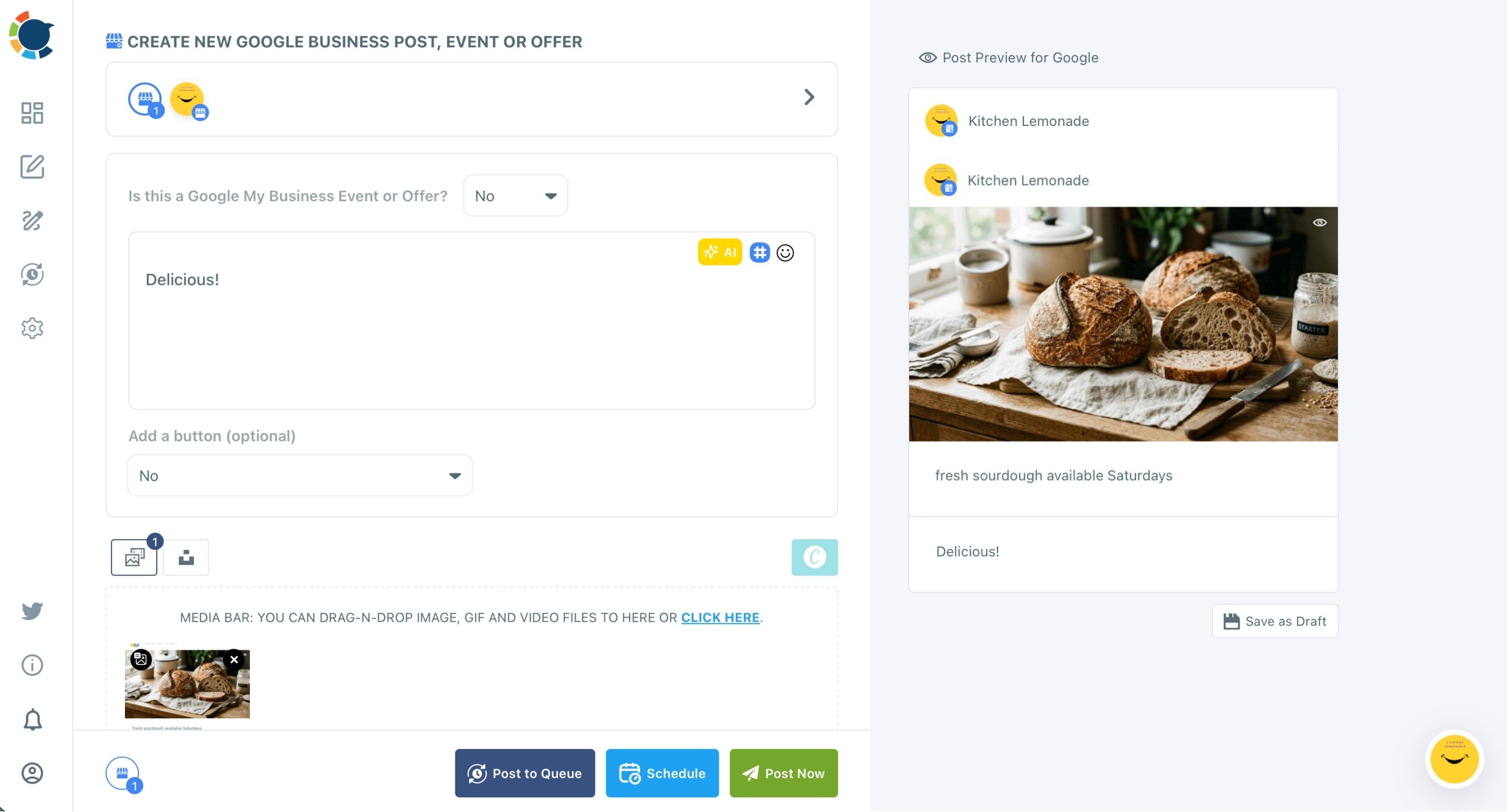
- Click Schedule and set the date and time, or pick a slot from "Pick your best post time", then confirm and start the next post.
Giving every post its own slot at a suggested time means the week publishes itself in the right order, and nothing waits on you remembering to post.
In one line: open the Google composer, write, schedule, repeat, then check the week.
That check happens in the Outbox, where anything that did not publish lands in Failed Items with its reason. The page on scheduled and sent items on the Outbox shows both lists.
How to keep the profile posting after the first batch
Use the Queue to keep scheduling Google Business Profile posts without another sitting. It gives each profile recurring day-and-time slots, and Post to Queue drops every new post into the next open slot. Add Best Times to Post fills those slots with the profile's suggested times automatically.
Queue configuration is per profile, not global, so each location gets its own rhythm. The page on Google Business Profile automation covers the setup. It also covers RSS Feed, for businesses whose blog should post to the listing on its own.
Choosing a queue model for each location
Each profile's Queue follows its own time zone, which starts as your browser's time zone and can be changed per account. The page on time zone and queue setup describes two models:
- Basic: a start time, an end time and an interval, with queued posts spread across that window.
- Advanced: specific posting times you add one by one, for schedules that change from day to day.
A shop that posts once every weekday morning is well served by Basic. A business with different busy hours on different days, such as a lunch spot and its weekend brunch, fits Advanced better.
The Queue also answers a gap in Google's "Repeats" menu. Repeats republishes the same post on a pattern; the Queue publishes different posts into the same pattern, which keeps the listing fresh instead of repetitive.
RSS adds a third layer for businesses that already publish a blog or a news page. Every new article posts to the listing on its own, which holds a steady baseline while the sitting focuses on the posts that need judgment.
RSS posts go out without a human review unless the rule is paused, so connect only a feed you trust.
Your Google My Business scheduling checklist
Whichever way you schedule posts on Google My Business, the weekly work should take an hour or two a week instead of a slice of every day. Pick the route that fits, then run this list once a week:
- Decide whether Google's native button covers your volume or a batch is worth it.
- Write the week's six or so posts in one sitting, Events and Offers included.
- Give each post its own slot, ideally a suggested best time.
- Check the Outbox calendar for gaps and failed posts.
- Move evergreen posts to the Queue so next week starts half full.
→ Batch your Google My Business posts for the week
Still Wondering whether Google My Business scheduling fits you?
How far in advance should an offer or event post go up?
Aim for several days to a couple of weeks before the start date. That gives Google time to show the post while people are still making plans, and a monthly workshop or weekday deal can have a copy dated for each run.
Can I edit or cancel a Google post after it is scheduled?
Yes. Every scheduled post sits in the Outbox List View with its own Edit and Delete actions, so you can change the text, the image or the slot, or remove the post, any time before it publishes.