Skip a content approval workflow and the first off-brand post on a client's LinkedIn Page can cost more than months of reviews would have. The fix does not need a committee.
It needs one rule: nothing a writer schedules goes live until someone with the final say has seen it.
What this guide gives you.
• A two-role approval model that fits teams of two or twenty.
• The exact setup in Circleboom Publish, from team workspace to approval queue.
• A checklist for offboarding, paid posts and feedback that sticks.
Circleboom Publish holds every post a User schedules in Waiting for Approval until an Admin signs off, on LinkedIn, Facebook, Instagram, X and six more platforms. Set up a content approval workflow where staff posts wait for your OK.
Most approval advice describes a chain of five or six stages. We recommend the leanest model that still catches mistakes, because a workflow your team actually follows beats a thorough one it works around.
What a content approval workflow is and why most are too heavy
A content approval workflow is the step between writing a social post and publishing it, where someone other than the writer checks it before it reaches an audience. In its simplest form, the writer schedules, the reviewer approves or sends it back, and only approved posts go out.
The step matters more than most teams expect.
Industry data cited in Circleboom's guide on team workflows shows that teams without a defined approval process see 2 to 3 times more publishing errors.
The same guide cites structured approval workflows cutting brand-damaging mistakes by over 60%.
Where teams go wrong is the shape, not the idea. A typical template routes each post through a draft stage, an editor, a brand reviewer, a legal check and a client sign-off, each in a different tool.
Reviews pile up in email and chat, and writers start posting directly to "save time," which is the exact risk the process was built to stop.
Our piece on efficient team workflow solutions covers how that pile-up starts. The lighter answer is to add an approval step before any team post goes live inside the same tool that publishes the post, so the review cannot be skipped.
Why native platform roles are not an approval workflow
Native platform roles decide who may post, and that is a different job from approving what gets posted. LinkedIn's help page on Page admin roles lists three roles for a Company Page: super admin, content admin and analyst, and content admins create and manage Page content.
That page describes who holds access. It does not describe a step where one person's post waits for another person's sign-off.
The same holds for most teams' workaround of sharing one password: everyone who logs in can publish, and nobody can tell afterwards who did.
Access without sharing passwords is the first fix. Our guide on how to grant other people access to my Twitter account explains why handing over a password is the riskiest way to delegate.
For X, Circleboom is an official X Enterprise developer, so an X account joins your team's dashboard through approved access, and writers never need its password at all.
Roles answer who can post. An approval workflow answers whether this post should go out.
Do you need a separate workspace for approvals?
Yes. In Circleboom Publish, approval exists only inside a Team, and a Team is a separate workspace with its own connected accounts, members, post history and stats.
Your personal account stays as it is; the team's accounts and its approval queue live in their own space, switchable from the profile avatar.
That separation is what makes the workflow clean. A brand team has one workspace. An agency has one per client, so a reviewer approving Company A's posts never sees Company B's.
Our guide to social media management for collaborative teams covers how roles divide the work once several people post to the same accounts.
A two-role approval workflow, step by step
A two-role approval workflow has exactly two kinds of people: an Admin, who publishes directly and signs off, and a User, who writes and schedules but cannot publish alone. That is the entire model in Circleboom Publish, and it is enough for most teams because every extra role is another thing to audit.
A post moves through four stages:
| Stage | Who acts | What happens |
|---|---|---|
| Scheduled by a User | Writer | Post lands in Waiting for Approval |
| Reviewed | Admin | Preview, then Approve or Reject |
| Approved | Admin | Post publishes at its scheduled time |
| Rejected | Writer | Reads the comment, fixes, sends back |
The reject-with-a-note loop is the part most templates leave out. A rejection can carry a comment explaining why, so the writer fixes the actual problem instead of guessing, and the next post needs one fewer round.
Paid and influencer posts deserve this step more than any other. The FTC's guidance on its Endorsement Guides recommends pre-approving paid posts, and says hiring an outside agency does not remove the advertiser's responsibility.
A team that already routes every User post through Waiting for Approval has that pre-approval built in. You can route every User's post into a content approval workflow and treat paid posts the same way as the rest.
Who should be the Admin and who should be a User?
The Admin should be whoever carries the final say for that brand or client, and everyone who writes should be a User. Picking roles by job title instead of by accountability is a common mistake, because a senior writer with Admin access still publishes without review.
Three common team shapes show how the split works:
- A brand team: the marketing lead is the Admin, while the copywriter, designer and virtual assistant join as Users on the brand's accounts.
- An agency: the owner is the Admin of every client workspace, and each staff member is a User on only the client they handle.
- A franchise: head office is the Admin, and each location manager is a User assigned only that location's accounts, so local news still gets reviewed.
In each shape, the writers keep real, hands-on posting work, and the person accountable for the account still sees everything before it goes out.
How to set up a content approval workflow in Circleboom Publish
Here's the flow, in order. It takes three phases: build the team, scope each writer, then review the queue.
Create the team workspace that holds the approvals
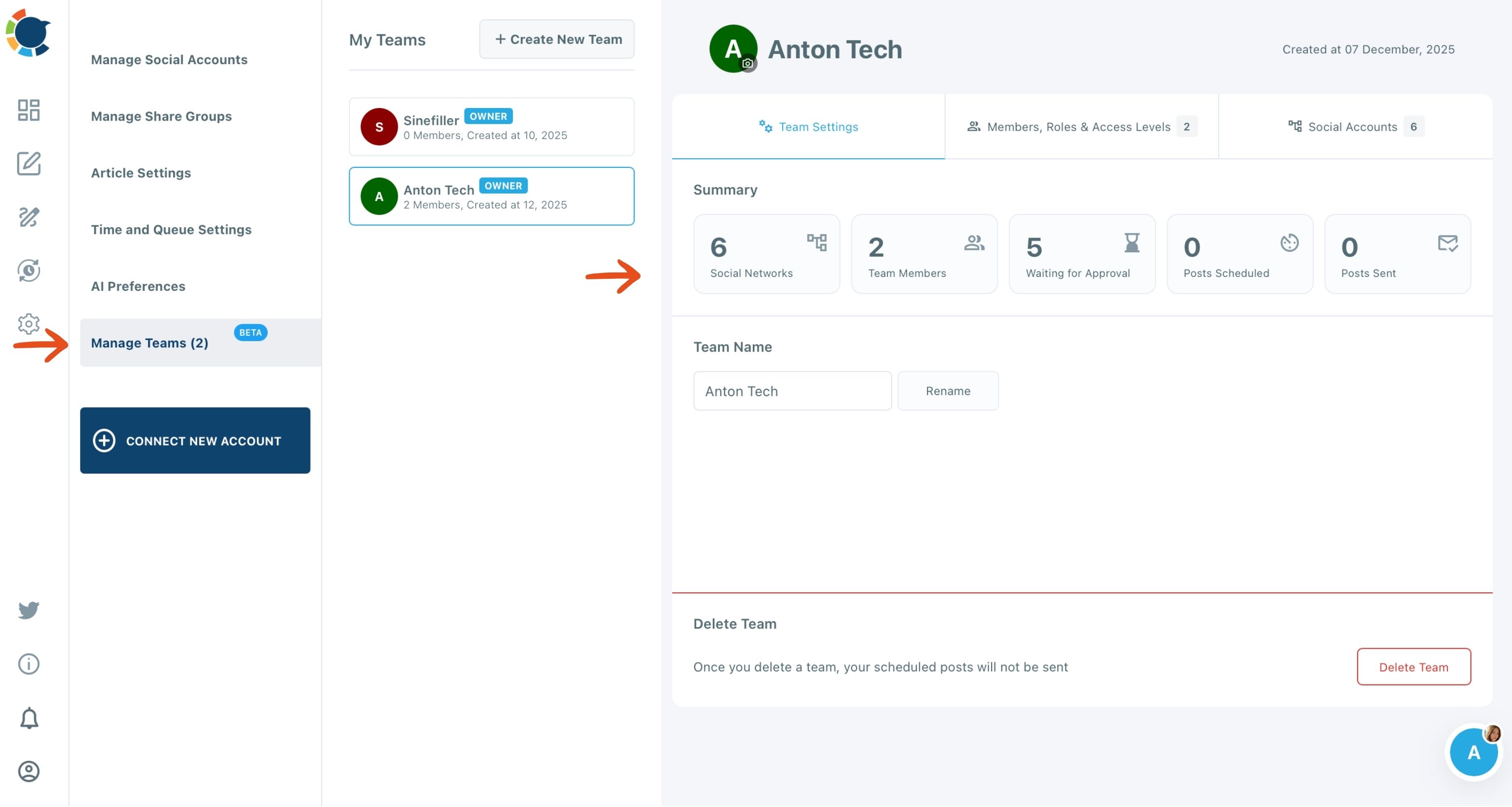
- Open Circleboom Publish and go to Manage Teams (BETA) in the gear-icon Settings menu.

- Click "+ Create New Team," give the team a name and invite each member by email.
- Connect the accounts the team publishes to, such as the LinkedIn Company Page, the Facebook Page and the X account.
If the accounts are not connected yet, Circleboom Publish lets you manage multiple social media accounts across all ten supported platforms from the same login.
Scope every writer to their own accounts
- Assign a role once each member accepts the invitation: Admin for the people who sign off, User for everyone who writes.
- Pick each User's accounts under Assigned Networks, then check the Social Accounts tab, whose Assignees column shows who can post where.
Default new staff to User. Admin access publishes directly, so it bypasses the approval safety net entirely.
Review the queue and send feedback
- Open Waiting for Approval and filter by post type, platform, accounts, Share Group or month to review one slice at a time.
- Preview each post, then Approve or Reject it, adding a comment to every rejection so the writer knows what to fix.
That order is what makes the workflow hold. Roles are set before anyone writes, so every post a writer schedules is caught by the queue from day one, and the feedback step turns each rejection into a lesson rather than a silent fix.
Skip the role step, and new staff publish as Admins without anyone noticing.
You can also watch this short clip to see a team get its members, roles and accounts.
Approved posts publish at the time the writer scheduled. To keep a steady cadence once approvals are flowing, you can automate social media posts with each account's queue, so approved content fills the next open slot.
How often should you review the approval queue?
Review it at least as often as your team schedules posts, because nothing a User schedules goes out until an Admin clears it. A queue that sits for a week stalls the whole calendar, and writers learn that waiting is pointless.
Two habits keep it moving. Pick a fixed review slot that matches your posting rhythm, so writers know when feedback arrives. And name a second Admin for each team workspace, so approvals do not stop when the main reviewer is away.
The Team Settings tab helps here, since its Waiting for Approval tile shows the pending count before you even open the queue.
What happens when someone leaves the team?
Their access ends the moment you remove them. In Circleboom Publish, removing a member in Members, Roles and Access Levels cuts their access immediately, and because every member had their own login, there is no shared password to change afterwards.
Offboarding is where shared-password teams carry the most hidden risk. A former freelancer who still knows the login can publish to a client's Page months later, and nobody would see it coming.
Our list of social media security tips covers the other gaps worth closing.
Make removal part of the offboarding list, next to returning the laptop. Then open the Social Accounts tab and confirm the Assignees column no longer shows the person on any account.
What to look for in a tool's approval feature
The right tool keeps writing, review and publishing in one place, so the approval cannot be skipped by posting directly to the platform. A review that lives in email next to a scheduler that does not know about it is a suggestion, not a workflow.
Three questions separate a real approval feature from a checkbox:
- Does a writer's post physically wait until someone approves it?
- Can a reviewer reject with a note the writer sees?
- Does removing a person end their access at once?
Our comparison of the social media management tool with the best collaboration features runs several tools through questions like these.
Your content approval workflow checklist
A content approval workflow works when it is short enough that nobody routes around it. Before your team's next post goes out, run through this list:
- Create one team workspace per brand or client, with its accounts connected.
- Make every writer a User and every reviewer an Admin.
- Assign each User only the accounts they write for.
- Review Waiting for Approval regularly, and attach a note to every rejection.
- Remove departing members the same day, then check the Assignees column.
With those five in place, every post that reaches LinkedIn, Facebook, Instagram or X has been seen by someone with the final say.
→ Turn on approvals for your team's next scheduled post
Approval workflow FAQ
Do Admin posts need approval too?
No. In Circleboom Publish, an Admin's posts publish directly with no approval step; only posts scheduled by a User wait in Waiting for Approval. Keep the Admin role for the people who sign off.
Can I approve a whole month of posts at once?
Yes. Waiting for Approval has Approve All Posts, Reject All Posts and Delete All Posts actions for the month you have filtered to, so a reviewer can clear a client's month in one action after spot-checking it.
Where do I see how many posts are waiting for me?
The Circleboom Publish dashboard shows a Team Notifications widget with the number of posts waiting for your approval in each team. The Team Settings tab also has a Waiting for Approval tile with the same count.
Is a Share Group the same as a team?
No. A Share Group is a one-click bundle of accounts for composing and grants no one access, while a team is a separate workspace that gives each member a role over specific accounts.