Most teams already have a calendar for their communications. The trouble is that nobody follows it after the second week, because it shows what to post but never who owns a slot, who signs off, or what happens when news breaks.
This guide fixes those three gaps first, then sets the social side up so it publishes on time without anyone chasing it.
A communications calendar is the shared plan of what goes out, on which channel, on which date, and who owns each item. Circleboom Publish schedules every channel's posts on LinkedIn, X, Facebook, Instagram and six more networks into one shared calendar, where a teammate's posts wait for approval before they go live.
→ Fill your communications calendar with scheduled posts
The rest of this guide shows the three layers that keep the plan followed. Then it walks through the setup, step by step.
Why a communications calendar stops being followed
A calendar is followed when every person on the team can answer three questions without asking anyone: what is mine, who approves it, and what do I do if plans change. A spreadsheet with dates and topics answers none of them.
A common pattern is a calendar that is accurate on Monday and fiction by Thursday. One person builds it, everyone else keeps posting from their own notes and DMs, and the plan drifts away from what actually goes out.
A communications calendar fails on ownership long before it fails on content.
Templates rarely help here. They give you columns to fill in (date, channel, topic, status), and the columns are fine. What they leave out is the operating rule behind each row.
The second failure is manual publishing. When every LinkedIn post, X update and Facebook announcement depends on someone remembering to log in at the right minute, a busy week empties the calendar.
You can automate the social side of a communications calendar so the posting itself stops depending on memory.
The third failure is missing rules. A team that has never agreed on tone, sign-off and what may be said in public will argue over every draft.
The benefits of a social media policy show up exactly here: the calendar says when, and the policy says what is allowed.
What a communications calendar covers
A communications calendar is one place that holds every planned message across your channels: social posts, newsletters, announcements, launches and event coverage. It is the single source of truth the whole team checks before publishing anything.
It is wider than a social media calendar. A product launch might involve an email, a LinkedIn Company Page post, an X thread and a Facebook update on the same morning.
Seeing all of them in one view is what stops two people from announcing the same thing in two different ways.
The cross-channel link matters most when one channel feeds another. If you send a newsletter, the social posts that point to it belong on the same calendar.
The steps to promote a newsletter on social media only work when those posts go out after the send, not before.
Keep the split clear, though. In Circleboom Publish the calendar holds your social posts. Email, press releases and internal messages stay in the tools your team already uses, and the communications calendar points to them by date.
Three layers that keep a communications calendar followed
A followed calendar has three layers, and each one has its own owner and its own approval rule. Mixing them is why most calendars feel either rigid or chaotic.
| Layer | What it holds | Owner | Approval |
|---|---|---|---|
| Fixed dates | Launches, events, observances | Comms lead | Signed off weeks ahead |
| Recurring slots | The weekly rhythm per channel | Channel owner | Queue rules, spot checks |
| Reactive reserve | News, crises, live moments | One named person | Fast path, admin only |
Fixed dates: the layer you plan a quarter ahead
Fixed dates are the items you know about months in advance: product launches, conferences, earnings, holidays and awareness days. They are the skeleton of the calendar, so they go in first.
For observances and anniversaries, the U.S. Census Bureau publishes Stats for Stories, a calendar of upcoming dates with statistics attached, which it describes as a way to help the media with story mining.
It gives your fixed-date layer a factual hook instead of a generic "Happy Monday" post.
Event days deserve their own planning. If your team will cover a conference or a launch as it happens, block the slots before the day and decide who posts.
The way teams live-tweet major live events shows why: the posts need to be drafted ahead even when they go out in real time.
Recurring slots: the rhythm each channel fills
Recurring slots are the steady weekly rhythm: a LinkedIn post on Tuesday and Thursday, an X update every weekday, a Facebook post three times a week. Each channel owner fills their slots, and the slots publish whether or not anyone is at a desk.
This layer is where most of the volume lives, and it is where automation pays off. In Circleboom Publish, each connected account gets its own recurring time slots, and a post sent to the queue drops into the next open slot for every selected account.
The rhythm is the part of the calendar your audience actually notices. Followers rarely remember a single launch post, but they notice when an account goes quiet for two weeks.
Reactive reserve: room for what you could not plan
The reactive reserve is the capacity you keep free for news, a customer issue, a competitor announcement or a crisis. It belongs on the calendar as a rule, not as empty space.
Name one person who can publish without the normal approval chain, and decide which slots get paused when that happens. The way top brands use X for crisis management is a good model for the X side of this layer.
Who gets access to which accounts on the calendar?
Access should follow the layers: the comms lead sees and approves everything, and each channel owner works only on the accounts they own. In Circleboom Publish this is handled by team management, where each client or brand runs as its own workspace with Admin and User roles.
A User can write and schedule posts for the accounts assigned to them. Those posts land in a Waiting for Approval state, and an Admin approves them or rejects them with a comment before anything goes live.
The whole team sees the same Outbox and calendar, so the plan and the published reality stay the same thing.
Two limits are worth knowing. Circleboom Publish has two roles, Admin and User, with no custom roles, and it does not assign tasks or track activity. Task lists stay in your project tool, and the calendar holds the posts.
One brand with several people posting has its own playbook: social media management for one business with multiple team members.
If your master calendar for non-social items lives in Google Calendar, give each person the access level they need. Google's help page on how to share your calendar lists the permission levels, from seeing only free or busy time up to making changes and managing sharing.
How to build a communications calendar step by step
Circleboom is an official X Enterprise developer, so the X side of your calendar runs on access X itself approves. LinkedIn, Facebook, Instagram, Threads, Bluesky, Pinterest, TikTok, YouTube Shorts and Google Business Profile sit in the same composer.
Once the fixed dates, owners and reserve rule are agreed, the social layer can queue each channel's posts into recurring slots and publish them on time.
Doing this natively means one login, one upload and one publish per account. Four posts to seven accounts on four platforms is 28 separate publishes that way, and four sends from one composer in Circleboom Publish, about ten minutes in total.
Planning ahead: how a stretch of Facebook Page posts looks laid out before it goes live, the social row of a communications calendar.
The setup runs in three phases, in this order.
Set up the accounts and the weekly rhythm
- Log in to Circleboom Publish and connect the accounts your team publishes to, such as the LinkedIn Company Page, the X account and the Facebook Page.

- Create a Share Group for each brand, client or branch under Settings, then Manage Share Groups, so one click selects the right bundle of accounts every time.
- Set the recurring slots for each account in Time and Queue Settings, or click Add Best Times to Post to fill them with times computed from that account's own followers' activity.
Fill the calendar from one composer
- Open Create New Post on All Platforms from the pencil icon in the sidebar.
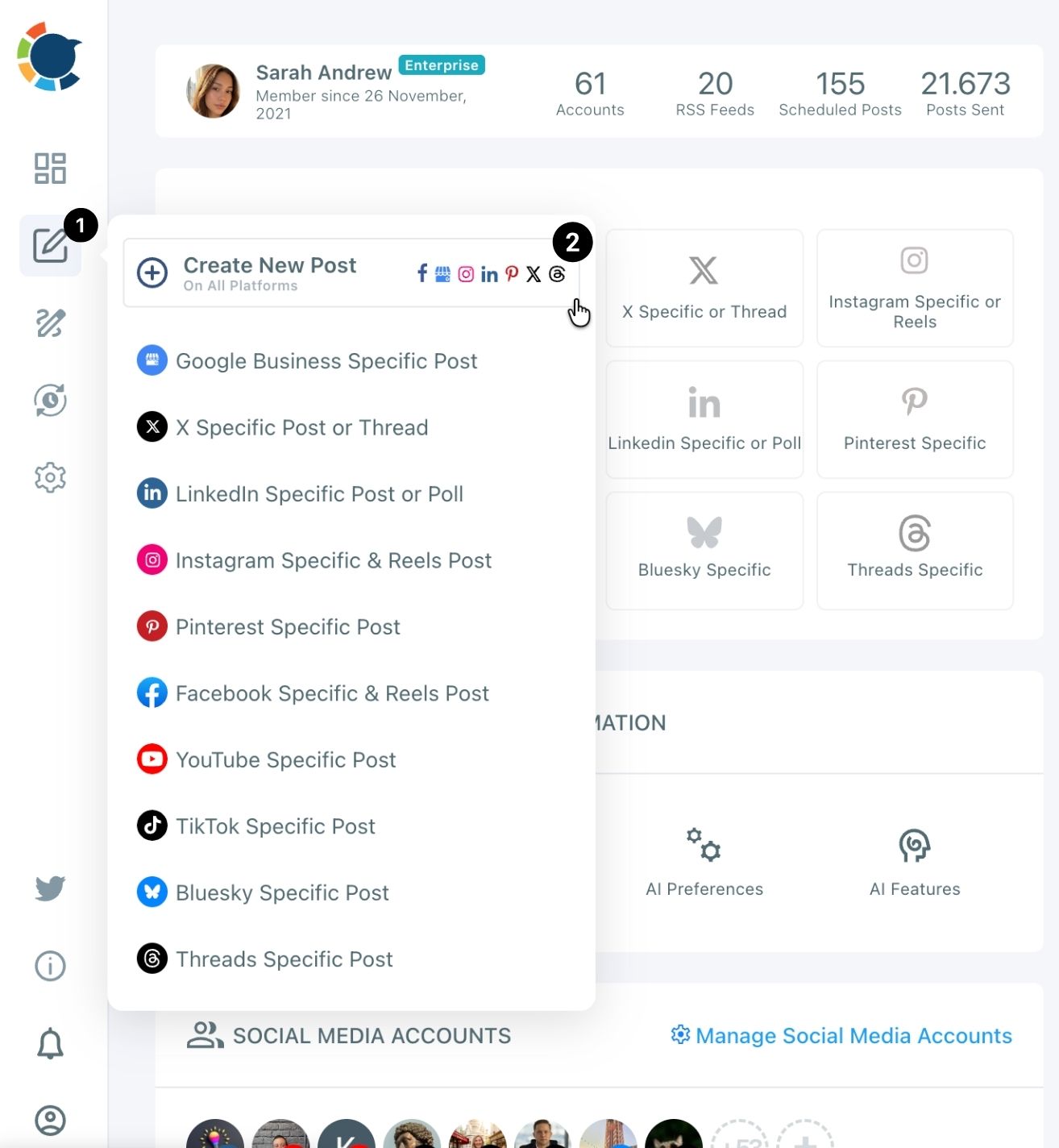
- Select the accounts or a Share Group, write the post, and check the Post Preview tab for every network. One post to several platforms has to fit the strictest limit: X takes 280 characters and Bluesky 300.
- Choose how it goes out: Post to Queue for the recurring layer, Schedule with a date and a suggested best time for fixed dates, or Post Now for the reactive reserve.
Check the calendar view before the week starts
- Open the Outbox Calendar View in Week or Month mode and filter by Platform, Social Account or Share Group. A thin week or a neglected channel shows up at a glance, and the "+" on an empty day opens a new post for that exact date.
That order matters because each step closes one of the failures from the start of this guide. Share Groups and roles settle ownership, the queue keeps the rhythm without anyone remembering, and the calendar view catches gaps before your audience does.
If you need to fill a whole month at once, plan one sitting to batch social media content and let the queue spread it across the slots.
How to review the month on your communications calendar
A calendar that is never reviewed repeats its weak weeks. Once a month, compare what was planned with what performed, and move slots toward the posts that worked.
Post analytics in Circleboom Publish shows how each published post did across your accounts. Use it to answer two questions: which recurring slots earned engagement, and which fixed-date posts fell flat.
Change one variable at a time, such as the day, the format or the channel, so you can tell what made the difference.
I would keep the review short. Thirty minutes with the comms lead and the channel owners is enough to adjust next month's rhythm and confirm who owns the reserve.
The objection every team raises about a communications calendar
The most common pushback is that a calendar makes the team slow. If every post needs a slot and an approval, how do you react when something happens at 4 p.m. on a Friday?
The answer is the reserve layer. Fixed dates and recurring slots run on their own rules, and the reactive reserve has a named owner and a fast path.
A planned week does not stop anyone from posting; it frees the team to react, because the routine work is already scheduled.
The second objection is upkeep: "We tried a calendar, and nobody kept it up." That happens when the calendar is a document beside the publishing tool. When the calendar is the publishing tool, keeping it up and posting are the same action, and there is no second place to update.
A couple of hours of batch scheduling once a month buys a month of daily presence on every channel your team runs. When you are ready, this is the next click:
→ Put your communications calendar on autopilot
Communications calendar FAQ
How do we check what went out and what failed?
Open the Outbox in Circleboom Publish: Sent Items lists every published post with a Share Again option, and Failed Items lists every scheduled post that did not publish, with the error reason. The help page to check your scheduled and sent items on Outbox shows the filters.
Do time zones matter for a distributed team?
Yes. Each connected account has its own time zone setting in Time and Queue Settings, so a branch in another city posts at its own local time.
The page on time zone and queue settings walks through it.
Can the communications calendar in Circleboom Publish hold email and press releases?
No. Circleboom Publish schedules social posts only. Keep email, press and internal messages in their own tools, and add their dates to the master calendar so the social posts that support them are timed around them.