I judge content creation tools by one test: how many times a post has to be copied, downloaded or re-uploaded before it goes live. Every hand-off between apps is a place where a caption gets cut, an image gets the wrong size or the post simply never gets finished.
Chatbot: writes a draft you copy out. Design app: makes a visual you download and upload again. Circleboom Publish: drafts, designs and schedules one post for Instagram, X, LinkedIn and seven more networks inside a single composer.
→ Add an AI post generator to your content creation tools
How I built this comparison
I compared content creation tools by the step of the posting path each one covers, not by category.
The sources were each tool's published documentation and vendor pages, Circleboom's own product documentation, and research from Pew Research Center and Google, all checked in October 2026. I did not run lab tests on the other tools, so nothing below claims a measured result.
Each tool was scored against five criteria:
- Step covered: which part of the path from idea to published post it handles.
- Cost model: whether a free tier exists and what the paid step is.
- Fit for each network: whether the output respects each platform's limits.
- Hand-off to publishing: copy and paste, download and upload, or in place.
- Learning curve: how long a solo marketer needs before it saves time.
Prices change often and several pricing pages were not readable at the time of writing, so this comparison names free and paid tiers without quoting numbers. Check each vendor's pricing page before you pay.
Content creation tools compared at a glance
| Tool | Step it covers | Free tier | Hands off to publishing |
|---|---|---|---|
| General AI chatbot | Draft | Yes | Copy and paste |
| Canva | Visual | Yes | Download, then upload |
| Unsplash and Giphy | Stock visuals | Free to search | Download, then upload |
| Native platform composers | Schedule | Yes | One account at a time |
| Circleboom Publish | Draft, visual, format, schedule | Trial offer | In place, ten platforms |
The column that matters most is the last one. Most lists of content creation tools rank apps by how good each one is alone, and then leave you to connect them by hand.
That connecting work is where the time goes. A look at how social media content creation works shows how many separate tasks one post involves, and each task in a different app adds another copy, paste or upload.
Keep the draft in the same place you schedule it. You can cut one tab from your content creation tools with a built-in AI writer.
The path a post takes, and the tool for each step
Every social post travels the same six steps: idea, draft, visual, format, schedule and track. The right content creation tools are the ones that pass a finished piece to the next step without you rebuilding it.
Idea: where the topic comes from
The idea step needs a source, not an app. It is an article you read, a customer question, a note from a meeting or a product update.
What it must hand to the next step is simple: a link or a block of text. Keep it in that raw form, because both are things an AI writer can take as input.
Draft: turning the idea into words
The draft step is where most people open a chatbot. A general AI writer can produce almost anything, but it does not know where the post is going, so it writes one generic version and you copy it out.
A draft also needs a person. Google's guidance on creating helpful content asks for content made for people first. It also suggests telling readers how automation was used where they would wonder, which is a good habit for AI drafts too.
An AI draft is a starting point you edit, never a finished post.
Visual: the image, carousel or GIF
Instagram needs an image or video on every post, and most other networks reward one. That makes the visual step the second-biggest time cost after writing.
There are three ways to get a visual. You can design it, generate it or find it. The roundup of AI image generators covers the generate route, which is useful when no photo of your own fits the post.
For the find route, the list of stock sites for graphic art points to libraries of free and paid images. Carousels can come from an AI Carousel Generator without a designer.
Format: what each network will accept
The format step checks that the post fits every network it goes to. One post sent to several platforms has to respect the strictest limit.
The limits that catch people most often:
- X: 280 characters on standard accounts and up to 4 images.
- Bluesky: 300 characters and up to 4 images.
- Pinterest: 1 image per pin.
- Instagram: at least one image or video, with a 2,200-character caption.
A 500-character post fits Facebook, LinkedIn and Instagram but not X or Bluesky. The guide to social media image sizes covers the visual side of the same check.
Hashtags belong to this step as well. A social media hashtag generator adds a set of topic hashtags in bulk, so you do not type them per network.
Schedule: when and where it goes out
The schedule step decides the time and the accounts. Native composers handle this for free, but each one posts to one account on one platform at a time, so a post for five accounts is five separate sessions.
Track: which post brought the clicks
The track step is the one most stacks skip. A bare link tells you a post got clicks but not which post or which network sent them.
In Circleboom Publish, the UTM Link Builder fixes this inside the composer: paste the link, click the link icon next to it, and fill in source, medium and campaign. The tagged URL replaces the bare one, and Google Analytics then shows which post and which platform sent the traffic.
How many hand-offs a separate-app stack costs
Here is an illustration for one post going to Instagram, LinkedIn and X with a chatbot, a design app and native composers:
- Copy the draft out of the chatbot: 1 hand-off.
- Download the design: 1 hand-off.
- Paste the text and upload the image in three native composers: 6 hand-offs.
That is 8 hand-offs for one post. At four posts a week, it is 32 small moments where a caption can be cut or an image can land at the wrong size.
General AI chatbots for the writing step
A general AI chatbot is the most flexible of the content creation tools, and ChatGPT is the best-known example. It has free and paid plans, it writes in any tone, and it can brainstorm angles when you have none.
The drawback is the hand-off. The chatbot does not know your accounts, your platforms or their limits, so you copy the text out, fix the length for each network and paste it into each composer.
It also writes in a generic voice unless you explain your brand every time.
Best for: brainstorming and long-form drafts that you will edit heavily anyway.
Canva and design apps for the visual step
Canva is the design app most social teams start with. It has a free plan and a paid Pro plan, ready-made templates and a short learning curve.
The drawback is the same hand-off in a different shape: you design, download the file and upload it again to every network. A design made for one size often needs a second version for another platform.
Best for: branded graphics and templates you reuse every week.
Unsplash and Giphy for stock visuals
Unsplash supplies stock photos and Giphy supplies GIFs for almost any topic or reaction. Both are free to search and need no design skill at all.
The drawback is sameness. A popular stock photo can appear in many accounts' feeds, so it works best as a background for your own text, not as the whole post.
Best for: days when the post needs a visual and there is no time to design one.
Native platform composers for the publishing step
Almost every major network now has its own composer and scheduler, and they cost nothing. They also show exactly how the post will look on that network.
The drawback is scale. Each native composer publishes to one account on one platform at a time, so four posts for seven accounts across four platforms means 28 separate publishes.
Best for: a single account on a single network.
Circleboom Publish as the writing, design and scheduling step
Circleboom Publish is a social media scheduler with the writing and design steps built into its composer. It covers X, Instagram, Facebook, LinkedIn, Pinterest, Threads, Bluesky, TikTok, YouTube and Google Business Profile, and one post can go to any mix of those accounts in one send.
Writing a post from a link or a note
The writing step has two parts. Generate Post from URL turns an article or news link into an original post, with a goal, a tone, a language and a target platform: X, Bluesky, LinkedIn, Facebook, Instagram or Pinterest.
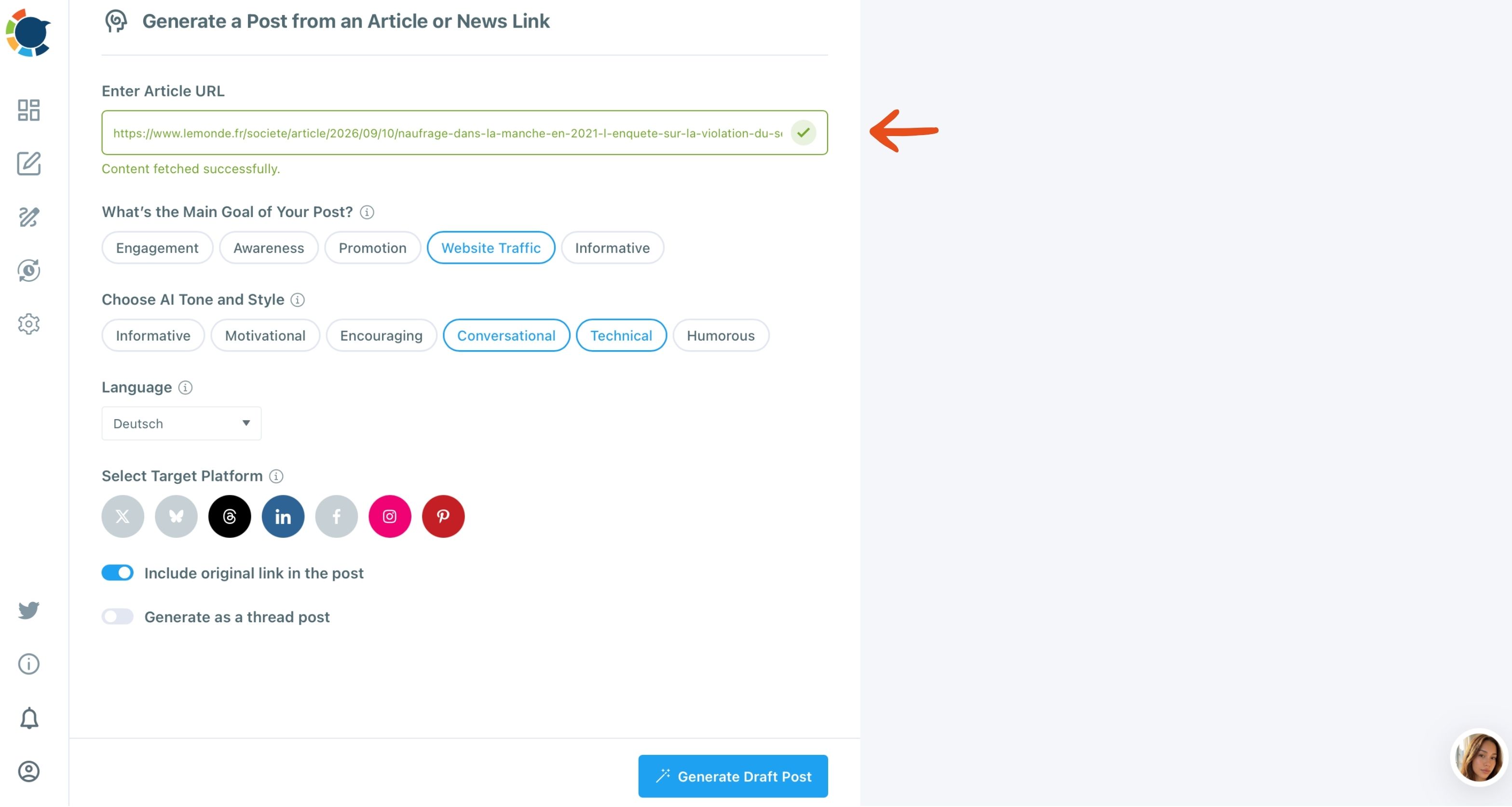
Generate Post from Text does the same with pasted notes when there is no link. The draft opens in the composer, where you edit it before scheduling, and the AI button there ("Ask the AI anything...") rewrites it with shortcuts such as Condense, Fix Grammar and Add Hashtags.
The AI comes included with a Circleboom membership, so you do not need a separate ChatGPT or Gemini subscription to write captions. You can draft posts with the content creation tool that hands them to your scheduler instead of copying text between tabs.

Designing and scheduling in the same composer
The visual step sits in the media bar of the same composer: Canva, Unsplash, Giphy, Google Photos and the AI Carousel Generator. Canva opens inside Circleboom, so you create or edit a design without leaving the post.
Design inside the scheduler: a social post designed in the composer, with no separate app open.
The format and schedule steps follow in the same window. Post Preview shows the post on each network before it goes out, and Schedule offers "Pick your best post time" suggestions for each account, or Post to Queue drops it into the next open slot.
For posts that go to X, Circleboom is a verified Enterprise partner of X. Scheduled X posts go out through access X has approved, without workarounds that put your account at risk.
The wider social media content creation suite adds post templates and design tools on top.
The drawback is that the AI writer does not apply platform limits by itself. If X is one of the selected accounts, you tell it "max 280 characters", or you check the preview before sending.
Best for: solo marketers and small teams who post the same idea to several networks every week.
Which content creation tools do you actually need?
You need one tool per step that cannot hand its work to the next step on its own. For most solo marketers that means a source of ideas, one composer that drafts, designs and schedules, and a way to track clicks.
Pew Research Center's fact sheet on Americans' use of social media shows why the format step matters.
YouTube reaches 84% of U.S. adults, Facebook 70% and Instagram 51%.
An audience spread across that many networks means one idea needs several formats, and every extra format multiplies the hand-offs in a separate-app stack. Keep a dedicated design app only if brand graphics are a large part of your week, and keep a chatbot only for brainstorming long pieces.
The stack in one line
The best content creation tools are the ones that pass a post forward instead of making you rebuild it. Pick your tools by the path a post takes, idea to draft to visual to format to schedule to track, and count the hand-offs before you pay for another app.
When the writing, design and scheduling steps sit in one composer, a week of posts takes one sitting instead of a dozen tab switches.
→ Try the AI post generator as the writing step of your stack
Content creation tools FAQ
Do I need to pay for ChatGPT separately to write social posts?
No. The AI writer in Circleboom Publish comes included with a Circleboom membership, so captions and rewrites need no separate ChatGPT or Gemini subscription. If you still want a standalone chatbot for brainstorming, the list of ChatGPT alternatives covers free and paid options.
Can I edit Canva designs without leaving Circleboom Publish?
Yes. Canva opens from the media bar of the Circleboom Publish composer, so you can create a new design or edit an existing image and attach it to the post in the same window.
Will the AI writer keep a post under X's 280 characters?
Not by itself. The AI writes general-purpose text, so when an X account is selected, ask it for a version under 280 characters and check the X tab in Post Preview before scheduling.