Most answers to this question say "yes, turn on auto-publish" and stop there. For any portal below Marketing Hub Professional the accurate answer is no, because the setting depends on your Marketing Hub tier and skips some networks entirely.
Does HubSpot automatically post new blog articles to social media? HubSpot does not post new blog articles to social media by default; its Blog auto-publish setting does it only for HubSpot-hosted blogs on Marketing Hub Professional or Enterprise, set up per social account, and never for Instagram or personal Facebook accounts. On any plan, Circleboom Publish connects the HubSpot blog's RSS feed to your Facebook Pages, LinkedIn and other supported accounts and auto-posts every new article.
→ Send new HubSpot blog articles to social media
The comparison table below shows exactly where each route stops.
The short answer: only on two Marketing Hub tiers
HubSpot can auto-publish new blog posts to social media, but only through one setting with clear conditions. According to HubSpot's page on blog auto-publishing in social settings, the feature belongs to Marketing Hub Professional and Enterprise. Each social post goes out 15 minutes after the blog post publishes.
The conditions that decide whether it works for you:
- Hosting: the blog has to be hosted on HubSpot.
- Plan: Marketing Hub Professional or Enterprise.
- Account access: the option appears only on social accounts shared with Everyone.
- Networks: Instagram and personal Facebook accounts are excluded.
HubSpot's guide to managing social account settings gives the Instagram reason directly: links are not allowed in Instagram posts. Personal Facebook accounts are ruled out by Facebook's content policies.
One more condition catches teams later. Once auto-publishing is on for an account, HubSpot says it can't be turned off if that account stops being shared. Decide which accounts should carry every article before you switch it on.
Turning on HubSpot's auto-publish when your tier has it
If your subscription includes the setting, HubSpot's knowledge base lays out a short path. Open the settings icon, go to Marketing, then Social, and stay on the Accounts tab. In the Blog auto-publish column of the account you want, click Choose blog or Manage blogs, pick one or more blogs and click Submit.
After that, you can preview each social post. In the blog editor, the dropdown next to the Publish button has a Social option where you edit the post text and save it before the article goes live.
When the setting is missing
If your portal is on a lower tier, the setting is simply not there. That is the gap the rest of this page covers: the same outcome, every new article shared to the company's accounts, reached through the blog's RSS feed instead.
You can auto-post new HubSpot blog articles to social media this way without changing your HubSpot subscription.
Neither route covers Instagram. If Instagram matters for your blog's audience, plan those posts as their own visual content rather than waiting for an automation to reach them.
What Circleboom Publish does with a HubSpot blog feed
Circleboom Publish turns a HubSpot blog's RSS feed into automatic social posts on supported networks such as Facebook Pages, LinkedIn Profiles and Company Pages, Google Business Profile, Bluesky and Threads. It checks the feed on a schedule you pick and publishes new items with the wording, content and daily cap you set.
Circleboom Publish is a multi-platform publishing suite, and its RSS Feed is the fully automated tier of that suite: once a feed is connected, there is no manual selection step.
Every HubSpot blog already publishes a public feed, so this route needs no HubSpot add-on. For other options in the same category, there is a roundup of tools to manage and publish RSS feeds on social media.
A connection is one form with a handful of fields:
- Account: the social accounts the feed posts to.
- Name: a label that keeps this connection apart from your other feeds.
- Begin with / End with: your own text before and after every post.
- Check the feed and Max posts per update: the schedule and output settings for the connection.
- Toggles: Share URLs, Post title, Post body, Post photo and Set this rule active.
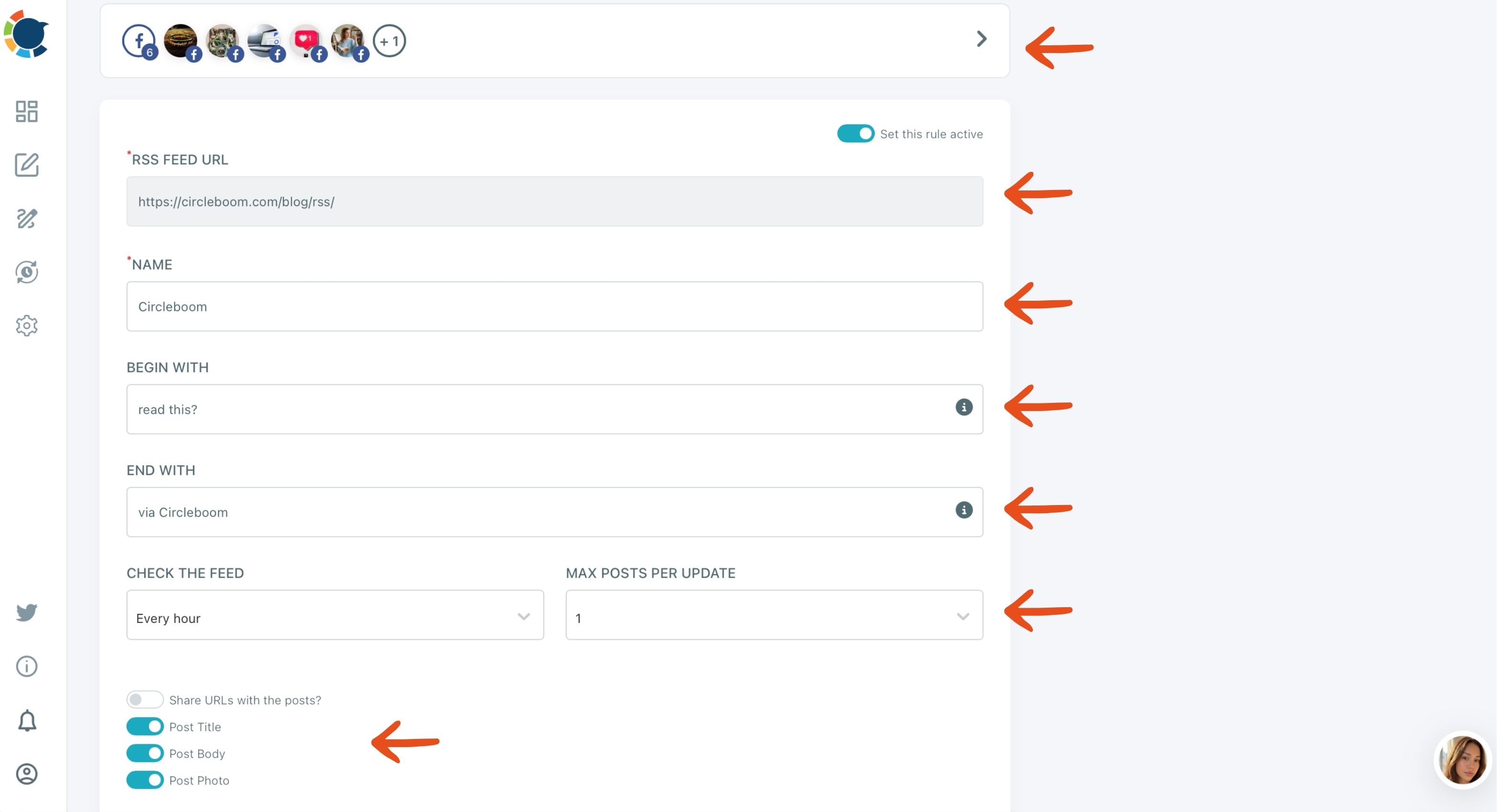
The screenshot above shows a rule aimed at several Facebook Pages, with the feed checked every hour and a cap of one post. The same form serves every supported network.
Where the automatic posts land afterward
Because the form is the same everywhere, one feed can serve very different accounts. The same feed can connect to as many accounts as you need, and one account can hold several feed connections, each with its own name.
If you want to post RSS feeds to social media from a HubSpot blog, this form is the only setup screen involved.
Auto-posted items land in the Queue and publish from there, so a look at the Queue after the first few articles shows whether they arrive in sensible slots.
Content from a feed is not reviewed by a person before it posts. If an article should not go out, the Set this rule active toggle pauses the connection without deleting it.
HubSpot auto-publish or an RSS connection: side by side
HubSpot's built-in setting and an RSS connection in Circleboom Publish reach the same goal by different paths, and the differences sit in plan, networks and control. The table compares them only on what HubSpot's two knowledge base pages and Circleboom's feature documentation state.
| Question | HubSpot Blog auto-publish | RSS connection in Circleboom Publish |
|---|---|---|
| Plan needed | Marketing Hub Professional or Enterprise, blog hosted on HubSpot | Any HubSpot plan (the blog feed exists on all plans) plus Circleboom Publish |
| Not available | Not available (Instagram is not an RSS destination) | |
| Personal Facebook account | Not available | Not available (Facebook Pages only) |
| When the post goes out | 15 minutes after the blog post publishes | At the next feed check you schedule, within the daily cap |
| What the post contains | Title, link and featured image; meta description on some networks, Facebook included | Your choice of title, body, photo and URL, via toggles |
| Your own framing text | Edit each post in the blog editor | Begin with / |
| Cap on posts per day | Not described | Max posts per update |
| LinkedIn Company Page and people's Profiles | The two pages read do not say | Both are valid destinations, each able to carry its own wording |
Which route fits your HubSpot setup
Read the table by your constraint, not by feature count.
Three situations cover most HubSpot teams:
- Your tier includes auto-publish and a plain link post is enough: HubSpot's setting does the job 15 minutes after each article goes live.
- Your tier lacks the setting: the blog's RSS feed is the route, because the feed exists on every HubSpot plan.
- You need a daily cap or fixed wording on every post: the RSS connection gives you Max posts per update and Begin with / End with text.
Some teams run both. HubSpot posts the moment an article publishes on the accounts it covers, and the feed reaches the accounts HubSpot's setting does not, such as a Google Business Profile listing or a Bluesky account.
Teams that already run a general automation app for other jobs can compare it with a dedicated publishing tool in this look at automation app alternatives.
Which social networks can a HubSpot blog feed post to?
A HubSpot blog feed connected in Circleboom Publish can post to six supported networks, including Facebook, LinkedIn, Google Business Profile, Bluesky and Threads. Instagram, YouTube and TikTok are not RSS destinations, so a visual network like Instagram still needs posts made by hand.
The overview of auto-posting RSS to social media walks through the destinations one by one.
Facebook takes a little care. RSS posting there works with Facebook Pages only, not personal profiles or Groups.
The clip above follows that connection on Facebook Pages, from the validated feed URL to the content toggles.
Networks a B2B blog tends to overlook
Two of the six are easy to overlook for a B2B blog. A local business with a blog can use RSS feed to Google Business Profile to send each article to its listing. The profile then shows fresh posts without a separate writing session.
Threads works the same way. A brand testing that network can keep it active from day one through RSS feed to Threads. Meanwhile the team decides what native content it wants to make there.
I treat the networks as a menu, not a checklist.
Connect the feed only where the blog's readers spend time; an account that receives every article but has no audience for them just adds noise.
The RSS setup on screen: adding a feed in Circleboom Publish and choosing the accounts each new article will go to.
Can new articles go to a LinkedIn company page and to people's profiles?
Yes. A HubSpot blog feed can post to a LinkedIn Company Page and to personal LinkedIn Profiles, and each destination is set up as its own connection in Circleboom Publish. Every item publishes as a standard LinkedIn post, never as a carousel, poll or document post.
That makes one common B2B setup simple: the company blog feeds the Company Page, and a second and third connection feed the founder's and the head of marketing's Profiles. Each account can carry its own Begin with text, so the founder's posts can open with a first-person line while the Company Page keeps a neutral one.
Here is an illustrative calculation. A company blog that publishes 8 articles a month, shared to the Company Page and two Profiles, adds up to 24 LinkedIn posts a month.
By hand, that is the kind of task that quietly stops after a few weeks; with three feed connections, it keeps running.
The RSS feed to LinkedIn page covers the connection itself.
The blog walkthrough on RSS to LinkedIn goes further into the LinkedIn side.
Keep the automation in its lane on LinkedIn. Feed posts fill the steady gaps; the carousels, polls and document posts that build authority still deserve hand-made attention.
Measuring the traffic the automatic posts send back
To see how much traffic automatic blog posts bring back, compare social traffic to the blog in Google Analytics, and tag the links you share by hand with UTM parameters. The RSS rule shares the article's own URL as published, so unless that URL already carries UTM tags, feed posts usually arrive in Google Analytics as generic social or referral visits.
That still gives you a baseline. Feed posts set the floor of traffic each network sends back without any effort.
For the posts you write yourself, the UTM Link Builder inside the Circleboom Publish composer tags the link before you schedule it. You fill in Campaign Source, Campaign Medium and Campaign Name, and the tagged URL replaces the original in the post.
A simple pattern keeps the reports readable:
- Source: the network, such as linkedin or facebook.
- Medium: social.
- Campaign: one name per article, such as the article's slug.
Review clicks by network regularly, not only likes and impressions. The two often disagree about which network is worth your time, and for a blog the clicks are the point.
The split tells you something useful: untagged feed traffic shows what consistency alone earns, and tagged hand-made posts show what extra effort adds on top.
Summary: HubSpot shares new posts only on the right tier
HubSpot's Blog auto-publish posts new articles to social media only on Marketing Hub Professional or Enterprise, for shared accounts, and never to Instagram or personal Facebook accounts. The blog's own /rss.xml feed, connected in Circleboom Publish, covers any plan and adds a daily cap and fixed framing text.
The value is consistency without a manual step: every article reaches every chosen account, and your time goes to the posts that deserve it.
That trade is the whole point: the automatic share keeps every account current, and the hand-written post for a standout article is where your attention earns its keep.
→ Set up automatic social posts for every new HubSpot blog article
HubSpot auto-posting FAQ
Where do I find my HubSpot blog's RSS feed URL?
Take your blog listing page URL and add /rss.xml to the end, so a blog at www.example.com/blog has its feed at www.example.com/blog/rss.xml. HubSpot builds this feed on all products and plans, and the RSS feed sample page lists the feed formats Circleboom reads, including RSS 2.0 and Atom.
Can I control how many articles get posted per day?
Yes. Max posts per update caps how many items are published per day from a feed, separately from how often the feed is checked. A cap of 1 posts one article a day even if the feed is checked every hour.
Does unpublishing and republishing a HubSpot post share it again?
Not through HubSpot's auto-publish: each blog post publishes its social post once, and unpublishing and republishing does not create another one. If you unpublish within the 15-minute window, the social post is not sent, and publishing later sends it then.