
Updated (30.03.2026)
Is your Twitter history causing you problems? Do you want to start again with a clean Twitter account? Then, let’s find out how to download Twitter archive!
The Twitter archive is a collection of all the data associated with a Twitter account, including all the tweets, retweets, likes, mentions, followers, and following information. Twitter provides users with the ability to request a copy of their Twitter archive, which is essentially a compressed file containing all the user's Twitter data, organized by month and year.
Why do you need your Twitter archive?
The Twitter archive contains a lot of valuable information that can be used for personal or business purposes, such as analyzing tweet engagement, tracking follower growth, or backing up account data. It can also be useful for researchers or journalists who are interested in studying social media trends or conducting sentiment analysis on a particular topic or group of users.
In addition to them, if you want to clean up your Twitter account and delete all your tweets, retweets, likes, mentions, etc., you will need your Twitter archive. But, you still need a 'deleter tool' to organize your Twitter archive and mass delete your Twitter data.
Here is where Circleboom comes into play!
Circleboom’s Delete Twitter History function would make deleting old tweets, retweets, likes, etc. a breeze. With your Twitter Archive file, it is just a one-click process to erase your Twitter data.
Keep in mind that the API provides a more accurate real-time data stream than the X interface itself. While the platform UI may experience lag, the API captures and reflects new developments instantaneously.
Circleboom has the official Enterprise API, we don't scrape data from X!

Whether you have tweets from years ago that require your attention or want to erase all of your old retweets or responses since creating your Twitter account, you must first learn how to download Twitter Archive.
It is also straightforward; let us assist you through the process of getting the Twitter archive.
How to download Twitter Archive
One of the main reasons someone wants to download the Twitter Archive is to look at all past tweets (because the Twitter timeline only shows the last 3,200 tweets posted) to rethink their relevance.
And here, deleting old tweets with Twitter Archive Eraser comes into play.
But first, we should know how to download the Twitter Archive file.
How to get Twitter Archive on Desktop:
Step #1: Go to your Twitter homepage.
Navigate to left menu and click on "More". Then, find the "Settings and Privacy".

Step #2: First, you should find "Your account" on the left.
Then, you should continue with "Download an archive of your data".
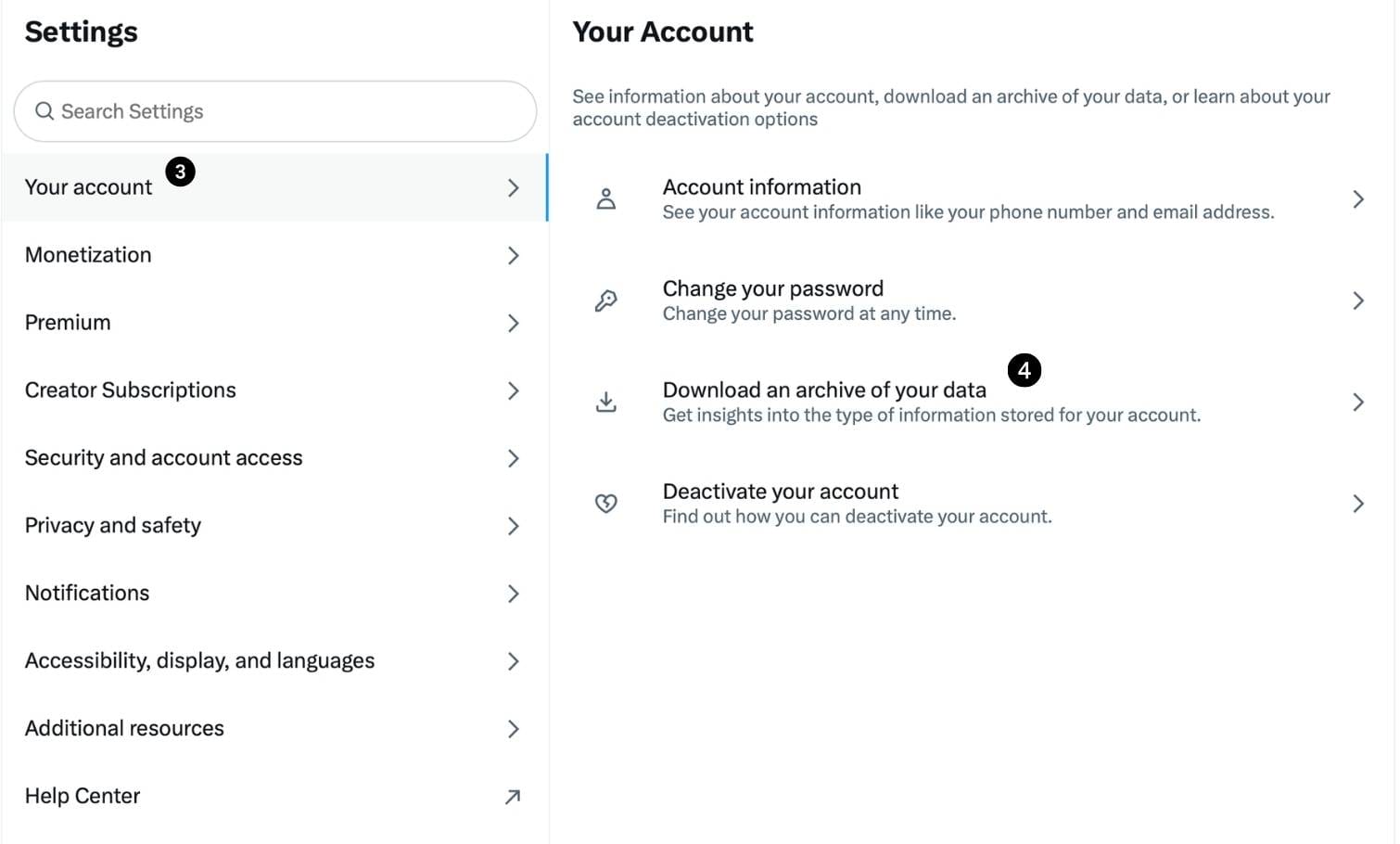
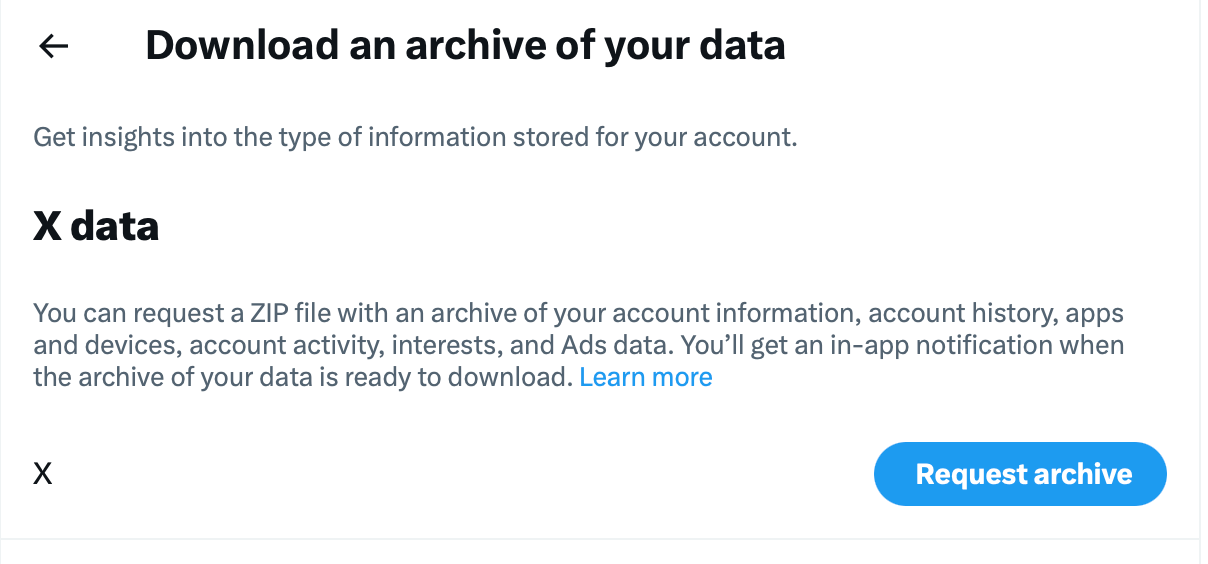
Step #3: After verifying your password, you will request your archive.
It is usually available to download in the same day.
Step #4: When you receive the email, ensure that you are logged in to your Twitter account.
You can download it on your X account.
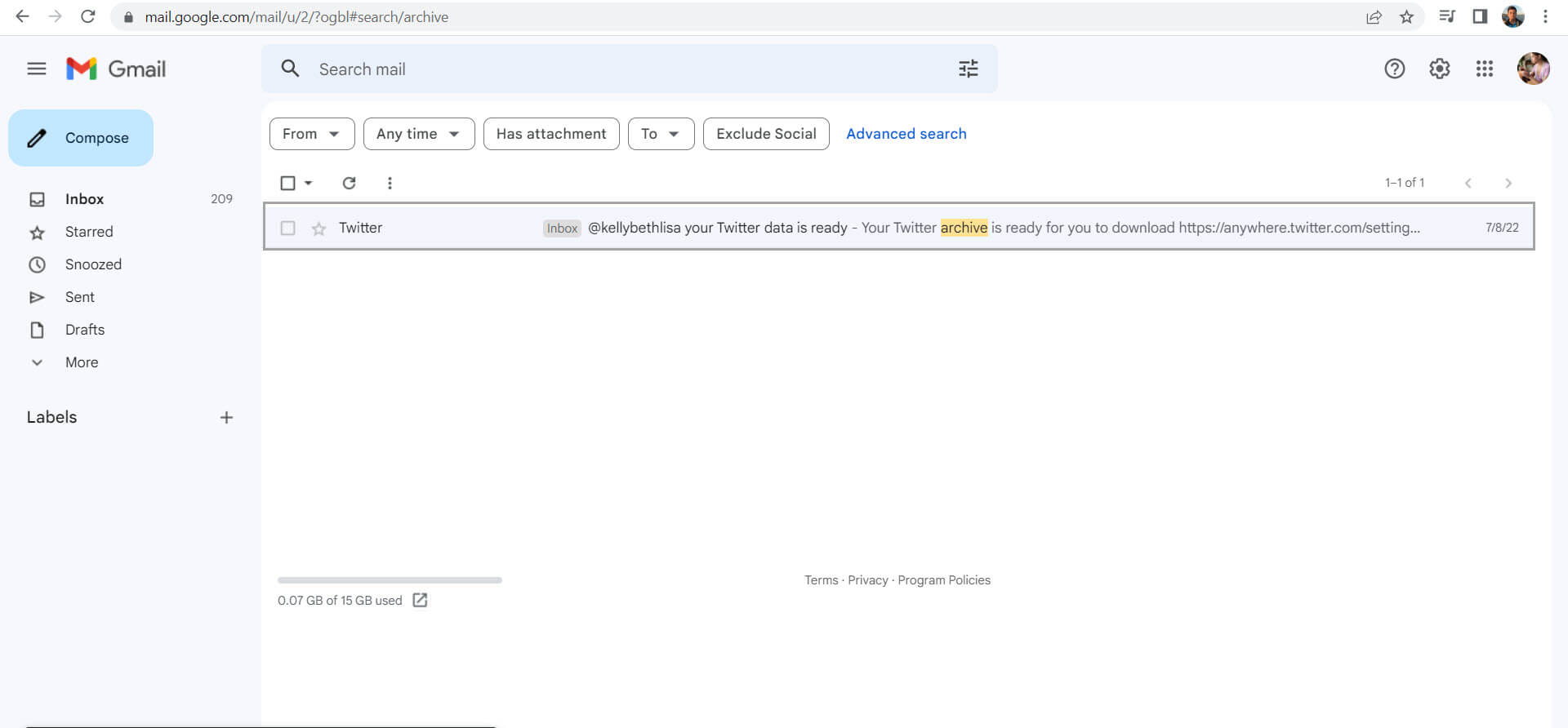
And click the Download option to download a zip file to get the Twitter archive to your computer.
How to see Twitter history with this Twitter archive folder?
Step #1: After you get the Twitter archive link to your inbox, you need to download the Twitter archive folder to your device.
Then you will see a ZIP file like below, and you can extract the folder by right click and then the “Extract All” option.
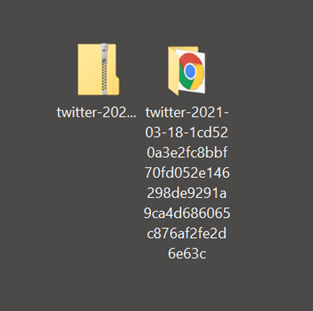
Step #2: First, open the unzipped file.
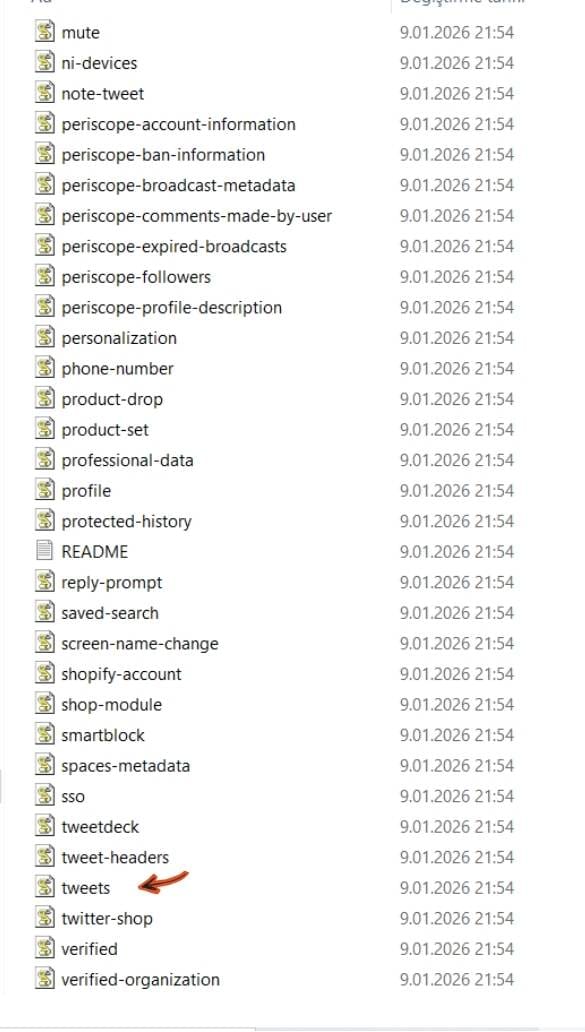
Go and find the file. You will see these folders in it.

Step #3: Inside the data folder, you will see "tweets" file.
It is a javascript file (.js) and it contains all your tweets in your platform history. Apart from it, you can also find other files like retweets, messages, etc.
What to do next with Twitter Archive?
Anyone who needs to reshape your online presence, particularly for job applications or other roles you may take in society such as advocate or politician, your opinions, even old tweets- matter to you and others.
For example, you can start by deleting your old tweets!
How can you delete old tweets at once?
Here, we can navigate you to delete old tweets in bulk via Circleboom’s Twitter Archive Eraser. Plus, you can do searches based on words, hashtags or dates and then decide on whether to delete or not.
So, let’s start.
Step#1: Log in to the Circleboom Twitter.
If you don’t have a Circleboom account, you can get yours in just a few seconds!

Step#2: When logged in, quickly authorize Circleboom Twitter with your Twitter account.
You're almost there!

Step#3: Please check the sidebar on the left and find "Essential Toolbox".
Then, you will see "Delete All Tweets" on the right.
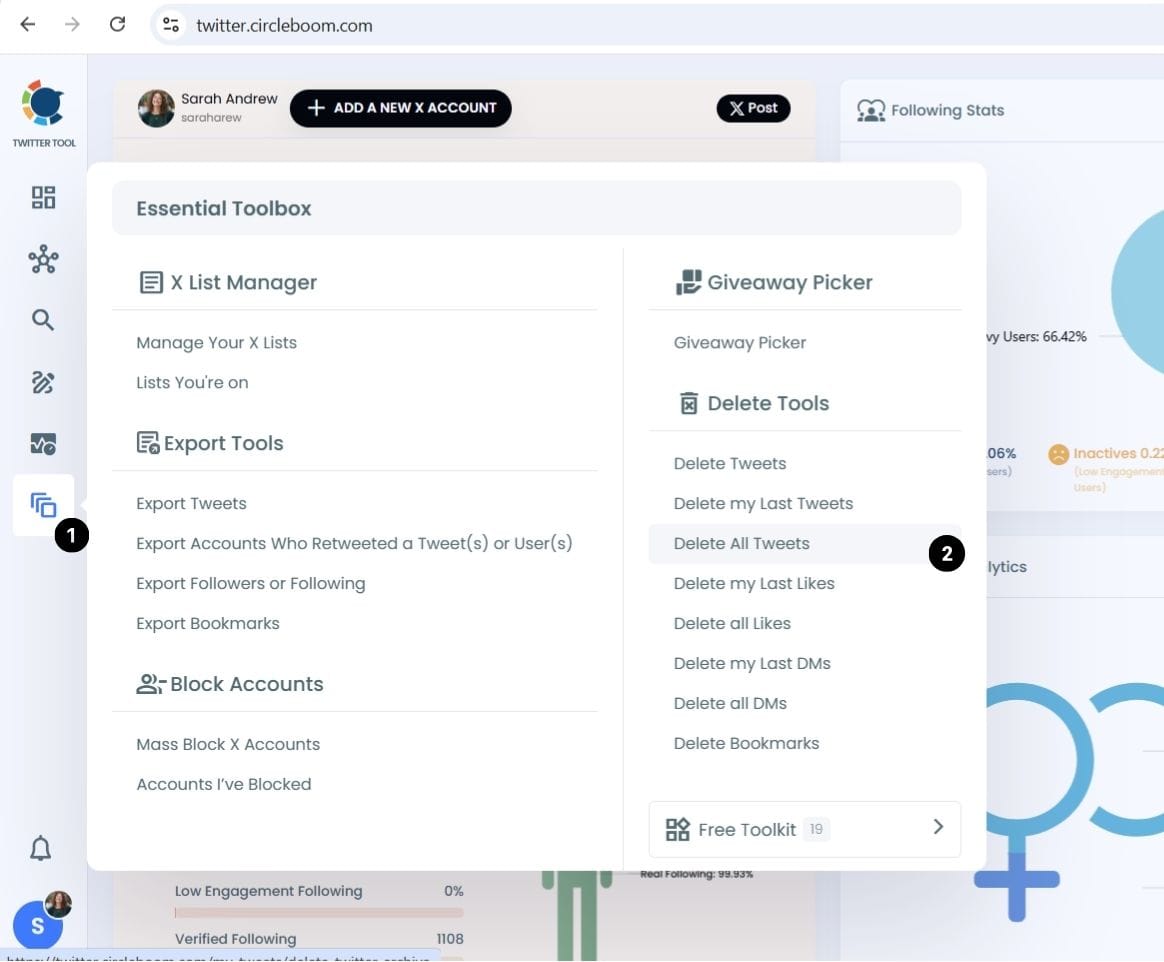
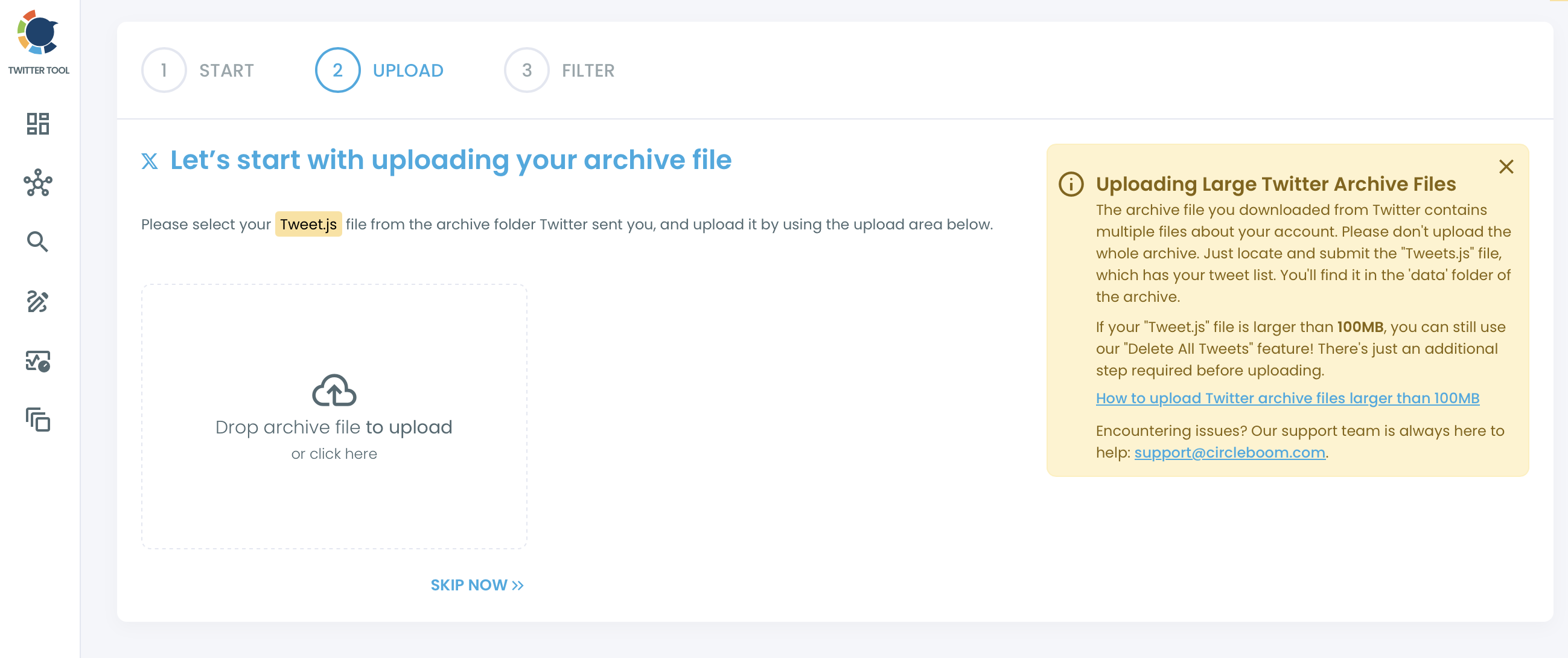
When you continue there, you will see the place where you should upload your tweets.js file in your archive.
Step#4: After uploading your Twitter Archive file, you will be taken to the dashboard, where you can clear your Twitter history.
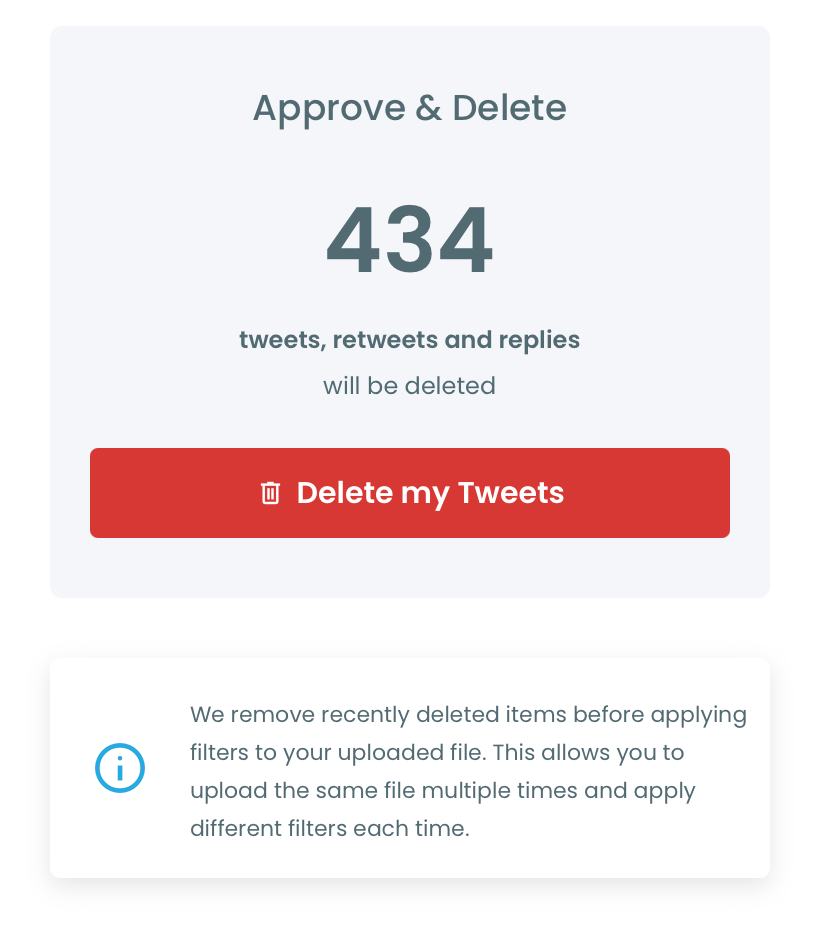
You will see tweets in your file, and filters that makes you delete your tweets selectively. (Because I deleted my archive once, you see only 434 tweets now.)
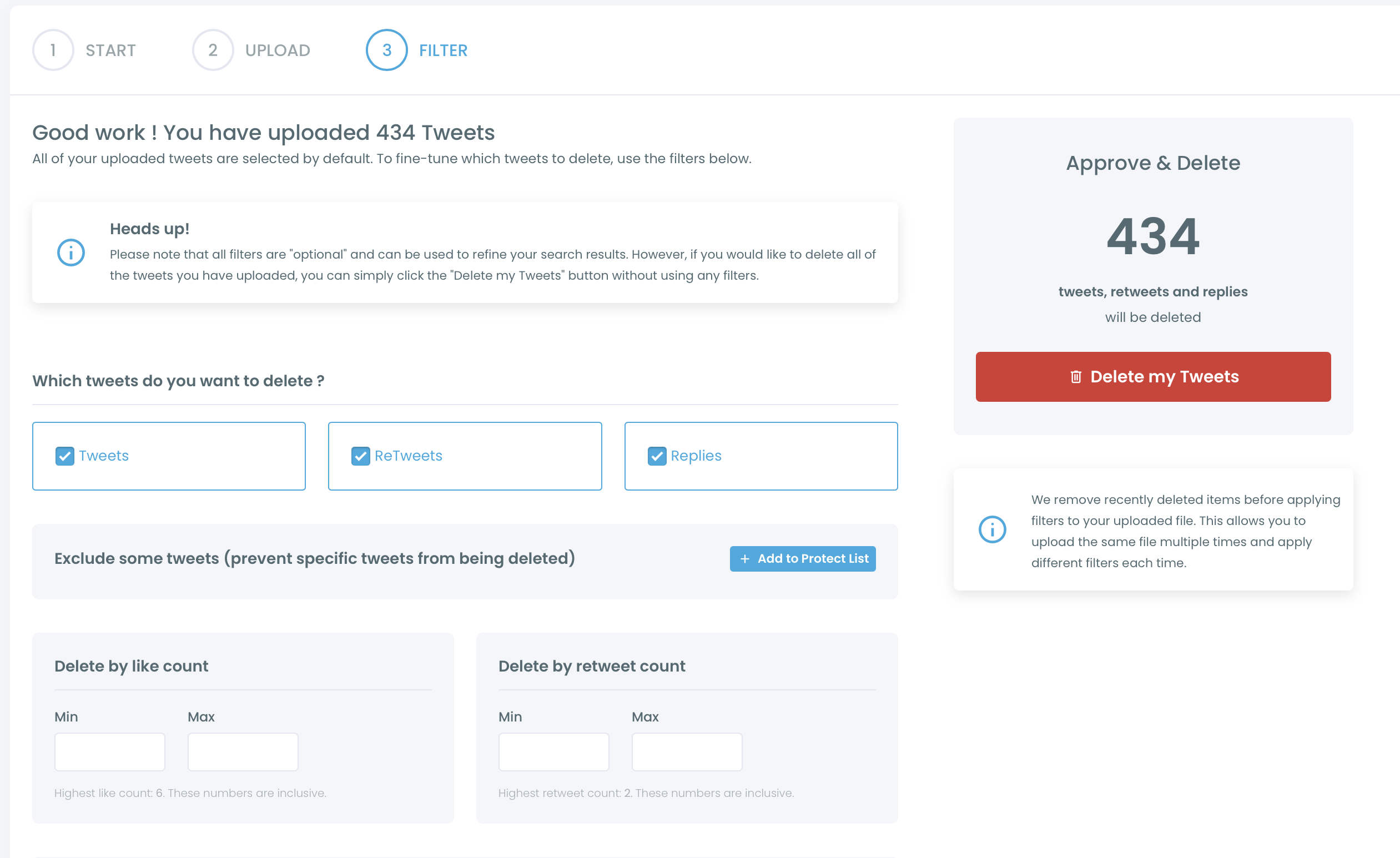
On the dashboard, you will find three options at the top, “Tweets”, “Retweets” and “Replies”. You can choose any or all of them considering your needs
If you want to clear your Twitter likes, you can follow our detailed guidelines to delete your Twitter likes.
You can see multiple filters here to group your posts and delete selectively. You can delete tweets by like count, by retweet count, by date, by keyword or hashtag.
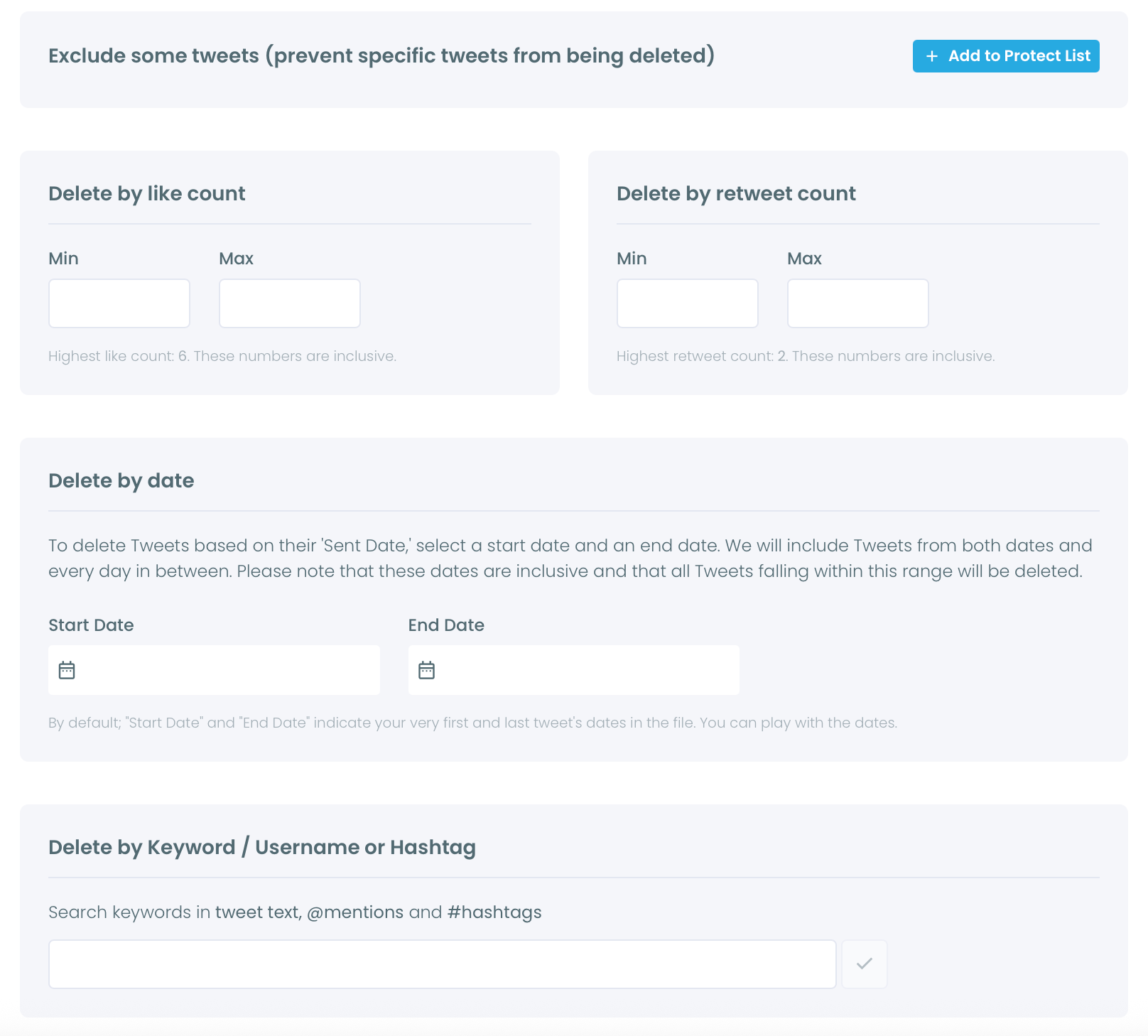
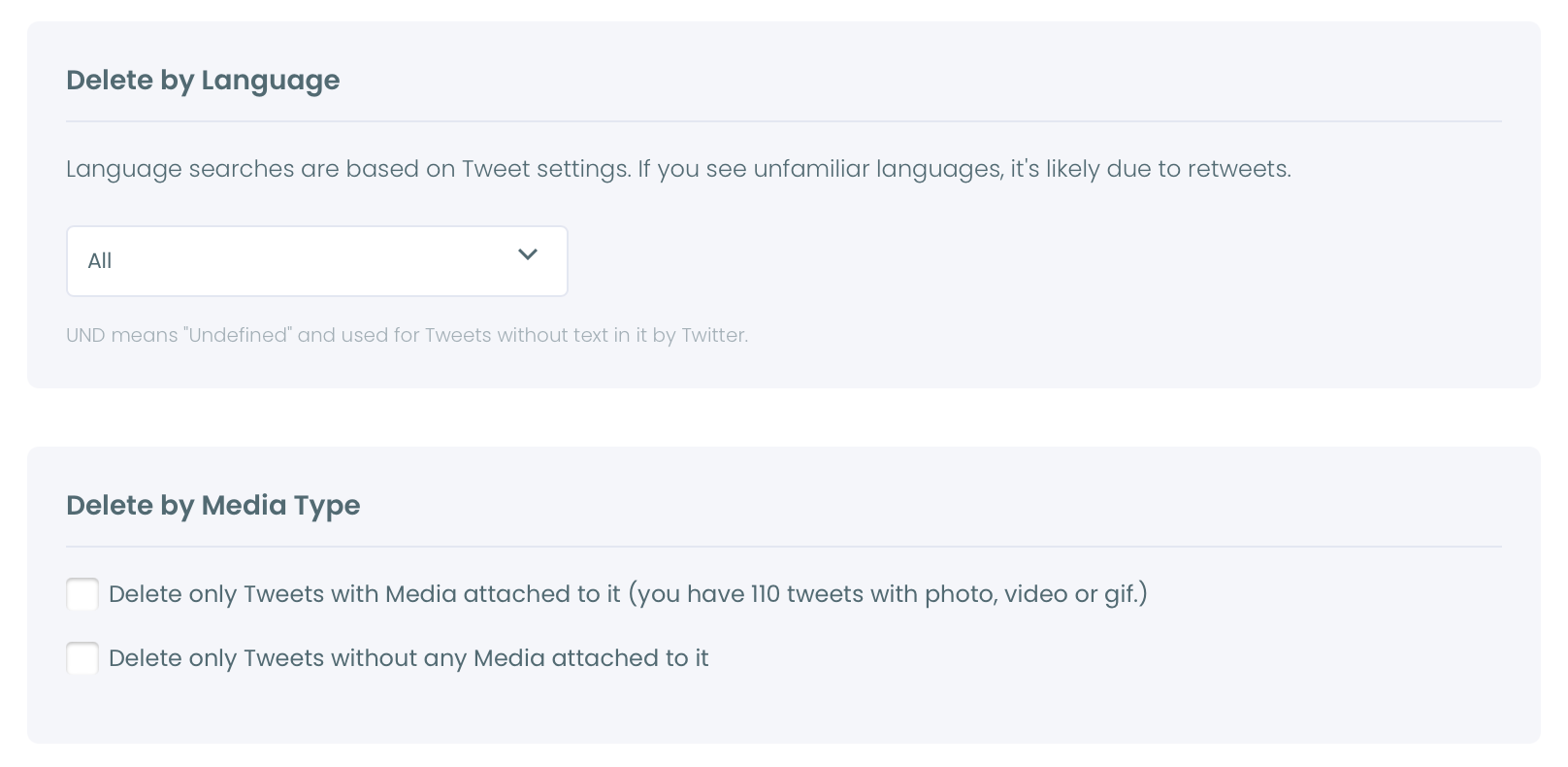
You can also delete tweets with or without media and you can delete tweets by language.
When everything is done, what you need to do is to click on "Delete my Tweets"
If you need more support on these steps, please look at our quick video tutorial below:
Bonus Tip: How to download Twitter Archive on Android and iOS?
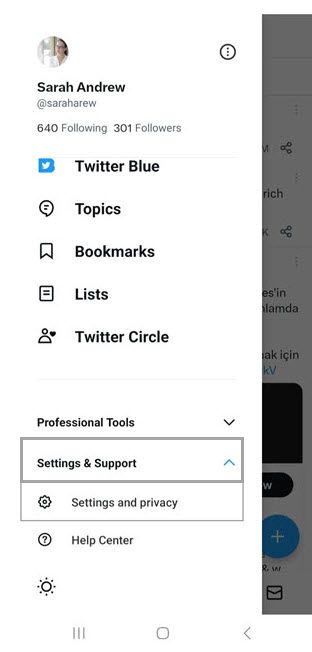
1. Navigate to the left menu and first click on "Settings and Support" and then "Settings and privacy1.
2. Then you should click on "Your account".
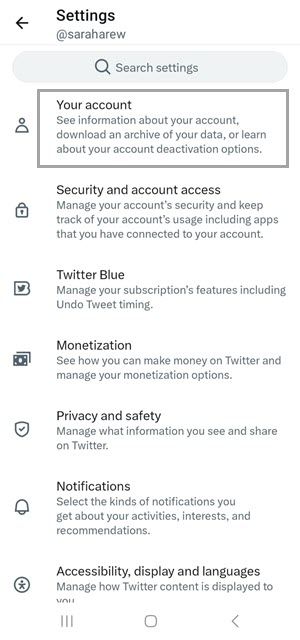
3. Next step is clicking on "Download an archive of your data".
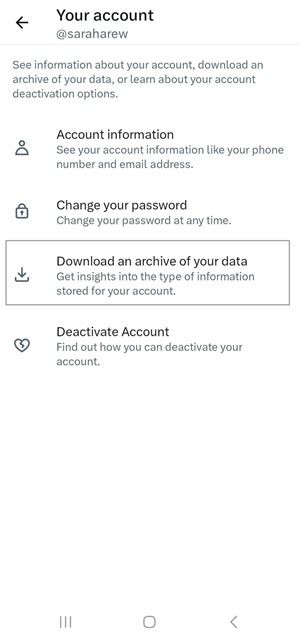
4. After you verify that it is you, you will click "Request archive". Once your file is ready, a notification will be sent by email.
You will go to Twitter and download your Twitter Archive file.

Last Words
You can choose the suitable Circleboom plan according to the number of tweets you want to delete. You can delete multiple tweets in one click and filter your tweets, retweets, and likes by keywords, and date.
Keep in mind that the API provides a more accurate real-time data stream than the X interface itself. While the platform UI may experience lag, the API captures and reflects new developments instantaneously.
Circleboom has the official Enterprise API, we don't scrape data from X!