An editorial calendar template is a shared sheet with one row per planned article: the topic, the writer, the deadline and the status. The version in this guide adds the social columns too, and it marks which of them a person has to fill and which your blog's RSS feed can fill on its own.
What this editorial calendar template gives you.
• A row layout for planning each blog post from topic to publish date.
• A clear split between the columns a writer owns and the columns a feed can fill.
• The setup that shares every published post to Facebook, X, LinkedIn and three more networks.
Circleboom Publish watches your blog's RSS feed and posts each new article to X, Facebook, LinkedIn, Google Business Profile, Bluesky and Threads with your own opening and closing lines. Keep the calendar for the writing, and publish every calendar post to social media from your RSS feed.
Why most editorial calendars stop at the publish date
Most editorial calendars are built by and for the writing team. They track the idea, the draft, the edit and the publish date in great detail, and then the row turns green and everyone moves on.
The social side gets one column, usually called "Promoted?", with a checkbox. Somebody is meant to copy the title and link to every account after the post goes live.
On a quiet week that happens. On a launch week it slips, and the checkbox stays empty.
A calendar that plans the writing but not the sharing only plans half the work.
The repetitive half is also the easiest to hand off. You can automate the social column of your editorial calendar so the shares happen when the post goes live, not when someone remembers.
The columns every editorial calendar template needs
A good editorial calendar template has one row per article and a short list of columns that each force a decision. Too many columns and nobody fills them in; too few and the plan cannot answer basic questions about who is doing what.
These five columns cover the writing side:
| Column | What it answers | Example |
|---|---|---|
| Topic | What the post covers | Pricing a logo project |
| Keyword | What the reader searches | logo design price |
| Writer | Who owns the draft | Dana |
| Due date | When the draft is due | 12 November |
| Status | Where the post is now | In edit |
Keep the status values short and fixed, such as Idea, Drafting, In edit, Scheduled and Live. A free-text status column turns into a diary within a month, and the sheet stops showing the pipeline at a glance.
Add a publish date beside the due date. The due date is for the writer, while the publish date is for everyone else, and that is the date the social side of the row cares about.
Where the old "promoted" checkbox goes
Delete it. A checkbox records whether somebody did a task, and it says nothing about where the post went or how it was framed. The next section replaces it with columns that describe the sharing itself.
Which calendar columns your RSS feed can fill for you
The useful split in an editorial calendar template is not "blog" versus "social". It is the columns a person must own versus the columns a feed can fill once and repeat for every post.
The human columns change with every row. The topic, the keyword, the writer, the due date and the status are different for each article, so a person has to write them.
The feed columns barely change at all. Where the post is shared, how each share opens and closes, and how fast posts go out stay the same from one article to the next.
The two halves of the template
Here is the full template, split into the two halves:
| Column | Owner | Changes per post? |
|---|---|---|
| Topic, keyword | Writer or editor | Yes |
| Writer, due date, status | Editor | Yes |
| Accounts | Feed rule | No |
| Begin with, End with | Feed rule | No |
| Check frequency, daily cap | Feed rule | No |
The second half maps one to one onto the fields of an RSS connection in Circleboom Publish. You fill those columns in once, copy them into one rule, and they apply to every row you add to the calendar afterwards.
One worked row
A single example shows both halves together. The values are an illustration, not a recommendation for your niche:
- Human half: "Pricing a logo project", keyword "logo design price", writer Dana, due 12 November, status In edit.
- Accounts: a Facebook Page, an X account and a LinkedIn Company Page.
- Begin with: "New on the blog:".
- End with: "Free price sheet inside."
- Check frequency and daily cap: every hour, one post per day.
When Dana's post goes live, the feed picks it up within the hour and shares it with that opening and closing line. Nobody touches the social half of the row again.
Does your blog platform already publish an RSS feed?
Probably. Most blog platforms publish an RSS feed of their posts without any setup, and that feed is what turns the second half of the template into automatic shares.
WordPress is the most common case. The developer documentation on WordPress feeds notes that WordPress ships with several feeds by default, including RSS 2.0 and Atom, so a WordPress blog is ready on day one.
Blogger publishes a feed as well. If your blog runs there, the walkthrough to post Blogger to Facebook automatically shows that path from the Blogger side.
If your site has no feed at all, a generator can create one from the site's address in a few minutes, so you do not need to write code.
How to connect your editorial calendar template to social media
Circleboom is an official X Enterprise developer company, so the X row of your calendar posts through access X has approved, not through a workaround. The same RSS connection covers Facebook Pages, LinkedIn, Google Business Profile, Bluesky and Threads, which lets you connect your blog feed to your social accounts in one place.
The feed rule holds the second half of the template. Circleboom checks your blog's feed on the schedule you set, finds new posts, and shares each one with the Begin with and End with lines from your calendar.
WordPress users who mainly care about one network can read how to auto post from WordPress to Facebook for the Page side of this setup.
See it live: a calendar entry going live on the blog and turning into a tweet with no copy and paste.
Here is the setup in order, with the feed half of your template open beside it.
Prepare the accounts from your calendar
- Open Circleboom Publish and connect every account listed in the Accounts column of your template.
- Go to Connect RSS Feeds on the dashboard's Content Discovery and Automation row, or choose Connect a new RSS feed in the sidebar.
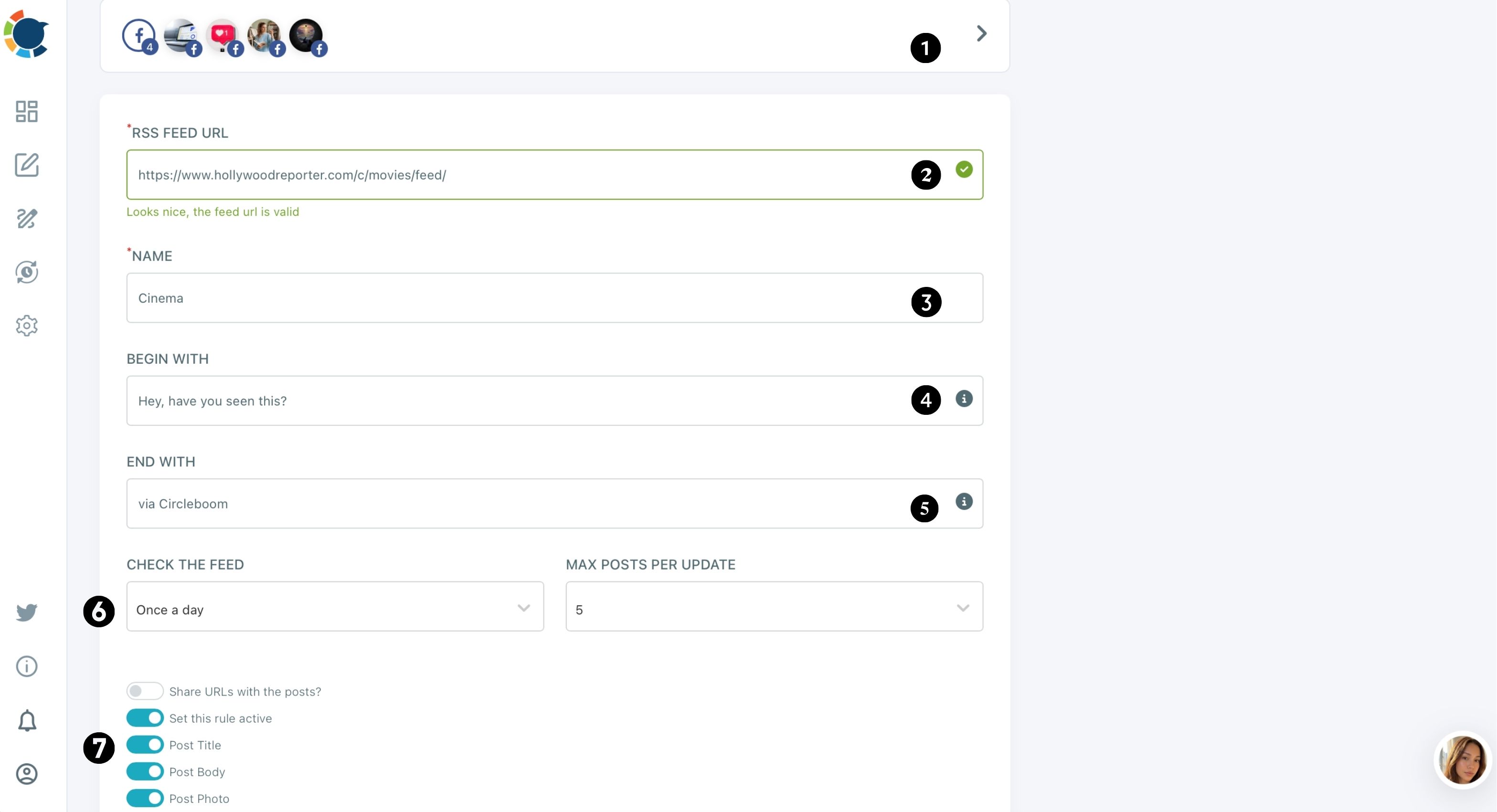
- Select the accounts and paste your blog's feed URL. Pick the Facebook Page, the X account and the rest of the accounts from your calendar row.
Copy the feed columns into the rule
- Name the feed after the blog, so it matches the source you track in the calendar.
- Type your Begin with and End with lines exactly as they appear in the template.
- Set Check the feed and Max posts per update to the check frequency and daily cap in your row, then choose Share URLs, Post title, Post body and Post photo.
- Turn on Set this rule active and click ADD RSS FEED.
This order follows the template on purpose. The accounts come first because they decide where every post goes, the wording comes next so each share sounds like your brand, and the cap comes last so a busy publishing week never floods anyone's feed.
How to stop a calendar backlog from posting all at once
A calendar often publishes in bursts. Three posts clear edit on the same afternoon, or a migrated blog suddenly shows a dozen "new" items in its feed.
Two settings handle this, and they do different jobs.
Check the feed decides how often Circleboom looks at your blog, such as once a day, every hour or every 15 minutes. Max posts per update caps how many posts actually go out per day from that feed.
Checking often does not mean posting often.
Checking every hour with a cap of 1 still publishes one post that day. Set the cap to match the posting rhythm your calendar promises, not the writing rhythm.
Give the cap its own column in the template. We think it is the most important number in the whole sheet: when the editor plans a heavy week, the cap decides how that week reads to your followers.
Keep the wording your own
The Begin with and End with lines are your framing on every share. Use your own blog's feed, or add real context when you share someone else's, because Google's spam policies treat republishing content without adding any original value as scraping.
How to add Facebook, Threads and Google Business Profile rows
Every platform in the Accounts column is one more row in the feed half of the template, and each one can share the same blog feed. The work is choosing which accounts belong and whether any of them needs different wording.
Facebook Pages are the usual first row. The platform-specific page for RSS feed to Facebook covers the Page side. Only Facebook Pages are supported as a destination, not personal profiles or Groups.
Threads suits shorter framing, so a brief Begin with line reads better there. The guide to post RSS feeds to Threads walks through that destination.
The X row usually wants the tightest wording of all. For that account on its own, see how to automatically tweet your new post from the same feed.
The Google Business Profile row
A local business can share each new article to its Business Profile too. The steps to post to Google My Business from an RSS feed cover it. The dedicated page for RSS feed to Google Business Profile shows the rule.
Each item goes out as a Standard post, not an Event or Offer. Google also offers its own "Schedule this post" option inside a Business Profile, which suits one-off updates; the feed rule suits a blog that publishes on a rhythm.
Keep this row's Begin with and End with text clean. Google's Business Profile posts content policy can remove posts with contact details it cannot verify, so leave phone numbers out of the framing lines.
Calendar rows that are not blog posts
Not every row in an editorial calendar template is an article. A webinar reminder, a product launch post or a holiday greeting has no feed item behind it, so the RSS rule never sees it.
Write those posts by hand and put them in the Queue to automate social media posts at each account's best time. In the template, mark these rows with a "manual" value in the Accounts column, so the editor knows they need a person.
The feed covers consistency, and the hand-written rows cover the moments that deserve extra care.
Your editorial calendar template checklist
Before the next planning meeting, work through these five checks:
- Add the five writing columns: topic, keyword, writer, due date and status.
- Replace the "promoted" checkbox with the feed columns: accounts, Begin with, End with, check frequency and daily cap.
- Confirm your blog's RSS feed URL loads.
- Copy the feed columns into one RSS rule in Circleboom Publish and turn it on.
- Check the Queue after the first week to confirm posts land at sensible times.
With that in place, your editorial calendar template plans the writing and the sharing in the same row, and the sharing no longer depends on anyone's memory.
→ Fill the editorial calendar's social slots automatically
Editorial calendar FAQ
Can I turn the feed off for a holiday week?
Yes. Turn off Set this rule active to pause the connection without deleting it, and turn it back on when the calendar resumes. Nothing in the rule is lost while it is paused.
Does anyone check the auto-posts before they go out?
No. Items from the feed are posted without a human review unless the rule is paused, so check your connected feeds and the Queue now and then to make sure the sources and wording still fit.
Do I need one feed rule per platform?
No. One connection can include several accounts across platforms, such as a LinkedIn profile and an X account, and one account can also hold several feeds if your calendar tracks more than one blog.