
Twitter doesn't give you a way to delete all your tweets from your iPhone. Not through the X app, not through any native setting. You can delete tweets one at a time, but that's the full extent of what the platform offers. For anyone with hundreds or thousands of tweets, that's not a realistic option.
If you want to delete all your tweets on iPhone, Circleboom Twitter's iOS app is how you do it. It pulls up your tweet history, lets you filter by type, date, keyword, and engagement, and deletes everything you select in bulk directly from your phone.
Here's everything you need to know.
Can you delete all tweets on iPhone?
Not through the X app natively. Twitter only supports deleting tweets one at a time through the app and has no bulk delete option.
With Circleboom Twitter's iOS app, you can delete your recent tweets in bulk using API-based deletion, or delete your entire tweet history including older tweets by uploading your Twitter archive. Both methods run fully through X's official APIs.
 Circleboom LLC
What Is Circleboom Twitter?
Circleboom is an Official X Enterprise Developer. All deletion actions run through X's official APIs and comply fully with platform rules. No scraping, no third-party workarounds, no account risk.

Here's what Circleboom Twitter gives you for tweet deletion on iPhone:
- Delete up to your most recent 3,200 tweets without uploading an archive
- Upload your Twitter archive to delete your full tweet history beyond the 3,200 limit
- Filter tweets by date range, keyword, engagement level, media type, and more before deleting
- Delete specific tweet types only: original tweets, retweets, replies, or all combined
- Preview selected tweets before confirming any deletion

How to Delete All Tweets on iPhone with Circleboom Twitter
Step #1: Download the Circleboom App
Go to the App Store and download Circleboom for Twitter. It’s lightweight and built for iPhone users like us.
 Circleboom LLC
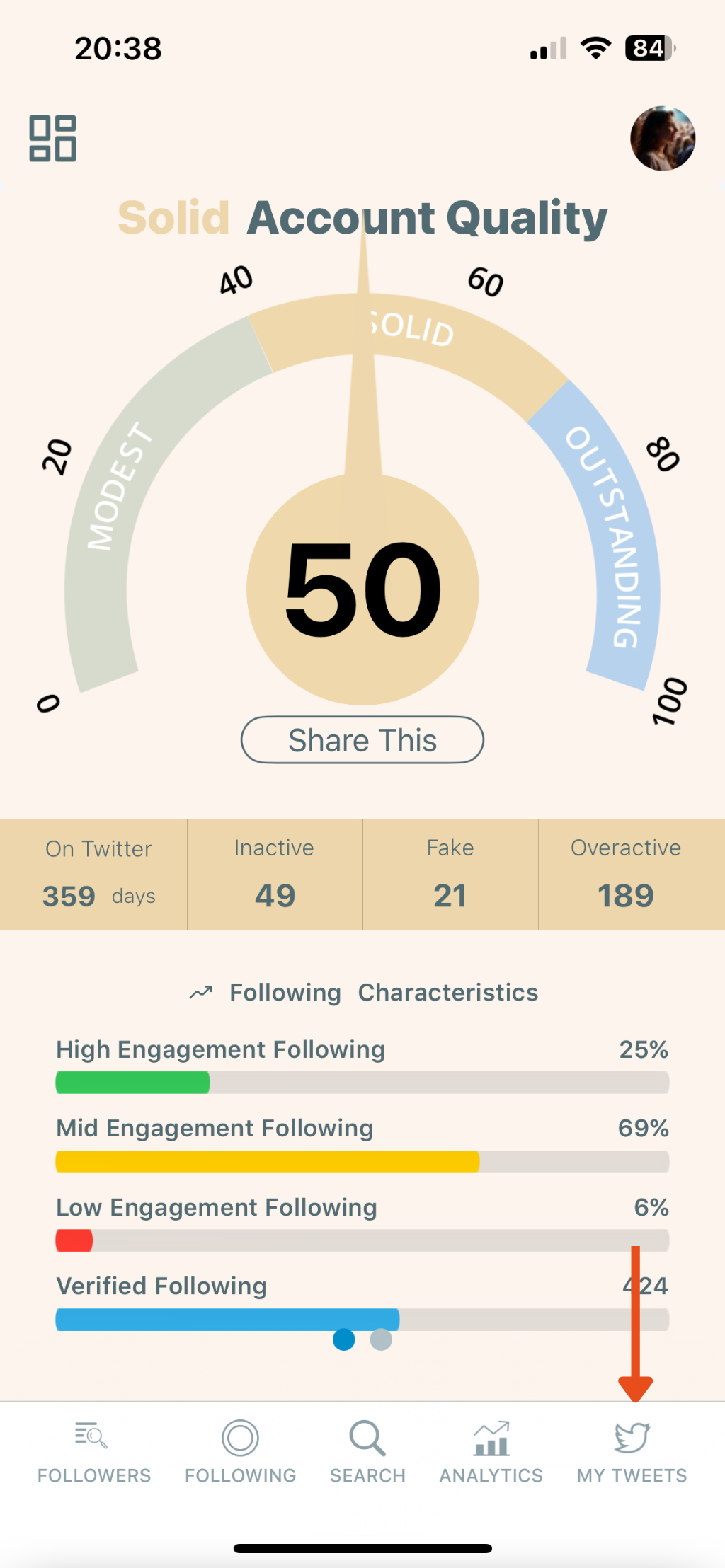
Once you're inside the app, navigate to the bottom menu and tap the “MY TWEETS” icon (bottom right corner with the Twitter bird). This will open the tweet management panel.
Step #2: Tap “Delete My Last Tweets”
From the list of options, select “Delete My Last Tweets.”
This feature allows you to delete your most recent 3,200 tweets without needing to upload your Twitter archive.
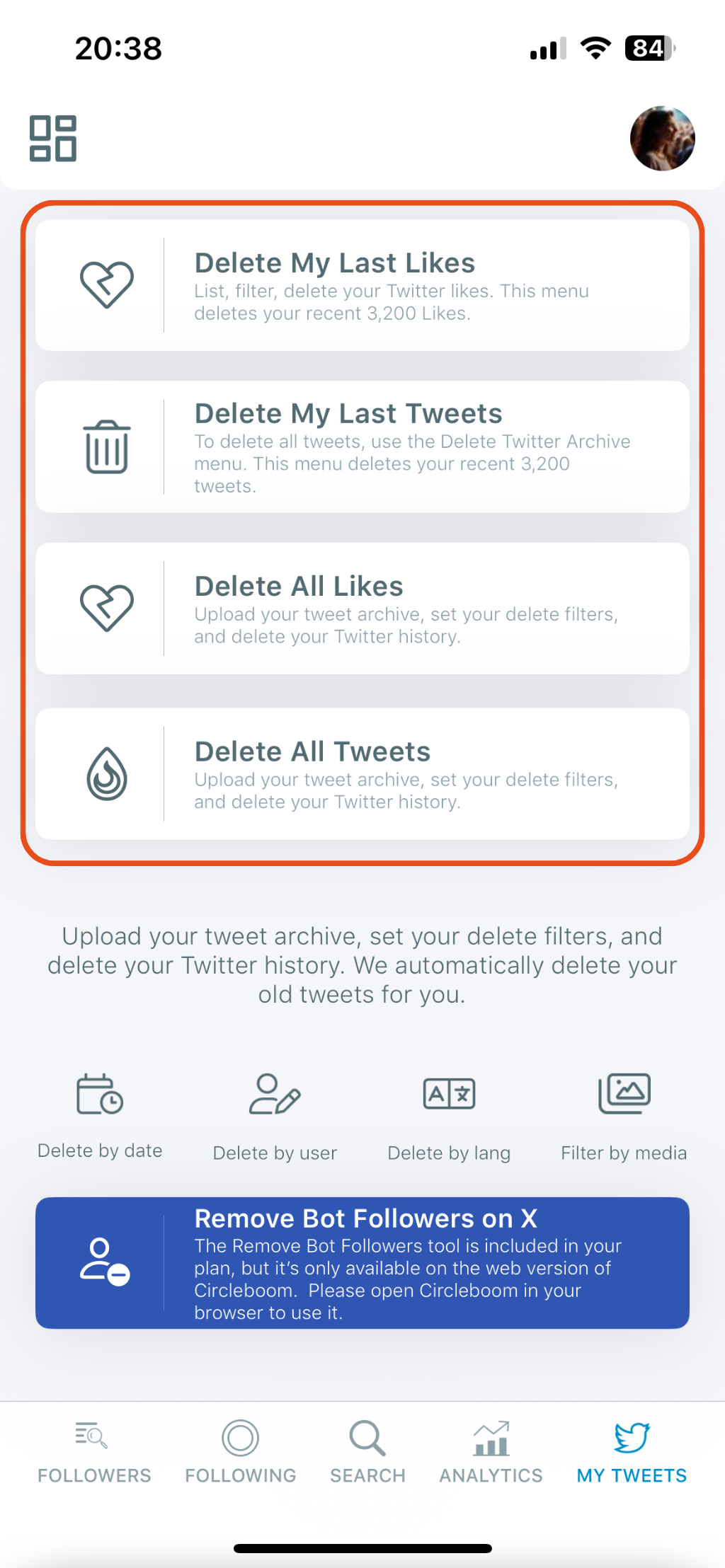
✨ Tip: If you want to delete older tweets beyond the 3,200 limit, you can use the “Delete All Tweets” option by uploading your archive.
Step #3: Review Your Tweets
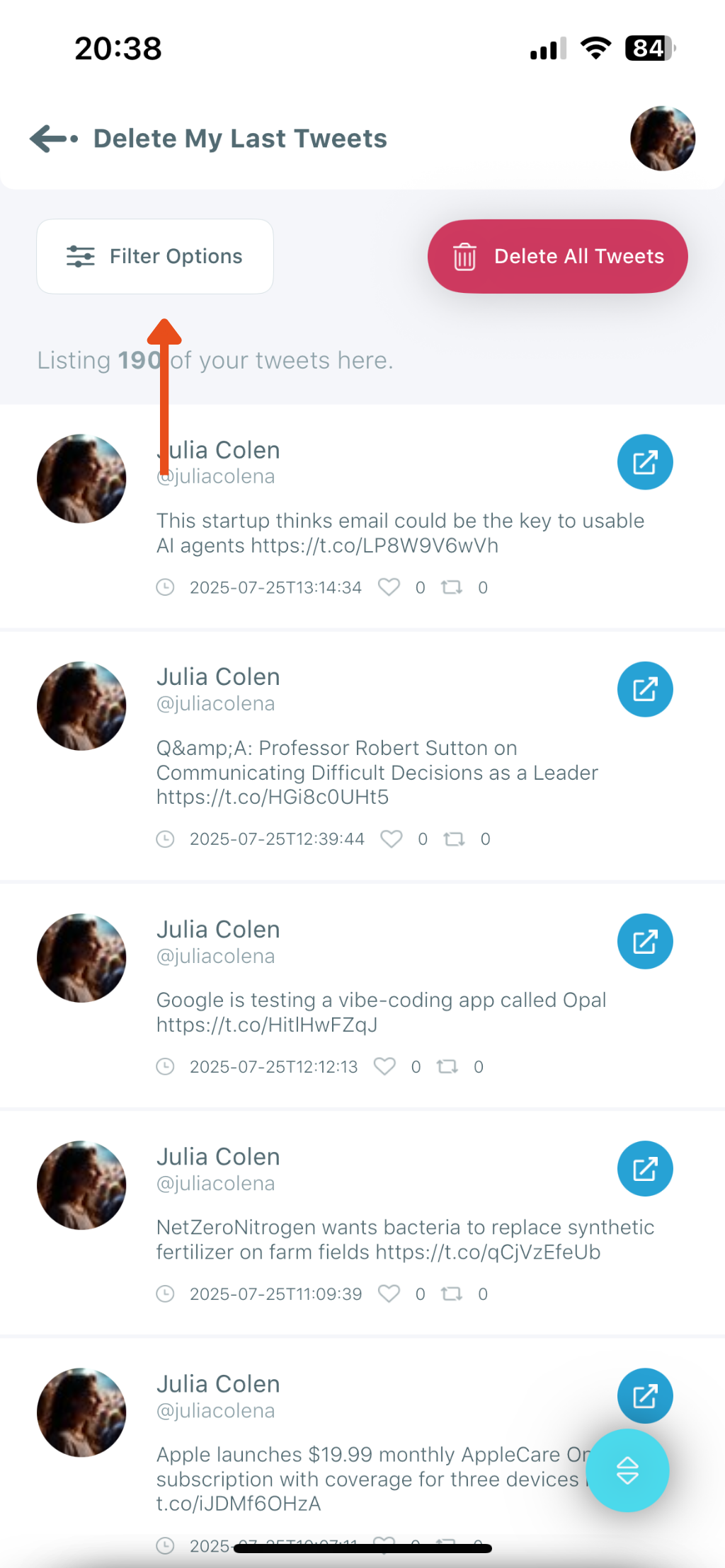
After selecting the delete option, Circleboom will list your recent tweets. You’ll see your content, including tweet text, timestamps, and engagement metrics (likes, replies, retweets).
Step #4: Tap “Filter Options” to Narrow Down Tweets
If you don’t want to delete everything, you can customize your cleanup using filters. Tap the “Filter Options” button on the top left.
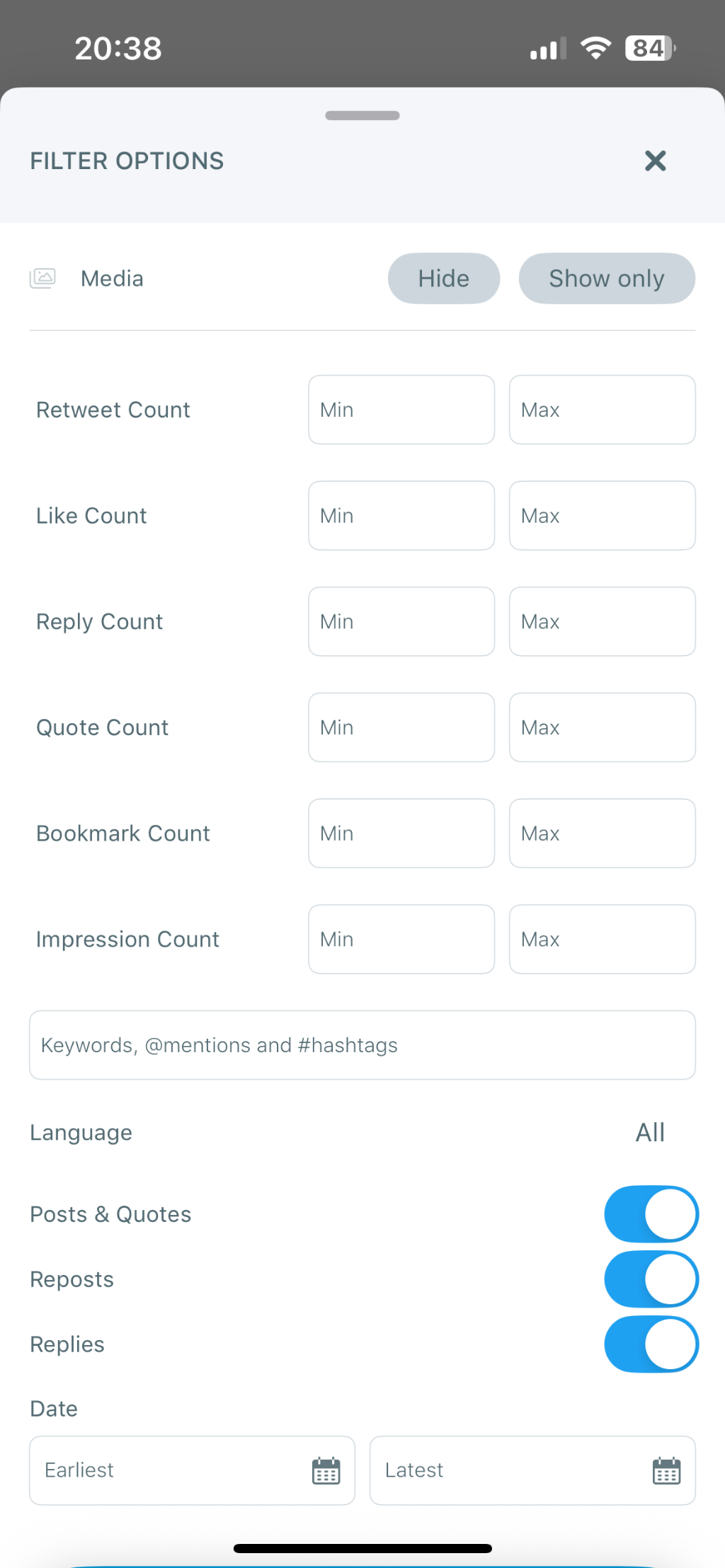
Here, you can filter tweets by:
- Engagement (likes, retweets, replies, quotes, impressions)
- Keywords or hashtags
- Tweet type (posts, replies, reposts)
- Language
- Date range
- Media presence
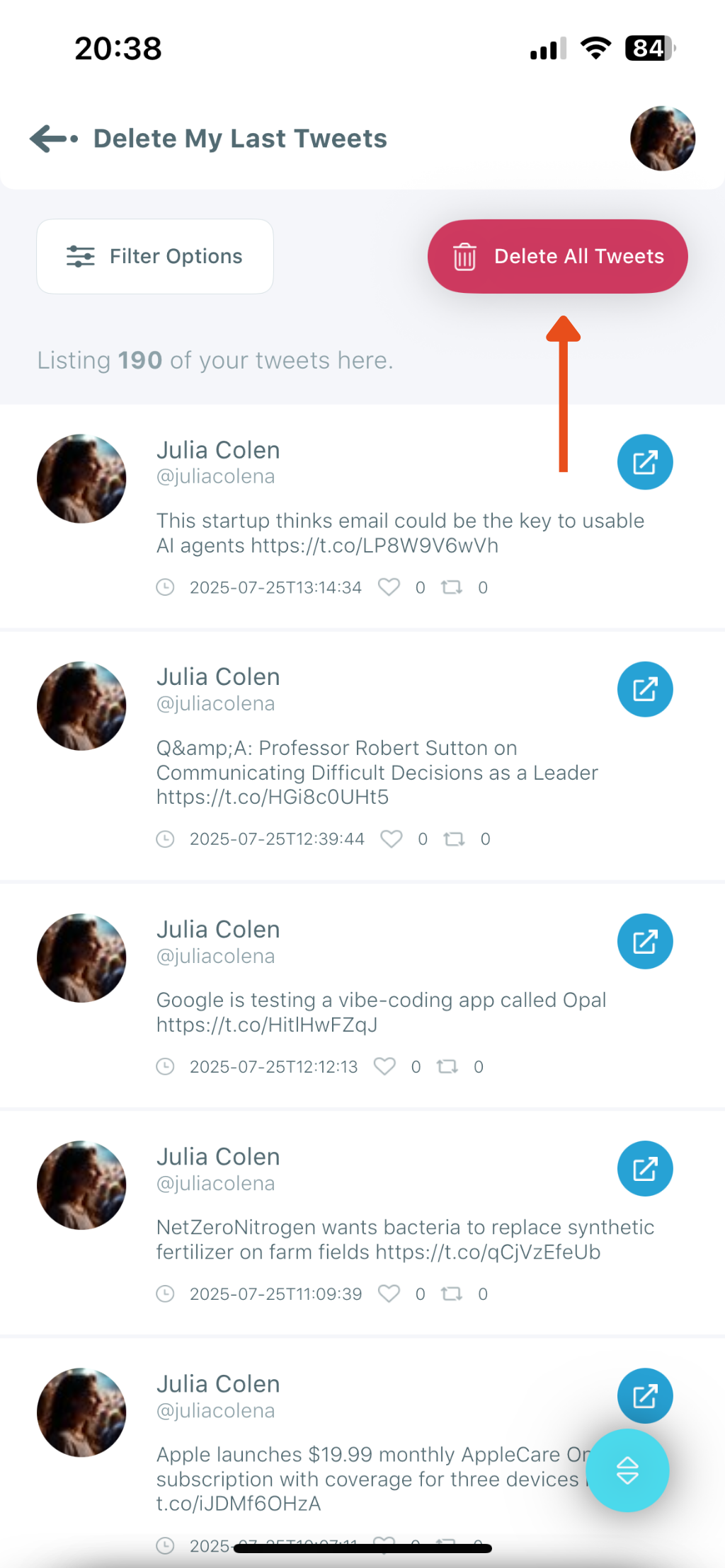
Step #5: Tap “Delete All Tweets”
Once you’ve applied your filters (or chosen not to), tap the red “Delete All Tweets” button at the top right.
Step #6: Confirm the Deletion
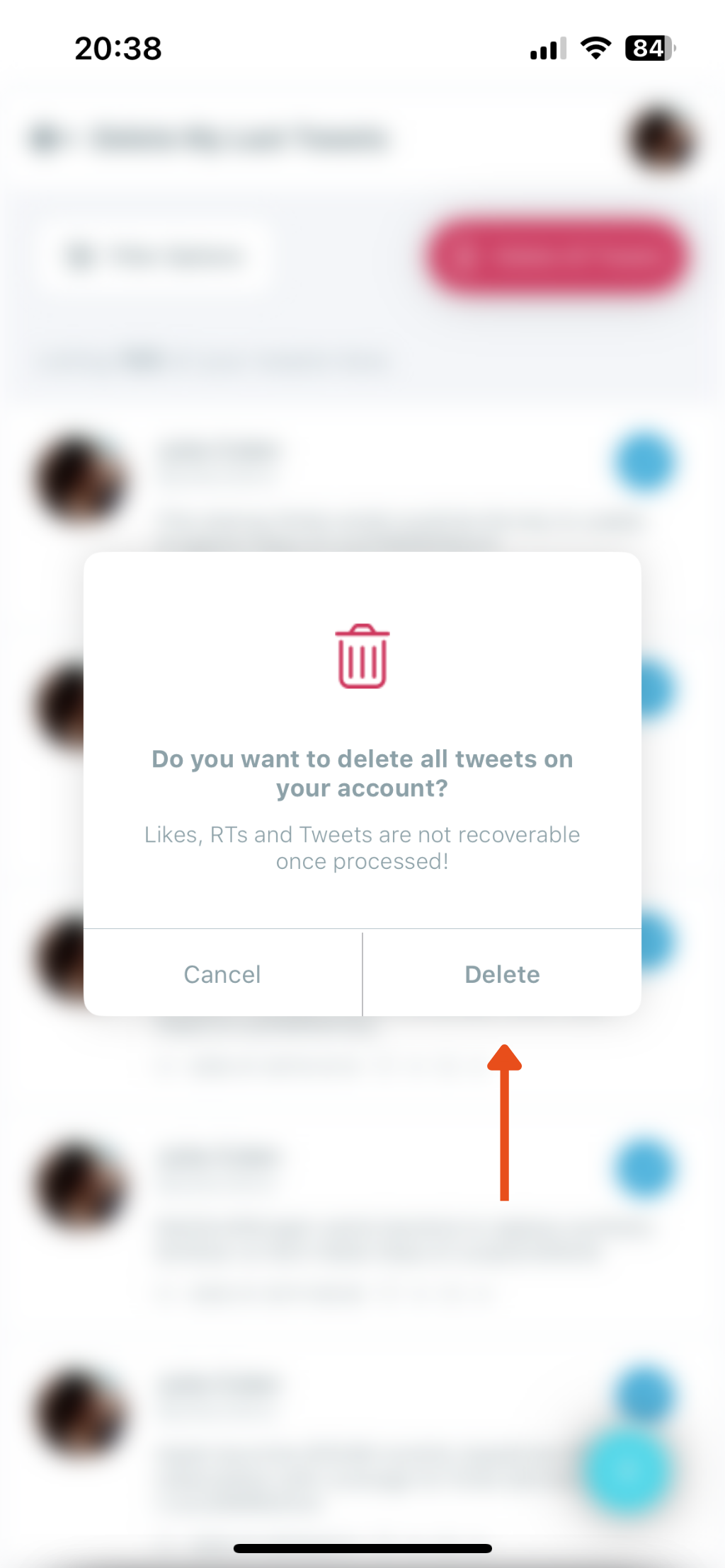
A confirmation pop-up will appear asking:
“Do you want to delete all tweets on your account?
Likes, RTs and Tweets are not recoverable once processed!”
Tap Delete to finalize the process.
How Circleboom Twitter Deletes Your Tweets
Once you connect your account, Circleboom retrieves your tweet history and displays it in a structured, filterable list. You apply whatever filters you want, select the tweets you're removing, and confirm the deletion.
For a complete account reset, you can also upload your Twitter archive from X's settings into Circleboom. This gives you access to your full tweet history including older content, all available to filter and delete in the same workflow.
⚠️ Tweet deletion is permanent and cannot be undone. Review your selection before confirming. If you want a backup first, use Circleboom's Export Tweets feature to save your content as a CSV before deleting.
What You Can Filter Before Deleting
Bulk deletion doesn't mean deleting everything blindly. Circleboom Twitter lets you apply filters to the tweet list before any deletion runs.
Post type. Filter for original tweets only, retweets only, replies only, or any combination. If you only want to remove retweets and keep your original content, that's one filter setting.
Date range. Set a start and end date to target tweets from a specific period. Delete everything from a particular year, or clean up tweets posted before a specific point in time.
Engagement level. Filter by like count, retweet count, or reply count. Remove tweets that never got any engagement, or protect high-performing posts from deletion.
Keyword and hashtag. Target tweets containing specific words, phrases, or hashtags. Useful if you want to remove a specific topic or content theme from your history.
Language. Filter by the language the tweet was written in.
Media. Include or exclude tweets with images, videos, or links.
You can stack multiple filters together. The result is a targeted deletion that removes exactly what you want and leaves everything else intact.
Why People Delete All Their Tweets
Starting fresh without creating a new account. Years of tweet history doesn't represent where you are now. Deleting it lets you rebuild from a clean slate while keeping your username, followers, and account age.
Rebranding or changing content direction. If your account is shifting focus, an old tweet history that contradicts the new direction undermines the rebrand. Bulk deletion clears the inconsistency.
Privacy and digital footprint. Old tweets contain things you said, places you mentioned, and opinions you've moved past. Removing them is a legitimate privacy decision.
Professional reasons. Job changes, new clients, or shifting professional contexts can make an old personal tweet history a liability. Cleaning it up quickly is more practical than hoping no one scrolls far enough.
Account recovery after buying or inheriting an account. If you're taking over an account that someone else used, removing the previous history is the first step to making it yours.
Frequently Asked Questions
Can you delete all tweets on iPhone?
Not through the X app. Twitter only supports deleting one tweet at a time natively. Circleboom Twitter's iOS app lets you delete tweets in bulk, either from your most recent 3,200 without an archive, or from your full history using the archive upload method.
Do I need to upload my Twitter archive to delete all tweets?
Not always. For recent tweet cleanup, you can connect your account and start deleting without an archive. For a complete reset including older content, you can download your archive from X's settings and upload it to Circleboom, which gives you access to your full tweet history.
Is bulk tweet deletion safe for my account?
Yes. Circleboom Twitter is an Official X Enterprise Developer and all deletion actions run through X's official APIs in full compliance with platform rules. No account risk is involved.
Can I filter which tweets get deleted?
Yes. Before any deletion runs, you can apply filters including date range, tweet type, engagement level, keyword, hashtag, language, and media. You can also preview your selection before confirming.
Is tweet deletion permanent?
Yes. Once a tweet is deleted it cannot be recovered. Circleboom recommends reviewing your filtered selection carefully before confirming. If you want a backup, export your tweets as a CSV before deleting.
How long does it take to delete all tweets?
It depends on how many tweets are being deleted. Small batches process quickly. Large deletions involving thousands of tweets take longer as they run through X's API with rate-controlled actions. The process runs in the background and you don't need to keep the app open throughout.
Final Thoughts
The X app doesn't let you delete all your tweets on iPhone. That's the limitation. Circleboom Twitter's iOS app exists to close that gap, with two deletion modes, a full set of filters, and safe API-based execution directly from your phone.
Whether you want to clean up recent content or reset your entire account history, the process starts in the same place.
Delete all your tweets on iPhone with Circleboom Twitter.
infocircleboom.com