
Customers who like a business rarely write about it on Google, and a profile with a thin review list loses the comparison to the shop down the street. The fix has two halves: Google's side, where you ask every customer the right way, and the posting side, where reviews earn the next visit. This guide covers both, in order.
The routine in three parts.
• Ask every customer for an honest review through Google's own link or QR code.
• Bring more people in with Offer posts that reward the visit, never the review.
• Republish your best reviews as Google posts with a Book or Call Now button.
Circleboom Publish writes, schedules and sends the Google Business Profile posts in that routine, and the review step stays in Google. Turn each new review into a post with the review post template for Google Business Profile.
Why satisfied customers don't turn into Google reviews
Satisfaction alone does not produce a review. Even happy customers rarely bother to leave one unless something prompts them, so a business can be busy and still show a handful of stars.
A café, a clinic or a salon can have years of trade and fewer reviews than a newcomer down the road. The newcomer usually does two things differently: it asks, and it gives people a reason to visit often enough to have something to say.
That gap matters because reviews do three things at once. They persuade the next customer, they feed Google's local ranking, and they can be reused as posts on the profile.
Most advice stops at the first one.
The posting half begins with a Google Business Profile post template that turns each review into a post. That page offers a post template already sized for the profile.
Circleboom Publish schedules Offer, Event and Standard posts on Google Business Profile, which covers the part of a review routine that happens on the profile itself. Asking, reading and replying all happen in Google.
Google's side: verify, share the link, ask everyone
The ask lives entirely in Google, and it works best when it reaches every customer at a moment that costs them seconds.
Start with a verified profile. Then take the review link Google gives you. Its page on how to create a Google link or QR code to request reviews shows where the profile's own link and QR code live. It also warns that offering incentives for reviews counts as fake engagement.
Put that link where customers already are:
- Spoken at checkout, once the visit is over.
- Printed as a QR code on the receipt, the invoice or a table card.
- Placed in a Standard post on the profile that links to the review form.
Google's own QR code is the right one for the review link itself. Other links on the same card, such as a booking page or a menu, need codes of their own. You can create a QR code for social media in Circleboom Publish, which turns any link into a code.
Wording the request for a Google review
The request should be short, honest and identical for everyone. A line like "Would you tell people on Google how today went?" works at the counter and on paper alike. It points to the right place, and it asks for an account of the visit rather than a rating, which keeps it neutral.
Timing matters as much as wording. Ask right after the good part of the visit, when the meal is finished or the appointment is over, not while the customer is still waiting to pay.
Ask everyone, not only the regulars you expect to be kind. And if a customer says a review is missing, give it time, since a new review is not always visible the moment it is written.
The incentive line every Google offer has to respect
You can reward a visit, but never a review. Google's policies prohibit offering a discount, a gift or anything else in exchange for leaving one, and incentivized reviews can be removed and can put the profile at risk.
That rule decides what an Offer may say:
- "A free fringe trim with any cut on Wednesdays" rewards a visit, so it is a valid Offer.
- "A free trim for anyone who shows us their review" rewards the review, so it is not.
Keep the Offer about the visit and the review request about honesty, and the two never touch.
Staff should never mention the Offer while asking for a review, and the receipt line asking for a review should carry no reward.
Where do Google reviews come from when you barely have customers?
They come from foot traffic, and an Offer post is the most direct way to create it. A profile that only asks the same few regulars runs out of new reviewers quickly; one that brings new people in every week keeps finding them.
An Offer on Google Business Profile carries a title, a coupon code, a Redeem Online link, terms and conditions, and an optional validity window.
A small, frequent one works better than a rare big sale, because it gives people a reason to come in this week. A salon can run a midweek blow-dry Offer to fill its slowest day, and every one of those visitors becomes a customer you can ask.
Planning Google offers as a calendar
The practical move is to plan Offers as a calendar rather than one-off posts. Write a month of them in one sitting, each with its own coupon code, terms and validity window, and schedule them so a new one goes live every week. Nobody has to remember to post on a busy Friday, and the profile always has a current reason to visit.
For restaurants, cafés and bakeries, the list of fun restaurant promotion ideas gives you more Offers to rotate through the month.
Clinics work the same way with different Offers: a teeth-whitening coupon, a free consultation day posted as an Event. A clinic's wider plan can draw on these healthcare marketing tips to grow a clinic.
When you are ready to build them, the composer to create Google Business Profile posts switches to Offer from one dropdown.
Which button belongs on a post that shows a Google review?
Pick the button for the action the review describes. A Standard post can carry one of six buttons: Call Now, Learn More, Book, Sign Up, Order Online and Buy.
A practical way to match them:
- Book: a review about an appointment, a table or a treatment.
- Call Now: a review about a quick, helpful answer by phone.
- Order Online or Buy: a review that praises a product people can get today.
- Sign Up: a review of a class, a workshop or a list with places.
- Learn More: the fallback, for a review that matches none of the buttons above.
An Offer post cannot carry a button at all.
It replaces the button with the coupon code, the Redeem Online link and the terms. So a review post is always a Standard post with a button, and the next-visit reward is always a separate Offer.
Two examples make the match concrete. A dentist quoting "they fitted me in the same week" should end with Book, because the next reader wants a slot too. A bakery quoting "the sourdough is the best in the neighborhood" should end with Order Online, because that reader wants the bread, not a conversation.
Circleboom Publish for the posting side of Google reviews
Circleboom Publish creates and schedules Google Business Profile posts from a dedicated composer, reached from the "Google Business Specific" card. It handles all three post types, attaches media with alt text, and lets you pick a suggested time for each profile.
The AI button above the text field helps when a review is good but too long or too personal to quote as it stands. The AI Google Business post generator writes from a one-line instruction. "Improve this response" then refines the result, for example with "make it more promotional".
Google's own dashboard can create and schedule posts too. The reason to write review posts in one composer is the rest of the routine: AI copy, templates, a week of posts planned in one sitting, and the same post sent to several connected locations.
If your search was how to get more Google reviews for your business, start the posting side from the ready-made Google Business Profile post template. It holds a Google Business Profile template already sized for the post image.
Reusing a finished review post
A finished review post also makes a good pattern for the next one. Save as Draft keeps a half-written post for later, and Duplicate copies an existing post into an editable version, so the layout, the button and the photo style carry over while the quoted review changes.
One caution for businesses with several locations: a multi-location send carries the same content to every selected profile. A review written about one branch belongs on that branch's profile, so select only that location before you schedule it.
Every review has three jobs: earn the next customer, feed Google's prominence signal, and become a post. Google handles the first two; the steps below cover the one Circleboom Publish does.
How to get more Google reviews for your business by posting them
Ten steps take a good review from Google to a scheduled post, then to an Offer for the next visit.
Template to post: how a Google Business Profile post template becomes a finished, dated post on the profile.
Open the Google Business Profile composer
- Log in to Circleboom Publish and check that your verified Google Business Profile is listed among the connected accounts.

- Select Google Business Specific Post on the dashboard card or in the Create New Post menu; if only one profile is connected, Circleboom picks it for you.
Write the review post with the AI writer
- Leave the "Is this a Google My Business Event or Offer?" dropdown on No so the post is a Standard post with a button.
- Click the AI button and describe the review in one line, for example "a customer loved our breakfast and the friendly staff, write a short post".
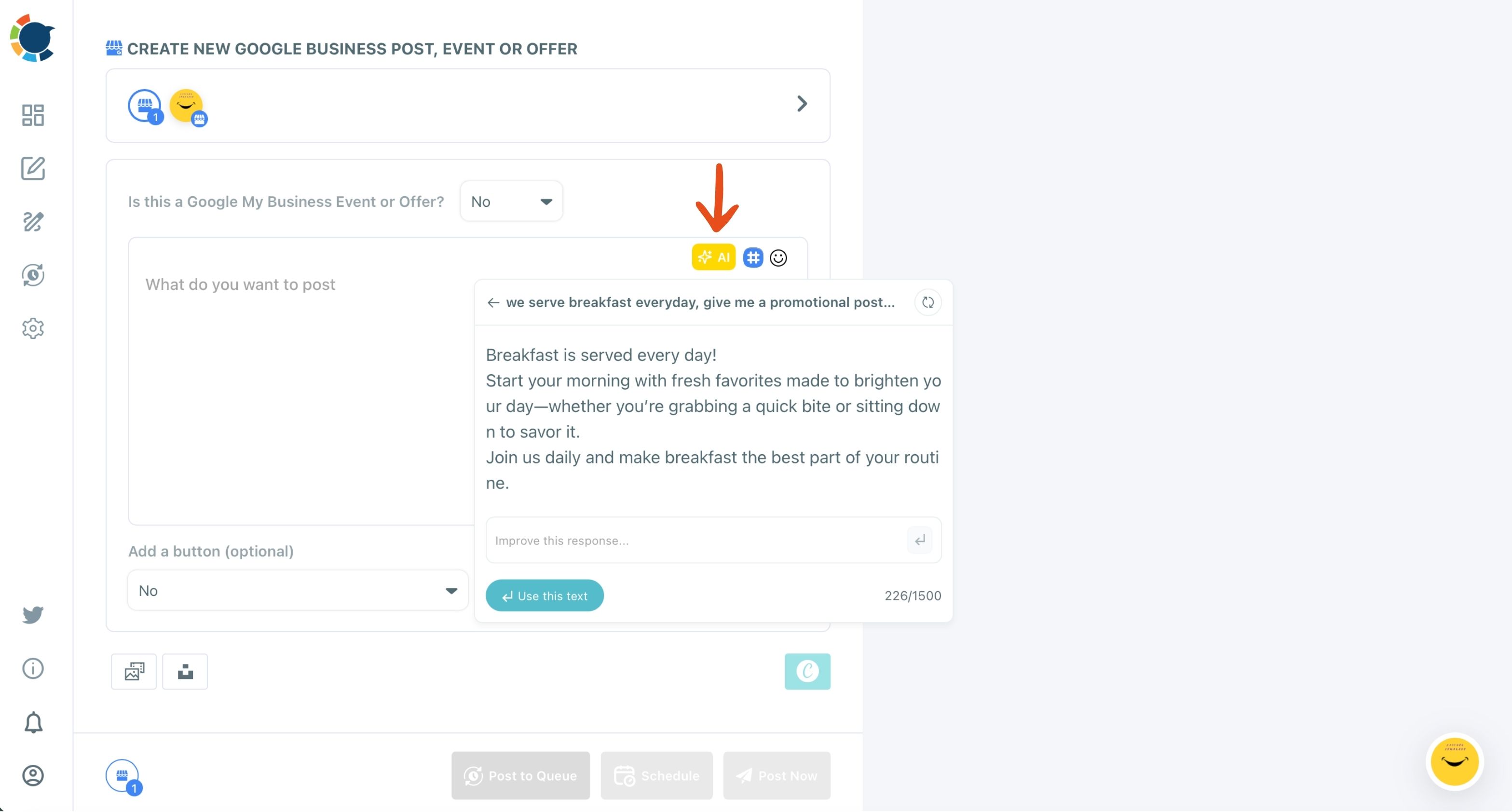
- Refine the draft in "Improve this response", then click Use this text and check every fact before it goes public.
Add the button and schedule the post
- Choose Book or Call Now in "Add a button (optional)" and paste the matching link.
- Attach a photo of the product or the place and type its alt text.
- Click Schedule and pick a slot from "Pick your best post time".
Repeat it as an offer for the next visit
- Create a second post and choose Offer in the dropdown, then fill the coupon code, Redeem Online link, terms and validity window.
- Schedule the Offer a few days after the review post, so the reader who liked the review has a reason to visit this week.
The order matters because the review post builds trust and the Offer gives that trust somewhere to go. Swap them and you are selling before you have shown proof.
Tracking which Google review posts bring visits
Once review posts and Offers are running, check which ones actually move people. Post analytics in Circleboom Publish shows views, clicks, calls and direction requests for each published post, so you can see whether review posts or Offers bring more calls for your business.
Tag every button and Redeem Online link with the UTM Link Builder before it goes out, so the visits it sends show up in Google Analytics. Over a few weeks, the pattern tells you which kind of review to reuse first.
Reviews also feed the loyalty that brings people back. For the longer game, read how to use social media to build brand awareness and loyalty.
On the ranking side, Google's tips to improve your local ranking list review count and score among the prominence signals.
Summary: earning Google reviews and putting them to work
Getting more Google reviews comes down to more visits, an honest request to every customer, and no reward tied to the review. Offers bring people in, Google's link and QR code make the ask easy, and replies happen in Google.
The step most review advice skips is the last one: turning the best reviews into Standard posts with a button, followed by an Offer for the next visit. That is where Circleboom Publish carries the work, with AI copy, templates and a schedule.
If I had to pick one habit to start this week, it would be the receipt line. It costs nothing, it reaches every customer, and it makes every later step easier.
→ Turn your next Google review into a scheduled post
Google review request Questions, answered
Is an offer post better than a "please leave us a review" post?
Yes, for most local businesses. An Offer brings new customers through the door, which means more people to ask, while a plain request only reaches people who already visited. Use the Offer for the visit and keep the review request separate.
What can I do about a bad Google review?
Reply to it in Google Business Profile, politely and specifically, because the reply is read by every future customer. Removal is Google's decision and depends on whether the review breaks its policies; the guide on how to delete a Google review explains what can and cannot be removed.