
How do you run five or fifty Instagram accounts without five or fifty logins? You connect them all to one tool, post to the ones you pick in a single pass, and give each person access only to the accounts they handle.
Instagram on its own: you switch between logged-in accounts and post to one at a time. Circleboom Publish: one login connects every Instagram business account, sends one post to the accounts you select, and gives each teammate scoped access with approval.
→ Put multiple Instagram accounts under one login
How do you manage multiple Instagram accounts? The comparison, the setup steps and the access questions follow.
Instagram's own options compared with one login for every account
Instagram covers switching and shared access well; a publishing tool covers posting to many accounts and reviewing staff posts. The table below sets the three options side by side, using Instagram's own help pages for the first two columns and Circleboom Publish's documented behavior for the third.
| Question | Instagram app and web | Instagram Shared access | Circleboom Publish |
|---|---|---|---|
| How many accounts at once? | Up to 10 logged in at one time on the web | Not covered on the help page | Every connected account, capped by plan |
| How does one post reach several accounts? | Posted to each account separately | Posted to each account separately | Selected together and sent in one pass |
| Can someone post without the password? | No, they log in | Yes, on eligible accounts | Yes, each person has their own login |
| Is there a review step before posting? | Not described on Instagram's help pages | Not described on Instagram's help pages | Yes, a User's posts wait for Admin approval |
| Who sees which client's accounts? | Whoever is logged in | The invited person, per account | Only members of that client's Team |
What Instagram's help pages say
Instagram's help center describes how to add and switch between multiple Instagram profiles, with up to 10 accounts logged in at one time on the web.
Switching still means one active account per post.
For access without passwords, Instagram offers Shared access for an Instagram account. Invited people can post and comment on an eligible account. They cannot change the username, password or contact details, and the owner can remove them.
Where a publishing tool fits
What separates the options is reach per action: one account per post on Instagram, many accounts per post with a sign-off step in a publishing tool.
Circleboom Publish is a multi-account Instagram manager that connects many Instagram business accounts to one login and posts to several of them in one action.
Circleboom Publish also separates clients into Team workspaces, so a staff member assigned to one client's Instagram accounts never sees another client's.
If you run one or two accounts and post them yourself, Instagram's own tools may be all you need.
Past that, a multi-account Instagram manager saves the repeat posting.
The roundup of tools to manage multiple Instagram accounts compares the wider field if you want to weigh other options.
Video explainer: how Instagram's own account linking works, the baseline the table above starts from.
How client Instagram accounts connect without a password
You do not need the client's Instagram password. Circleboom Publish connects Instagram accounts through Facebook's authentication window, so the password is never entered in Circleboom.
The connection works this way because Instagram business accounts are tied to a Facebook Page. In Circleboom Publish you choose Instagram, authenticate with Facebook, grant the permission, then pick the account from a list and click Add to Circleboom.
Two things must be true for a client account to appear in that list:
- The account is a business profile.
- The account is linked to a Facebook Page.
If an account is missing from the list, one of those two conditions is usually why. Once connected, the account counts toward your plan's allowance in Manage Social Accounts and appears in the composer's account list, ready to be grouped.
How many Instagram accounts, teams and teammates can one plan hold?
The answer depends on the plan. Circleboom Publish caps three things by plan, and each is visible in the product:
- Connected accounts: Manage Social Accounts shows a usage indicator against your plan's account allowance.
- Teams: the Create New Team form shows a usage counter for how many Teams your login can create.
- Members per Team: the Members, Roles and Access Levels tab shows its own usage counter.
Instagram account management also requires a paid Circleboom Publish plan. Circleboom does not charge per social platform, and teammates are added as user add-ons rather than forcing a plan upgrade.
Here is an illustrative way to size it. An agency with 8 clients, each running a main account and one regional account, needs 16 connected Instagram accounts and 8 Teams, one per client. If two staff members share the work, each client's Team needs room for the agency owner plus whichever staff member handles that client.
Those three numbers, accounts, Teams and members per Team, are what to check against a plan before you commit.
For a team weighing cost against seats, there is also an overview of affordable team collaboration tools.
How to manage multiple Instagram accounts step by step
To manage multiple Instagram accounts from one login, connect each business account once, then select the ones a post belongs to inside the Instagram composer and send or schedule it in a single action. The four steps below cover the posting side; Team setup for staff sits on top of the same connected accounts.
If you are ready, the Instagram multi-account setup page is where it starts.
- Open Circleboom Publish and sign in with the login that will hold every Instagram account.
- Connect each Instagram business account from Manage Social Accounts in Settings with CONNECT NEW ACCOUNT, repeating the Facebook authentication once per account.
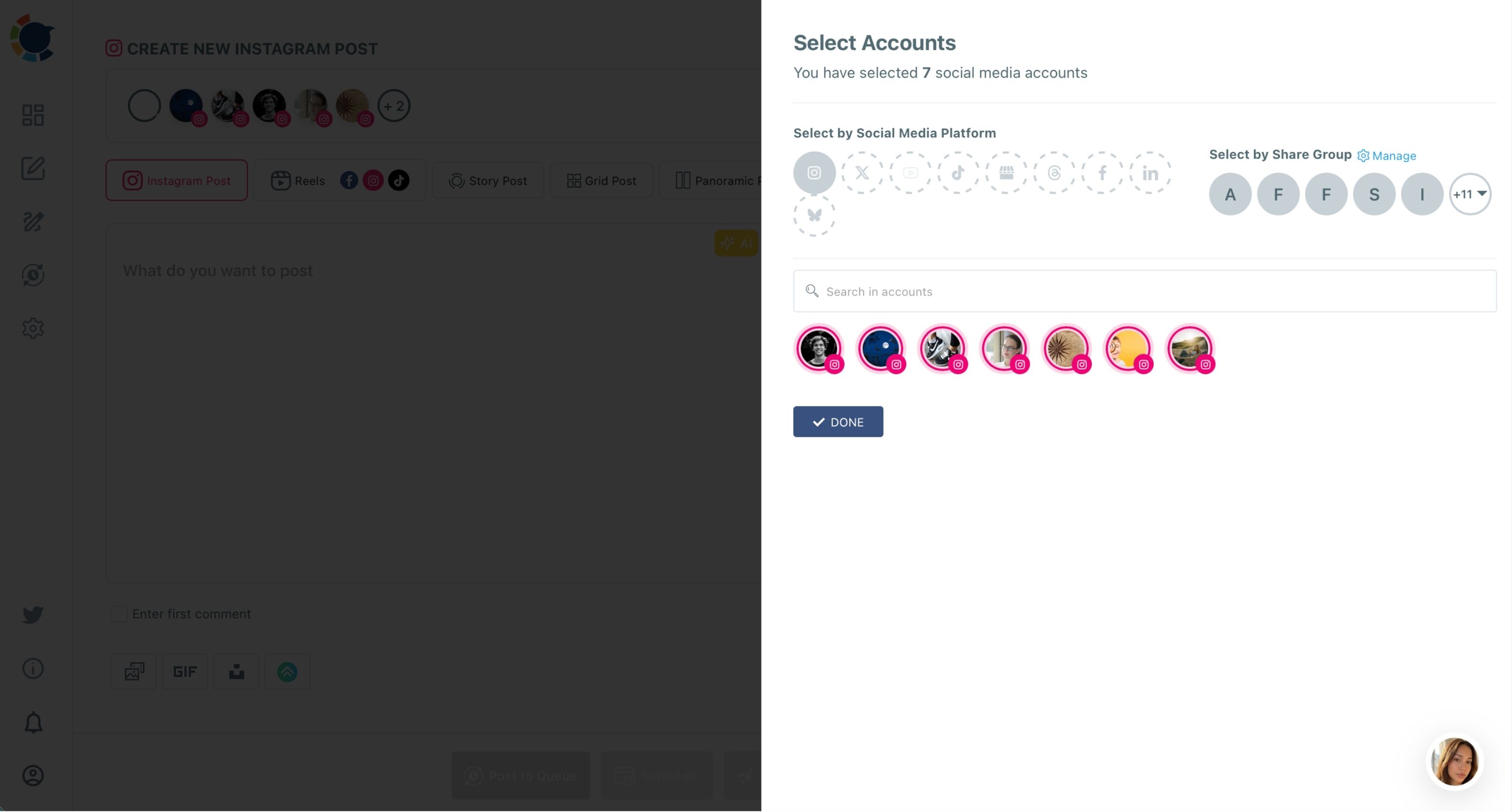
- Open the Instagram composer from the "Instagram Specific or Reels" card, open Select Accounts and tick each account the post belongs to, or choose a saved Share Group.
- Write the post and send it with Post Now, Schedule or Post to Queue, giving each account its own caption where needed.
The Select Accounts panel is where the multi-account part happens. It shows a running count of how many accounts you have selected, plus three ways to pick them:
- Select by Social Media Platform: limits the view to one network, Instagram here.
- Select by Share Group: picks a saved bundle, with a Manage link to edit groups.
- Search in accounts: finds one account by name when the list grows long.
Connecting once and selecting per post keeps the work fixed as the roster grows: a new account adds one connection, not one more daily login.
Staff who write posts for you fit into the same flow as Users of a Team, with their posts held for your approval. For more on that review loop, read about a team workflow for social media managers.
The roles themselves are set up through team management and approvals.
Scheduling for a single account, like its own calendar or its best times, lives in the Instagram scheduler.
Where do posts for several Instagram accounts show up after scheduling?
Every scheduled post lands in the Outbox, which works as the review screen for all your Instagram accounts at once. It has two views:
- List View: posts grouped by day, with accounts, post text, media and date columns, plus Edit and Delete on each post.
- Calendar View: a week or month grid with filters by post type, platform, social account and Share Group.
The Share Group filter is the useful one for agencies. Filter to one client's group and you see that client's week without the other clients' posts in the way.
Run that filter before a client check-in, because it answers the first question clients ask: what is going out next week, and on which account?
Two more tabs close the loop. Sent Items lists every post that went out, each with a Share Again action for reuse. Failed Items lists posts that were scheduled but not published, each with the specific error reason, so a broken connection or a rejected file shows up before the client notices a gap.
Inside a Team, two extra states appear: Waiting for Approval for staff posts not yet cleared, and Rejected for posts sent back with a comment.
Which Instagram setups benefit most from one login?
The setup pays off wherever several Instagram accounts share one decision-maker. Three patterns come up most often:
- Agencies and freelancers: one Team per client, so client histories and stats never mix.
- Franchises and branch brands: each location's manager gets User access to their own accounts while head office approves every post.
- Brands with product lines: a main account plus product accounts, saved as one Share Group for launches that hit all of them.
The common thread is that effort stops growing with the account count, while each client's history stays in its own place.
What happens to client Instagram access when someone leaves?
Their access ends the moment you remove them from the Team. In Circleboom Publish, removal happens in the Team's Members, Roles and Access Levels tab, and only owners and Admins can do it.
The removal flow protects the work they left behind:
- A confirmation window shows the member's scheduled posts, pending approvals and assigned networks.
- You choose another team member to receive those posts and account permissions.
- Transfer and deactivate completes the removal, and the person loses access to every account in that workspace.
Because nobody shared a password, there is nothing to reset on the client's Instagram account afterwards. The client keeps the same Instagram login they always had, and the departed member's scheduled and pending posts now sit with the colleague you chose during the transfer, so the client's calendar keeps running.
Treat removal as part of offboarding, on the same day the person leaves.
Afterwards, check the Social Accounts tab. Its Assignees column lists who is assigned to each account, so you can confirm the departed person no longer appears anywhere. This check belongs on any agency's list of social media security tips, because lingering access for former staff is easy to miss.
A leaver costs one transfer, not a round of password changes across every client.
Which setup fits your accounts
Pick the branch that matches how you work today:
- If you run one or two accounts and post them yourself, Instagram's account switcher may be enough.
- If one post often has to reach several accounts, connect them to Circleboom Publish and save each client or brand as a Share Group.
- If staff write posts for you, create a Team per client, add staff as Users, and approve their posts.
- If someone on the team leaves, remove them in Members, Roles and Access Levels and transfer their posts to a colleague.
The first three branches build on the same connected accounts, so you can move down the list as the roster grows.
That is the practical answer to how to manage multiple Instagram accounts at any size: the connection is done once, and only the access layer changes.
→ Manage several Instagram accounts from one login
Common Questions on client Instagram access and approvals
Is grouping accounts the same as giving someone access?
No. A Share Group is a saved bundle of accounts you select in one click, and it gives nobody access. A Team is a separate workspace that gives each member a role over specific accounts, and the two work best together.
Will posting the same caption to several Instagram accounts cause problems?
It can. Identical posts across accounts count as duplicate content, and an identical Instagram post fails in Circleboom if the original was sent in the last seven days, so give each account its own caption with the AI Instagram Caption Writer.
Can I connect a personal or creator Instagram account?
No. Instagram's API supports automated publishing only for business accounts, so Circleboom Publish cannot post to personal or creator profiles. Switch the profile to a business account in Instagram first, which costs nothing.
What happens to scheduled posts if I delete a client's workspace?
They will not be sent. The Delete Team flow warns about this, so move or reschedule any posts you still need before deleting.
Can I switch between client workspaces quickly?
Yes. The profile avatar opens a Switch Workspace popup that lists your personal workspace and every Team you belong to, and picking one switches the whole dashboard to that client.