
A boutique that runs three Threads profiles can turn three separate posting sessions into one sitting of about ten minutes. The posts stay the same length. What disappears is the logging in, switching and re-uploading.
This guide shows how a small fashion shop can post to multiple Threads accounts from one screen, keep each profile sounding like itself and schedule the week before the doors open on Monday.
Circleboom Publish lets a shop select several Threads accounts in one composer and publish or schedule a post to all of them in a single action. The boutique writes the post once, picks its three profiles and chooses a time.
→ Post to multiple Threads accounts from one composer
The setup, the steps and the duplicate-content trap are below.
Why three boutique Threads profiles become three posting sessions
The boutique in this example has a main shop profile, a profile for its second location across town and the owner's own styling profile. All three sit beside the matching Instagram accounts, which is where most of their followers came from.
Threads' own app is built around one profile at a time. Its help page on how to start a new thread covers attaching up to 10 photos or videos and splitting anything past 500 characters into another post. All of it happens from the profile you are signed in to.
That is fine for one profile. With three, a new arrival post becomes this routine:
- Sign in to the shop profile, attach the photos, write the post, publish.
- Switch to the second location, attach the same photos again, adjust the text, publish.
- Switch to the owner's profile and repeat it a third time.
At about five minutes per profile, a single new-arrivals announcement costs fifteen minutes.
Five posts a week across three profiles is more than an hour of switching, not writing.
The usual result is a lopsided presence. The main profile posts, the owner posts when there is time and the second location goes quiet.
A tool that lets you post to multiple Threads accounts at once removes the switching, so the quiet profile stops being the one that loses.
What has to be ready before you post to multiple Threads accounts
Every profile has to be connected to one dashboard before it can be picked in a composer. In Circleboom Publish that happens once, under Settings → Manage Social Accounts, and the number of accounts you can connect depends on your plan.
Before the first send, the boutique needs this in hand:
- Access to each of the three Threads profiles for the one-time connection.
- A decision on which profiles usually post together, for example both shops for opening hours and all three for a sale.
- A folder of product photos sized under 8 MB each, the image limit Circleboom lists for Threads.
- A rough idea of what each profile is for, so the wording can differ.
The last point matters more than it looks. The shop profile talks about stock, the second location talks about its own events and the owner's profile talks about styling.
If you are short on angles for each voice, the list of content ideas for Instagram Threads gives each profile its own lane.
Connection is a one-time job. Picking the right profiles is the daily one.
How Circleboom Publish handles several Threads accounts in one send
To post to multiple Threads accounts in Circleboom Publish, you connect all three profiles to one dashboard and select every one of them in the Threads composer. One post then goes to the whole set in a single publish, schedule or queue action. You do not switch profiles, and you do not upload the same photos three times.
Circleboom is listed on X's Enterprise customer directory as an official partner, which tells a shop owner the company connects accounts through approved access rather than workarounds.
The Threads composer has its own toolbar: an AI writer, a Hashtag button, an emoji picker, Get a Post Idea, Auto Repost and the "Add another post" button for threads. It also takes carousels of up to 10 images or videos and custom alt text on images.
You can publish one boutique post to all three Threads profiles and still schedule each one at a time that suits its followers.
Circleboom Publish is $34 a month for 10 accounts with one team member, so three Threads profiles plus three Instagram accounts fit with room to spare.
Writing is where the time goes once the switching is gone.
The AI Threads post generator inside the composer drafts a post from one instruction. It also rewrites existing text with one click, such as Condense or Add Emojis.
One-minute screen recording: two Threads profiles picked in the composer and one post scheduled from the Schedule modal.
How to post to multiple Threads accounts at once
The process to post to multiple Threads accounts has three phases: connect the profiles once, write and select, then schedule and check. Steps 1 and 2 happen only the first time.
Connect the three boutique profiles once
- Log in to Circleboom Publish and open the gear-icon menu, then Settings → Manage Social Accounts.

- Click CONNECT NEW ACCOUNT and add the shop profile, the second location and the owner's profile, one after another.
Write the post once and pick every profile it belongs to
- Open the Threads composer from the "Threads Specific" card on the dashboard or "Threads Specific Post" in the Create New Post menu.
- Select the profiles in the Select Accounts panel. Tick all three, or pick a saved Share Group with one click.
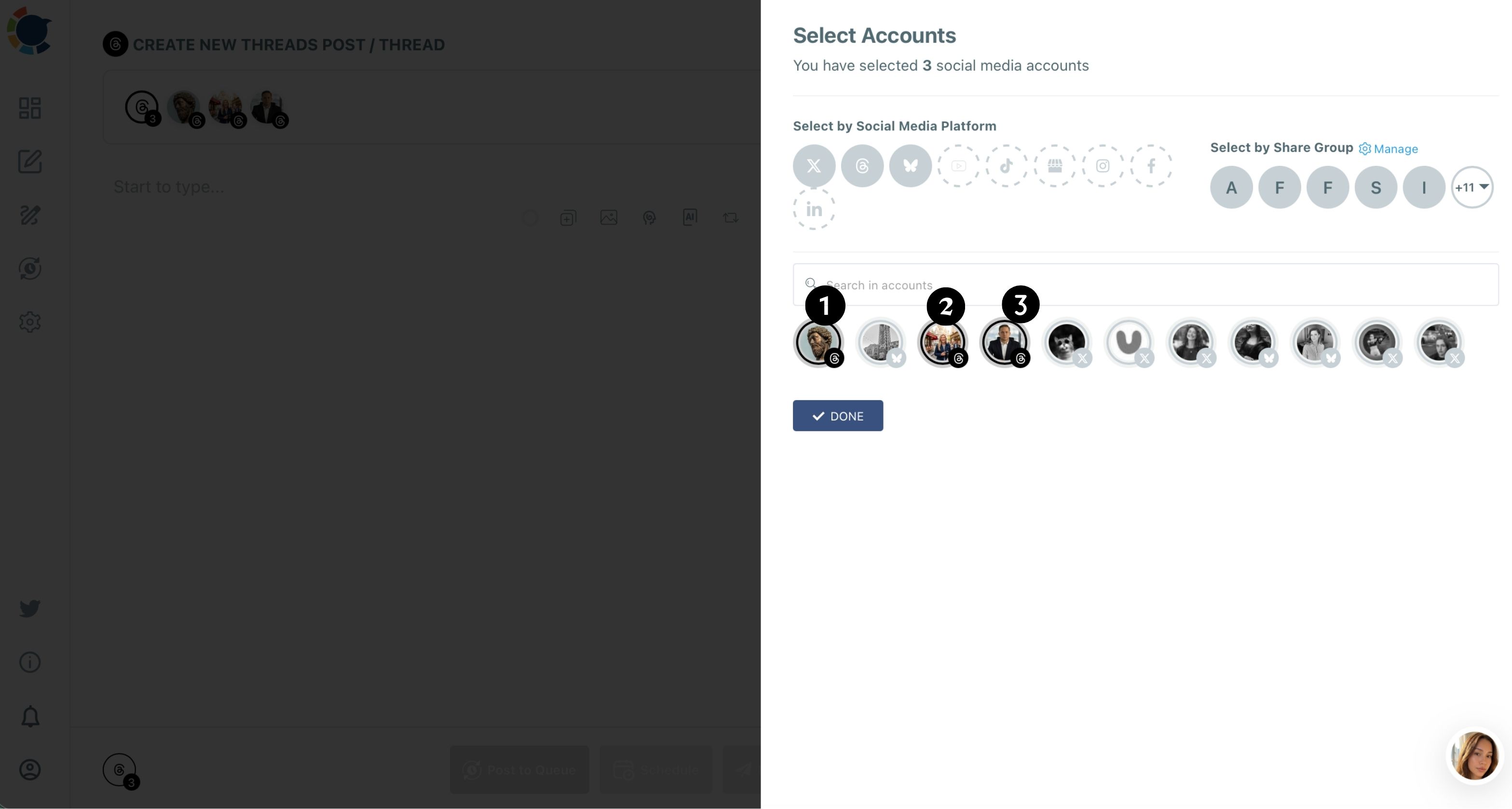
- Write the post in the text field, keeping it under 500 characters, or click the AI button and describe the new arrivals in one line.
Schedule it and check the week
- Click Schedule, pick the date and choose a slot from "Pick your best post time", or type a time in Set Time, then confirm.
- Review the result in the Outbox's List View or Calendar View, filtered by Social Account, to see that each profile has its post.
Selecting the profiles before writing pays off here. Once the composer knows it is serving three profiles, you check the text against Threads' 500-character limit for all of them at once instead of discovering a problem on the third upload.
Should all three Threads profiles post the same words?
No, not for everyday posts. Circleboom's own guidance for Threads is to rephrase, not repeat: posting the same text again, or on several of your accounts, can cost reach. Threads, like every platform, does not reward duplicate content.
So the boutique uses two modes:
- Shared news, one send. Opening hours, a holiday closure or a sale weekend can go to all three profiles in one action, because the information is the same and the post is rare.
- Everyday posts, three versions. A new-arrivals post is written once, then the AI writer's Rephrase for Clarity or a new angle turns it into a second and third version, each scheduled to its own profile in the same sitting.
The second mode still takes minutes, not a morning. The owner's version asks a styling question, the second location mentions its own rail and the main profile lists sizes.
If one profile's reach suddenly falls while the others hold steady, the guide to the Threads shadowban explains what to check first.
When you post to multiple Threads accounts every week, varied wording and a steady, scheduled cadence are the habits that keep an account's activity looking like what it is.
One send saves the switching. Three versions save the reach.
Share Groups and team access for a boutique's Threads profiles
A Share Group is the fastest way to post to multiple Threads accounts that belong together: a saved bundle you select with one click in the composer. You create it under Settings → Manage Share Groups and use it under Select by Share Group.
For this boutique, three groups cover almost every post:
- Both shops, for opening hours and in-store events.
- All Threads profiles, for a sale or a launch.
- Each shop with its Instagram account, for posts that should go out on both apps from one composer.
A Share Group only speeds up selection; it does not give anyone access.
When the second location's manager should post for that shop alone, Team Management adds them as a User with only that location's accounts. Their posts wait for the owner's approval before going live.
That split is what makes a part-time helper safe. The helper prepares the week's posts, the owner approves them in one pass and nothing reaches the wrong profile by mistake.
Comparing options for shared work? Read the roundup of affordable social media management tools with team collaboration to see what a team plan should include.
When each boutique Threads profile should post
Each profile has its own followers, and they are not online at the same hours. The shop profile's followers might browse at lunch, while the owner's styling audience reads in the evening.
Circleboom's Schedule modal suggests times from each account's own followers' activity, so each post can land while that profile's followers are online. The Best Time to Post on Threads page explains where those suggestions come from.
For shared news, one time for all three profiles is fine. For everyday posts, each version goes out at its own profile's best slot.
The Threads "For You" feed leans on how a post performs soon after it goes live, so early replies matter. The article on the best time to post on Threads adds the platform-level patterns behind that timing.
The Queue takes this one step further. Each Threads account can have its own recurring weekly slots in Time and Queue Settings, and Add Best Times to Post fills them with that account's suggested times. After that, Post to Queue drops a post into the next open slot without asking for a time.
Once the cadence is steady, growth is the next question. The guide on how to get more followers on Threads covers what to post once the schedule takes care of when.
Which Threads setup fits your boutique
The right setup depends on how many people post and how often the profiles share news:
- If you run all three profiles alone, connect them, save a "Both shops" and an "All profiles" Share Group, and do the week's posts in one Monday sitting.
- If a manager runs the second location, add Team Management so they post only for their shop and you approve before anything goes live.
- If your posts are mostly shared news, use one send to all three profiles and keep it rare.
- If your posts are mostly everyday content, write one version, rephrase it twice with the AI writer and schedule each at its profile's best time.
Whichever branch fits, the first move to post to multiple Threads accounts is the same: connect the profiles to one dashboard and stop switching between them in the app.
The time you used to spend signing in and out goes back into writing posts worth replying to.
→ Schedule posts for multiple Threads accounts in one sitting
Questions about posting to several Threads profiles
Is there a limit when I post to multiple Threads accounts at once?
You can select as many connected Threads accounts as you need in one send. The total you can connect depends on your Circleboom Publish plan, and Threads itself caps posting at around 250 posts per 24 hours per account.
Can I post a carousel to all three Threads profiles at once?
Yes. The Threads composer takes up to 10 images or videos per post, images up to 8 MB each and video up to 1 GB, and the carousel goes to every selected profile in the same action.
Does Auto Repost work when I post to several Threads accounts?
Yes. Set RePost after, Un-RePost after and Repeat this cycle in the composer before posting; it cannot be added to a post that is already live. In a thread, Auto Repost applies to the first post only.