
A finished living room is the most valuable thing an interior designer can put on Pinterest, and most of us waste it.
I run three Pinterest accounts: my studio portfolio, a small-space ideas account and a sourcing account for the furniture and lighting I recommend.
For two years, every finished project reached one of them properly and the other two got leftovers, because pinning the same room three times meant three logins, three uploads and three rounds of board picking.
When you pin to multiple Pinterest accounts, what helps is one composer that sees all three accounts and asks for boards per account.
One finished room can feed three Pinterest accounts in a single sitting. Circleboom Publish lets you select several Pinterest accounts in one composer, choose the boards for each account, and schedule the pins without logging in and out.
→ Pin to multiple Pinterest accounts from one composer
The six steps below cover the setup, and why no two of my accounts get the identical pin.
Why one project kept reaching only one of my Pinterest accounts
The time cost came from switching between accounts.
A typical living room project leaves me with about 12 usable photos: the wide shot, the sofa wall, the reading corner, two styling close-ups, the lighting, the rug, and a handful of before-and-after pairs. Each account wants something different from that set.
My studio account wants the wide shot and the story of the brief. The small-space account wants the corner that proves a 14-square-meter room can hold a sofa and a desk. The sourcing account wants the lamp and the rug, linked to where you can buy them.
In the Pinterest app, serving all three meant this, every time:
- Log out of one account, log in to the next.
- Upload the image again, because a pin takes exactly one image.
- Retype or paste the title and description.
- Find the right board in a board list that looks different on every account.
Twelve photos across three accounts is up to 36 pins. At four or five minutes a pin, the arithmetic says about three hours for one room.
So I did the studio account properly and promised myself I would do the other two later.
Later rarely came.
What I wanted was to pin to multiple Pinterest accounts from one place, with each account still getting the boards that suit it. That was the part every quick fix I tried got wrong.
The shortcut I tried first and why it failed
My first attempt was to save my studio pins from the other two accounts. It took seconds. It also filled my small-space and sourcing accounts with repins of my own content, with titles written for clients rather than for people searching "small living room ideas."
Those repins did little for the other two accounts, which made sense once I read what Pinterest says about it. Pinterest's guidance on Pin performance and distribution asks you not to repeatedly save the same Pins or upload content that already exists on Pinterest. It warns that doing so can get an account flagged as spam and temporarily blocked from creating Pins.
What I needed was three accounts that each look alive.
Should three Pinterest accounts post the same pin?
No, not the identical pin. Three accounts should share the same project, with a different image or a different title and description in each.
Pinterest's community guidelines say not to operate multiple accounts with the purpose of manipulating the platform, and not to create or save repetitive content to make money. Running a studio account, an ideas account and a sourcing account is a normal setup.
Pushing one identical pin through all three is the part that starts to look like repetition.
Circleboom's own Pinterest guidance says the same thing in practical terms: pinning the exact same image and text again and again counts as duplicate content that can hold an account back, so change something each time. A different image, a new title, a new description. Each pin is then new to Pinterest search, and you get more ways to be found for the same room.
This changed how I pin to multiple Pinterest accounts. I stopped asking "how do I copy this pin to three accounts?" and started asking "which three pins does this room deserve?"
That question also settles the niche worry. Are separate accounts for separate topics a good idea at all? The piece on different niches on Pinterest walks through when splitting audiences helps and when it dilutes them.
How Circleboom Publish handles several Pinterest accounts and boards
Circleboom Publish connects several Pinterest accounts to one dashboard, and its Pinterest composer asks you to pick boards for each selected account before you write a word.
Circleboom is an official X (Twitter) Enterprise API partner, which is the same approved-access standard it applies to every platform it connects, Pinterest included.
The board step is what lets me pin to multiple Pinterest accounts without mixing them up. Pinterest is the only platform in Circleboom Publish where choosing an account is not enough.
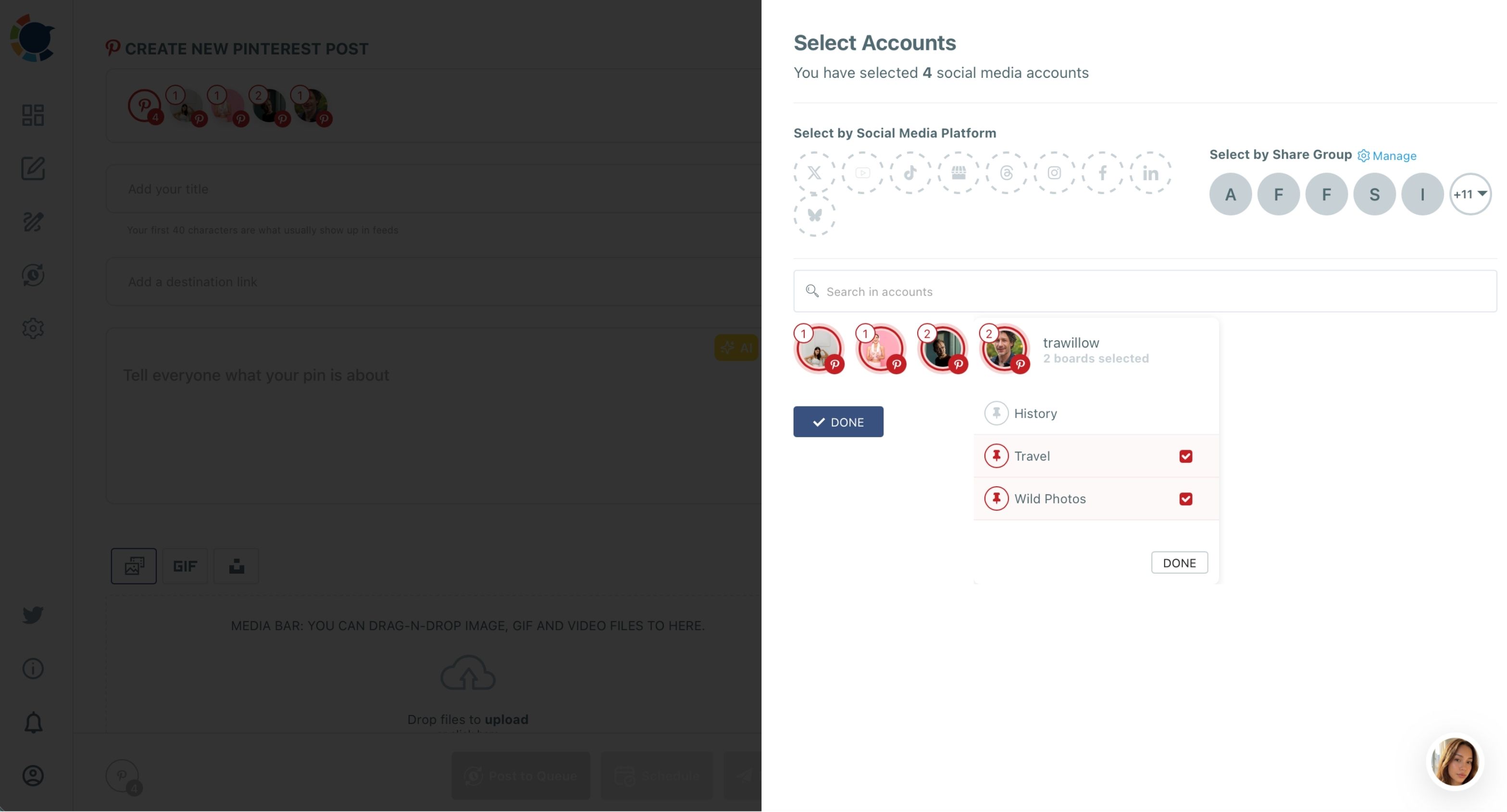
Each selected account opens its own board list, you tick one or more boards, confirm with DONE, and the account avatar shows a small numbered badge with how many boards are chosen.
Three accounts, three badges, one glance before I schedule.
So the wide shot can go to my studio account's "Living rooms" and "Client projects" boards in one action, and a retitled version can go to my small-space account's "Small living room ideas" board from the same composer. Each board gets the pin in its own search context.
That is how I manage several Pinterest accounts and their boards in one place instead of three apps' worth of tabs.
One photo, three boards, three chances to be found, from a single piece of work.
Why one composer beats three Pinterest logins
Unlike logging in and out of three accounts and re-uploading each photo, the composer keeps the image, the title, the description and the destination link in one place while the account row decides where it goes. For a longer view of why a single dashboard matters once accounts multiply, see how to manage multiple Pinterest accounts from the same place.
Account by account, board by board: connecting several Pinterest accounts and scheduling pins to each one's boards in Circleboom Publish (5:43).
How I pin to multiple Pinterest accounts from one room
The process I settled on has two halves: set up the accounts once, then work through the room photo by photo.
Connect the three accounts once so selection takes one click
- Log in to Circleboom Publish and open Settings from the gear icon in the sidebar.
- Open Manage Social Accounts and use CONNECT NEW ACCOUNT for each Pinterest account, watching the usage indicator against your plan's account allowance.
- Create a Share Group under Settings, Manage Share Groups, with all three Pinterest accounts in it, so Select by Share Group picks them in one click later.
Build each pin with the boards and wording that account needs
- Open the Pinterest composer from the Pinterest Specific card or the Pinterest Specific Post entry, then select the accounts that should get this photo.
- Pick the boards for each account in the panel that opens under it, tick one or more, and press DONE.
- Write the title and description with the two separate AI buttons, add the destination link and Alt Text, then schedule the pin or send it to the Queue.
I connect first and write second because the board picker only works once accounts exist, and because a Share Group turns "select three accounts" into one click.
The badge check before scheduling is the habit that stopped me from ever sending a sofa pin to a lighting board.
What one living room project looks like across my three accounts
Here is how the 12 photos from one project now split, so each account gets pins written for its own audience.
Which photos go to which Pinterest account
The split for a typical living room:
| Account | Photos used | Boards |
|---|---|---|
| Studio portfolio | Wide shot, before and after | Living rooms, client projects |
| Small-space ideas | Reading corner, sofa wall | Small living room ideas |
| Sourcing | Lamp, rug, side table | Lighting, rugs |
Only the wide shot goes to more than one account when I pin to multiple Pinterest accounts. Even then, the small-space version is its own pin with a different title: "small living room layout with a corner sofa" instead of the client-facing project name. Every other photo goes to the one account it serves.
Writing that many titles used to be the bottleneck. Now I type a short instruction into the title field's own AI button, such as the room size and the one thing a searcher would type, and the description AI writes the longer text from a second instruction.
That AI is the same engine behind the AI Pinterest pin generator, and it lives inside the composer, so there is no copying between tools.
The project stayed the same. The pins stopped being copies.
I also think about shape before I upload. Pinterest prefers tall images, and Circleboom's composer recommends a 2:3 ratio at 1000 by 1500 pixels, which is why I now shoot at least three vertical frames on every install.
The breakdown of the best size for Pinterest pins is worth reading before your next photo day, not after.
Keeping three Pinterest accounts organized after the first week
Once the pins go out, the work moves to the boards. A sourcing account with one giant "Furniture" board is hard to search; one with "Sofas," "Lighting" and "Rugs" gives every pin a clear home and every searcher a clear reason to follow.
The guide to organizing Pinterest boards helped me restructure all three accounts before I scaled up.
Two habits keep the setup honest:
- I check the Outbox calendar once a week, filtered by Share Group, to make sure no account went quiet.
- I watch for a sudden drop in impressions on any one account, because Pinterest is wary of spam-like patterns.
If impressions on one account drop sharply, read the Pinterest shadowban checker walkthrough before changing anything else.
Varied pins, real destination links and a steady pace through the Queue are the habits that keep all three accounts in good standing.
When a client asks for the studio to post across their own channels too, the same thinking scales beyond Pinterest. Circleboom's dashboard for multiple social media accounts holds Instagram, Facebook and the rest beside the Pinterest accounts.
The studio also grew past one person. Team management lets an assistant draft pins for my approval without ever seeing my logins.
The math on one room, before and after
The before number was three hours for 36 possible pins, and in practice I only ever finished about a dozen.
The after number is easier to reason about:
- Selection costs one click through the Share Group.
- Board picking costs a few seconds per account.
- Writing is two AI prompts per pin.
- Uploading happens once per photo, not once per account.
That brings a room's worth of pins, spread across three accounts and scheduled over two weeks, into a single sitting of about an hour. That is the real cost now to pin to multiple Pinterest accounts from one project.
The hour matters less than the result: every account now gets the room, in its own words.
A pin keeps being found in Pinterest search for months. A room that reaches all three of my accounts, with three different angles, keeps working long after I have moved on to the next client. That compounding is the reason to run a second and third account at all.
One project, three Pinterest accounts, zero copies
The lesson from two years of half-fed accounts fits in one line: one room can feed every Pinterest account you run, and no account should get the same pin as another.
→ Pin your next project to multiple Pinterest accounts at once
Questions about pinning one project to several Pinterest accounts
Do I have to pick a board for every Pinterest account I select?
Yes. To pin to multiple Pinterest accounts, Circleboom Publish requires at least one board for each selected account before the composer lets you add content, and the numbered badge on each avatar shows how many boards you chose.
Can a Pinterest pin go out without an image?
No. Every Pinterest pin needs at least one image, and a pin holds one image of up to 20 MB, so a 12-photo project becomes up to 12 separate pins rather than one album.
Can I post a carousel to several Pinterest accounts?
No. Pinterest has no carousel option in Circleboom Publish, so each photo becomes its own pin with its own title, description and board.