
After a tweet performs well, the people who retweeted it are the clearest audience signal you have, and X gives you almost no way to use them. The Reposts tab shows a partial list, in no useful order, with no filters and no export. The accounts that actively amplified your content stay locked inside the interface, which makes follow-up, ad targeting, and reporting harder than they should be.
Exporting retweeters turns a hidden engagement list into a working dataset.Circleboom Twitter retrieves the full retweeter list for any public tweet on X, not the capped preview.The output is a CSV with profile data, follower metrics, and quality flags for every account.The retrieval runs through authenticated API access, not browser scraping.
Start here to export accounts who retweeted tweet csv data from any tweet or account.
What this feature does
The Export Accounts Who Retweeted feature collects every account that reposted a specified tweet, or a whole account's tweets, and delivers that list as a structured CSV. It works on your own posts and on any other public account's posts. Circleboom Twitter retrieves the data as an official X Enterprise developer partner, so the operation stays compliant and does not depend on a page-scraping extension.
The reason this matters is the limit X imposes. The platform's repost FAQs state that the Reposts tab shows only up to the most recent 100 accounts that reposted a public post. For a tweet with thousands of retweets, that preview hides the majority of the audience that reposted it.
Why a CSV beats the native list
A downloaded file does three things the in-app view cannot. It includes every retweeter the API returns rather than a capped sample. It carries enrichment data per account, so the list is segmentable. And it lives outside X, where it can feed a CRM, an ad platform, or a report.
The enrichment is the part worth emphasizing. Each row in the export includes:
- Username, display name, ProfileId, location, and bio.
- Follower count, following count, and total tweet count.
- Quality flags: IsFake, IsEgghead, IsInactive, IsOveractive.
- RepostCount, verification status, and account creation date.
Those quality flags let you filter spam and bot retweets out of a viral post in one pass, which is the step that separates a usable amplifier list from a noisy one.
The behavioral value behind the data is worth stating plainly. A retweet is a more active signal than a like or a follow, because the account chose to repeat your content to its own audience rather than simply approving it. That makes a cleaned retweeter list a higher-intent segment than a general follower list, and the enrichment columns are what let you rank intent inside the file instead of guessing.
How to export accounts who retweeted a tweet on X
The feature has two tabs. Tab 1 handles specific tweet URLs; Tab 2 handles a whole account's tweet history. The numbered steps below cover the specific-tweet flow, which is the most common path.
Open Circleboom and load the export feature
- open Circleboom Twitter Management and connect the X account you want to work from.

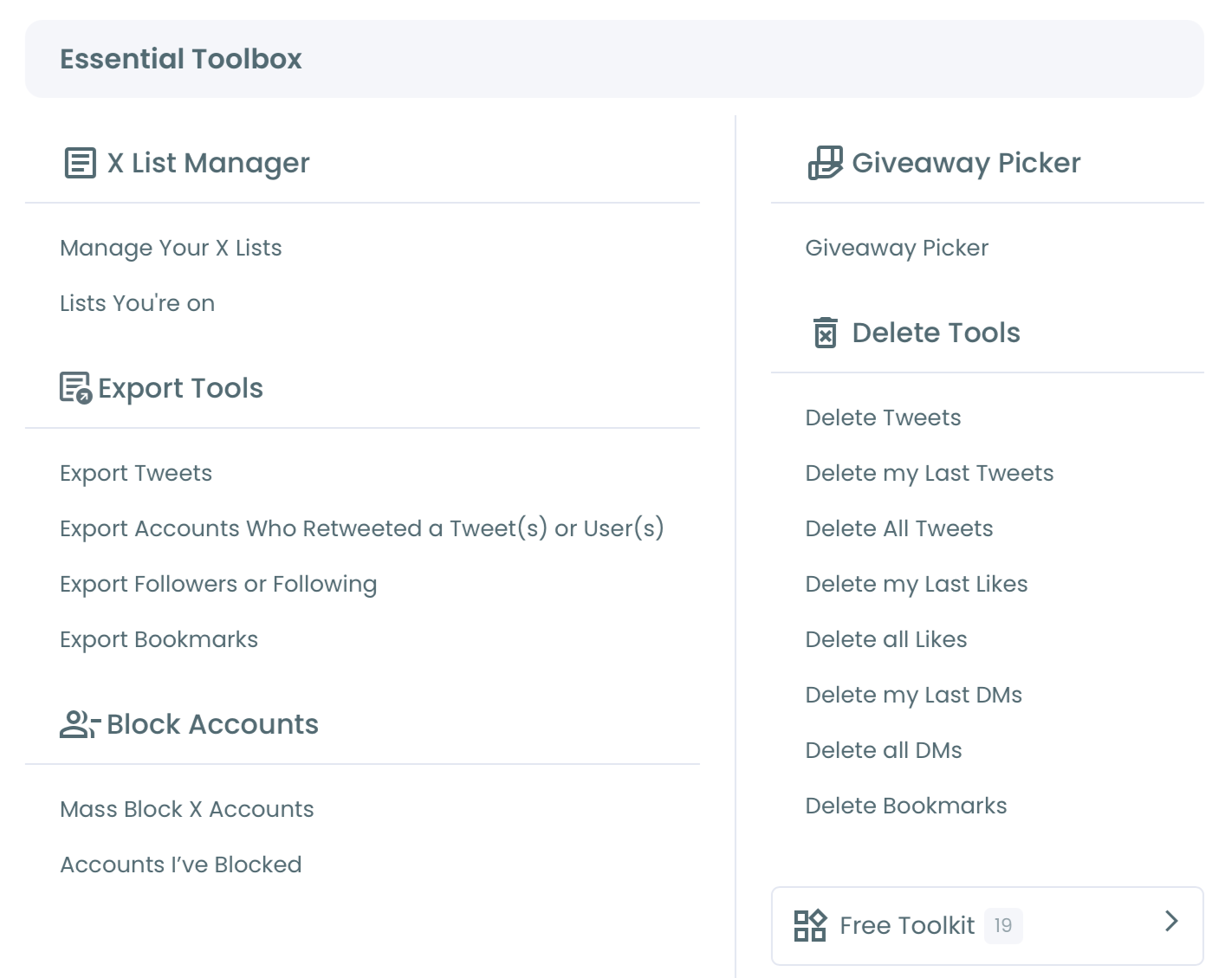
- Go to the Essential Toolbox menu and select Export Accounts Who Retweeted a Tweet(s) or User(s).
- Open the Export retweeters of specific tweets tab.
Queue the tweets and run the export
- Paste a tweet URL into the input field and click Add to Export List to display its retweet count.
- Add more tweet URLs to combine several posts into one file; duplicate retweeters appear once, with RepostCount reflecting how many of the queued tweets each one shared.
- Review the Your Export Cart panel, which shows the combined retweeter total and the EngagerX Export Token cost.
- Confirm the export in the modal that displays the token cost and the balance remaining afterward.
- Retrieve the CSV from your Circleboom account page or the link emailed to your registered address.
Processing is asynchronous and runs from 10 minutes to 6 hours depending on the number of retweeters. The wait reflects the tool retrieving and enriching every account properly, so the finished file is complete rather than a partial fast pull.
Export across a whole account's tweets
For a competitor or influencer analysis, switch to the Bulk export retweeters of a user's tweets tab. Enter any public username, download up to the account's 3,200 most recent tweets with their retweet counts, select the tweets that matter, and export their combined retweeters. This produces a list of accounts that have demonstrably shared content in your niche, which is a stronger starting point than any bio-keyword search.
The advantage of the bulk path is scope. Instead of one post, you capture the recurring amplifiers across an account's whole recent history, which surfaces the accounts that consistently support a topic rather than the people who shared a single viral moment. Those repeat sharers are usually the most worthwhile outreach targets in the file.
What every column in the export contains
The CSV follows a fixed filename pattern, `Circleboom_search-post-reposters_<timestamp>_<count>.csv`, and carries one row per retweeting account across seventeen columns. Knowing what each column is for tells you which sorts and filters to run first.
The identity fields are ProfileId, Username, and Name. ProfileId is the numeric X user ID and the most reliable match key, because it survives handle changes that would break a username-based lookup. Location and Bio supply the human context you scan to judge relevance.
The metric fields are CountFollowers, CountFriends (following), and CountTweets, which together describe reach and activity level. CreatedAt records account age, a strong tell for distinguishing established accounts from freshly created throwaways.
The signal fields do the segmentation. IsFake, IsEgghead, IsInactive, and IsOveractive flag spam, photo-less profiles, dormant accounts, and indiscriminate retweeters in turn. IsProtected, IsVerified, and Verified_Type (none or blue) separate credible accounts from the rest. RepostCount, the behavioral column, counts how many of your selected tweets each account retweeted, so sorting on it isolates your repeat amplifiers immediately.
Real-world scenarios this export fits
Three situations make the export pay off most clearly. The first is post-campaign reporting: after a launch, you export the retweeters of each key campaign tweet to document who drove reach and whether those accounts were in your intended market rather than generic retweet-spam.
The second is competitor prospecting. Using Tab 2, you pull the recurring amplifiers across a rival's recent history, then approach the accounts that consistently share that topic. These are warmer prospects than any keyword search returns, because amplification is a stronger qualifier than a matching bio phrase.
The third is giveaway integrity. A retweet-to-enter contest needs the full, verifiable participant pool, not the capped 100 X displays. The export delivers every entrant, and the quality flags let you strip ineligible or fake entries before the draw, so the winner is chosen fairly.
How to use the exported file
Once the CSV is downloaded, the data becomes reusable across several workflows:
- Build an X Ads custom audience from accounts that proved they share your topic.
- Import the rows into a CRM for outreach to genuine amplifiers.
- Add high-value retweeters to a monitoring list you check regularly.
- Run a retweet giveaway from the complete, verified participant pool.
For audience comparison work, pairing the export with compare Twitter accountsshows whether a tweet's amplifiers overlap with your existing audience or reached new people. For giveaways specifically, the Twitter giveaway picker draws a fair winner from every entrant rather than the capped preview.
This video demonstrates the retweeter view and export in practice:
Several related guides go deeper on the surrounding tasks. The explanation of why you cannot see who retweeted a post anymore covers the platform changes behind the cap.
The walkthrough on how to export all tweets of a Twitter user to Excel or CSV extends the same export logic to tweet content, which is useful when you want both the posts and the people who shared them in one analysis.
Action checklist
Before you run an export, confirm each of these:
- The tweet URL is from a public account, since protected accounts are not retrievable.
- You have queued every tweet you want combined into the file.
- Your EngagerX Export Token balance covers the retweeter count shown in the cart.
- You know where the file lands: the Circleboom account page and your registered email.
After the file arrives, sort by the IsFake and IsEgghead columns first, remove those rows, then segment the remaining amplifiers by follower count or RepostCount before acting on them.
For broader data portability, the same approach applies to lists and followers in how to export Twitter lists and the overview of whether you can export your Twitter followers.
→ export your retweeter list to CSV
Frequently asked questions about retweeter exports
Can I export retweeters from any public tweet?
Yes. You can export retweeters from any public tweet by pasting its URL, or from any public account by entering its username. Account ownership is not required because only public engagement data is retrieved.
Why is the final count sometimes lower than the cart estimate?
The cart count is theoretical. Duplicate, suspended, deleted, or protected accounts can drop out between the estimate and the finished file, so the exported total may be slightly lower.
What file format does the export use?
The export is a CSV file. It opens in Excel, Google Sheets, or any tool that imports CSV, with one row per retweeting account and columns for profile, metric, and quality data.
Can I export retweeters from several tweets at once?
Yes. Queue multiple tweet URLs into the export cart and the file merges them. Each account appears once, with a RepostCount showing how many of the queued tweets it reposted.
How does the token cost work?
The export uses EngagerX Export Tokens, and the cost equals the number of retweeters in the request, so one token is consumed per retweeting account. The cart shows the combined total before you confirm, and the confirmation modal displays your remaining balance afterward, so the spend is visible at both steps.
Does the bulk tab have a separate charge from the export itself?
Yes. In Tab 2, downloading an account's up-to-3,200 recent tweets with their retweet counts is a paid step that runs before any retweeter export. After that list loads, exporting the retweeters of your selected tweets then draws EngagerX Export Tokens at one token per retweeter, the same as Tab 1.