
A social lead recalls three things about a post: it mentioned a shipping delay, it carried a photo, and it went up around a product launch.
In this illustrative case, a search for the remembered sentence returns nothing, while those three details, run in the right order, bring the post back on a short list.
The order is the part most people skip.
How do you find a tweet you saw when you only remember fragments?
Search the topic in plain language, then narrow by date range, filters and tweet count. Circleboom runs that search across public tweets on X through official X Enterprise APIs.
→ Run a date-range search and find a tweet you saw
Why a lost post needs a routine, not more scrolling
A lost post is a narrowing problem, and scrolling does not narrow anything.
Most people repeat the same quoted sentence, get nothing, then read timelines until they give up.
I see that pattern constantly, and it fails for two separate reasons: the words are probably wrong, and the author may not be who you think.
A routine to find a tweet you saw fixes both, because each pass removes one kind of uncertainty and leaves a result you can read.
When you know the author, it is worth reading how to search old tweets on Twitter.
The routine below assumes you do not.
Circleboom's Historical Tweet Search searches public X posts by content, date and filters, which is what makes this order possible.
The fastest way to find a tweet you saw is to treat your first run as a test rather than a verdict.
There is a marketing reason to care as well. A source you cannot produce is a claim you cannot use, whether that is a competitor statement in a report or a customer quote in a deck.
Being able to recover the original post, with its date and author, is what turns a half-memory into evidence.
When to try X's own advanced search before any other tool
Try X's search first when you remember the author or an exact phrase. Its panel handles authors, phrases, date windows, media and engagement floors, and Twitter advanced search explains how the fields fit together.
It gets harder when your details are vague. Here is how the two routes compare for this specific job:
| What you have | X advanced search | Historical Tweet Search |
|---|---|---|
| Author and a word | Strong first try | Works, costs tokens |
| Topic only, no author | Relevance order, unexplained | Plain-language query plus filters |
| Rough period | Manual since and until | Preset or custom ranges |
| Need a saved copy | No export | CSV export, uses tokens |
The cost line settles the order when you try to find a tweet you saw. X's search is free, so a two-minute attempt there is always worth making.
Move on once you have tried the author and one topic word, because repeating the same search with small changes is where the time goes.
For readers who prefer to type queries, the operators are documented in X's reference on building a search query, including quoted phrases, from: and - exclusions.
Where to look if you saw it in your own likes or bookmarks
Look in your own saved lists first, because Historical Tweet Search is a public tweet search and not a personal archive tool.
A post you liked or saved belongs to a smaller, easier list, and searching all of X for it is the expensive way round.
For saved posts, Circleboom's Twitter Bookmarks Manager works from your own collection. Its export can be narrowed by keyword, date range and media before the file is built, which gives you a searchable list outside X.
That export uses tokens, and the balance is shown before you confirm.
For likes, the method changes again, since the job is to walk back through your own activity. This walkthrough on how to find the oldest tweet you liked on Twitter covers it.
Ask yourself one question before starting: did I do anything to this post, or did I only see it?
If you only saw it, continue below.
How to find a tweet you saw on X, in order
Here is the flow, in order.
Circleboom is an official X Enterprise Developer, so each search reads source records from X rather than a scraped copy that may miss entries.
Video walkthrough: the Historical Tweet Search flow on Twitter/X, useful if you want to see the screens before spending any tokens.
Open the search and check your token balance
- Open Circleboom Twitter and connect your X account.

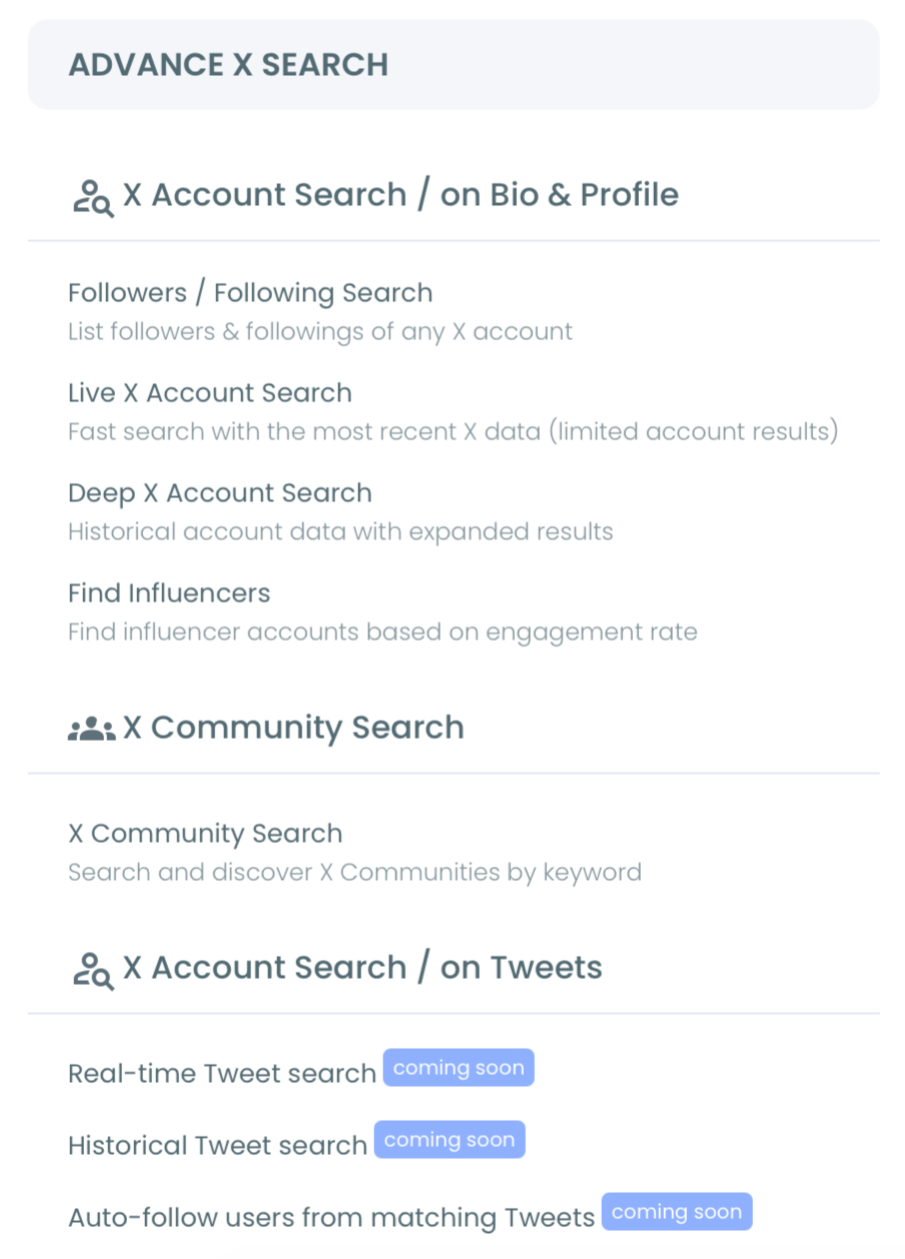
- Navigate to Advanced X Search, select Historical Tweet Search, and note the GetTweetTokens balance shown during setup.
Write a query that survives a bad memory
- Describe the post in plain language, using the subject rather than the sentence. "Tweets about shipping delays around a product launch" gives the system more to work with than a quote you half remember.
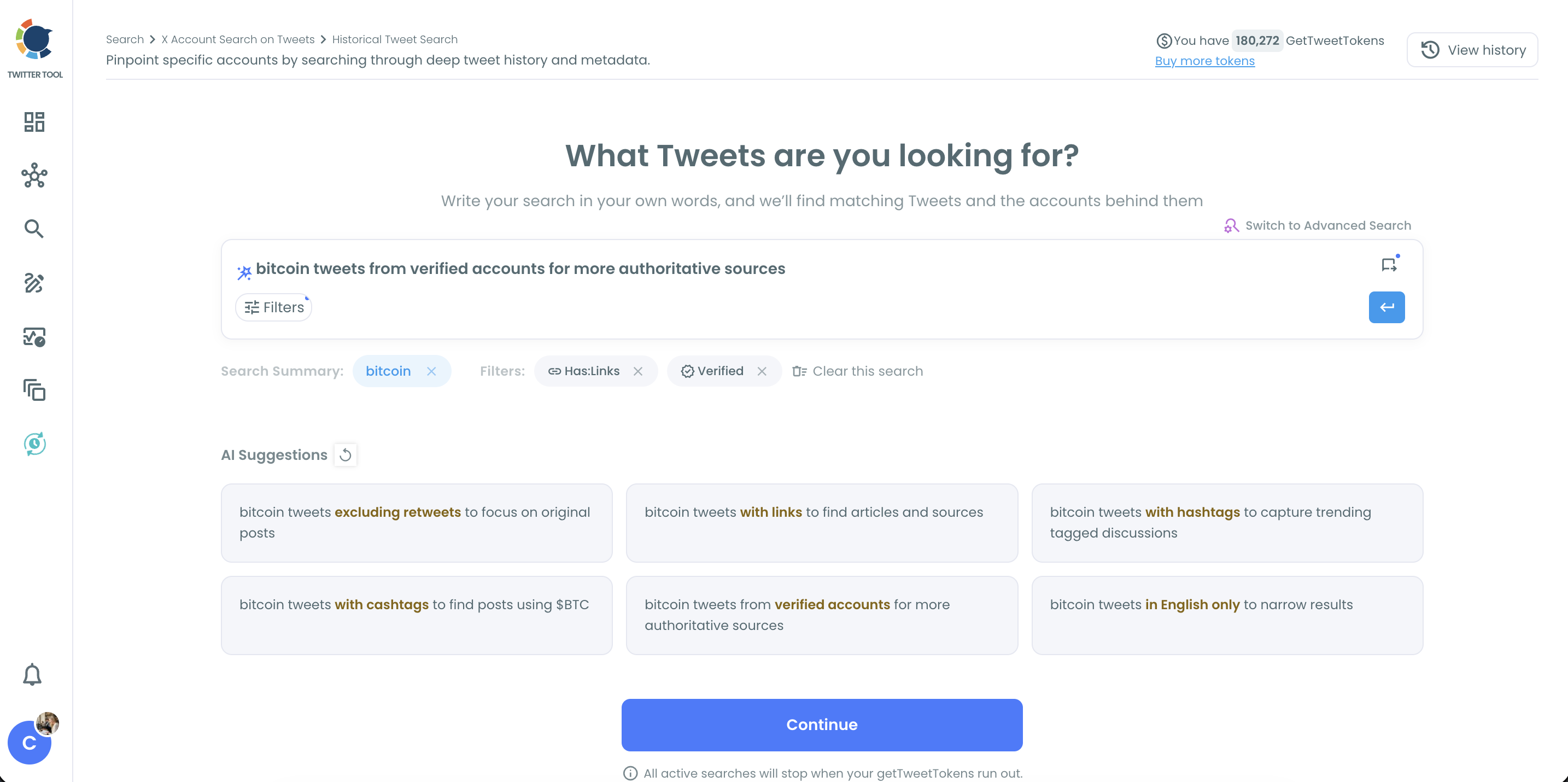
- Check the summary chips and AI Suggestions. Remove any chip that assumes too much, and pick a suggestion only when it matches what you recall.
Narrow by time, then by what you remember
- Select a date range one size larger than your memory suggests. Presets cover Last 30, 60 and 90 days and Last 1 year, and a custom range handles anything tied to a launch or an event.
- Add the filters you are sure of, and leave out the ones you are guessing at. The strongest are usually these:
- Media type, when you remember a photo or a video.
- Replies, when it may have been a reply rather than a post.
- Exclude, for a common word that drags in the wrong topic.
- Language, when the post was not in your usual feed language.
Spend tokens only after the search looks right
- Set the tweet count low. The selector goes up to 10,000, and tokens follow the number collected.
- Read the tweet view, then sort. Sort by Created At to walk through the period, or by Likes if the post felt widely shared, and use the link icon to open the original on X.
Query first, date second, filters third and count last is the cheapest order, because every earlier decision shrinks what you pay for at the end.
Reverse it, and you collect a large set you still have to narrow by hand.
How to tell which result is the tweet you saw
To confirm you found the tweet you saw, check the date, the media and the author against your notes, because several posts can look right when a topic is popular.
Each row in the tweet view shows the author's name and username, a text preview, the engagement counts and the Created At date.
Work through the list in this order:
- Sort by Created At and read only the period you trust.
- Discard rows without the media you remember.
- Open likely matches on X, since the preview shows only part of the text.
Popular topics create a second problem: many people say nearly the same thing.
If two posts both fit, the recognition usually comes from context, such as the attached image or the thread around the post, and that context is visible only on X.
The author can help as well. "Display Profiles of this search" switches from the tweets to the unique accounts behind them, each listed once however many matching tweets it posted.
Scanning names there often triggers a memory that the sentence itself did not, and you can then return to the tweet view with a person in mind.
Treat engagement as a weak clue. Counts reflect retrieval time, so they can differ from what you remember seeing.
What a broad query costs in GetTweetTokens
A broad query costs more because tokens scale with the tweets collected, and broad terms fill any count you set.
As an illustration, a run set to 2,000 tweets uses twenty times the tokens of a 100-tweet run, and if the words are too general, most of those tweets will not be the one you want.
Widen the search only after a small run misses, never before.
Three habits keep the spend sensible:
- Run the first pass at a low count and read it properly.
- Reopen past runs from the search log, which does not use tokens again.
- Change one thing between runs, so you know what helped.
When a small run shows the right topic but not the right post, the filters and date need work. When it shows the wrong topic, the query needs new words, and more tweets will not rescue it.
That diagnostic is the most useful thing to take from these searches: read the first result set for what kind of wrong it is.
If you want to practise the filter logic before spending anything, the Twitter advanced search filters page shows what each one does.
Engagement minimums deserve a warning, since counts reflect the moment of retrieval, so set them lower than you think.
How to save the tweet once you find it
Copy the direct link first, because for a single post the link is all most people need.
Each row in the tweet view links to the original on X, and the row also gives you the author, the date and the engagement counts to note alongside it.
Export only when the result has to leave the screen. The results page has its own Export button, which uses tokens separately from the search, so check your remaining balance before exporting a large set.
For one account's history, Export Tweets downloads its last 3,200 tweets as a CSV without using tokens, while keyword and historical tweet exports do use them.
For a one-off lookup, skip the CSV. Broad historical keywords can produce large files full of stale rows, and you came here for one post.
Compared with reading profiles one by one, this routine leaves you with a source you can cite and a record of what you searched. When you search past tweets on X by date range, that record stays in the search log.
A colleague's follow-up question does not start the hunt again.
Your action checklist for the next lost post
The mistake I see most often is starting with the sentence instead of the subject. Before you run anything, work through this short list:
- Write down the topic, the rough period and any media you recall.
- Try X's own search once if you remember the author.
- Check your bookmarks and likes if you interacted with the post.
- Run a low-count search with a wide date window.
- Read the misses, then change one setting at a time.
That sequence to find a tweet you saw holds up whether the post is three weeks old or three years old, and it keeps your token balance intact until the query has earned a bigger run.
→ Start a low-cost search for the tweet you saw
Lost tweet search FAQ for token and date range limits
Can a search bring back a tweet the author deleted?
No. Circleboom returns publicly available tweets only, so deleted, private and protected posts cannot be retrieved, and rapidly deleted ones may leave gaps. This article on how to find deleted tweets covers the other routes people try.
Will tweets from a deleted or suspended account still appear?
Sometimes. Accounts that were suspended, deactivated or made private after posting may still appear in results, and their current state can differ from what was retrieved.
For the wider question, see how to see deleted Twitter accounts and tweets.
Which search fits a tweet posted earlier today?
Use historical search with a short custom date range, since the tweet already exists and you are looking back.
Real-Time Tweet Tracker collects from a chosen start date forward, which suits following a topic as it develops.
Do I lose the results if a run stops for lack of tokens?
No. The run stops where the tokens ended, and every tweet collected up to that point stays saved and accessible. You can read those partial results before deciding whether to add tokens or narrow the query.