
Scrolling backwards through a timeline to find one post from last March is a task with no end condition.
X's search box will not hold the window open for you, and the accounts you actually wanted are buried inside posts you cannot reach.
The fix is a keyword query with a date filter attached and an account list on the other side of it.
What this walkthrough covers.The exact screens for running a dated keyword search on old posts.Which filters cut a noisy result set down to something readable.How to move from matched posts to the accounts that wrote them.
Built on Circleboom's Historical Tweet Search, which queries public posts on X through official API access.
→ search old tweets by keyword
Why old posts fall out of reach
The archive is public. Access to it is the part that went missing.
Native search on X answers the question "what is being said" far better than it answers "what was said, and when." Operators help with the first.
Neither operators nor endless scrolling give you a result set you can filter by likes, exclude a term from, and then export.
That matters most when the post you want is not yours.
Your own archive is downloadable through X's own account archive process, which covers your history and nothing else.
The moment the question involves other people's posts, from a specific window, matched on a phrase, you need a search built for it.
A tweet catcher style workflow gets you partway; the missing half is the date dial.
Circleboom runs a keyword search across X's tweet history and returns both the posts and the deduplicated accounts behind them.
Two views, one query, no scraping involved.
What the search needs from you before it runs
Three decisions make or break a historical search, and all three happen before you press anything.
The phrase, written the way people write it. Category terms perform badly here. Nobody posts "customer relationship management software"; they post "our CRM is a mess again." Write the sentence, not the label.
The window, chosen deliberately. Last 30, 60, or 90 days, one year, or a custom range. The window is the research question in disguise, so pick it before you pick the keyword and the search stays honest.
The volume, sized to the job. You select how many posts to collect, and that number consumes tokens from your balance. A tight, well-filtered pull beats a broad one you then have to read through.
How to search old tweets by keyword step by step
Watch a keyword search on past posts turn into an account list in the video below.
https://www.youtube.com/watch?v=xqUwDg3exe4
The steps, in order.
Set up the search and describe the posts you want
- Log in to Circleboom Twitter and connect the X account you want to run searches from.

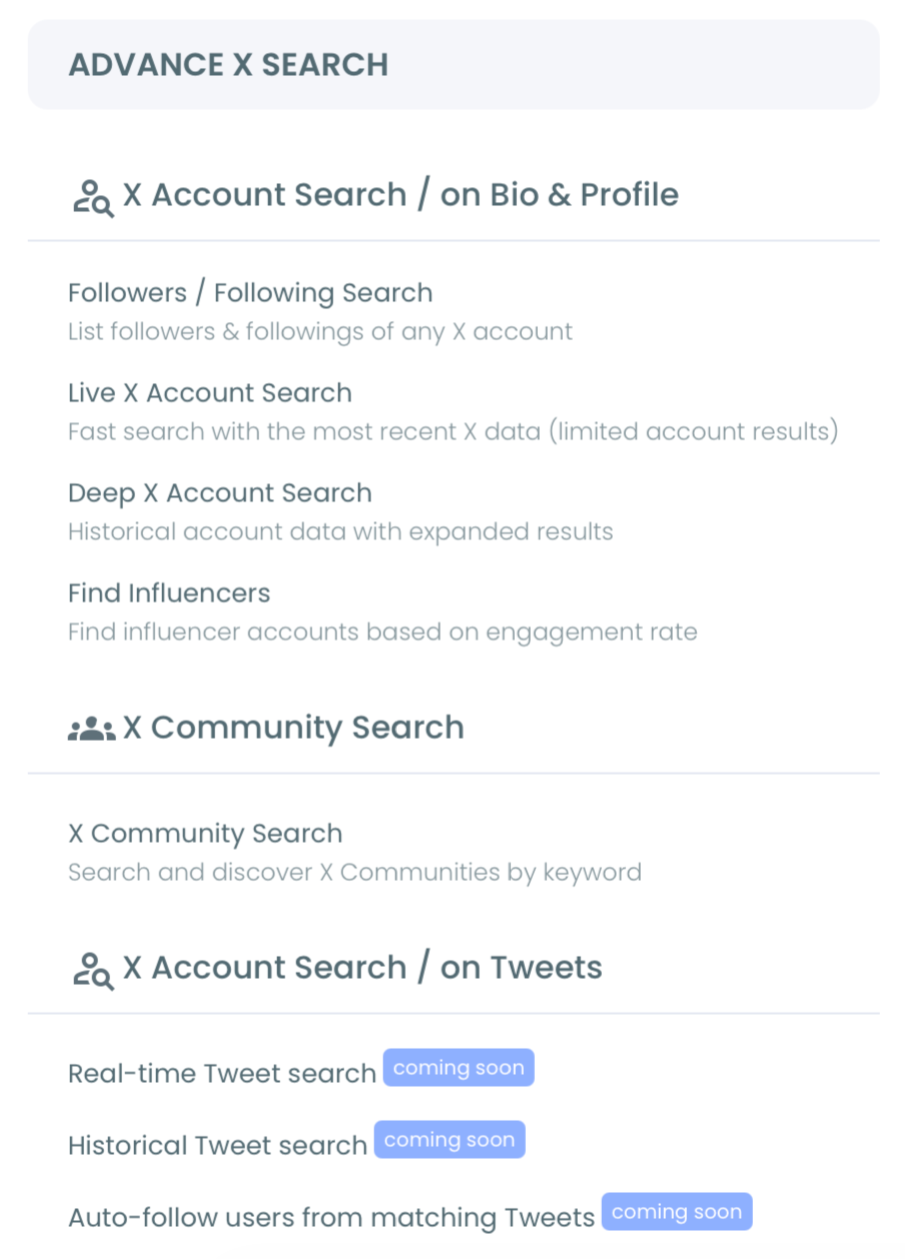
- Open the Advanced X Search menu and choose Historical Tweet Search from the tools listed there.
- Type the search in your own words, review the summary chips the system shows back, and either take one of the AI-refined variations or switch to Advanced Search to build the query by hand.
Narrow the result set and collect it
- Pick the date range and apply filters. Presets cover 30, 60, and 90 days and one year, custom handles anything else, and the filter panel adds keyword match type, exclude terms, language, replies, links, hashtags, cashtags, verified-only, media type, and engagement minimums and maximums.
- Set the tweet count, run the collection, then open "Display Profiles of this search" to swap the post table for the unique accounts behind those posts, where follow, unfollow, add to list, and export all live.
Running it in that sequence protects the two things that are expensive to get wrong: your tokens and your attention.
Describing the search first means the query is right before collection starts. Filtering before collection means volume never becomes a review problem. Pivoting to profiles last means the accounts arrive already deduplicated instead of repeating once per matching post.
Quick recap:
- Connect the account.
- Open Historical Tweet Search under Advanced X Search.
- Describe the posts in plain language.
- Set the window, then the filters.
- Collect, then switch to the profile view.
Three filter combinations worth memorising
Filters are where a search stops being a keyword and starts being a query. Three pairings cover most of what people actually need.
Exact phrase plus exclude terms. Set the match type to exact phrase, then exclude the two or three words that always ride along with your keyword and never help: giveaway, hiring, discount, whatever your topic drags in.
This is the single biggest reduction in review time available in the panel, and it is set up before the collection ever runs.
Engagement minimum plus a wide window. Open the range to a year and put a floor under likes or retweets.
You lose the quiet posts and keep the ones that other people reacted to, which is the right trade when you are reconstructing how a topic was argued rather than counting mentions of it.
Language plus verified-only, used sparingly. Language filtering is genuinely useful for regional research and stops a keyword that means something else in another language from flooding the set.
Verified-only is narrower than people expect and is best treated as a second pass on an existing search rather than a starting constraint.
One rule sits above all three: change one filter at a time. Stacking four new constraints at once tells you nothing about which of them fixed the result.
A worked example, start to finish
Say a competitor had a visible outage in February and you want the accounts that complained about it.
The window comes first: a custom range covering February and the two weeks after, because complaints trail the incident rather than tracking it.
The phrase comes second, and it is not the company name alone. It is the company name paired with the language of frustration, run as a partial match so variations of the sentence still land.
Filters come third. Exclude the company's own handle so support replies do not dominate. Set a small engagement minimum, three or four likes, to drop the posts nobody saw. Leave language open unless the audience is regional.
Then collect a modest number of posts, sort by date, and check whether the complaints cluster where you expected.
If they do, pivot to profiles and export. If they do not, the phrasing was wrong and a second pass costs less than reading a bad set of results.
The loop is short because every step narrows the next one, and it produces a list that scrolling a timeline would never have surfaced.
Reading the results without drowning in them
The post table gives you more than text.
Each row carries impressions, likes, retweets, quotes, bookmarks, replies, and a creation timestamp with a relative age next to it, and every column header sorts.
Sorting is the fastest triage available. Sort by retweets and the loudest expressions of your keyword rise; sort by date and you can see whether the conversation clustered around one week or ran evenly across the window.
Both readings are useful, and they answer different questions.
The inline search bar does something people miss: it searches across name, username, and bio inside the collected set.
A search for a phrase can therefore be narrowed a second time by who wrote it, without spending tokens on a new collection.
Then there is the pivot. "Display Profiles of this search" shows the unique accounts with follower count, following count, follow ratio, post count, join date, and an active or inactive classification.
An account that matched forty times in your window appears once here, which is what makes the list workable.
If you are running this repeatedly, a keyword and hashtag tracker setup complements the one-off search nicely.
The post view tells you what was said. The profile view tells you who to talk to.
Turning a result set into something you keep
Export is the obvious end state. CSV is the format on both sides: the account list feeds a CRM, an outreach sequence, or a research record, while the post table comes down on its own when the wording rather than the people is what you needed.
Both draw on the same token balance, so check the remaining count before a large pull.
Lists are the low-friction alternative. Adding accounts to an X List, a whitelist, or a blacklist gives you a persistent segment without changing who you follow, which is the right call when you are tracking a competitor's customers or a set of event attendees.
Follow actions deserve more care. Circleboom can follow the authors of matching posts in bulk and paces those requests, but X's platform limits apply regardless of tool, and an account that posted something relevant last spring may be dormant now.
Screen the list before you act on it, the same discipline that makes more targeted Twitter account search work in the first place.
Searches are stored under a search log, so revisiting a result set later costs nothing. That turns a one-off pull into a reference you can come back to when the same question resurfaces.
Where this search sits next to the live one
Historical and real-time search answer opposite halves of the same question, and the useful move is running both.
A historical pull tells you how a topic was discussed across a defined window: which claims were made, which accounts shaped the discussion, how the language shifted.
A live pull tells you whether any of that is still true today.
Circleboom's real-time tweet tracker covers the current side, and comparing the two is how you tell a live opportunity from a closed one.
The same pairing works for topic research. Journalists and analysts running something like find politics tweets use the archive for context and the live stream for what is moving now, and the two feeds rarely agree.
Circleboom is an official X Enterprise Developer, and that credential is the reason a date window months deep is available at all.
Official API access keeps the connected account inside X's rules while the query runs, which is exactly the guarantee scrapers cannot offer. It is also why the same account can safely run a dated keyword search on old posts more than once.
Your next move
Five things, in order, and the search is done properly.
- Write the phrase people actually type when they have the problem, not the category name.
- Choose the window before the keyword so the research question stays fixed.
- Add exclude terms and an engagement minimum before you collect anything.
- Sort the post table by retweets and by date to see the shape of the result.
- Pivot to profiles, screen the list, then export or add to a list.
Old posts hold the intent that current profiles have already forgotten. A dated keyword search is the only way to read it back.
→ search past tweets by keyword and date
Questions readers ask about old tweet searches
Can I use plain language, or do I need search operators?
Plain language works. The interface asks you to describe the posts in your own words and offers refined variations, and Advanced Search is there when you want to build the query with operators and filters yourself.
How many accounts will I get from a search?
That depends on how concentrated the conversation was. The tweet count sets collection size, not the number of unique authors, so a heavily concentrated topic returns far fewer profiles than a widely discussed one at the same collection size.
Does exporting cost extra?
Export consumes tokens separately from the search itself, so a large result set can be collectable and still hit a shortfall at export. Check the remaining balance shown on the export button before you commit to a big download.
Will edited or deleted posts show up?
Deleted posts do not come back, and an edited post may appear in its original or edited form depending on when it was indexed. Treat any gap in a window as a coverage limit rather than proof that nothing was posted.
Can I search someone else's old posts specifically?
You can narrow a collected result set by name, username, or bio using the inline search bar, and combine keyword and language filters to tighten it further. The starting point is still the content of the posts, not a single account's timeline. If you want a wider net first, Twitter advanced search covers the broader query toolkit.