
Most guides on sharing a Google listing with an agency end at Google's invite button, as if access were the whole question. It is half of it: the other half is who decides what gets posted under your name.
How do you share Google My Business with an SEO agency without losing control of your listing?
Invite the agency as a manager in Google, never through your login, and give it a User seat in a Circleboom Publish Team, where Circleboom Publish holds every Google Business Profile post the agency schedules until you approve it.
→ Bring your SEO agency into a Circleboom Publish Team
Why the Google invite alone leaves a gap
Google's invite settles who can open your profile, but it does not settle who approves the posts. A manager in Google can write a post and publish it on the spot, so the first time you see the agency's wording may be when a customer does.
That gap matters more for posts than for any other part of the listing. Hours and categories change rarely. Posts go out several times a week, they carry prices, offers and promises, and each one sits in Search and Maps where people decide whether to call.
Many owners try to close the gap with an email rule: "send me every post before you publish."
It works for a week. Then a deadline arrives, the agency publishes first and asks later, and the rule quietly disappears.
What the gap looks like in an ordinary month
A profile that posts about six times a week, a cadence Circleboom suggests as a friendly target for Google Business Profile, carries roughly 24 posts a month.
When you share Google My Business with an SEO agency through Google's invite alone, each of those 24 posts reaches customers before you read it. One expired offer or one promise you do not make is enough to cost a booking or start an awkward phone call.
With an approval layer, the same 24 posts arrive as a list you can read in one sitting. The agency still does the writing, and you still get the final word.
The fix is structural rather than polite. Circleboom Publish, the multi-platform publishing suite, puts the agency's Google Business Profile posts behind an approval queue that the agency cannot skip.
Owners comparing this setup with what agencies use on their own side can read Circleboom's roundup of the best social media management tools for agencies.
If you already know you want the approval layer, give your SEO agency a Team seat, then read on for the roles.
The Google role behind an agency's "admin access" request
"Admin access" in an agency's email almost always means a role on the profile in Google, and the role to give is manager. Google's Business Profile has owners, with one primary owner among them, and managers.
Google's page on how to manage your Business Profile owners and managers draws the line clearly. An owner holds full control, which covers adding or removing users and deleting the profile. Managers have mostly the same access but cannot add or remove users or remove the profile.
In practice the manager role covers the work an SEO agency is hired for on Google's side, such as categories, photos, hours and replies to reviews. None of that happens in Circleboom Publish, which neither edits the profile nor manages reviews. Circleboom Publish takes over only the posting routine: writing, scheduling, approving and measuring Google Business Profile posts.
Some agencies ask instead to bring your profile into their own organisation account in Google, so they can manage all their clients from one place. That is still a Google-side role decision: you keep ownership, and the agency's access sits under its organisation rather than under your password.
Give the agency a manager role for the listing and a User role for the posts, and keep the owner seat yourself.
Google roles and Circleboom roles side by side
Four roles decide who controls an agency relationship: Google's owner and manager on the listing, and Circleboom Publish's Admin and User on the posts. The table sets them next to each other, from Google's help page and from how Team Management works in Circleboom Publish.
| Role | Where it lives | What it can do | What it cannot do |
|---|---|---|---|
| Owner | Google Business Profile | Full control, add or remove users, delete the profile | Nothing restricted |
| Manager | Google Business Profile | Edit the listing and post directly in Google | Add or remove users, remove the profile |
| Admin | Circleboom Publish Team | Publish at once to every account in the Team | Nothing restricted; its posts skip approval |
| User | Circleboom Publish Team | Schedule posts to the accounts assigned to it | Publish without an Admin's approval, see unassigned accounts |
Read the table by column, not by row. The right-hand column is what protects you: a Google manager cannot remove you, and a Circleboom User cannot publish without you.
The safe setup for an agency is Manager in Google plus User in Circleboom Publish, with you as Owner and Admin.
Circleboom Publish's Team Management for agency access is where the agency gets its seat for Google Business Profile posts under that User role, while the listing itself stays under Google's manager role.
Admin and User are the only two roles in a Circleboom Team. There is no finer permission system beyond which accounts a User is assigned to, which keeps the model easy to audit.
Owners weighing collaboration features can compare that two-role model with others. Circleboom has a look at which social media management tool offers the best collaboration features.
If someone later leaves the agency, removing that member from the Team ends their access immediately. The help page on how to removing a team member shows that screen.
Where Google's roles and Circleboom's workspace overlap
The approval queue governs posts made through Circleboom Publish. A Google manager can still post directly inside Google Business Profile, outside the Team.
So when you share your Google Business Profile with an SEO agency this way, put one line in the agreement: every post goes through the Team, and direct posting in Google is reserved for emergencies you approve by phone. The roles make the rule possible; the agreement makes it the habit.
Do you need a bigger plan before inviting an agency?
Usually not, but check two counters before you send an invitation. Knowing them in advance keeps the first week of sharing your Google listing with an SEO agency from stalling on a full Team.
Circleboom Publish caps both the number of Teams a login can create and the number of members per Team by plan. Each cap shows as a usage counter, such as 2 / 4, on the creation form and the Members tab.
Adding the agency does not by itself force an upgrade: teammates are added as user add-ons, and Circleboom does not charge per social media platform. Circleboom's guide to affordable social media management tools with team collaboration compares team-collaboration tools on cost.
A quick way to size it:
- One agency, one location: one Team with two members, you and the agency.
- One agency, several locations: still one Team, with every location connected to it.
- Several agencies or contractors: one Team per engagement, so their work never mixes.
For an agency handling several locations, the Google Business composer's Select Accounts panel sends one post to every ticked profile at once. Circleboom's page on multi-profile Google Business Profile management covers that send.
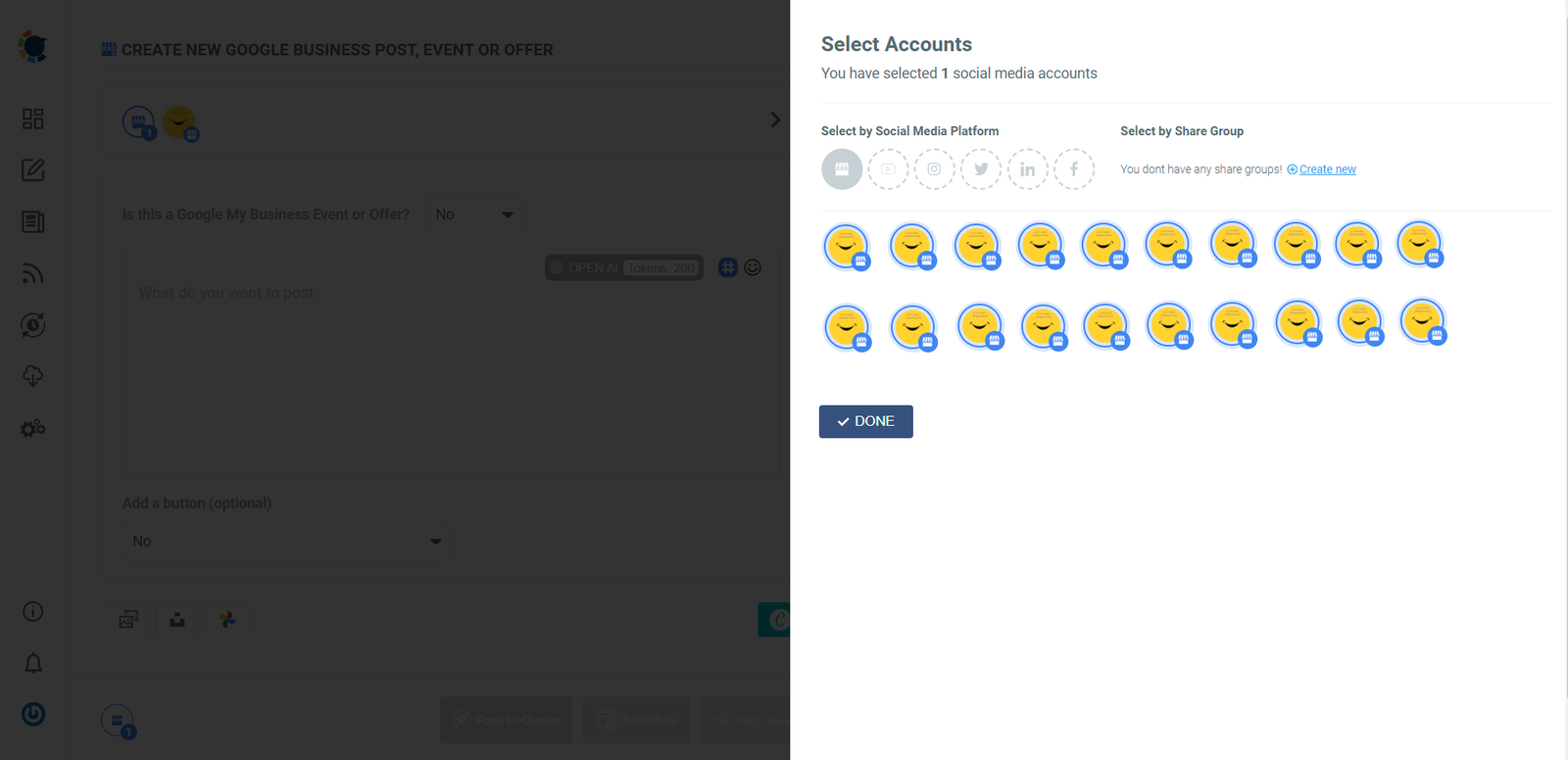
One plan detail is easy to miss: deleting a Team stops its scheduled posts from sending. The help page on deleting a team is worth reading before you ever clean up an old workspace.
Steps to give the agency a Google Business Profile seat in Circleboom Publish
To share Google My Business with an SEO agency on the posting side, connect your profile, create a Team for the agency, assign it the User role once it accepts, and approve what it schedules. The agency then works from its own login, sees only the profile you assign, and cannot publish without you. The steps below run in three phases.
Set up your side before the agency arrives
- Log in to Circleboom as the account holder whose workspace the agency will join.
- Connect the Google Business Profile you own from Manage Social Accounts in the gear-icon settings.
- Create a Team under Manage Teams with + Create New Team, and enter the agency's email in Invite Team Members.
Give the agency a scoped seat
- Wait for the agency to accept the invitation; until a role is assigned it cannot act in the Team, as the help page on adding users to a team describes.
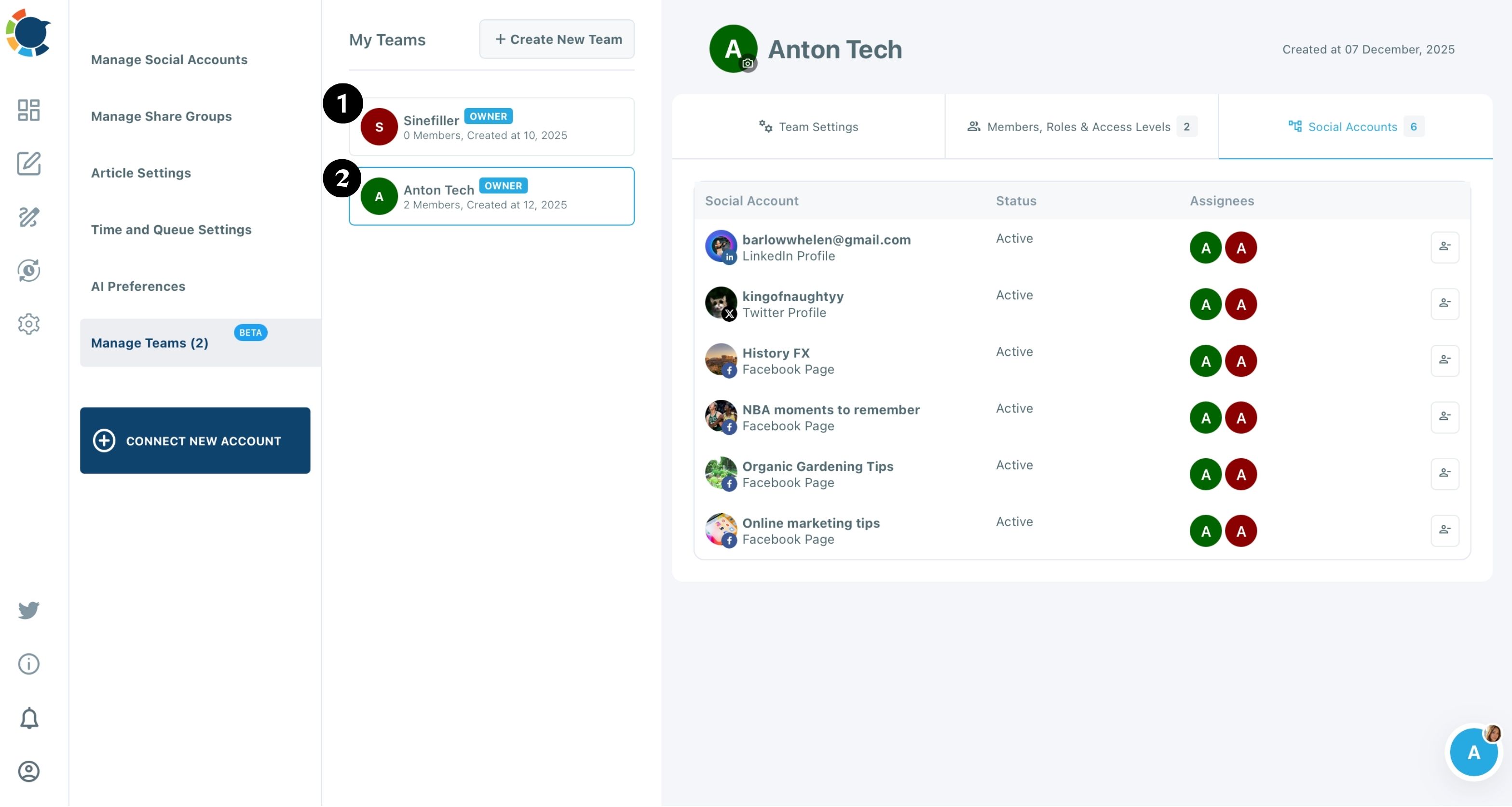
- Set the agency's role to User in Members, Roles and Access Levels, and pick your profile under Assigned Networks.
- Check the Social Accounts tab, where the Assignees column shows exactly who can post to each connected account.
Approve before anything goes live
- Clear Waiting for Approval in the Team's post tabs, previewing each agency post and approving the ones that are right.
Each phase closes one door. Without the connection there is no account to assign, without the User role the agency would publish directly, and without the approval tab nothing stands between a draft and your customers.
Measuring what the agency's Google posts bring in
The useful measure of an agency's Google posts is customer actions: calls, direction requests and website visits.
Sharing Google My Business with an SEO agency pays off only when you can check those actions yourself. That is why the three sources below sit on your side of the relationship, with no agency report needed.
The Team Settings tab gives the activity baseline for that workspace: connected networks, members, posts waiting for approval, posts scheduled and posts sent. It answers "is the agency keeping pace?" at a glance.
Button links answer "did people click?" Whenever a post's button points to your website, tag the link with Circleboom's UTM Link Builder first, so visits from that post appear in Google Analytics under their own name. Ask the agency to tag every link before it submits a post, and reject untagged ones until it becomes habit.
The Google Business Profile post analytics in Circleboom Publish read performance through customer actions such as calls and direction requests rather than likes. Compare them with Google's own view in understand your Business Profile performance and insights, which shows how people found and contacted the business.
I find the comparison more useful than either number alone. When both point the same way, the post worked.
Circleboom has a piece on data-driven content to build trust in a competitive market. It is a useful companion once these numbers start to shape the next month's posts.
Testing what the agency's posts ask people to do
An agency earns its fee by learning what works on your listing, and the composer makes small tests cheap.
Duplicate an approved post, change exactly one thing, such as the button (Call Now against Book) or the opening line, and schedule both. Then compare the two in the Google Business Profile analytics and in the tagged visits.
A Call Now button that fills a lunch rush may do nothing for a catering announcement, so test the button the way you would test any other part of the post.
If the agency's role grows beyond posting, Circleboom's Google Business Profile post scheduler handles the scheduling, best times and Queue for the posts you approve.
Agency access to your Google listing in five moves
Here is the whole setup as a checklist you can run before the agency's first post:
- Invite the agency as a manager in Google Business Profile, and stay the owner.
- Check your plan's Team and member counters in Circleboom Publish.
- Connect your profile, create the agency's Team, and invite its email.
- Assign the User role and only the profile it needs.
- Clear Waiting for Approval every week, and track results with tagged links.
Five moves, and the agency can start this week without ever holding your password.
→ Set up agency access to your Google Business Profile with approvals
Questions owners raise about agency access and approvals
Is it safe to let an agency post to my Google profile through a third-party tool?
Yes, when the tool keeps the agency in a scoped role and lets you approve its posts. The help page on using 3rd party tools like Circleboom for social media accounts explains how connected-account access works.
Why not just share Google My Business with an SEO agency by giving it my login?
A shared login gives the agency everything the Google account can reach and leaves no record of who did what. Google treats primary ownership as something transferred on purpose in the profile settings, never shared, so a role always beats a password.
Can I switch between my own workspace and the agency's workspace?
Yes. The profile avatar opens a Switch Workspace popup that lists your personal workspace and every Team you own or belong to, with a checkmark on the active one.
Can I tell the agency why I rejected a post?
Yes. Rejecting a post in Waiting for Approval lets you attach a comment explaining why, and the post moves to the Rejected tab for the agency to fix and resubmit.