The Unfollow button on X works fine for the first few accounts, then starts snapping back to Following as if nothing happened. X is limiting how fast your account may unfollow, and this guide shows how to unfollow on X past that point: protect the accounts you keep, filter the rest, and hand the timing to a paced queue.
Your account sent unfollows faster than X accepts, so X declined the extra requests. Circleboom shows every account you follow on X in one filterable list and unfollows the selected ones in gradual batches, using Enterprise-tier X APIs as an official partner.
→ Unfollow on X in reviewed bulk batches
The full method, keepers first, is below.
Why the unfollow button on X keeps failing
The button fails because X limits unfollow activity per account. When requests arrive faster than X will accept for that account, X replies with a "too many requests" response and the unfollow is not carried out.
The app does not show that message. It just puts the button back.
The limit is not one public number. It varies from account to account, so the person who told you they unfollowed hundreds in an evening may have a different ceiling from yours.
X's page on following on X explains the basics of following and unfollowing, but a daily unfollow figure is not something X publishes.
The stakes are higher than a messy timeline. Your following list is public, so anyone who visits your profile sees whom you chose to associate with.
Old follow-for-follow rounds, abandoned interests and accounts that went quiet years ago all sit in that list until you remove them.
Pushing through has a cost. Unfollowing too many accounts aggressively may get an account temporarily locked or suspended, which turns a tidy-up into a recovery job.
The usual mistake is to treat the reset as a glitch and tap faster. The safer move is to unfollow on X through a queue that lets you clear your X following list in spaced-out batches, with the requests spread out for you.
How do you protect partners and friends before unfollowing on X?
You whitelist them before any bulk run. In Circleboom, a whitelisted account is excluded from every bulk unfollow across the platform, whichever following segment you work from later.
That one label is the difference between a clean list and an awkward message from a client you dropped by accident.
Who belongs on the whitelist is a judgement call, and the list is usually longer than people expect:
- Partners, customers and key contacts you follow for the relationship, not the content.
- Journalists, analysts and reference accounts that rarely follow anyone back.
- Friends and creators whose accounts look quiet but matter to you.
- Accounts you follow to watch a competitor or a market.
Many of these score poorly on quality signals. A customer who posts twice a year shows as Inactive. A newsroom never follows back.
That is exactly why they need protecting by hand before the filters run.
The setup for the label, and the opposite flag for accounts you want gone, is covered in the guide to blacklist and whitelist Twitter accounts on Circleboom.
Protect relationships in groups, not one by one
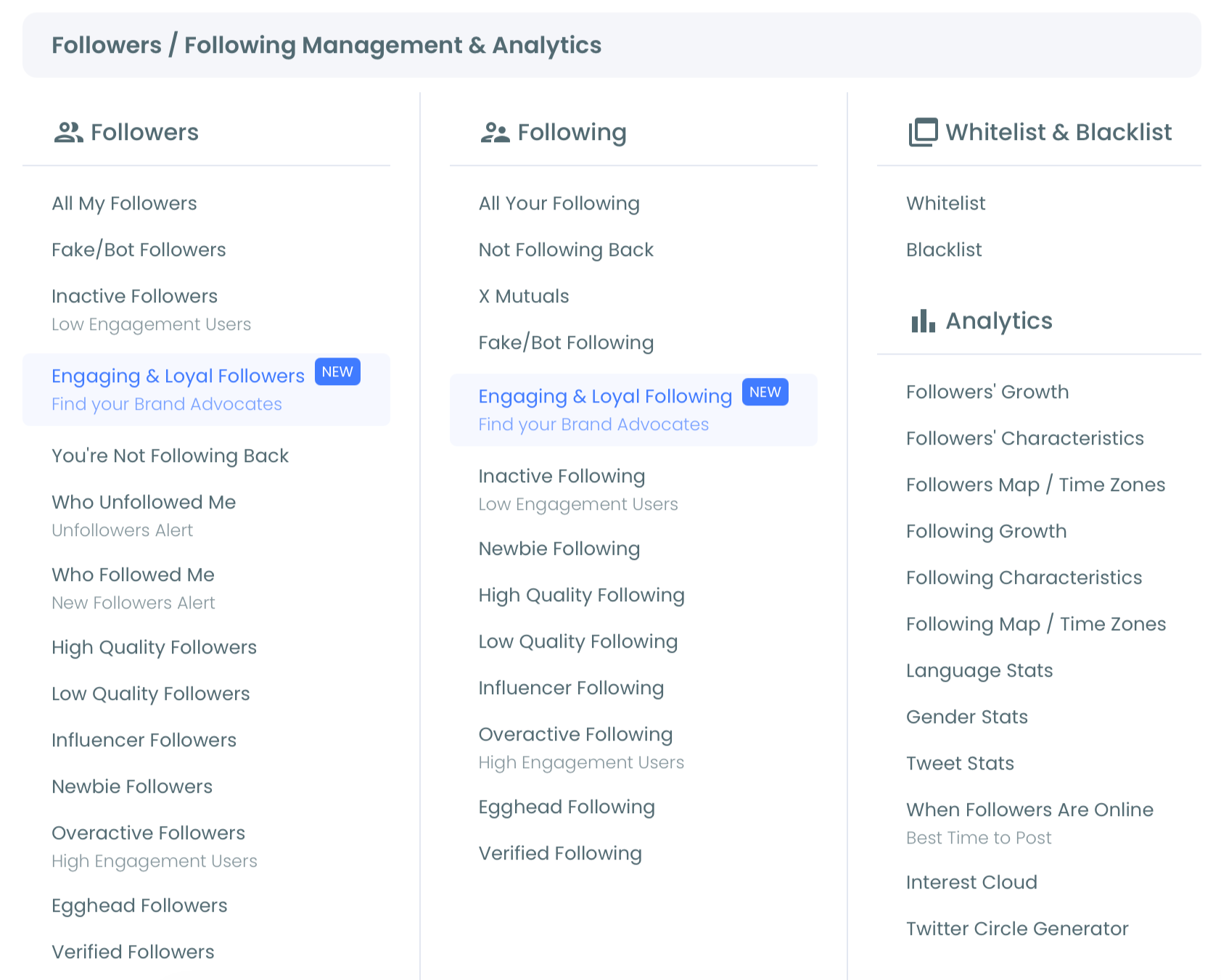
If you have many relationships to protect, protect them in groups instead of one at a time. Circleboom's X Mutuals, Engaging & Loyal Following and High Quality Following segments are natural places to start: select the accounts there and whitelist the whole selection at once. The label carries over to every following feature you use afterwards.
Whitelist first, filter second. A filter cannot know which quiet account is your biggest client.
What Circleboom changes when you unfollow on X in bulk
Circleboom's All My Following turns the accounts you follow on X into a sortable, filterable table and unfollows a selected segment at a pace that stays inside a safe range. Each row shows tweet count, join date, following and follower counts, follow ratio and an Active or Inactive engagement label.
Circleboom is an official X Enterprise Developer company, so every action goes through the official API and X processes each unfollow itself. Nothing imitates taps in your browser, and the full list loads as data rather than as a feed you scroll.
The pacing is built in. Unfollows run at 50 every 15 minutes, with a daily safety limit of 800 set by Circleboom to protect the account. Anything left over resumes automatically the next day.
Unlike the X app, where you open each profile and unfollow one account at a time with no filter for inactive or one-sided follows, Circleboom lets you pick the whole segment once and confirm it once.
You can run your X unfollow cleanup from one filtered list and leave the timing to the queue.
Where to compare options and what to save first
For the other ways Circleboom can unfollow on X, see the Twitter unfollow tool.
An unfollow cannot be undone in bulk. If you want a record of the list as it stands today, export your Twitter following list before you start.
Selecting a few hundred accounts and unfollowing them at once: the same bulk flow the steps below follow.
Which filter recipe fits your cleanup on X?
Pick the recipe that matches what is wrong with your list, then use it at step 5 below. Each one stacks several weak signals, so no single number condemns an account.
| Goal | Filters to combine | Why it works |
|---|---|---|
| Safe first batch | Fake/Bot or Low Quality, low engagement, low ratio | Several weak signals at once |
| Old follow-for-follow | Not Following Back, low quality, poor ratio | One-way follows with little value |
| Stale feed | Inactive only, low tweet count | Accounts that stopped posting |
| Noisy feed | Overactive only, off-topic bio terms | Volume without relevance |
Keep whitelisted accounts hidden in every recipe. Whitelisted rows are hidden by default, and leaving that filter alone is what keeps your keepers out of each batch.
Custom combinations are where the full list earns its place. Say you want accounts with fewer than 100 followers, Inactive engagement and a profile language you no longer read.
No named segment covers that mix, but the filter panel builds it in a few clicks: Follower Count, Engagement and Filter by Language, stacked together.
One detail to read correctly: the Join Date filter and the Joined column refer to when the account was created on X, not when you followed it.
Sorting helps before you filter at all. Sorting by Follow Ratio, lowest first, brings accounts that follow thousands but have few followers to the top, a pattern common among follows from old growth campaigns.
How to unfollow on X in bulk, step by step
Seven steps, in three phases: get into the list, protect what stays, then queue what goes.
Connect your account and open the full following list
- Log in to Circleboom and authorize the X account you want to clean with official OAuth.
- Open the Followers / Following menu and choose All Your Following in the Following column.
Protect the accounts that have to stay
- Find each keeper with the inline search bar or by sorting the columns, then click the shield icon on its row. For a group, tick the rows and choose Add to List, then Whitelist.
- Confirm the protection held by setting the Whitelisted and Blacklisted filter to show whitelisted accounts only, then switch it back to hidden.
Filter, select and queue the unfollow
- Build the batch in Filter Options. A safe starting recipe is Inactive set to only, Engagement low and whitelisted accounts hidden; read the Active Filters bar to make sure it matches.
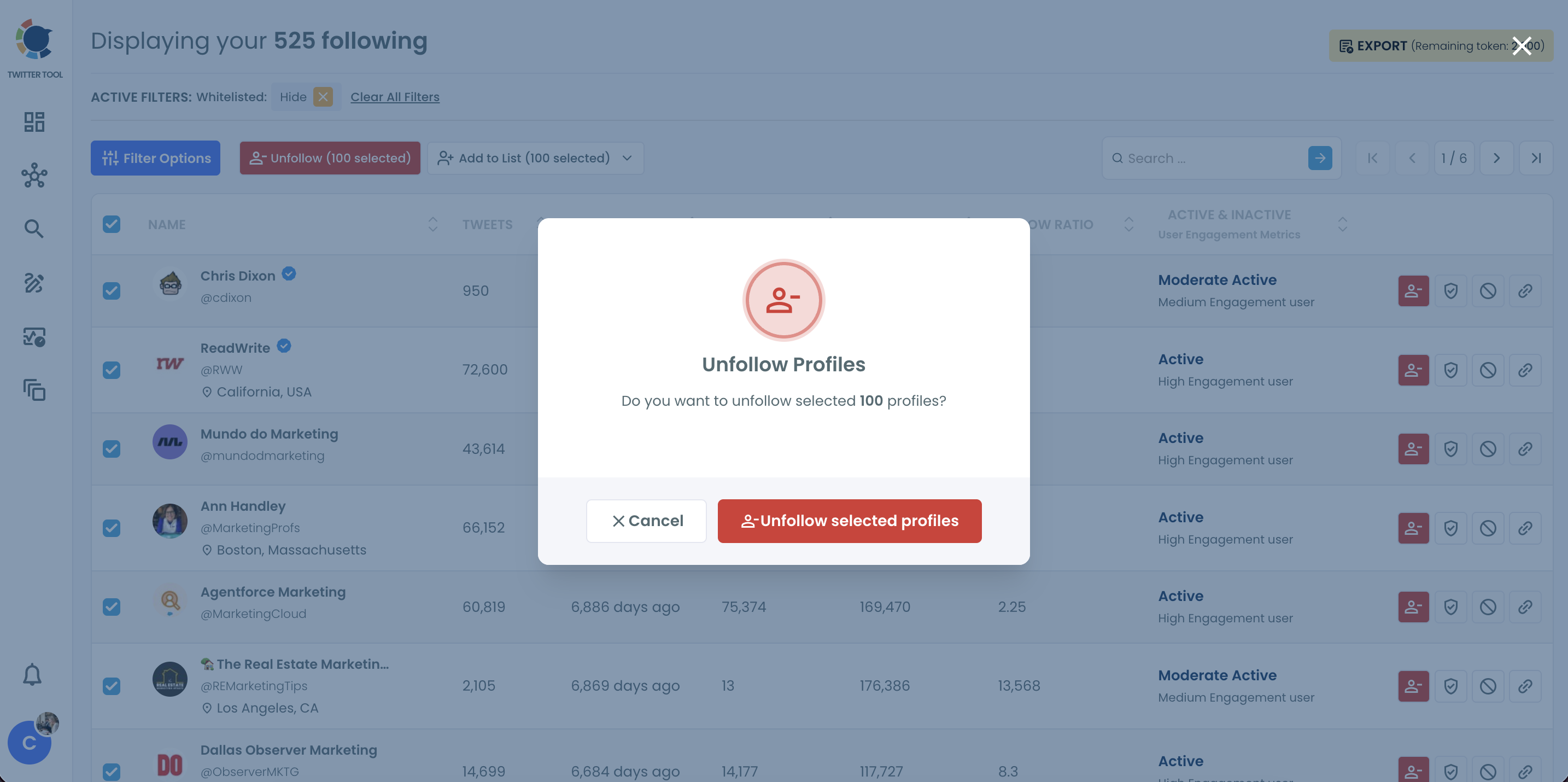
- Select the batch with the master checkbox for the visible page, or row by row, and check the count on the Unfollow button.
- Click Unfollow and confirm in the Unfollow Profiles pop-up after checking the number it shows.
Protection comes before filtering because filters judge accounts by signals, and the accounts you care about most often have the weakest signals.
Confirming the count last means the only accounts that leave are the ones you saw and approved.
At 50 every 15 minutes, one day's 800 unfollows finish in about four hours of processing (16 windows of 50), and whatever is left resumes on its own the next day.
What happens after you confirm the unfollow on X
Once you confirm, Circleboom shows a notice that your request is in progress, with the processing speed: 50 unfollows every 15 minutes, up to 800 a day.
You do not need to come back and press anything when the day's limit is reached. The remainder picks up automatically the next day.
Two habits keep the run clean while it works:
- Leave manual unfollowing on X alone until the queue finishes. Taps in the app still count against the same per-account limit, and extra requests in a short window are exactly what X refuses.
- Do not queue the same segment twice. Let the first run finish, then check the list again, so each account is sent once.
When the run ends, apply the same filter recipe again to see what is left to unfollow on X.
Whatever still matches is your next batch; if nothing does, the list is where you want it.
Running a large unfollow on X across several sessions
A long list rarely gets reviewed in one sitting, and it does not need to be. Circleboom separates the decision from the action, so you can review today and unfollow later.
While reviewing, flag accounts you have decided to drop with the Blacklist label instead of unfollowing them on the spot. Blacklisting does not unfollow or block anything; it only marks the account.
When the review is done, filter the list by Blacklist, select the flagged set and unfollow it in one paced run.
This keeps the review calm. You make each call once, with the full row of data in front of you, and the queue handles everything after the final confirmation.
The 800-a-day safety limit and next-day continuation still apply, so a big flagged set simply spreads across more than one day.
How do you unfollow everyone on X who doesn't follow you back?
Open the Not Following Back segment, whitelist the one-way follows you keep on purpose, then select the rest and run the same paced unfollow. The segment does the matching for you, so you never compare two lists by hand.
The care point is that not every one-sided follow is a mistake.
News outlets, public figures, customers and analysts rarely follow back, and they are often the reason you use X at all. For safe pacing on this cleanup, see how to unfollow everyone on X who doesn't follow you without a ban.
The Not Following Back page lets you find Twitter accounts that don't follow you back. Combining it with low engagement and a poor follow ratio narrows the batch to one-way follows that also add little to your feed.
Not sure where to begin? Dormant accounts make a low-risk first batch. The post on why to unfollow inactive Twitter accounts lays out the case for that order.
What a failed cleanup costs, and what a paced one saves
Without a pace, every attempt to unfollow on X by hand ends at the same wall, and pushing past it risks a locked account. Without a whitelist, a bulk run can quietly drop the people your work depends on.
With both in place, the list shrinks on a schedule you can predict, and the accounts that matter are never in the batch.
I would rather wait for a queue than explain to a partner why I unfollowed them.
The cost of skipping the method is lopsided. A careless hour can lock the account or drop a relationship you spent years building. A careful setup takes a few minutes longer, and the queue does the slow part while you get on with your day.
→ Start a protected unfollow cleanup on X
Frequently asked about unfollowing in bulk on X
What if my following tab is empty or won't load on X?
You can still clean the list, because Circleboom does not depend on the tab. It retrieves your complete following list through the official X API with Enterprise access, without the truncation of standard tiers, and shows it as a table with search, sorting and filters.
Is it better to unfollow manually, use a bulk tool, or stick to a free option?
Manual unfollowing suits a handful of accounts; a bulk tool is the practical route for hundreds or thousands, because it filters and paces for you. Circleboom's free cleanup tools allow 20 unfollow actions per day. The comparison of Twitter unfollow tools for cleaning up your account helps you pick the right level.