
Formatted text gets more engagement on X.
Not because it “tricks the algorithm,” but because it makes people stop scrolling and actually read.
Most users don’t read tweets word by word. They scan. They catch a few bold words, a clear headline-style first line, a clean structure… and then they decide if the post is worth their attention.
That’s exactly why text formatting matters.
When I started using simple formatting in my tweets—like emphasizing one key line, turning a hook into a bold-looking headline, or separating points with clean visual structure, I noticed something quickly: my posts looked clearer, felt more intentional, and got more interaction.
So in this guide, I’m going deep into how text formatting works on X, what X Premium actually offers, what it doesn’t, and how I format tweets properly using Circleboom Twitter (which gives you way more control than Premium).
 Arif Akdogan
What Text Formatting Really Means on X (Twitter)
Let’s clear up the biggest confusion first:
X does not work like Google Docs or Office.
❌ You don’t get a formatting bar.
❌ You can’t highlight a word and click “underline.”
❌ You can’t choose fonts from a dropdown menu.
So how do people create tweets with different styles?
Most of the time, they’re using Unicode-style characters.
That means the letters are converted into special versions that already look bold, italic, circled, boxed, or styled. And because they’re still “text,” X accepts them normally.
So when you see fancy fonts on X, it’s not X giving you new fonts. It’s people using Unicode styling before posting.
Types of Text Formatting You Can Use on X
Text formatting on X comes in a few common forms. Some are clean and professional, and some are more playful. Here are the main styles you’ll see creators use:
1) Bold-style text
This is usually used for:
- Hooks
- Headlines
- Key takeaways
- One-line summaries

2) Italic-style text
Italic is useful when you want:
- A softer emphasis
- A “thought” or side note tone
- A quote-like feeling

3) Underline-style text
X doesn’t offer true underlining, but Unicode has underline-like variations. People use it for:
- Title-style lines
- Highlighting one key point

4) Circled letters and boxed text
You’ll see these used for:
- Numbering points
- Mini labels
- Callouts inside long posts

5) Aesthetic fonts (script, serif, small caps, etc.)
These can look nice, but they’re risky. If the style is hard to read, people will skip your tweet fast.

6) Structure formatting (symbols, separators, spacing)
This is actually underrated. Even without fancy fonts, using things like:
- bullets
- arrows
- spacing
- section breaks
can make your tweet easier to scan, and scanning is what most people do before liking or replying.
What X Premium Offers (And Where It Stops)
If you have X Premium, you get access to basic text formatting features:
✅ Bold
✅ Italic
That’s a nice upgrade compared to the regular experience, and if you only need simple emphasis, it works fine.

But the limitation is obvious once you start paying attention to how creators format tweets:
- You won’t get underline-style text.
- You won’t get circled or boxed letters.
- You won’t get headline font variations.
- You won’t get different font styles for hooks or thread titles.
So Premium is good for basic formatting, but it’s not a complete solution if your goal is to create visually structured posts that stand out in a busy timeline.
The Real “Twitter Font” Trick: Unicode Styling
Most formatted tweets you see today are created using Unicode styling.
The reason it’s so popular is simple:
- It works on any account
- You don’t need Premium
- It offers way more styles than X ever will
But there’s a catch.
Unicode formatting is powerful, but if you use it incorrectly, it can hurt you.
✅ What Unicode formatting is great for:
- Making a hook stand out
- Highlighting one line people should notice
- Adding structure to educational tweets
- Creating “mini titles” inside long posts or threads
❌ What Unicode formatting is bad for:
- Formatting the whole tweet in a fancy font
- Mixing 3–4 styles in one post
- Using fonts that look weird on mobile
- Making the tweet harder to read than it needs to be
The goal of formatting is not to look different.
The goal is to make your message easier to consume.
When Formatting Actually Helps Engagement (And When It Doesn’t)
This is where most people mess up.
Formatting can increase engagement because it improves how fast people understand your tweet.
It helps when:
- Your post teaches something
- Your post has multiple points
- You want a clear hook
- You want one “main takeaway” to stand out
- You write threads and need a title-like opener
It hurts when:
- Your tweet looks like a spam bot post
- It’s hard to read
- It feels like decoration instead of clarity
- You use too much styled text and people mentally skip it
I keep it simple: format only what matters.
The Best Formatting Patterns I Use
Here are the types of formatting setups that actually perform well for me.
1) The “headline + normal text” layout
- Styled hook line
- Normal explanation
- Normal explanation
This works because the first line earns attention, and the rest stays readable.
2) Highlight one important phrase
I pick one phrase and format only that part, so the reader catches the point instantly.
3) Mini section titles
For longer tweets, I sometimes add one short formatted label like:
- “Main takeaway:”
- “What to do:”
- “Mistake:”
It makes the post look structured without turning it into a wall of text.
The Best Way to Format Tweets: Circleboom Twitter
After trying different tools and workflows, Circleboom Twitter became the easiest option for me, mainly because it gives me full control without slowing me down.
Circleboom Twitter is also an official X Enterprise developer, so it’s a tool I actually trust.

I don’t like connecting random apps to my X account, especially if they look like “font generator websites” that exist only for copy-pasting.
Circleboom feels like a real platform, not a shortcut tool.
Circleboom’s Font Generator (Why It’s Better Than X Premium)
Circleboom Twitter has a built-in Font Generator, and the difference is simple:
 Arif Akdogan
X Premium gives bold and italic.
Circleboom gives:
- bold
- italic
- underline-style
- circled letters
- boxed fonts
- headline-looking styles
- multiple clean Unicode variations you can use depending on the vibe of your tweet
The best part is that it works even if you don’t have X Premium, because Circleboom creates Unicode styled text directly.
So I can format my tweets the way I want, without paying for Premium just to access two styles.
Circleboom’s X Post Planner: Where Formatting Becomes a Real Workflow
This is the part that actually makes Circleboom feel better than “just a font tool.”
Circleboom has an X Post Planner, and it lets me do everything in one place:
- write tweets
- format them
- schedule them
- add visuals
- generate variations with AI
- reuse content with auto-retweet
That’s the difference between “formatting for fun” and “formatting as a system.”
Smart X Post Scheduling: Formatted tweets work best when they’re posted at the right time because the hook depends on fast attention.
 Arif Akdogan
Circleboom lets me schedule posts instead of posting randomly and hoping the right people see it. It analyzes your followers' activity and detects when they are mostly online and shows you the best times to post.
AI Tweet Generation: When I have an idea but don’t want to waste time rewriting it five different ways, Circleboom AI helps a lot. It’s designed for social media writing, so it gives me tweet-style outputs instead of long blog paragraphs.
 Altug Altug
Image Curation: Some tweets perform better with a visual, especially:
- educational posts
- list posts
- product updates
- “before/after” type content
- or just funny contents
Circleboom lets me add curated images from Canva, Uplash or your device to support the tweet, which makes the post more clickable and easier to understand.
Auto Retweeting: This is one of the most underrated growth hacks
 Altug Altug
Most people won’t see your tweet the first time, even if you have followers. Auto Retweet helps you repost your best tweets automatically so they get a second (and third) chance to perform.
Content on X has a notoriously short shelf life; if your audience isn't scrolling the second you hit 'publish,' your insights vanish into the noise. Circleboom’s Auto Retweet bridges this gap by automatically reviving your top posts, ensuring they land in front of followers regardless of their time zone.
This automation isn't just about staying active. It’s a proven growth hack that can quadruple your impressions and double your engagement. By giving your content a 'second life,' Circleboom forces the algorithm to prioritize your brand, turning every individual tweet into a 24/7 engine for reach.
How to Format Text on X (Twitter) Using Circleboom (Step-by-Step)
Step 1: Go to Circleboom Twitter’s X Post Planner
Open Circleboom Twitter and click X Post Planner + AI Writer.
Then select Write & Plan Your Post to start creating your tweet.

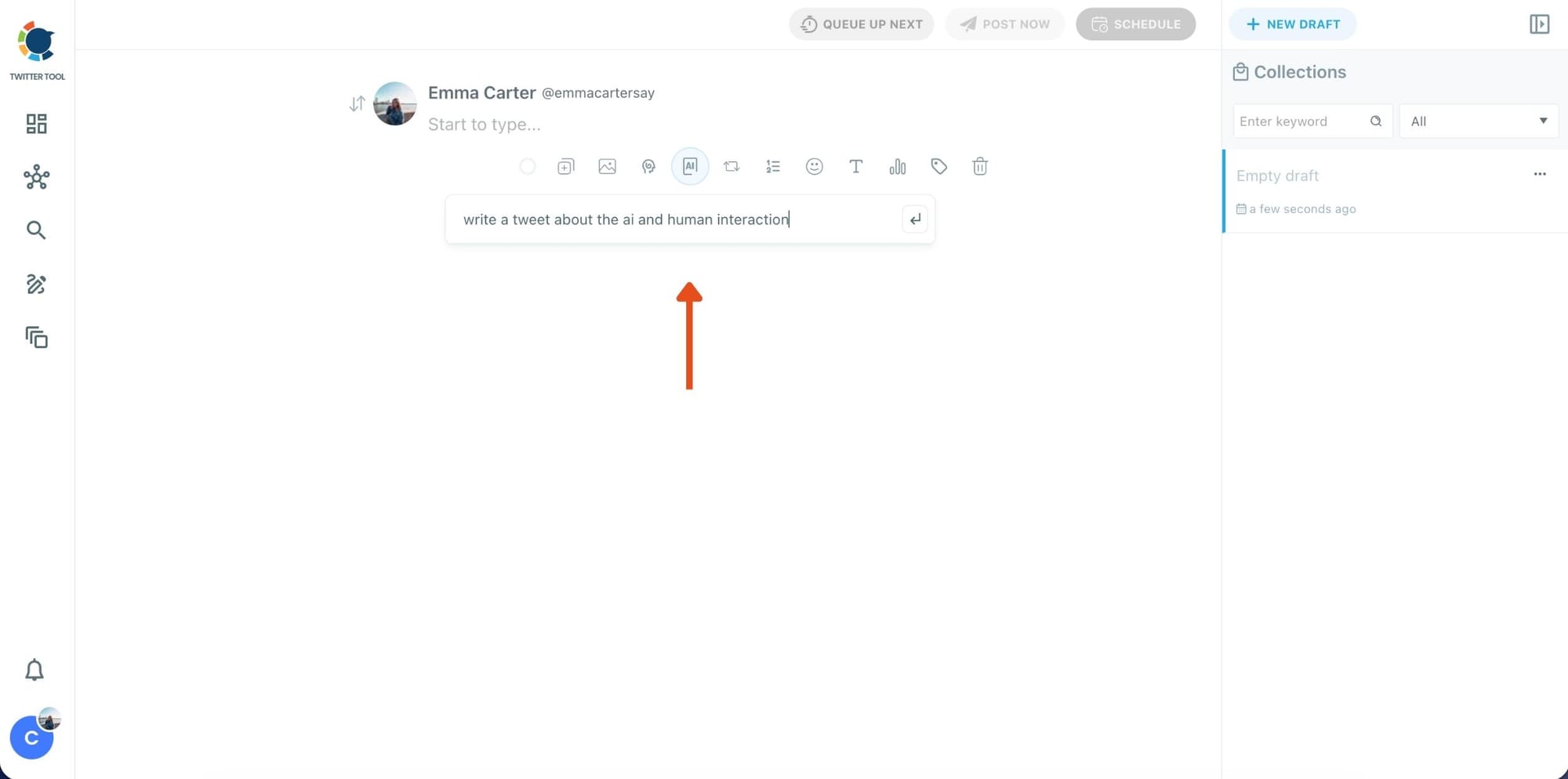
Step 2: Write your tweet (or generate one with AI)
You can type your tweet manually in the editor.
Or, if you want to move faster, click the AI option and let Circleboom generate a tweet idea for you based on your topic.
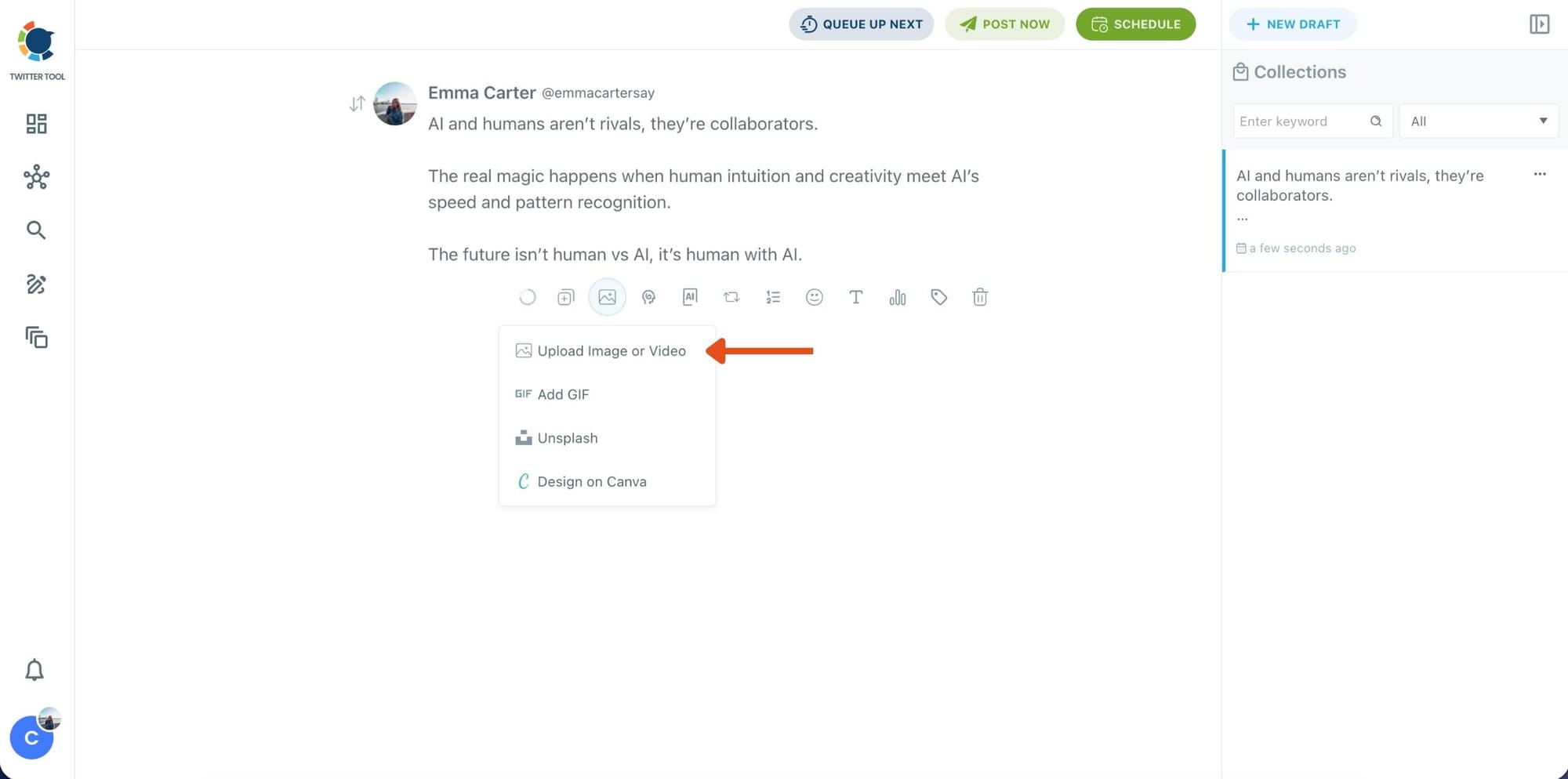
Step 3: Add an image to make the post more engaging
Once your text is ready, attach a visual to your tweet.
You can:
- Upload an image/video from your device
- Pick one from Unsplash
- Or design one instantly using Canva
Step 4: Style your tweet using Circleboom’s Font Generator
Now it’s time to make your tweet stand out visually.
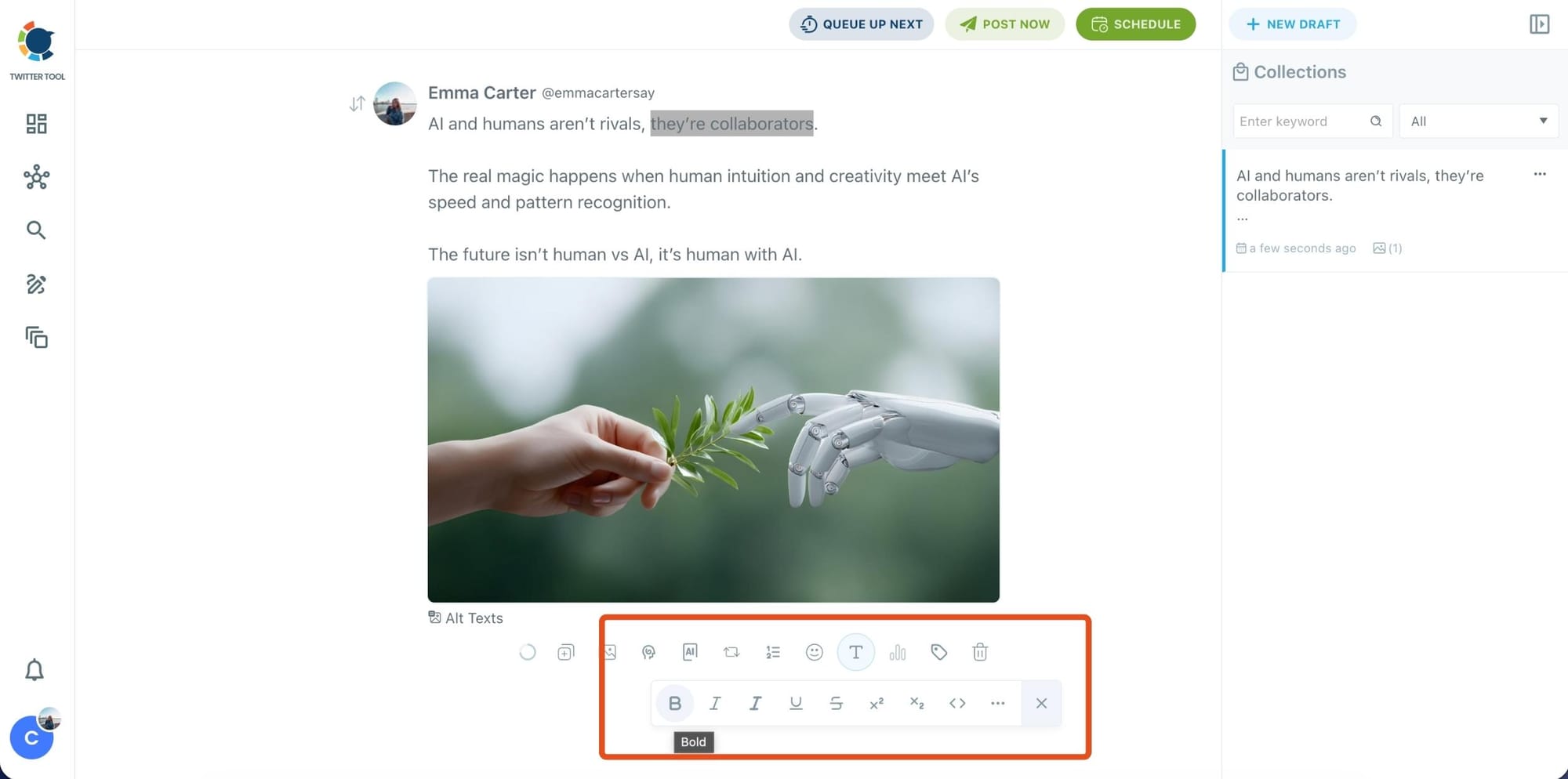
Select the part of your text you want to change, then open the Font Generator toolbar and apply styles like:
- Bold / Italic / Underline
- Different font variations
- Extra formatting options for a more “designed” look
This is perfect when you want key parts of your tweet to grab attention immediately.
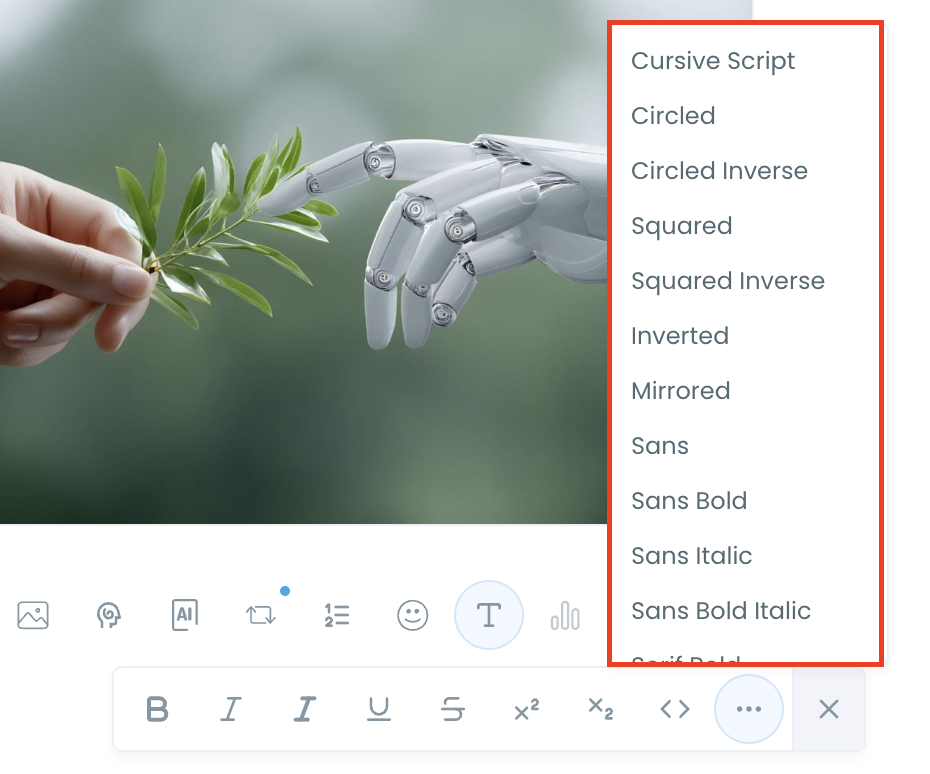
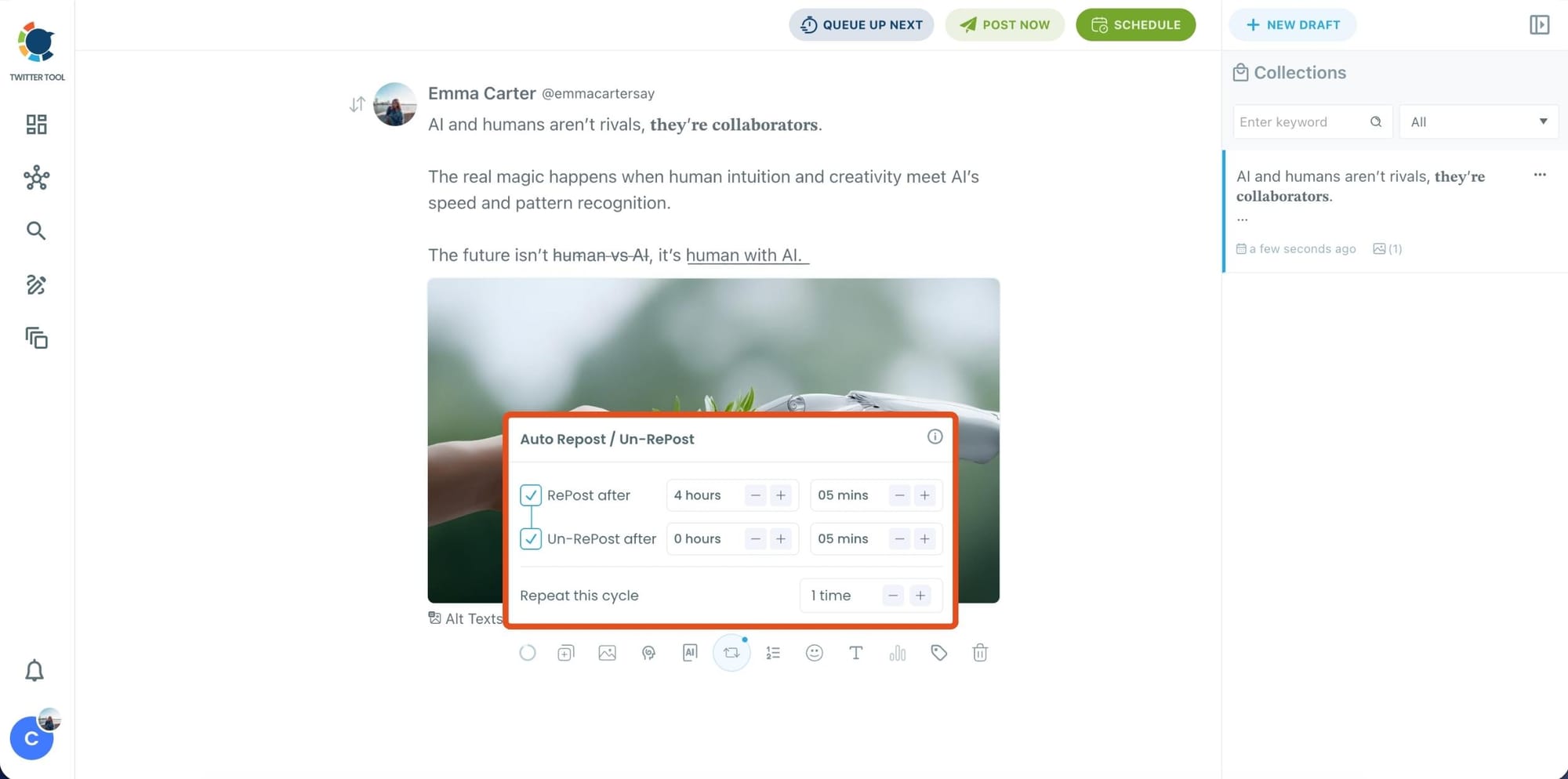
Step 5: Set Auto Retweets to boost visibility
After styling your post, you can increase reach by enabling Auto Repost / Un-RePost settings.
This lets you automatically:
- Repost your tweet after a selected time
- Remove the repost later
- Repeat the cycle if you want more than one repost
It’s a smart way to bring your tweet back into the feed without manually reposting it.
Bonus Tip: Cross-post your tweet to other platforms automatically
Before you publish, you can also enable Cross-Post to share the same tweet across multiple platforms in one go.
Circleboom lets you post your content to Instagram, Facebook, LinkedIn, Bluesky, and Threads automatically, so you don’t have to rewrite, re-upload, or repeat the same work on each platform.

Step 6: Schedule it for the best time to post
Finally, click Schedule and set your date and time.
You can also click Find your best posting time to see Circleboom’s suggested time slots based on follower activity.

Once you pick the best option, smart schedule it and you’re done. Your tweet will go out at the time it has the highest chance to perform well.
Final Thoughts
If you only want basic emphasis like bold and italic, X Premium can cover that.
But if you want the full text formatting styles people actually use to stand out on X like underline-style text, circled letters, boxed fonts, and clean headline-style hooks—then Unicode formatting is the real answer.
And the easiest way I’ve found to do it consistently is Circleboom Twitter.
Because it’s not just a font generator. It’s a full workflow:
- Font Generator for formatting
- X Post Planner for writing and planning
- Scheduling for timing
- AI Tweet Generation for speed
- Image Curation for stronger visuals
- Auto Retweeting for multiplied impressions
Once you use formatting in a clean way, your tweets start looking more structured immediately. And when people understand your tweet faster, engagement usually follows.
%20Text%20Formatting%20Guide%3A%20How%20to%20Use%20Different%20Fonts%20Like%20a%20Pro)
