
Yes. You can find Twitter accounts that tweeted about a competitor by searching X by tweet content instead of by profile, then pulling the accounts behind the matching tweets into one deduplicated list. People rarely put "frustrated with [competitor]" in their bio, but they say it in tweets, and that is exactly where the signal lives.
Circleboom searches public tweets on X by keyword, date range, and engagement, then extracts every unique account behind the matches into a single profile view you can filter, follow, or export. That is how you find Twitter accounts that tweeted about competitor names without scrolling X by hand.
→ find Twitter accounts that tweeted about competitor
The accounts who complained about an alternative last quarter are the warmest list organic research can produce.
Native X search shows you tweets, not a clean account roster. You can read mention after mention, but X never hands you a deduplicated, sortable, exportable list of the people behind them. Circleboom inverts the logic: it starts from what was said, then pulls together who said it. The whole feature sits inside the Advanced X Search menu, alongside the other discovery tools that search X by content and attribute rather than by handle.
Why Bio Search Misses Competitor-Aware Accounts
Profile-based search only matches what people declare about themselves. Someone whose bio says "operations lead" tells you their job title, not their opinion of your competitor. The account that tweeted "we're finally migrating off [competitor], the support wait times killed us" tells you something far more useful: active intent, a named pain point, and a reason to switch.
That distinction is the whole game. Bio search returns a category; tweet search returns a moment of decision. Circleboom, as an official X Enterprise developer partner, retrieves this public tweet history through the sanctioned API, so the data is compliant rather than scraped.
You already know this if you have tried to search specific words a Twitter account said. Intent hides inside post text that a profile will never reveal, and competitor mentions are the clearest example of it.
The result is a different segment entirely. You are not building a list of people who look relevant. You are building a list of people who already raised their hand, in public, about the exact product you compete with. Ready to find competitor-mention accounts on X?
What You Get Back: Tweets and the Accounts Behind Them
Every search returns two linked views of the same result set. The first is the tweet view, showing each matching post with impressions, likes, retweets, quotes, bookmarks, replies, and the creation timestamp. The second is the profile view, reached by clicking "Display Profiles of this search," which deduplicates the authors into a single account roster.
The profile view is where prospecting happens. It uses the same account table as the rest of Circleboom: follower count, following count, follow ratio, tweet count, join date, and an active-or-inactive classification. From there you can:
- Follow, unfollow, whitelist, or blacklist any account inline.
- Bulk-follow a selected set, gradually and within X rate limits.
- Add accounts to a Twitter List, mass block list, whitelist, or blacklist.
- Export the whole roster as CSV for CRM import or outreach sequencing.
Because the list is built from behavior, every account earned its spot. An account that complained about your competitor eight months ago is there because of that tweet, not because of a profile keyword. This is closer to a competitor's Twitter account analysis than to a generic follower dump, since the relevance signal is the statement itself.
If your real goal is sales prospecting, the export step is the payoff. Once the roster is clean, you can export Twitter accounts to CSV and drop them into a CRM, an outreach sequence, or a sales-intelligence workflow. The accounts arrive sorted by their own words, so your first message can reference the actual problem they posted about. That single difference, opening from a position of relevance, separates a competitor-mention list from a bought lead file.
What the Filters Actually Do Before You Collect
The filters are not decoration. Each one removes a specific kind of noise so the account roster stays clean, and the order you apply them in shapes the final list. Spend a minute here and the profile view repays it.
The keyword match type decides how literal the search is. Exact phrase catches the precise complaint wording, while contains or partial widens the net to catch variants. Exclude terms strip out the obvious false positives, such as your own brand name or an unrelated meaning of the competitor's word. The language filter keeps the list in markets you actually serve, and the verified-only toggle isolates accounts X has confirmed when you want a higher trust floor.
Then come the controls that change relevance most:
- Replies and links toggles separate original opinions from thread chatter and link-drops.
- Media type narrows to text-only tweets, which tend to carry the clearest stated intent.
- Engagement minimums on likes, retweets, and impressions surface the complaints other people reacted to.
- Date range scopes the whole search to the window when the conversation actually mattered.
Engagement minimums deserve special attention. A competitor complaint that drew fifty replies is a different signal than one that drew zero, because the reactions tell you the frustration resonated. Setting a floor of even a handful of likes filters a broad mention dump down to the statements that landed. That smaller, sharper roster is usually worth more than ten times the raw volume.
From Roster to Pipeline: What to Do Next
A clean export is the start, not the finish. The accounts you collected are warm because of what they said, so the next moves should preserve that warmth rather than burn it with a generic blast.
Segmentation comes first. Split the roster by what each account expressed, since a person who tweeted a hard cancellation note is at a different stage than one who only asked a comparison question. The CSV carries follower count, join date, and the active-or-inactive flag, so you can also separate reachable accounts from dormant ones before a single message goes out. From there, many teams route the high-intent rows straight into Twitter lead generation workflows and leave the curiosity-stage accounts for nurture.
Inside Circleboom, you do not have to leave to act. Add the strongest accounts to a Twitter List for ongoing monitoring, which is faster at scale when you add people to Twitter Lists in bulk rather than one at a time. A list keeps the cohort visible without forcing a follow, so you can watch the conversation continue and time your outreach to the next thing they post.
How to Find Twitter Accounts That Tweeted About a Competitor
The flow takes a few minutes, and the date range is what makes it precise rather than just a keyword dump.
Open the Search and Set Your Scope
- log in to Circleboom Twitter with your X account to reach the dashboard.

- Go to the Advanced X Search menu and choose Historical Tweet Search.
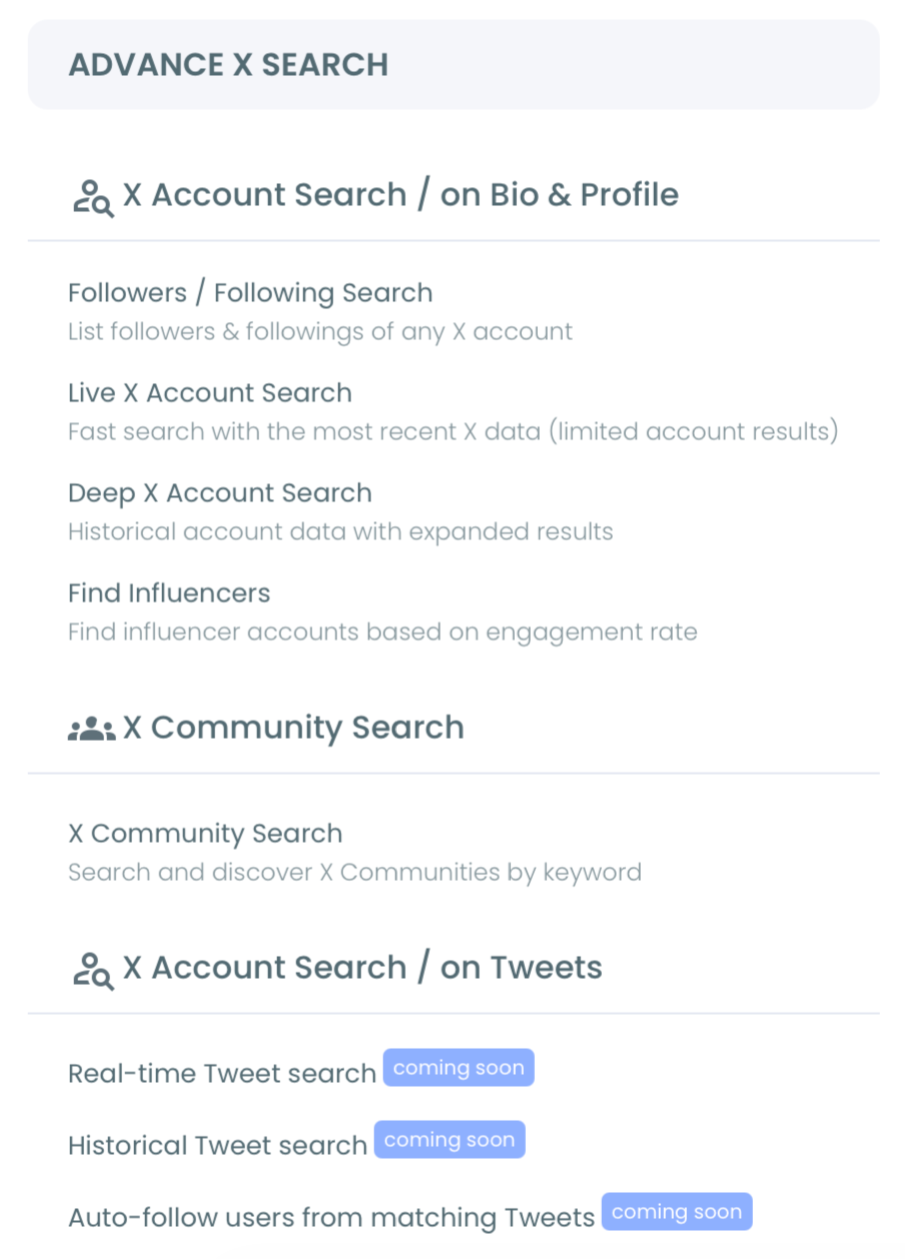
- Describe what you want in plain language, for example tweets mentioning your competitor's name or product, and accept or refine the AI search suggestions.
Narrow, Collect, and Pivot to Accounts
- Apply filters: exclude terms, language, replies, links, verified-only, media type, and engagement minimums to cut noise before you collect.
- Select a date range, whether the last 30 days or a custom window around a competitor incident, then choose how many tweets to collect.
- Review the collected tweets, then click "Display Profiles of this search" to pivot to the deduplicated account roster.
- Follow, add to a list, or export the accounts you want to act on.
The date range is doing the heavy lifting here. Scoping to the weeks after a competitor's outage or price change returns a tighter, angrier, more switchable list than a broad all-time search ever would. To go deeper on the mechanics, see how to search Twitter history across long time windows.
X's own advanced search supports the same building blocks at the manual level, with operators for keywords, dates, and mentions. The difference is what happens after the query runs. On X you get a scrollable feed of tweets; in Circleboom you get the deduplicated account list those tweets belong to, ready for filtering and export. For a brand monitoring an alternative continuously, that account-level output is the part that turns reading into a repeatable workflow.
See It in Action
This walkthrough shows the historical tweet search flow end to end on X.
Watching the tweet-to-profile pivot once makes the whole workflow click, especially the moment the tweet list collapses into a clean account roster.
A Few Limits Worth Knowing
Only public tweets are returned. Private, protected, or deleted posts cannot be retrieved, and historical coverage depends on what the X Enterprise API has indexed for the window you pick. The tweet count you request controls collection size, not the number of unique accounts: 500 tweets from 50 authors returns 50 profiles.
Searches and exports both consume tokens, so check your balance before pulling a large set. And not every matched account is a qualified prospect, since the tweet hit your keyword but the context may be off. Always review profiles before any bulk follow, and space follows out to stay inside X's spam thresholds. The same care applies whether you are prospecting or running a broader influential users on a specific topic and region search.
The Short Version
Finding Twitter accounts that tweeted about a competitor rests on one shift: search by content, not by profile. Native X search shows the tweets but never hands you the people. Circleboom collects the matching tweets through the official X API, deduplicates the authors, and gives you a filterable, exportable account list scoped to any date range. Set the keyword, pick the window, pivot to profiles, and act on the warmest competitor-aware list organic research can build.
→ find Twitter accounts that tweeted about competitor
Common Questions About Finding Competitor-Mention Accounts
Can I find accounts that complained about a competitor specifically?
Yes. Search for the complaint language people actually use, such as the competitor name plus terms like "switching," "cancel," or "support," and add engagement minimums to catch the loudest tweets. The profile view then gives you the accounts behind those exact statements.
Does this only cover recent tweets?
No. Historical Tweet Search is built for depth across time. You can scope to the last 30, 60, or 90 days, a full year, or a custom window, which is what makes competitor-incident research possible months after the fact.
Can I export the accounts I find?
Yes. The profile view exports to CSV, which fits CRM import, outreach sequencing, or sales intelligence. Export consumes tokens separately from the search, so confirm your balance before pulling a large list.
Is this allowed under X's rules?
Yes. Circleboom retrieves only public tweet data through the sanctioned developer access it holds with X, with no scraping involved. Actions like bulk follow remain subject to X's standard rate limits, which is why spacing them out matters.
How many tweets should I collect to get a useful account list?
It depends on how loud the conversation is. Because the tweet count sets collection size and not the number of unique accounts, a few hundred tweets around a focused competitor incident often yields a tighter roster than thousands of broad mentions. Start narrow with tight keywords and engagement minimums, check how many profiles the search returns, then widen only if the list is thinner than you need.
Do searches and exports cost the same tokens?
No. The search itself consumes GetTweetTokens proportional to the tweets it collects, and the export draws tokens separately when you download the CSV. If your balance runs out mid-collection, the search stops at that point and the partial results are still saved, so you never lose what was already gathered. Check the remaining balance shown during setup before pulling a large competitor window.