Most teams pick their content planning tools for the planning and then discover the plan does not publish itself. The spreadsheet holds the month, the board holds the approvals, and someone still copies every post into every platform by hand.
This guide compares the three tool types by where each one stops, so you can see which gaps your current setup leaves open.
Spreadsheets and boards: plan the month, then leave every post to be copied into each platform by hand. Circleboom Publish: schedules the same plan to LinkedIn, Facebook, X and seven more platforms in one send, with queue slots and team approval built in.
→ Move your content plan from the spreadsheet into a scheduler that publishes it
The comparison table, the hand-off count and the move-in steps follow.
How I built this comparison: I compared four tool types (spreadsheets, boards, native platform schedulers and multi-platform schedulers) against five criteria:
- Does it publish on its own?
- Does it post to several platforms in one action?
- Does it have a team approval step?
- Does it show the plan as a calendar?
- What does it cost to start?
Sources were Microsoft Support, LinkedIn Help and DataReportal, the public pricing pages of Trello and Buffer, and Circleboom's own product documentation. Prices and limits were checked in October 2026.
Why content planning tools leave the publishing to you
The problem with most content planning tools is that "planning" ends where the work starts. A plan is a list of decisions: what goes out, where, and when.
Publishing is the repeated labor of carrying out those decisions, and that labor grows with every platform you add.
A team posting to a LinkedIn Page, a Facebook Page and an X account has three publishes for every planned post. Twelve planned posts a month become thirty-six separate publishes, and none of the planning tools below does any of them for you except the schedulers.
That gap matters more each year, because audiences are spread out. According to DataReportal's global overview, an average online adult is active on 6.75 social platforms a month.
A planning setup built around one platform at a time is built for a reader who no longer exists. The fix is simple.
Keep the planner you like and automate the publishing step your planning tools leave to you, so the plan and the live posts stay the same thing.
Content planning tools compared side by side
Here is the summary view before the detail. The table covers the three tool types plus the two kinds of scheduler, because "scheduler" means two different things depending on whether it posts to one platform or many.
| Tool type | Publishes posts itself | Team approval | Cost to start |
|---|---|---|---|
| Spreadsheet (Excel) | No | By convention only | Often already owned |
| Board (Trello) | No | Move a card by hand | Free up to 10 collaborators |
| Native scheduler (LinkedIn Page) | Yes, one Page at a time | No approval step documented | Free |
| Per-channel scheduler (Buffer) | Yes | Depends on the plan | Free for 3 channels, then per channel |
| Circleboom Publish | Yes, 10 platforms in one send | Admin approves User posts | Paid membership |
Only the two scheduler types publish, and only the multi-platform one turns one planned post into one action.
Spreadsheets: the free, flexible starting point
A spreadsheet is the most common first content planning tool, and for good reason. Microsoft's guide to creating a calendar from a template shows the route: search the templates for "calendar" and click Create.
Those templates are general calendars, not social calendars, so you add the columns yourself: date, platform, pillar, copy, link, status.
The strength is total flexibility. The weakness is that a spreadsheet stores decisions and does nothing with them. Every row still needs a person to copy it into each platform, and "approved" is whatever color the team agreed to use.
Spreadsheets are also where most idea sourcing ends up, pasted in from wherever the idea came from. If finding material is the slow part of your week, our roundup of content curation tools covers the tools that feed ideas into a plan.
Boards: visibility and approvals, still no publishing
A board such as Trello turns each post into a card that moves through lists like Draft, Review and Approved. Trello's free plan allows up to 10 collaborators per Workspace and 10 boards per Workspace.
The Standard plan is $5 per user per month billed annually, and the Premium plan at $10 per user per month adds the Calendar, Timeline and Table views.
Boards are good at the part spreadsheets are bad at: everyone can see what is waiting and who has it. But an approved card is still a card.
Someone opens each platform and publishes it by hand, and the card's due date does not post anything.
Teams that plan visually, with a grid preview before anything goes live, often weigh boards against dedicated planners. Our comparison of Instagram planner tools covers that visual-first route.
Native platform schedulers: free, but one platform at a time
Almost every major platform now has its own scheduler, and they cost nothing. LinkedIn's help page on scheduling posts on LinkedIn lets a Page schedule posts from one hour to three months ahead. It cannot schedule polls, posts with multiple photos or events for a Page.
The catch is the scope. A native scheduler publishes to one account on one platform at a time. Three platforms mean three schedulers, three logins and three copies of every post, and nothing shows the whole plan in one place.
Multi-platform schedulers: where the plan and the publishing meet
A multi-platform scheduler is the only content planning tool type that both shows the plan and publishes it. The two models differ mostly in pricing.
Buffer, for example, is free for up to 3 channels with 10 scheduled posts per channel, and its Essentials plan is $5 per month per channel, so the cost grows with each account you add.
Run the earlier example through that model as an illustration. Scheduling twelve planned posts a month ahead on each of three channels goes past the free plan's 10 scheduled posts per channel.
The team moves to Essentials at $5 per channel, about $15 a month for three accounts, and the bill rises with every account added after that.
For the general case for this category, our guide to the benefits of social media scheduling tools covers why scheduling ahead changes how consistent an account can be.
Circleboom Publish takes the other route: one composer for ten platforms, and one post can go to any mix of connected accounts in a single send. That is proven at real scale with 30 Facebook Pages in one send.
Where each planning tool stops in the plan-to-post chain
The useful question is not "which tool is best" but "where does each tool stop." Every post moves through the same six stages, and each tool type covers a different stretch of them:
| Stage | Spreadsheet | Board | Circleboom Publish |
|---|---|---|---|
| Idea and draft | Row and cell | Card | Draft in the composer |
| Approve | Color or comment | Move the card | Admin approves or rejects |
| Schedule | No | Due date only | Date, queue slot or best time |
| Publish | No | No | Yes, 10 platforms |
| Review | Typed in by hand | Typed in by hand | Post analytics |
Every "No" in that table is a hand-off: a moment where a person copies the post from one tool into another. Here is an illustrative count for one planned post going to a LinkedIn Page, a Facebook Page and an X account with a spreadsheet, a board and native schedulers:
- Copy into the board: one hand-off from the sheet to a card.
- Approval: one hand-off when the card moves and someone is told.
- Publishing: three hand-offs, one native scheduler per platform.
- Status back in the sheet: one hand-off to mark it done.
That is six manual hand-offs per post. A twelve-post month is seventy-two of them, and each one is a chance to paste the wrong link or skip a platform.
Move the scheduling and publishing into one multi-platform scheduler and the same post needs one hand-off: the copy goes into the composer once, and approval and publishing happen in the tool that sends it.
You do not have to give up the planner to get there. Keep the sheet or the board for thinking, and add a scheduler to your content planning tools for everything after the decision.
Can teammates draft posts and wait for approval in a scheduler?
Yes. In Circleboom Publish, a teammate with the User role can write and schedule posts, but nothing they schedule goes out on its own. It lands in a Waiting for Approval tab until an Admin approves it, or rejects it with a reason.
That is the job most teams buy a board for, and team management covers it inside the tool that publishes. Only two roles exist.
An Admin acts at once and sees every account in the team, while a User sees only the accounts assigned to them. Each Team is its own workspace, so an agency can keep one client's accounts and posts fully apart from another's.
The other half of the team question is headcount. Many tools charge per seat or cap the number of collaborators. Our comparison of user seat limits in collaborative social media management tools lays out how those caps differ.
In Circleboom, the team member count is a plan-based cap shown as a usage counter in Team Settings.
For the X part of the plan, the access question matters too. Circleboom is listed on X's Enterprise customer directory, so teammates post to X through approved access rather than a shared password or an unofficial workaround.
How to move your plan from content planning tools into a scheduler
The move takes one sitting, and the spreadsheet or board stays as your thinking space. Circleboom Publish does not import a spreadsheet, so each planned row is rebuilt as a post on its date in the Outbox calendar.
Set up the accounts and the queue first, then rebuild the posts, then decide how each one goes out.
Watch first: how the recurring queue slots work, the part a spreadsheet or board can never run on its own.
The process, step by step.
Connect the accounts and set the queue before any posts
- Log in to Circleboom Publish and connect each account your plan covers, such as the LinkedIn Page, the Facebook Page and the X account.

- Open Time and Queue Settings and set recurring time slots for each account, then click Add Best Times to Post so the slots follow each account's own audience.
Rebuild the planned posts on the calendar view
- Switch the Outbox to Calendar View in Month view and click "+" on the date of the first planned post.
- Pick Create New Post on All Platforms in the "Create new post for [Date]" window to open the universal composer.
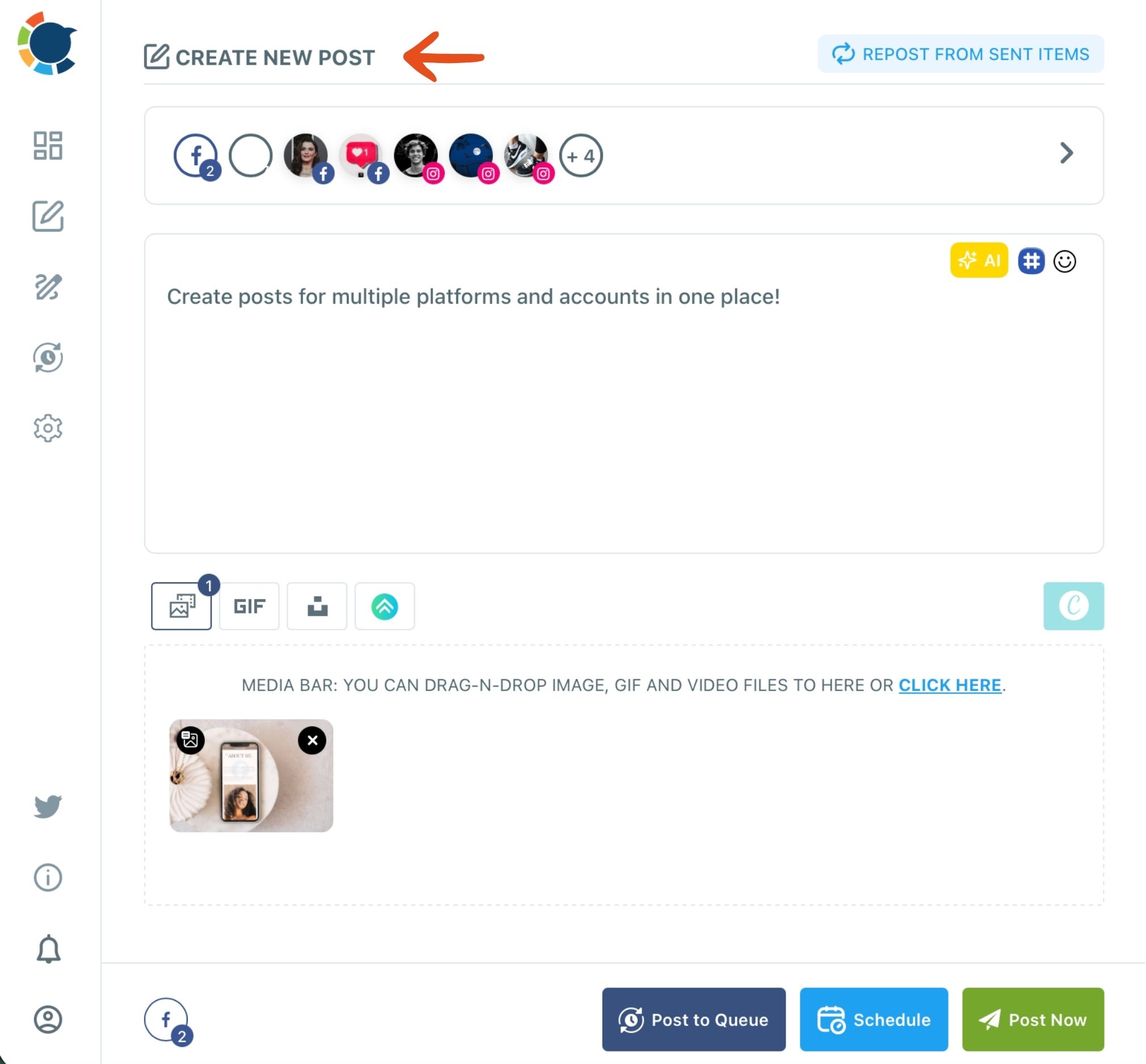
- Select the accounts the planned row names, paste the copy and check every tab in the Post Preview panel for truncation.
Decide how each planned post goes out
- Click Schedule for posts tied to a date and pick a slot from "Pick your best post time," or click Post to Queue for posts that can go out any day.
- Save as Draft any row still waiting on copy or a teammate's approval.
That order works because the queue exists before the first post, so Post to Queue never stops to ask for a time. Rebuilding on the calendar date keeps the plan and the Outbox matched row for row, and the preview check catches a post that is too long for X before it goes out instead of after.
Quick recap:
- Connect accounts and set queue slots.
- Rebuild each row on its date in the calendar.
- Schedule dated posts, queue the rest, draft the unfinished ones.
Once the month is in, the calendar becomes your new planning surface. The Week and Month views filter by Post Type, Platform, Social Account and Share Group, so a thin week or a platform with nothing scheduled stands out at a glance.
An empty day is one click on "+" away from a new post for that date.
If your plan is long, do the rebuild in one batch instead of a few rows a day. Writing and scheduling a whole stretch of posts in one session is what batch social media content is built for.
The verdict: keep your planner, add a scheduler that publishes
No single content planning tool type wins every row. Spreadsheets win on flexibility and cost, boards win on visibility, and native schedulers win on price for one platform. Only a multi-platform scheduler closes the gap between the plan and the live post.
My recommendation is a pairing, not a replacement. Plan where your team thinks best, then hand every decided post to one scheduler that publishes to all your platforms, holds teammates' posts for approval and shows the month in one calendar.
If you want to compare specific products in that last category, our list of best social media scheduling tools is the next read.
Pick your planning setup by situation
Your situation decides the setup, so start from the one that matches:
- If you plan alone for one platform, a spreadsheet and that platform's native scheduler are enough.
- If you post to three or more platforms, keep your planner and move scheduling into one multi-platform scheduler.
- If teammates or clients approve posts, use a scheduler with an approval step instead of a board.
- If you are rebuilding a long plan, batch it in one sitting so the Outbox matches the plan from day one.
The most common mistake is buying a second planner when the real gap is publishing. A better board will not post a single update for you.
→ Schedule your planned content across every platform
Planning tool questions
How do I keep the queue full after I move my plan?
Add Best Times to Post fills each account's recurring slots, so every new post you send with Post to Queue drops into the next open slot. The slot setup itself is explained in time zone and queue settings.
Do I have to connect every platform before moving my plan?
You can rebuild posts as drafts first, but a post can only be scheduled to accounts already connected in Circleboom Publish. The steps per platform are in connecting your social accounts.
Does one planned post fit every platform's limits?
Not always, because one post sent everywhere must respect the strictest limit, and X allows 280 characters on a standard account, and Circleboom Publish takes up to 1,300 for a LinkedIn post. The full list is in text and media limitations on Circleboom Publish.