

You add each location in Google as its own Business Profile, then connect all of them to one composer that sends a single post to every location you select.
How to add multiple locations on Google My Business: create one Business Profile per location in Google, one by one or by spreadsheet import once you have 10 or more. Circleboom Publish then connects those Google Business Profiles and posts one Standard update, Event or Offer to all selected locations in a single action.
→ Post to multiple Google My Business locations at once
The sections below cover Google's side, the connection, and which branch should get which post.
How locations are added on Google's side
Each physical location gets its own Business Profile on Google. There is no single profile with several addresses inside it.
The method depends on how many locations you have. Google's page on managing locations in bulk sets the line at 10.
A business with 10 or more locations can add, verify and manage them in bulk, starting from a business group that holds them. A business with fewer locations adds each one separately in Business Profile Manager.
The bulk route is a spreadsheet import inside Business Profile Manager. You download Google's template, fill in one row per location, upload it and review a preview of the changes before applying them.
Google asks for a business code, a name and a primary category on every row, and wants the category kept the same across all your locations.
A branch that Google Maps already lists is claimed rather than created again. Adding multiple locations on Google My Business works best when every real storefront ends up with exactly one profile.
Each new location also goes through Google's verification before you control how it shows on Google. That step happens entirely inside Google.
Once the profiles exist, the question changes from "how do I add them" to "how do I keep all of them posting." Google rewards a steadily active profile, so every branch needs its own stream of posts.
That is the point where it pays to bring multiple locations on Google My Business into one posting tool rather than handling them one login at a time.
What Circleboom Publish does with several Google Business Profiles
Circleboom Publish posts to multiple Google Business Profiles from one Google Business Specific composer, which is what makes multiple locations on Google My Business manageable week after week.
If exactly one profile is connected, the composer pre-selects it. If several are connected, an account-selection panel appears and you tick as many locations as the post should reach.
The composer covers all three Google post types through one dropdown, "Is this a Google My Business Event or Offer?":
- Standard: a text post with an optional button (Call Now, Learn More, Book, Sign Up, Order Online or Buy).
- Event: a title, optional start and end dates and times, and an optional button.
- Offer: a title plus an optional coupon code, Redeem Online link, terms and validity window.
Circleboom Publish also stores recurring selections as Share Groups, named bundles of accounts that one click selects. They are created under Settings in Manage Share Groups and used in the composer under Select by Share Group.
To post to multiple Google Business Profiles with one send, those groups are the shortcut that matters most.
Scheduling a Google Business post from start to finish, the same flow each multi-location send runs through:
Which Google Business Profile locations should get which post?
Every post goes to one of three audiences: all locations, a group of locations, or a single location. Pick the audience first, then the Share Group follows, and the identical-content rule tells you what the text may contain.
| The post | Send it to | The rule that keeps it accurate |
|---|---|---|
| A chain-wide Offer with one coupon code | The group with every location | Same code, terms and dates everywhere; no branch address in the text |
| A city update, such as a festival weekend in one city | That city's group | Name the city, not a street; each listing already shows its own address |
| One branch's Event, such as a tasting night | That branch only | Date, time and place belong to one listing; sent wider, it misleads |
| A general tip or seasonal product | Every location | Fine to share; ask the AI writer for a local version per branch if you want variety |
A multi-profile send carries the same content to every selected location. Circleboom Publish does not swap in different text per location within one send, which is why the third column exists. Anything that differs between branches stays out of shared posts or goes in a branch-only send.
A dental chain with eight clinics shows how the groups stack: one group per clinic, one per city, and one with all eight. Headquarters sends the chain-wide Offer to the full group while each clinic posts its own Events.
Restaurant groups face the same split between brand-wide menus and one kitchen's special nights. It is one of the first things to check when weighing tools for managing multiple restaurant social media accounts.
Building the groups before the first send
Groups are worth setting up before the first multi-location post, not after a mistake. A practical starting set has three layers:
- One all-locations group for brand-wide Offers, seasonal products and general tips.
- One group per city or region for updates that apply to an area.
- One group per branch for Events and anything tied to a single address.
Name each group the way people already talk about the branches, such as "All shops", "North side" or "Harbor branch", so the right one is obvious in the composer.
The Outbox Calendar View can also be filtered by Share Group, which turns each group into a quick review: open the all-locations group's month and see whether brand-wide posts are spread evenly.
When one branch's news still deserves a wider post
Some news starts at one location but matters to every customer. A new branch's opening day is the usual case.
The opening Event, with its date and time, goes only to the new branch's profile, because that is where people will turn up. A short Standard post announcing the new location can still go to every branch, since loyal customers of the older shops are exactly the people who will try the new one.
Two posts, two groups, one message.
When a branch manager should post only for their own location, Circleboom's Team Management assigns them that branch's accounts alone, with Admin approval available before anything goes live.
How many Google Business Profile locations can you connect?
Each location you connect counts toward your plan's total account allowance. Settings, then Manage Social Accounts, shows a CONNECT NEW ACCOUNT button and a usage indicator measured against that allowance.
Each location connects as its own Google Business Profile account.
When a new branch opens later, connecting it is only half the step. Add it to the all-locations group and to its city group at the same time; otherwise the next chain-wide Offer goes out to every branch except the newest one.
A brand that runs Facebook alongside Google often has one Page per branch too. The same account list is how teams manage multiple Facebook accounts without separate logins.
Agencies hit the same allowance question from another angle. A local marketing agency running Google Business Profiles for several clients usually creates one Share Group per client, with every location of that client inside it. Each client's profiles then stay apart from every other client's, so a post never reaches the wrong business.
When different staff work on different clients, Team Management can give each client its own Team, and someone assigned to one client never sees the others' accounts.
The broader tool to manage multiple social media accounts keeps the Google profiles and the Facebook Pages for every branch side by side.
How to add multiple locations on Google My Business to one composer
Connecting each location once lets you post to all of them from one place. The process below runs in three phases: connect the profiles, send one post to the right group, then check that every location got it. Six steps cover the whole loop.
Connect every location once
- Log in to Circleboom to reach the dashboard that will hold all of your Google Business Profile locations.
- Go to Settings, then Manage Social Accounts, and use CONNECT NEW ACCOUNT for each Google Business Profile location you want to post to.
Send one post to the right group
- Open the Google Business Specific Post composer and choose a saved group under Select by Share Group, or tick the locations one by one.
- Pick the post type in the "Is this a Google My Business Event or Offer?" dropdown and write the post, by hand or with the AI button.
- Click Schedule and choose a date and a slot from "Pick your best post time," or use Post to Queue to drop it into each profile's next open slot.
Check that every location got the post
- Open the Outbox List View and confirm each day shows a scheduled post for every selected location.
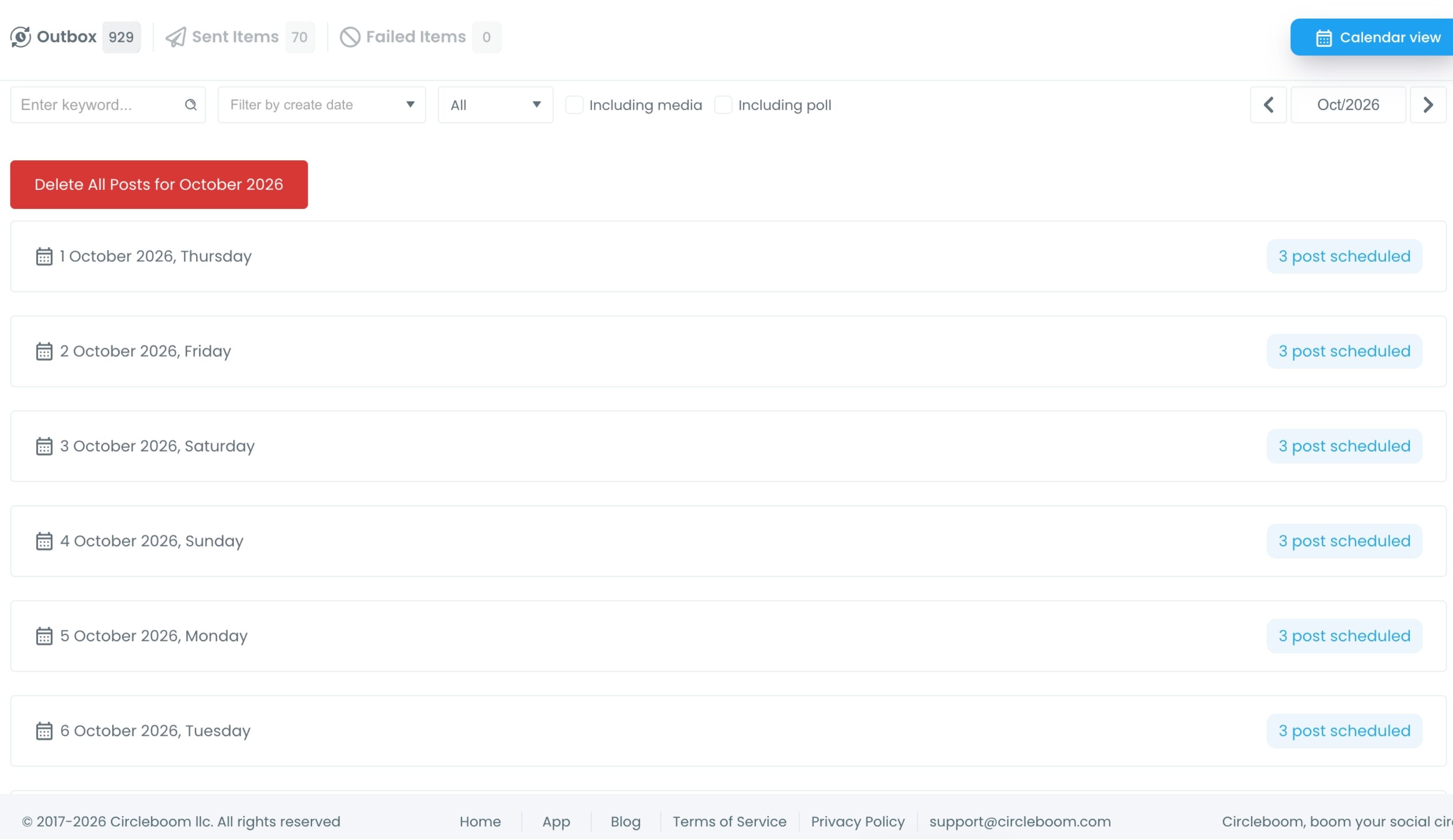
The List View groups scheduled posts by day with a count for each day, so a day with fewer posts than expected stands out.
Checking the list after the send matters because the group, not the post, decides who receives it, and a group that is missing a location simply skips it.
In short: connect once, group the locations, write once, schedule, then check the Outbox.
Each location's own timing also carries through. The Queue is set per profile, so a post sent to five branches through Post to Queue lands in each branch's own next slot rather than at one shared hour.
Does Google's business group already do this?
Partly. Google's business group manages who can work on which profiles: according to Google's page on business group owners and managers, owners and managers can both add, edit and delete profiles in the group, and only owners manage the people.
Google's own dashboard also posts and schedules natively.
What Circleboom Publish adds on top of the business group
What Circleboom Publish adds is the posting routine around those profiles:
- Saved Share Groups, also usable as an Outbox filter.
- Six suggested best times per location, and a Queue configured per profile.
- AI-written versions of one post for each branch.
- The same news sent to Facebook, Instagram and the other platforms from one Outbox calendar.
So the business group stays where you manage access and profile details, and the posting moves to a tool built for sending. If you are comparing that kind of tool, a roundup of the best tools to manage Google posts for small businesses lays out the field.
Timing is the clearest difference in practice. A downtown branch and a suburban one rarely draw searchers at the same hour, and Circleboom Publish keeps a separate set of suggested times and a separate Queue for each, so one send can still land at two different moments.
The split works best when the person who owns the Google business group is not the person who writes the posts.
Each keeps their own job, and nobody needs every password.
Brands with a Facebook Page per branch can extend the same one-send habit there and post to multiple Facebook Pages from the same account list.
For a steady baseline between planned posts, the option to auto post to Google Business Profile keeps each location's Queue working without a daily login.
Post to Queue drops a post into each selected profile's next open slot, so the quiet days of the week never go empty.
Which route fits your brand
Running multiple locations on Google Business Profile looks different at each size, so match your situation to one line and start there:
- If you have fewer than 10 locations, add each one in Business Profile Manager, then connect them all to Circleboom Publish.
- If you have 10 or more, create a business group in Google and import the locations in bulk before connecting them.
- If most of your posts are the same for every branch, save one all-locations Share Group and send each post once.
- If branches run their own Events, keep one group per branch and send those posts only there.
- If branch managers want to post themselves, give each one access to their own location through Team Management.
Whichever line fits, once you add multiple locations on Google Business Profile, the Google Business Profile post scheduler is where the sends happen.
→ Post to every Google My Business location at once
Common Questions on running many Google Business Profiles
Is it a problem to send the same text to every branch?
No. Identical text is allowed on Google Business Profile, and the send reaches every selected location. A local version per branch reads better, though, and the AI writer can add a neighborhood detail to each one.
Can I plan a whole month for every location in one sitting?
Yes. Prepare the posts one after another in the composer, give each its own date in the Schedule modal, send each to the right Share Group, and review the month in the Outbox's Calendar View.






)