

If you’ve ever tried creating a LinkedIn slide post from scratch, you know the annoying part is not writing the content.
It’s starting with a blank design and having to decide how everything should look.
The AI Carousel Generator, which turns your words into images, removes that completely.
Instead of building slides manually, Circleboom gives you professionally designed carousel templates that already look clean, balanced, and “LinkedIn-ready.” You pick a style that fits your topic, and then you simply fill in the text.
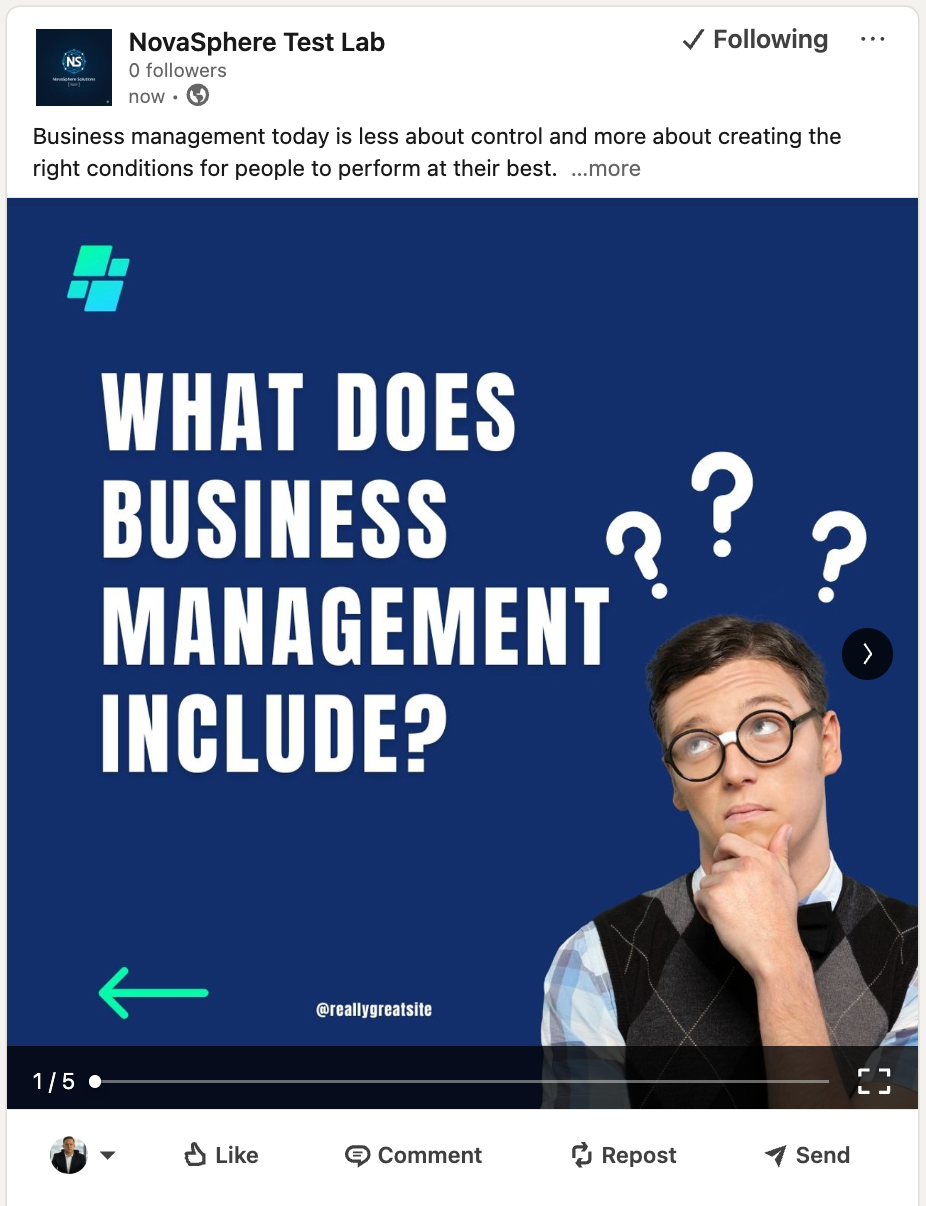
That’s the core idea:
You don’t waste time designing from zero.
You focus on delivering the message, and the design supports it automatically.
Even better, you can adjust and improve your slide text using AI help inside the same flow. So if a slide headline feels too weak, or a sentence feels too long, you can rewrite it quickly without leaving the tool.
This turns carousel creation into something that feels practical, not exhausting.
 Altug Altug
Why Slide Posts Work So Well on LinkedIn
There’s a reason you keep seeing carousel posts everywhere, especially from creators and professionals who consistently get strong engagement.
Slide posts fit how people behave on LinkedIn today.
Most users don’t open LinkedIn thinking, “Let me sit down and read a full report.”
They open LinkedIn the same way they open any modern platform: quickly scanning, scrolling, saving interesting things, and moving on.
That doesn’t mean people don’t want deep content. They actually love deep content.
 Kevin Frank
They just want it delivered in a way that feels easy.
That’s exactly what a slide post does. It takes something complex and gives it structure.
Instead of dropping everything in one long paragraph, you guide the reader through your insights one by one. Each slide feels manageable, and each swipe feels like progress.
It’s basically the difference between dumping a PDF on someone’s desk… and walking them through the highlights in a short presentation.
A Quick Comparison of LinkedIn Post Types (And Why Carousels Stand Out)
Before creating my carousel, I quickly compared LinkedIn’s post formats to make sure I wasn’t missing a better approach.
- Text posts are great for simple ideas, short stories, or opinions, but longer “report-style” content often feels like work—so people skip it.
- Link posts help drive traffic elsewhere, but many users don’t like leaving LinkedIn, and reach can be weaker.
- Articles/newsletters build authority, but they require more attention than most people give during a scroll.
- Single-image posts work for one strong message, but reports usually need structure and multiple insights.
- Carousels hit the sweet spot: they keep users on LinkedIn, break info into bite-sized slides, and boost time spent through swiping, perfect for research summaries, frameworks, case studies, and learnings.
LinkedIn is an ideal place to share your research papers. It is because there are professionals who will read them, share them, recommend them and improve them. I think one of the reasons that I like LinkedIn so much is that it doesn't have a bookmark feature (or there is but I don't know). When I see an interesting post, I read it. I don't save it for later. (I know there are other ways to save it but they are time-consuming). So, when you need hot reactions, LinkedIn is the best.
 Altug Altug
What Makes a Carousel Feel “Professional” Instead of Random
One thing I noticed when I started paying attention to slide posts is that the best ones don’t just look nice.
They flow nicely.
It feels like someone planned it. The story moves naturally, the design feels consistent, and every slide has a purpose.
That’s why, when you create your own carousel, you don’t want it to feel like a collection of disconnected thoughts. You want it to feel like a small, well-structured presentation.
A simple way to do that is to build your carousel like this:
- Start with a strong opening that tells people what they’ll get
- Break the content into clear, bite-sized ideas
- Build momentum as the slides go on
- End with a conclusion or takeaway that makes people react
When a carousel is built like that, it doesn’t matter whether the topic is finance, tech, marketing, or product growth, the structure makes it easy to consume.
The Tool I Used: Circleboom Publish (And Why It Made Everything Easier)
Circleboom Publish is a social media management tool that allows you to manage multiple accounts across multiple platforms. But the main reason I use it isn’t just publishing.

To me, the platform feels more like a content creation workspace.
Instead of switching between a writing tool, a design tool, and LinkedIn itself, I can handle most of the workflow from one place. That includes creating content, improving it with AI, and publishing it strategically.
Circleboom Publish has built-in AI tools that are trained to help with social content specifically, so you’re not just generating random text, you’re shaping content that’s designed to perform in a feed environment.
It also includes image creation features that feel similar to a canvas workflow, which is helpful when you want to turn text-based ideas into visuals.
But the feature that made the biggest difference for this process was the AI Carousel Generator.
 Altug Altug
What Circleboom’s AI Carousel Generator Actually Does
If you’ve ever tried creating a LinkedIn slide post from scratch, you know the annoying part is not writing the content.
It’s starting with a blank design and having to decide how everything should look.
The AI Carousel Generator removes that completely.
Instead of building slides manually, Circleboom gives you professionally designed carousel templates that already look clean, balanced, and “LinkedIn-ready.” You pick a style that fits your topic, and then you simply fill in the text.
That’s the core idea:
You don’t waste time designing from zero.
You focus on delivering the message, and the design supports it automatically.
Even better, you can adjust and improve your slide text using AI help inside the same flow. So if a slide headline feels too weak, or a sentence feels too long, you can rewrite it quickly without leaving the tool.
This turns carousel creation into something that feels practical, not exhausting.
How I Created My LinkedIn Slide Post Using Circleboom (Step-by-Step)
Once I decided to share my analysis as a carousel, the workflow became very simple.
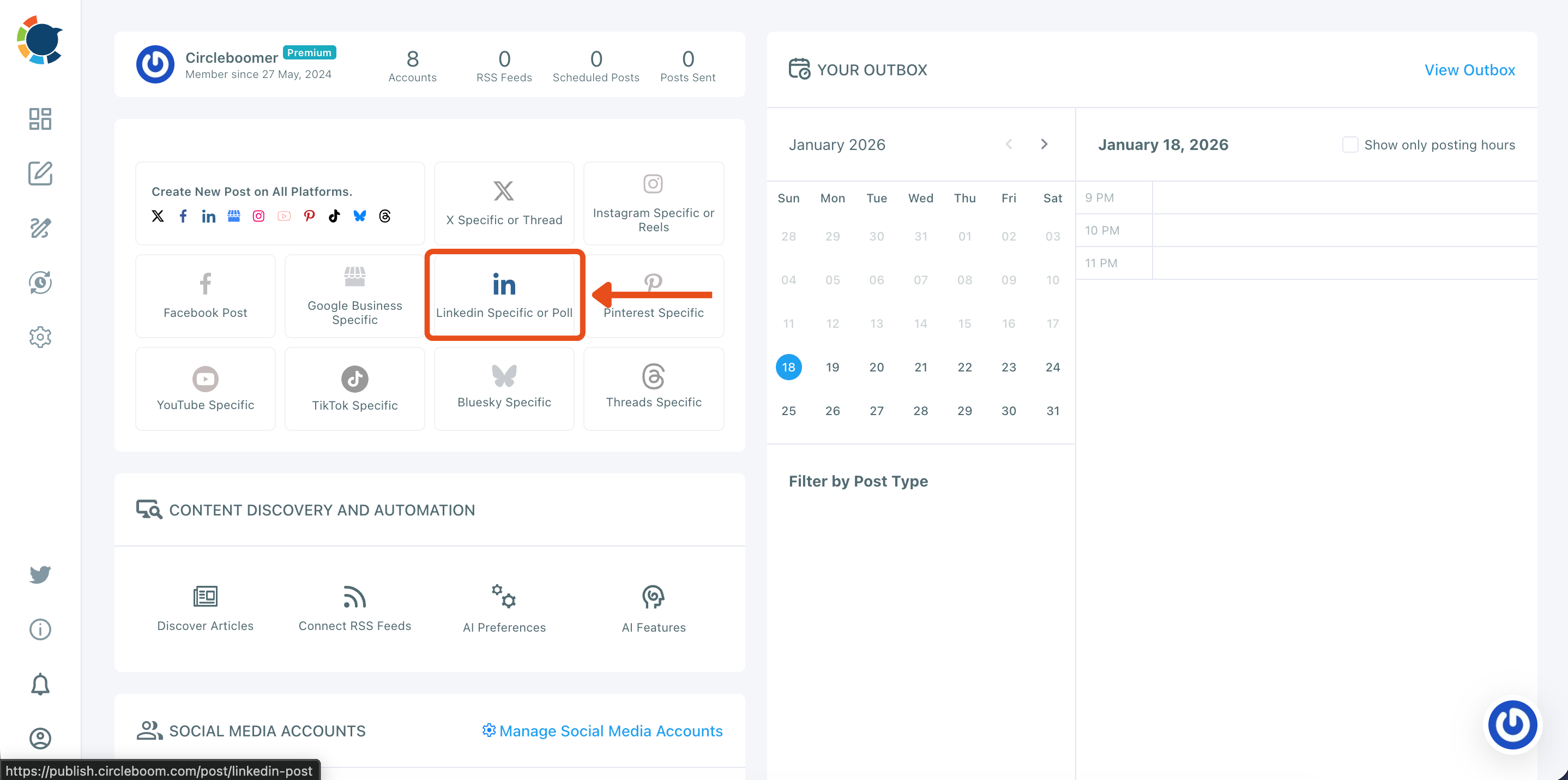
Step #1: Start a new LinkedIn post
From your Circleboom Publish dashboard, go to the “Create New Post” area and click LinkedIn Specific or Poll.
This opens the LinkedIn composer so you can create a post designed specifically for LinkedIn.
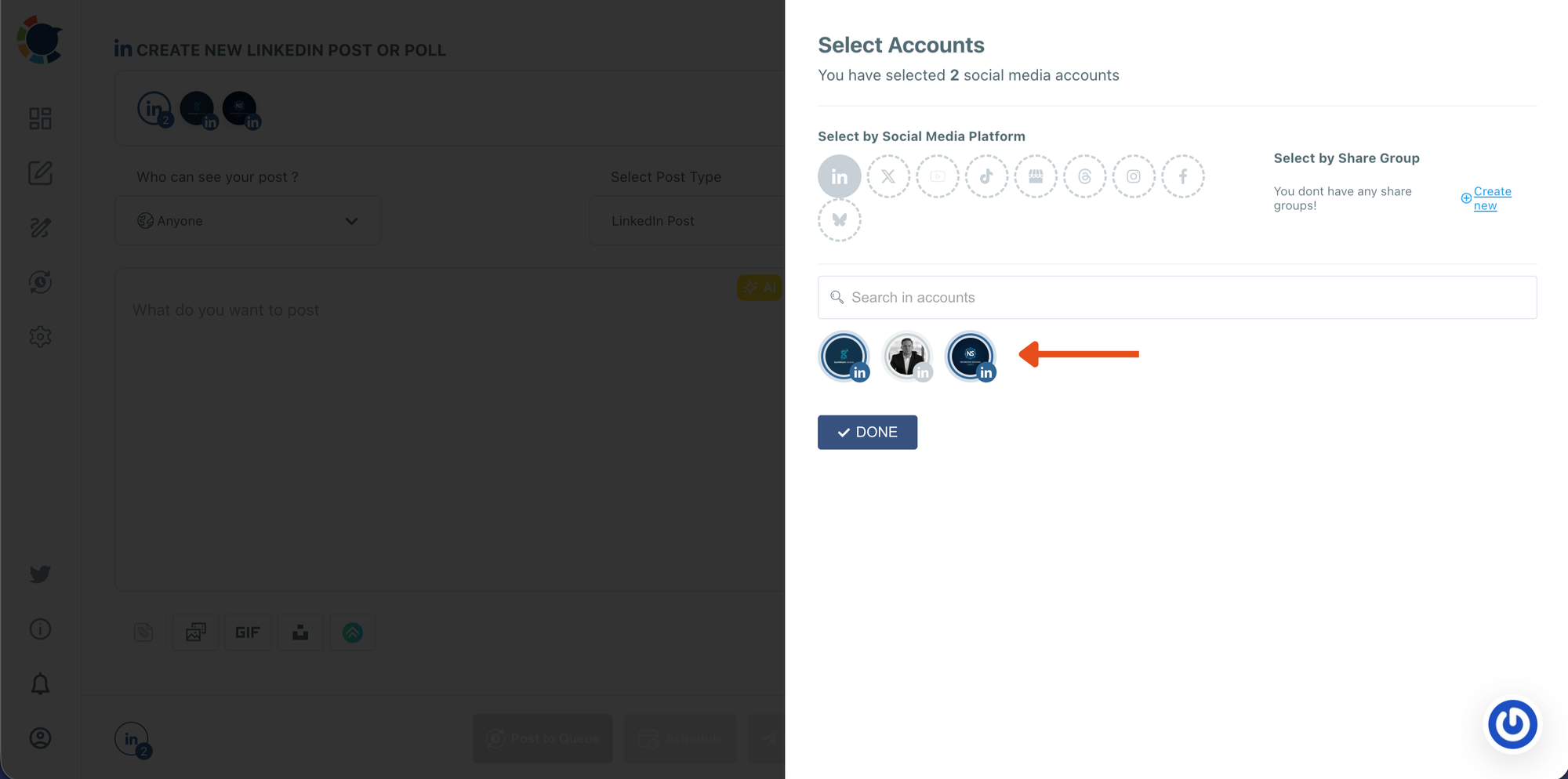
Step #2: Select the LinkedIn account(s) you want to publish from
In the Select Accounts panel, choose the LinkedIn profile or page you want to use.
If you manage multiple accounts, you can select more than one. When you’re ready, click DONE to move forward.
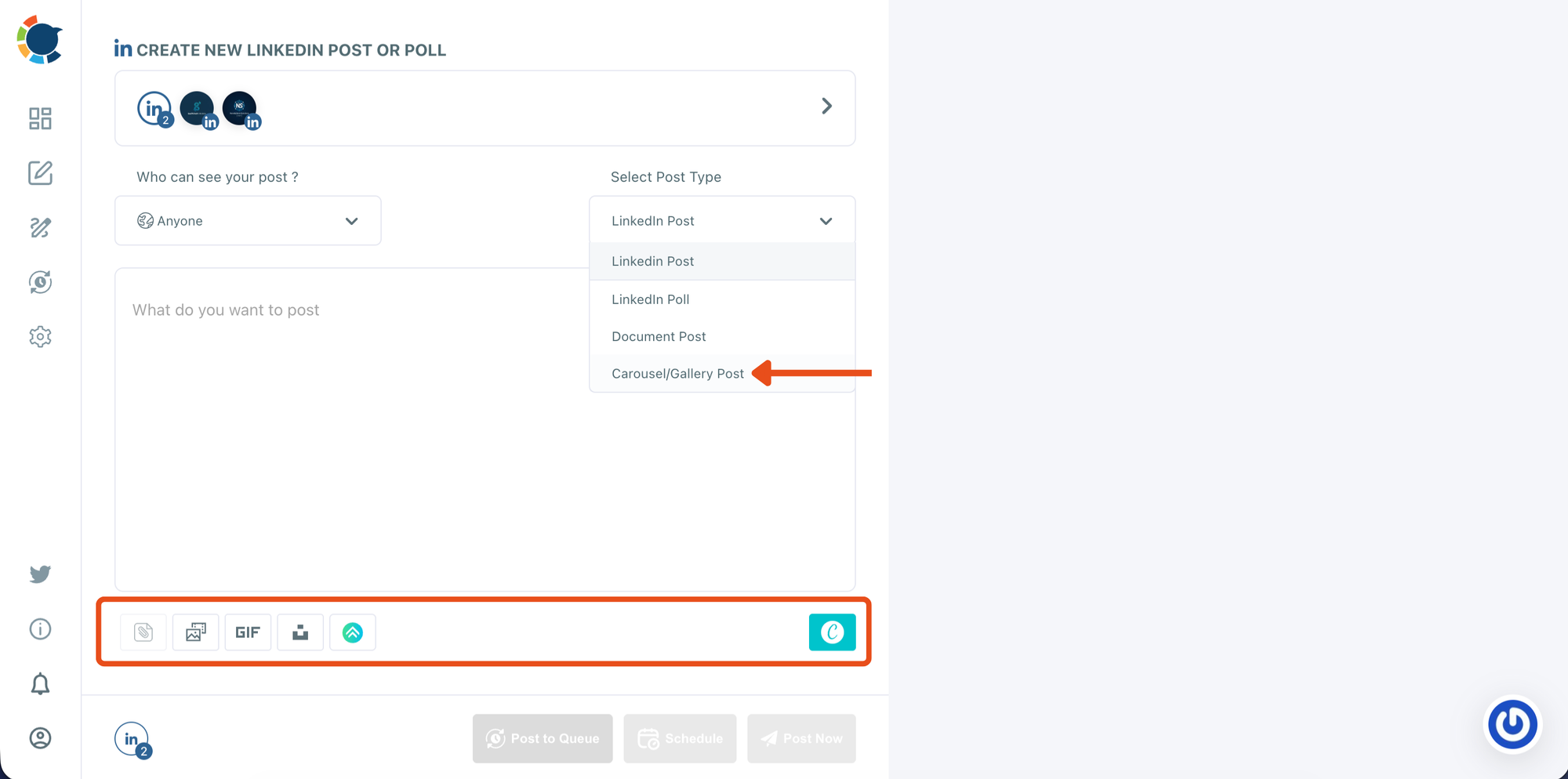
Step #3: Choose the Carousel/Gallery post type
Inside the LinkedIn composer, open the Select Post Type dropdown and select Carousel/Gallery Post.
This enables carousel publishing and prepares the media area where you’ll upload your slide images.
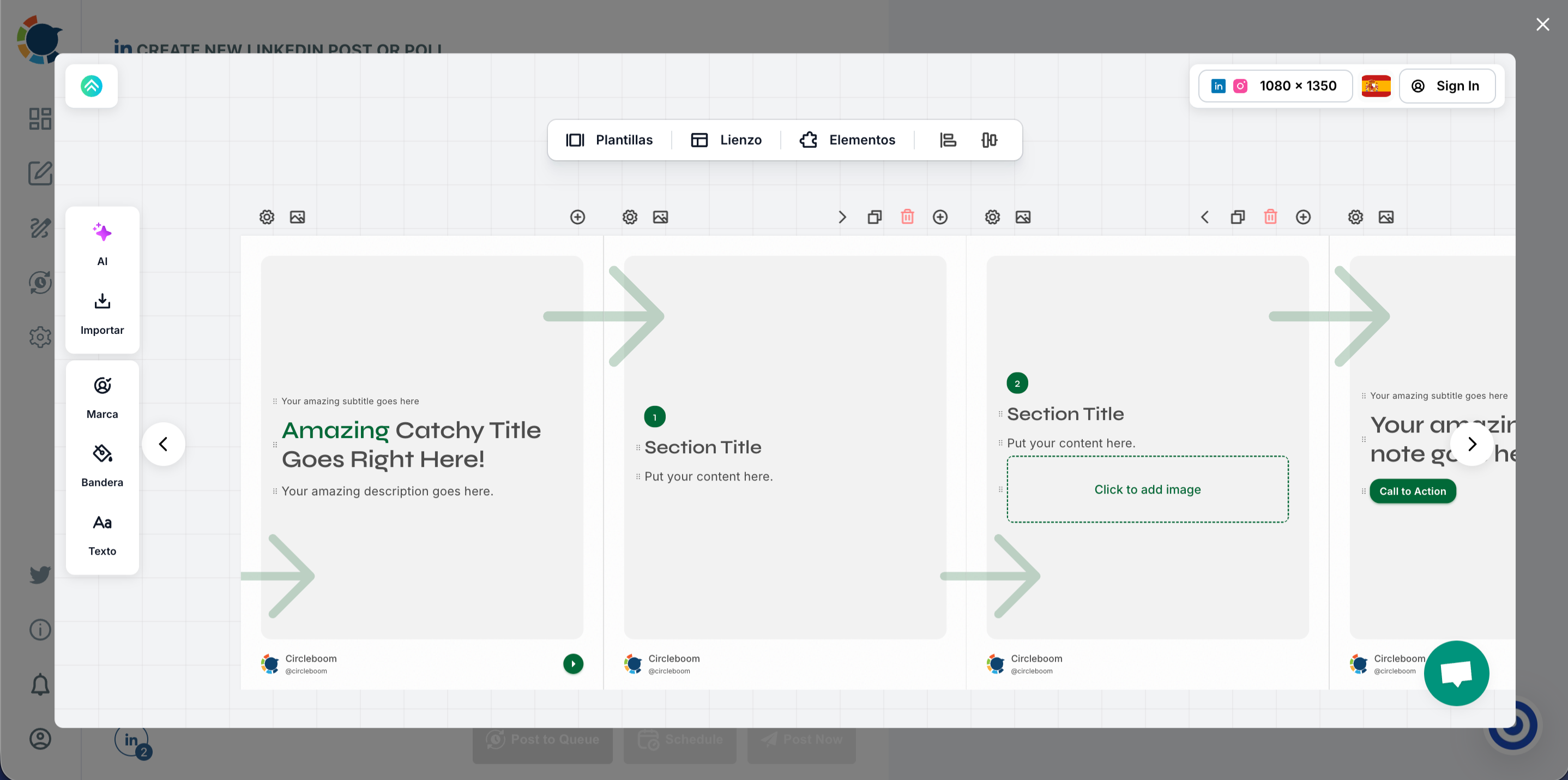
Step #4: Design your carousel slides in the editor. Open the integrated design editor and pick a carousel template.
Edit each slide by updating titles, adding visuals, adjusting layout, and keeping your branding consistent across all pages.
Once finished, export or save your slides so they’re ready to upload.
Step #5: Upload your carousel slides and write your LinkedIn caption
Or upload your slide images into the media bar (drag-and-drop or click to upload).
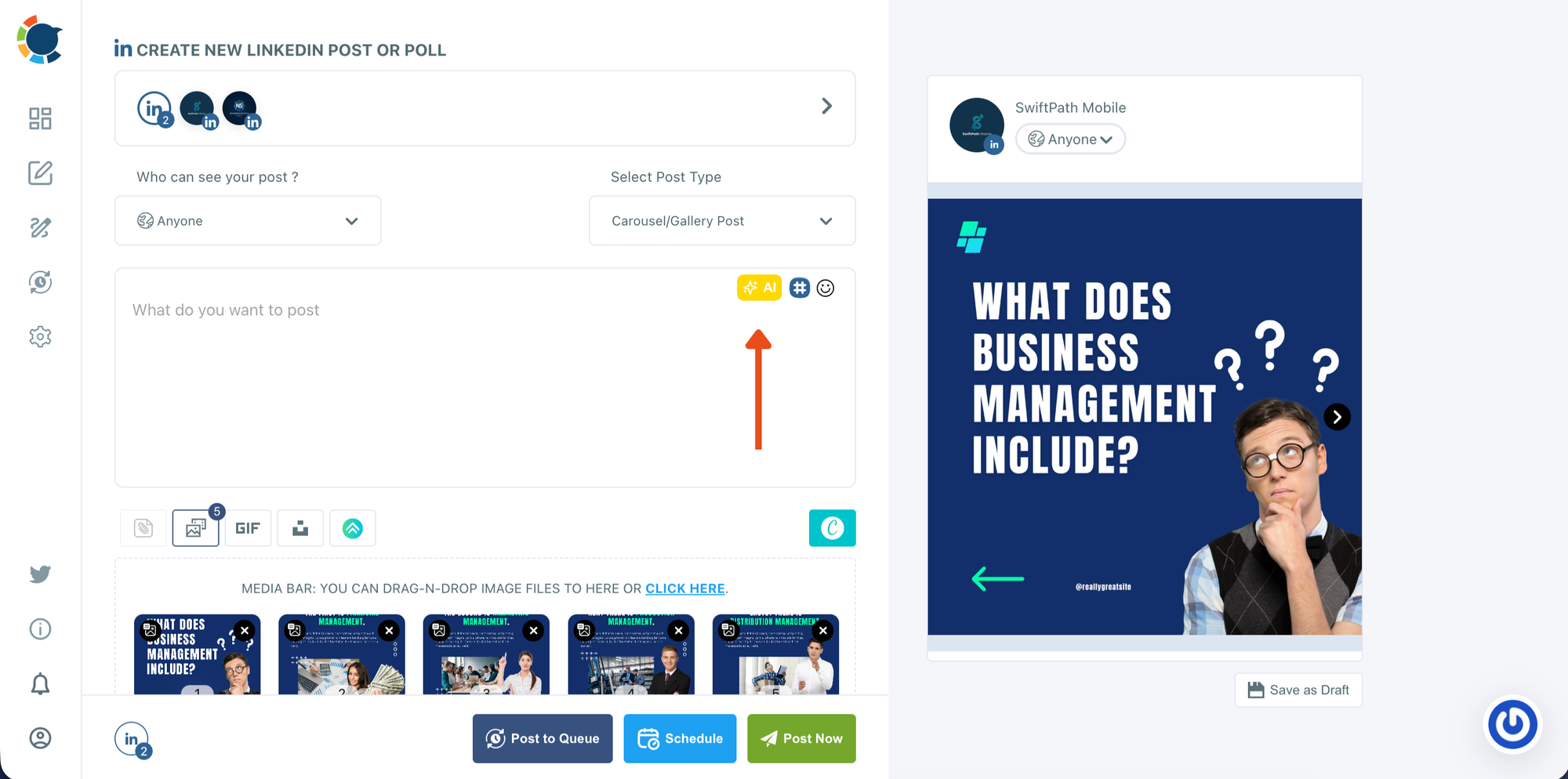
Check the preview on the right to confirm the slide order and how the carousel will appear on LinkedIn. Then write your caption in the text box.
If needed, use the AI option to generate or refine your copy based on the carousel topic.
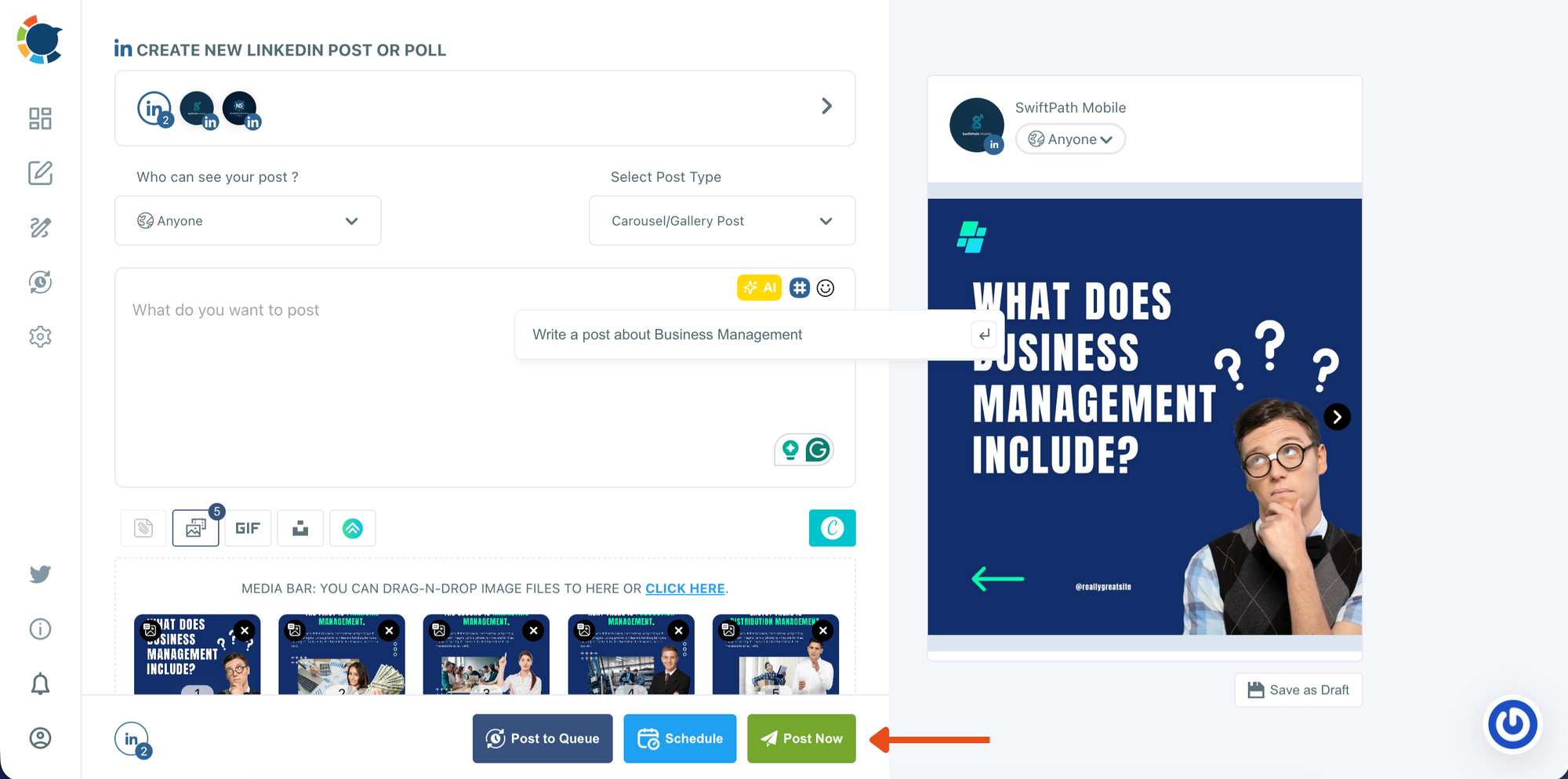
Step #6: Decide whether to post now or smart-schedule for later, which is sharing your posts when your followers are online!
When everything looks ready, choose how you want to publish:
- Post Now to publish immediately
- Smart Schedule to set a date and time for later
This step is where you move from final review into publishing mode.
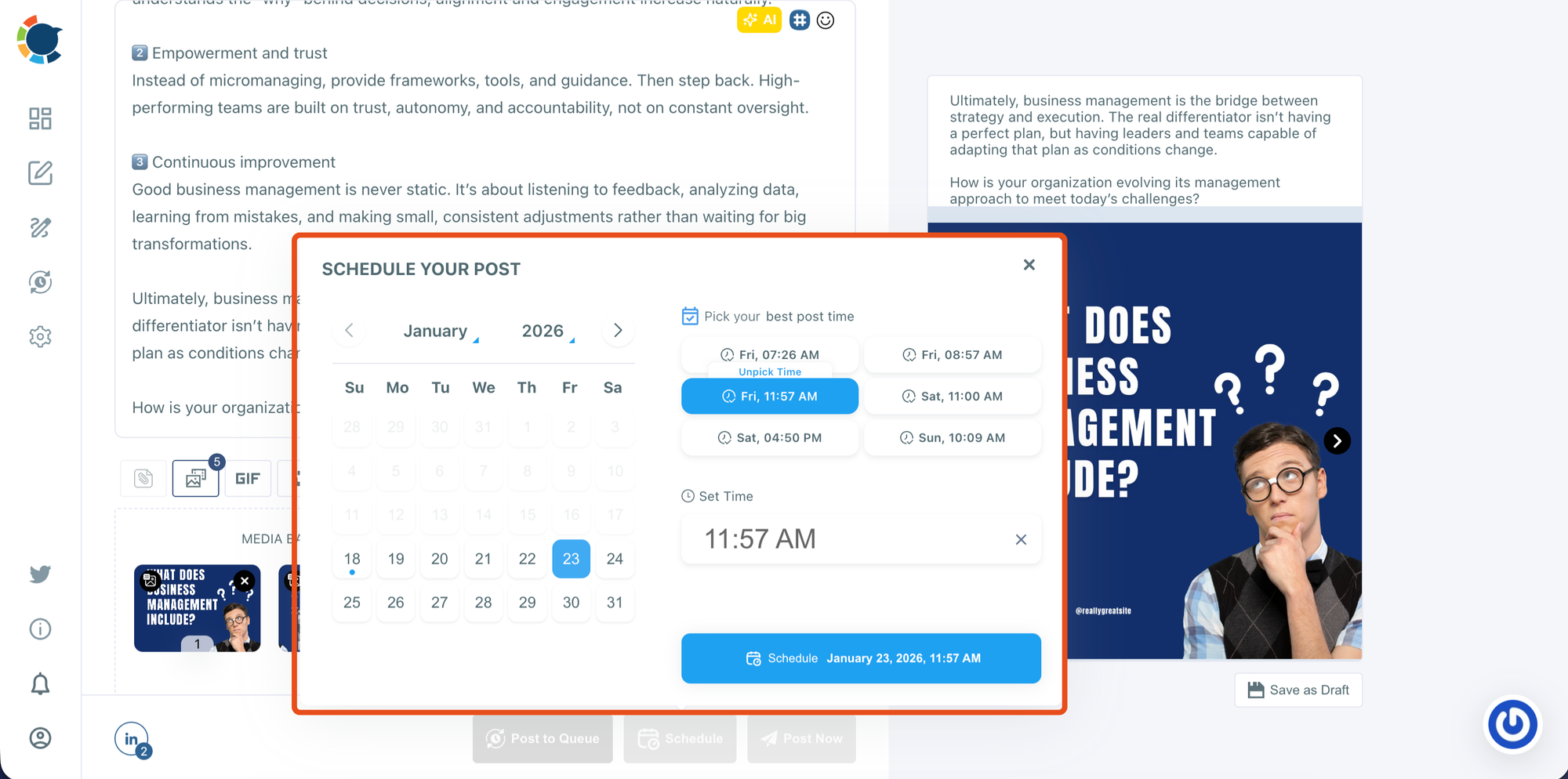
In the scheduling window, select the date from the calendar.
Choose one of the suggested best-time options or manually set your own time. Then click Schedule to confirm and add your carousel post to your publishing plan.
The Best Posting Time Matters More Than People Think
Once the carousel was ready, the next mistake I wanted to avoid was posting it at a random time.
A lot of people focus only on content quality, but LinkedIn performance is often heavily influenced by timing.
If you publish when your audience is offline, the post might receive weak engagement in the early minutes, and those early signals can affect how far LinkedIn pushes it.
Circleboom Publish has a feature that analyzes when your followers are most active and gives you the best time to post. That means instead of guessing, you publish when your audience is most likely to see your content immediately.
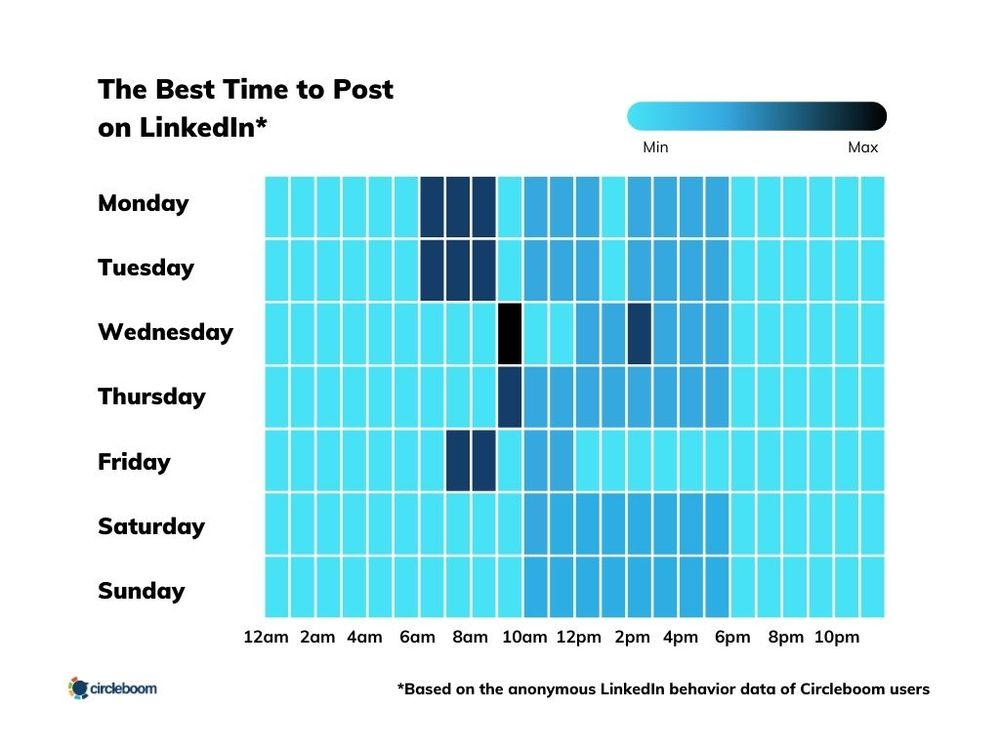
And when a carousel gets early engagement, it often keeps growing throughout the day because people continue swiping, saving, and sharing it.
Final Thoughts: If You Have Insights, Slide Posts Help People Actually Consume Them
If you’ve ever created something valuable, an analysis, a report, a breakdown, a framework, and felt like the format was holding it back, a LinkedIn slide post is one of the smartest ways to share it.
It keeps your content structured, it makes reading effortless, and it gives your audience a reason to stay with your ideas longer than they normally would.
And if the main thing stopping you from creating carousels is the design work, Circleboom Publish makes the process dramatically easier. With the AI Carousel Generator, you can start from a professional template, fill your insights quickly, improve the text with AI assistance, and publish at the best time based on follower activity.
So the next time you finish a report and wonder how to share it…
Don’t force it into a long text post.
Turn it into a carousel, and make your insights impossible to ignore.

