You have the post idea, maybe a few photos on your phone, and four platforms waiting for something that looks professional. Hiring a designer is not in the budget, and learning a full design suite is not in the calendar.
The good news is that the work splits into a short, repeatable sequence you can run yourself.
How to design social media posts without a designer: start from a picture (your own, stock or a GIF), lay it out in Canva or turn an instruction into carousel slides, write the caption, add alt text where it is supported, and check each platform's preview before scheduling. Circleboom Publish brings that whole sequence for Instagram, Facebook, LinkedIn, Pinterest and Google Business Profile into one composer.
→ Start designing social media posts
The steps below walk through it in the order that keeps designs from being cropped or rejected.
Why designing your own posts goes wrong without a system
DIY design usually breaks down in the same places, and few of them have much to do with taste. Three symptoms give it away:
- Layouts that change every week, because each post started from a blank canvas.
- Images trimmed or squeezed, because one canvas was sent to networks with different frames.
- Captions that read as an afterthought, because the design ate the whole session.
Each symptom has a marketing cost. A cropped image looks careless on the one network where it was cut, and a weak caption wastes a strong visual because nobody learns why they should care.
When you design social media posts in the right order, both problems disappear before they reach the feed.
Each one is fixed by doing a step earlier.
Circleboom Publish is a multi-platform composer that helps small teams design, caption and schedule posts for Instagram, Facebook, LinkedIn and Pinterest from one screen, which is where the sequence below runs. If you want the short version first, the social media post design page shows what the setup looks like.
What each platform needs before you start designing
The image count and file size each platform accepts should be decided before the first layout, or a finished design can be rejected or cropped on its way out. Knowing the limits first is the cheapest step in the whole process.
These are the per-post image limits Circleboom Publish works with:
- Instagram: up to 10 images, 8 MB each, and at least one image or video per post.
- Facebook: up to 10 images, 4 MB each.
- LinkedIn: up to 20 images, 10 MB each.
- Google Business Profile: up to 10 images, 5 MB each.
- Pinterest: one image per pin, up to 20 MB.
When one post goes to several networks, the strictest platform sets the limit. A six-image set works on Instagram, Facebook and LinkedIn, but a pin carries one picture.
People often ask about adding multiple pictures on Pinterest. For a multi-platform send, the practical answer is one strong vertical image for the pin.
Pixel dimensions come from each platform's own help pages. LinkedIn's guide to sharing photos on LinkedIn asks for at least 552 x 276 pixels and recommends 1080 pixels wide. It accepts ratios from 3:1 to 4:5 and centres and crops anything wider. Check the owner's page for any network you design for often, since those numbers change over time.
A practical habit helps here. Design at the largest canvas any of your destinations needs, then crop down for the others, because shrinking a sharp image keeps it sharp while stretching a small one blurs it.
Decide the destination first, then the canvas and the image count follow from it.
What Circleboom Publish gives you for designing posts
Circleboom Publish's composer lets you source, design and preview images for Instagram, Facebook, LinkedIn, Pinterest and Google Business Profile without switching apps. Everything sits in the media bar under the text box.
The visual sources and design tools there are:
- Unsplash for stock photos on any topic.
- Google Photos for pulling images straight from your own connected library.
- Giphy for a GIF matched to a topic or reaction.
- Canva for creating a new graphic or editing, redesigning and montaging an existing one.
- AI Carousel Generator for turning a short instruction into editable slides.
Canva opens from inside the composer, so you do not design in a separate window and then upload the file. If you post GIFs to pins, it is worth reading how to share GIFs on Pinterest before you rely on one there.
For steadier picture supply, the photo curation page covers finding visuals to post when you have none of your own.
Carousels deserve a separate mention because they are one of the highest-engagement formats available. The AI Carousel Generator builds templated slides with editable fonts and colours, and lets you choose the AI model.
It works for Instagram, Facebook and LinkedIn carousels, but not for Pinterest or Google Business Profile.
For text-only graphics such as a quote card, a full layout is often unnecessary. The steps for making Facebook quotes show a faster route for that kind of post.
When the same design goes to several accounts
A design often needs to reach more than one account, such as a brand's Instagram, its Facebook Page and its Google Business Profile. The composer sends one post to any mix of connected accounts in a single action. A Share Group saves a combination you use often, so the same set of accounts is one click next time.
The usual alternative is designing in one app, downloading the file and uploading it to each network by hand. This setup for designing social media posts keeps the picture, the design and the post in one window instead.
How to design social media posts step by step
The full process takes ten steps grouped into four phases: get into the composer with the right accounts, source and design the visual, write and check the post, then schedule it. The video below shows the design part on LinkedIn, where readable visuals matter most.
LinkedIn design walkthrough: how a clean, readable LinkedIn visual is built before it is scheduled.
The sequence, grouped by phase.
Open the composer with the right accounts
- Log in to Circleboom with the account that holds your business profiles, so every network you design for is available in one place.

- Check that each account is connected under Manage Social Accounts in the settings menu, and connect any that are missing.
- Click the pencil icon in the left sidebar and choose Create New Post on All Platforms from the flyout.
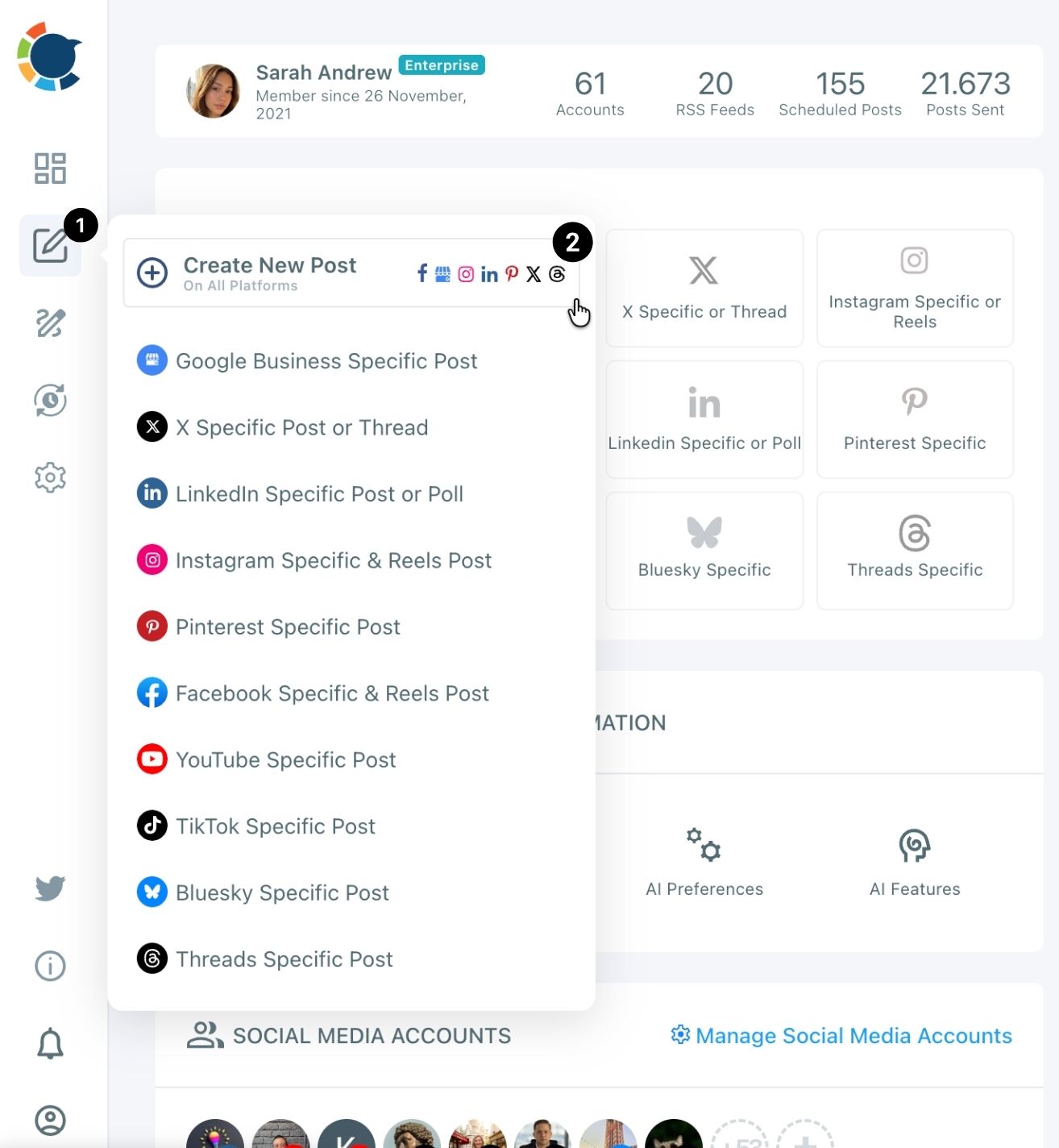
- Select the accounts for this post from the account grid, by platform icon, by saved Share Group or by search, then click Done.
Source and design the visual
- Add the picture by uploading from your device or searching Unsplash, Google Photos or Giphy from the media bar.
- Open Canva from the media bar to lay out the image, or launch the AI Carousel Generator to build slides from an instruction.
Write, describe and check the post
- Write the caption in the "What do you want to post" box, or click the gold AI button for a draft. The AI writer does not enforce each platform's character limit on its own, so state the limit in your instruction when it matters.
- Add alt text to each image on the platforms that support it, describing what the image shows in one short sentence.
- Switch through the Post Preview tabs for every selected network and look for cropped edges, a wrong slide count or a caption cut too early.
Schedule the finished post
- Click Schedule and pick a suggested best time, or use Post to Queue to drop the post into each account's next open slot.
Every decision here lands before the step that depends on it: the destination before the canvas, the picture before the layout, and the preview before the schedule.
Skipping ahead is what causes rework.
The ten steps, compressed:
- Open the composer and pick the accounts.
- Add a picture and design it in Canva or as AI carousel slides.
- Write the caption, add alt text and check every preview tab.
- Schedule it or send it to the Queue.
Should you add alt text to the images you design?
Yes, on every platform where Circleboom Publish takes it: Facebook, Pinterest, Google Business Profile and Threads. Alt text is a short written description attached to an image, and it gives screen readers and search engines a way to understand a picture they cannot see.
The composer does not offer alt text for Instagram, LinkedIn, YouTube, TikTok or Bluesky, so a multi-platform post carries it only to the networks that accept it.
That split is easy to miss, and it means the same design can be searchable on Pinterest and silent on Instagram.
The field is worth filling on the search-driven networks in particular. Pinterest's discovery is search-driven, so a pin with a clear description has a better chance of being found for the topic it shows.
For the wording itself, the W3C's guidance on informative images recommends stating what the image conveys, concisely. It also advises against opening on phrases like "image of."
For a designed graphic with text on it, that usually means repeating the key line of text and naming the product shown. A sale graphic for a plant shop might read: "Three potted plants on a shelf with the words 20 percent off this weekend." One sentence, the visible text, and the subject, nothing more.
How do you check a design isn't cropped before it goes out?
Check every network's tab in the composer's Post Preview panel before you schedule. Each tab mimics how that network displays the post, so a crop, a missing slide or a cut caption shows up there first.
Each tab shows the account's avatar and username above the image and caption, so you read the post the way a follower on that network will meet it, not the way it looked in the editor.
One behaviour is worth knowing. A text-only post is valid on some networks but not on Instagram, which needs at least one image or video, and the composer may not flag that until the preview or send step. Opening the Instagram tab catches it every time.
The preview also shows the caption and the design together, the way a follower meets them. If you design social media posts with text on the image, read the caption's first visible line against that text.
Repeating the same words twice wastes the space, while a caption that adds a detail the image cannot show earns the tap on "more."
Treat the preview as the last design step and give every tab a look.
Can AI write the caption for a design from a few notes?
Yes. Generate Post from Text in the AI Features menu of Circleboom Publish turns pasted notes into a ready post for the platform, goal and tone you choose, and the draft opens in the composer for editing.
It suits the moment when the design is finished but the words are not. Paste your notes, a product description or a customer's question into the text box, then choose:
- What the post should achieve, from Awareness and Engagement to Promotion, Website Traffic or an Informative post.
- How it should sound, with six tones running from Informative and Motivational to Technical and Humorous.
- Which language it is written in.
- Which network it is shaped for, for example Pinterest, LinkedIn, Facebook or Instagram.
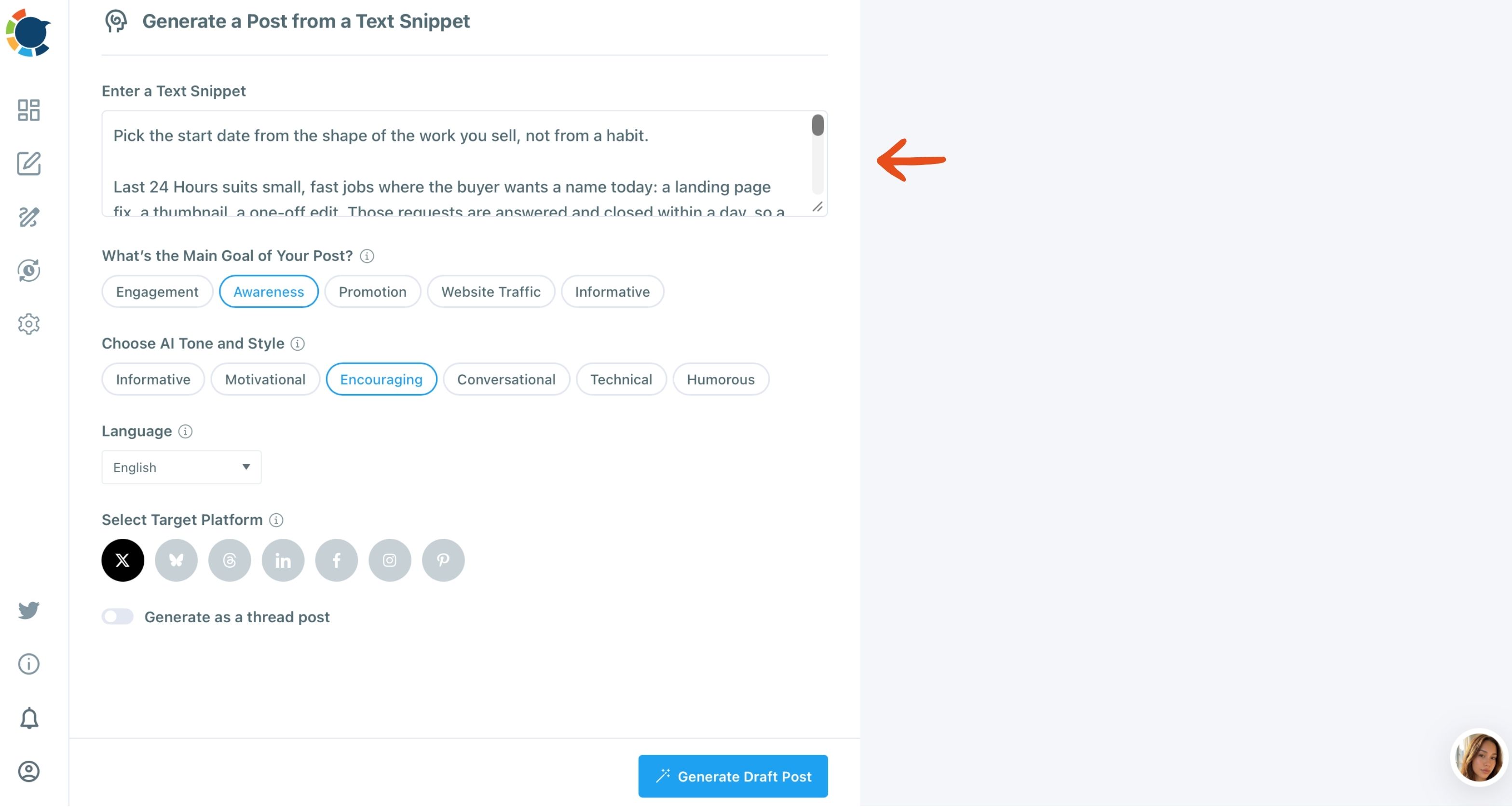
The language setting is easy to overlook and often the most useful. If part of your audience reads another language, the same notes can become a post written for them, without you writing it from scratch.
Click Generate Draft Post, then edit the result next to your design so the caption and the visual say the same thing. The AI generator for social media posts page describes the wider set of AI writing options in Circleboom Publish.
The AI writer inside the composer covers lighter edits on a caption you already wrote: make it punchier, condense it, fix grammar or add hashtags. It is included with a Circleboom membership, so there is no separate AI subscription to pay for just to write captions.
Designing your own posts, in summary
Designing posts without a designer comes down to order: know each platform's limits, find the picture, design in Canva or the AI Carousel Generator, write the caption, add alt text where it is supported and check every preview. Done in one composer, that sequence turns a design chore into a routine you can repeat every week.
→ Start designing social media posts in one composer
Still wondering how to design posts on your own?
What if I have no photos of my own at all?
Start from Unsplash stock photos or a Giphy GIF in the composer's media bar, then make the image your own in Canva with your colours and a line of text. If your photos live in the cloud rather than on your computer, connect Google Photos and pull them in directly.
Should the same post be designed differently for Instagram, LinkedIn and Pinterest?
Yes, mostly in shape and density. A pin is a vertical image that has to explain itself through its overlay, and an Instagram post is one tile in a grid, so it should share a look with its neighbours. A LinkedIn image carries a professional point. LinkedIn also takes several images in one post, and the steps to post multiple photos on LinkedIn explain how that layout works.