I think the hardest part of running many social media accounts is not the writing. It is the selecting: remembering which accounts a post belongs to, opening each one, and getting the list right every single time.
Most advice on how to manage multiple social media accounts jumps to content calendars and posting tips. The calendar is rarely what breaks first.
What breaks first is the log-in-log-out routine, and the small mistakes it makes inevitable once the account count climbs.
The way to manage multiple social media accounts is to connect them all to one dashboard, group them by client or brand, and send each post to the right group in one action. Circleboom Publish lets you pick any mix of accounts across X, Instagram, Facebook, LinkedIn and six more platforms and publish, schedule or queue one post to all of them at once.
→ Manage multiple social media accounts from one dashboard
Below is the two-layer setup I would build from day one. It covers the arithmetic, the duplicate-content trap, and who on your team gets access to what.
That is the short version. The longer version starts with why the usual fixes stop working somewhere around the fifth account.
Where juggling many social media accounts actually breaks
Juggling many social media accounts breaks at the switch between them, not inside any one of them. Each platform's own app is fine for one account. The trouble is that a brand, a freelancer or an agency rarely has one account anymore.
The spread is real. Datareportal's global overview finds that the typical online adult uses 6.75 social platforms a month, so an audience is rarely in one place.
Pew Research Center's social media fact sheet shows how far apart the big networks sit among U.S. adults: YouTube at 84%, Facebook at 70%, Instagram at 51%, LinkedIn at 33% and X at 25%. Each of those is a different account to keep alive.
Why native schedulers and checklists stop working
The first fix most people reach for is the native scheduler. It works, one account at a time.
LinkedIn's help page on scheduling posts on LinkedIn lets a Page schedule from one hour to three months ahead, but that scheduler only knows about that one Page.
Add an Instagram account, a Facebook Page and an X account, and you now run four schedulers, four logins and four copies of every post.
The second fix is a system: a bookmark folder per client, a password sheet, a checklist of which accounts each post goes to.
I have a lot of respect for a good checklist. But a checklist only works when someone reads it, and the one moment you skip it is the moment a post meant for one brand lands on another.
The mistakes do not come from bad content. They come from picking accounts by hand, dozens of times a week.
If that sounds familiar, our list of ways to reduce social media overwhelm covers the habits around the problem. The structural fix is to bring every social media account into one place, so the switching stops.
The arithmetic of logging in and out of every account
The cost of switching is easy to underestimate because each switch feels small. So run the numbers, using the illustrative example from Circleboom's own scheduler documentation.
Say you post on Instagram, Pinterest, LinkedIn and Bluesky, with 7 accounts across the four, and you have 4 posts that should go to every account:
| Method | Separate publishes | Time spent |
|---|---|---|
| Native apps, one account at a time | 4 posts × 7 accounts = 28 | Close to an hour of signing in and out |
| One composer, all 7 accounts selected | 4 sends | About 10 minutes |
Every one of the 28 posts still lands where it should in both rows. The difference is how many times a person has to choose the accounts and press publish.
Now swap in your own count. Multiply your accounts by your posts per week, and that is how many separate publishes the native route asks of you. The one-composer route asks for one send per post, however many accounts sit behind it.
That number is why I do not treat multi-account work as a discipline problem. It is a selection problem, and selection is something a tool can hold for you.
Group the accounts, then decide who can touch them
Managing many accounts well comes down to two separate layers, and most guides blur them into one. The first layer is grouping: which accounts belong together. The second is access: who is allowed to post to them.
Grouping saves you from picking the wrong accounts. Access saves you from the wrong person posting. You need both, and one does not replace the other.
Layer one: a Share Group for every client or brand
In Circleboom Publish, a Share Group is a saved bundle of accounts that can span several platforms. You create it once under Settings, in Manage Share Groups, and from then on you pick it in the composer under Select by Share Group.
One click selects the whole bundle, so a post reaches exactly the accounts it was meant for.
The two setups the product documentation describes are the ones I would copy:
- An agency: one Share Group per client, such as their Instagram, Facebook Page, LinkedIn Company Page and Google Business Profile.
- A brand with branches: one Share Group per branch, plus one group that holds every account for brand-wide posts.
Layer two: team roles for anyone who is not you
This is the part most people miss. A Share Group does not give anyone access to anything. It only groups accounts for faster selection.
Access is a separate setting, handled by team management. It has two roles, Admin and User. A User can write and schedule posts for the accounts assigned to them, and their posts wait for an Admin's approval before anything goes live.
For an agency, the documented pattern is one Team per client, with people assigned only that client's accounts. Anyone given access to one client never sees another client's accounts.
Put the two layers together and the workflow stops depending on memory. The group decides where a post goes; the role decides who may send it.
What one dashboard has to do for many social media accounts
One dashboard for many social media accounts has one job above the rest: send a single post to any mix of accounts across platforms in one action. Circleboom Publish does that from its universal composer, Create New Post on All Platforms, across X, Instagram, Facebook, LinkedIn, Pinterest, Threads, Bluesky, TikTok, YouTube and Google Business Profile.
The scale is real. The product documentation describes one post sent to 30 Facebook Pages in a single send. If most of your accounts are Pages, the page on how to manage multiple Facebook accounts shows that case in detail.
Picking the accounts and previewing each platform
There are two ways to pick accounts in the composer, and they suit different jobs. Clicking a platform icon selects every connected account on that platform at once. Picking a Share Group selects a mixed bundle you reuse.
The icon suits platform-wide news; the group suits anything tied to one client or brand.
Before anything goes out, the Post Preview panel shows how the post renders on each selected network, one tab per platform. That is where a caption that is fine for Facebook but too long for X gets caught.
That is the moment to post to multiple social media accounts in one send instead of four.
X is usually one of those accounts, so the access question matters. Connecting an X account is safe because Circleboom is an official X Enterprise Developer, so posts reach it through approved access rather than a shared password.
How to manage multiple social media accounts in one dashboard
See it live: a whole client's account bundle picked in one click and one post sent to every account in it.
The setup I would build on the first day, in the order that keeps it from going wrong.
Connect every account before you build anything
- Log in to Circleboom and open Settings from the gear icon in the sidebar.
- Open Manage Social Accounts and click CONNECT NEW ACCOUNT for each account you run, keeping an eye on the usage indicator against your plan's account allowance.
Bundle the accounts by client or brand
- Open Manage Share Groups and create one group per client or branch, named so anyone on the team knows whose accounts they are.
- Add one group with every account for the rare post that should go everywhere.
Send one post to the right group
- Open Create New Post on All Platforms, choose the group under Select by Share Group, write the post and check each tab in the Post Preview panel.
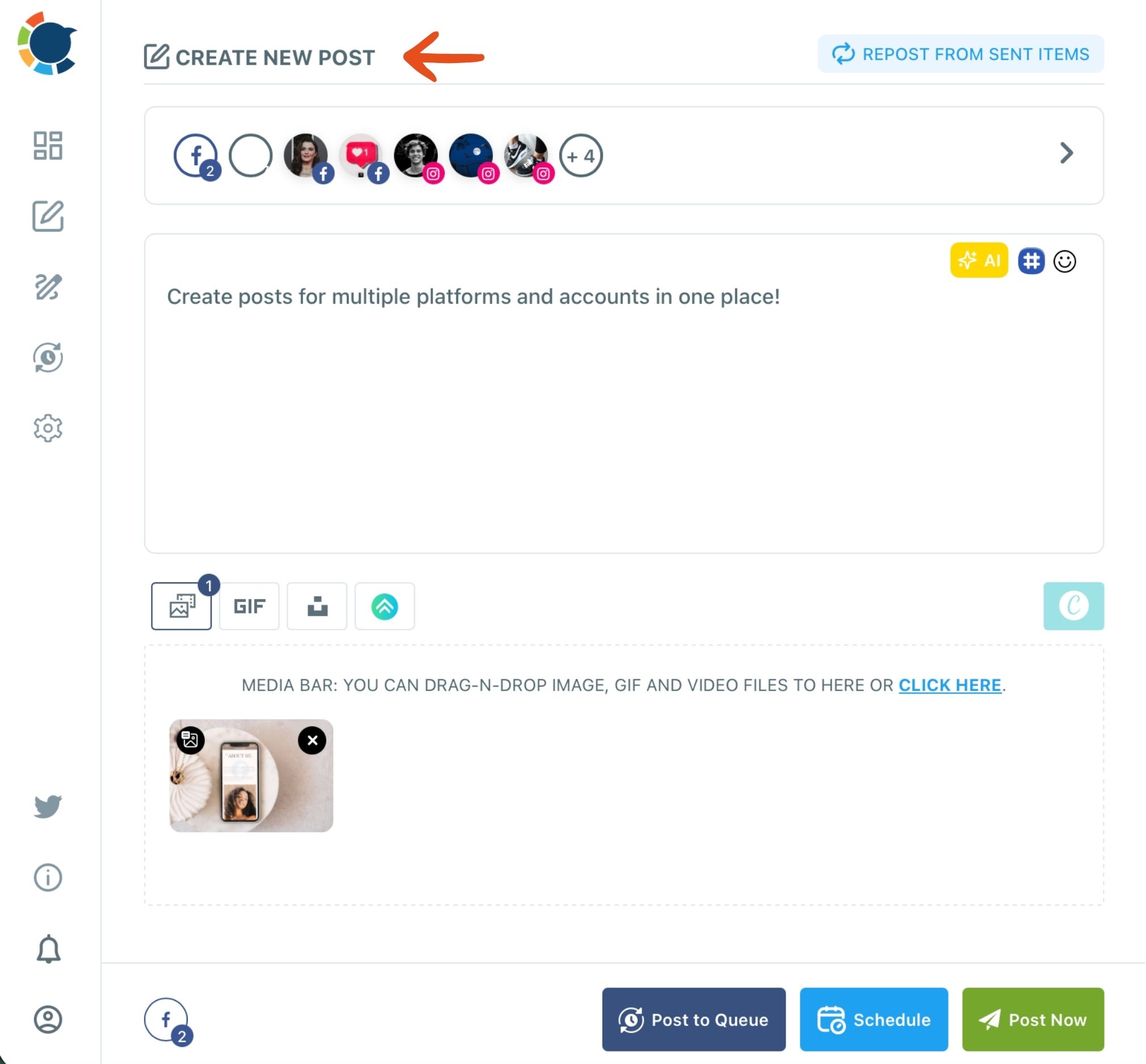
- Click Post Now, Schedule or Post to Queue, depending on whether the post is urgent, dated or simply next in line.
That order matters because the groups exist before the first post does. Once every post starts from a group, nobody picks accounts from memory, and the preview catches the platform that needs a shorter version before it fails.
The duplicate-content trap when one post goes to every account
Sending one post everywhere is the headline feature, and it comes with one trap. Platforms do not like duplicate content. The same text sent to several accounts on the same platform can get an account's reach limited, and in serious cases restricted.
Our guide on posting duplicate content on social media goes through how often repeating a post is safe.
The rule is simple.
Across different platforms, one message is fine, because each platform sees it once. On the same platform, each account gets its own version.
The AI writer in the composer can rephrase a post or give it a new angle, which is the fastest way to turn one draft into several.
How the trap differs on LinkedIn, Instagram and X
The platforms differ in how much this matters. LinkedIn is the one where a personal Profile and a Company Page often post about the same news. Our guide to manage multiple LinkedIn accounts covers how to keep the two voices apart.
Instagram is where brands most often run several accounts on one platform, one per product line or region. Our comparison of tools to manage multiple Instagram accounts is worth a look if that is most of your work.
X has its own rules for running several accounts, and Circleboom already blocks the same tweet from going out again within a week. For the X-specific setup, see our guide to manage multiple Twitter accounts.
The common objection: one more tool to manage
The most common objection is that a dashboard is one more tool to manage, and the whole point was to manage less. It is a fair worry. Tools do pile up.
But look at what the dashboard replaces. It replaces four or seven or twelve separate logins, the password sheet, the bookmark folder and the checklist you hope everyone reads.
You trade many small tools you cannot see across for one place that shows every account, every group and every scheduled post.
The setup cost is one sitting: connect the accounts, build the groups, add the team roles if someone else posts.
After that, the work that used to take an hour of switching takes one send per post, and the right accounts are chosen by the group, not by memory.
If you run more than a handful of accounts, that trade pays for itself in the first week. You can manage all your social media accounts from one login starting with the accounts you already have.
Questions about juggling many accounts
How do I check one client's calendar without seeing everyone else's posts?
Filter the Outbox calendar by that client's Share Group. The Calendar View also filters by Platform, Social Account and Post Type, so one client's or one branch's week reads at a glance.
Do I have to connect every account before I can set this up?
Yes, a post can only go to accounts already connected in Circleboom Publish, and Share Groups are built from connected accounts. The steps for each platform are in connecting your social accounts.
How many accounts can one post go to at once?
The documentation sets no fixed cap per send; one real example sent a post to 30 Facebook Pages at once. How many accounts you can connect depends on your plan's account allowance, and each platform's own posting-rate caps still apply underneath.