To post on Facebook and Instagram at the same time, send one post to both accounts from a shared composer when the caption fits both. When each needs its own words, schedule two posts, one per platform, for the same minute.
Manual: two apps, two uploads, two captions typed separately, and one feed that usually goes live later than the other. Circleboom Publish: one dashboard that publishes a caption to your Facebook Page and Instagram business account in a single send, or lines up two separate captions for the exact same minute.
→ Send one post to Facebook and Instagram at the same time
How to post on Facebook and Instagram at the same time: pick the route by the caption, then follow the steps.
Most people who search this have already tried the obvious: write on one app, copy, open the other app, paste, fix, publish. It works until the caption is too long for Instagram, the photo is too heavy for Facebook, or the second post goes up an hour late because something interrupted.
Circleboom Publish, a social media publishing suite, schedules a Facebook Page post and an Instagram post from one place and can send them at the same moment. Its Create New Post composer handles the same-caption case, and its Facebook and Instagram composers handle the two-caption case.
This choice is where people usually get stuck.
If you only need one answer, it is this: the shared composer always sends one text to every account you select, so the moment your captions differ, you are scheduling two posts.
Everything below helps you schedule Facebook and Instagram posts together on the right route.
Which route fits your post: one caption or two?
The decision depends on what you are posting and where, not on how many accounts you have. This table matches the common situations to the route that handles them:
| Your situation | Route | What happens |
|---|---|---|
| Same words and photo on both feeds | Route 1: Create New Post | One send reaches the Page and the Instagram account together |
| Different words, or Facebook text over 2,200 characters | Route 2: Instagram and Facebook composers | Two posts, each with its own caption, scheduled for the same minute |
| A short video for both | Reels tab in either composer | One upload, with the other platform added through an Add Account dropdown |
| A personal Facebook profile | Not supported | Circleboom Publish posts to Facebook Pages only |
| A text-only update | Facebook only, or add an image | Instagram needs at least one image or video |
If the caption has to change between platforms, the answer is always two posts, because the shared composer has no per-platform caption field.
Meta's own options for sharing to both feeds
Meta's guide to Facebook and Instagram content in Meta Business Suite says the Suite publishes to a connected Page and Instagram account by default, lets you deselect one and previews both feeds. From the Instagram app, the help page on sharing Instagram posts to Facebook covers sharing a post as you publish it.
For the reverse direction, the guide to auto-posting from Facebook to Instagram covers the native route.
A separate tool is worth it when you want each account's own best time, a queue of recurring slots, one calendar for every scheduled post and an AI writer inside the composer. That combination is what lets you send to Facebook and Instagram in one go on a schedule instead of on the spot.
One dashboard, many accounts: the clip shows how Circleboom Publish keeps a Page, an Instagram account and the rest of your profiles in one place before you post.
How to post on Facebook and Instagram at the same time with Circleboom Publish
The process has three phases: get both accounts into one dashboard, then follow Route 1 for a shared caption or Route 2 for two captions. Both routes end with a scheduled post on each feed at the time you choose, and Route 2 lands on the same minute because you give both posts the same date and time.
Get your Facebook page and Instagram account into one dashboard
- Log in to Circleboom Publish and land on the dashboard where both routes start.
- Connect the Facebook Page and the Instagram business account from Settings, Manage Social Accounts and CONNECT NEW ACCOUNT, if either is not there yet.
Route 1: one caption for both feeds
- Click the Create New Post on All Platforms card at the top of the dashboard.
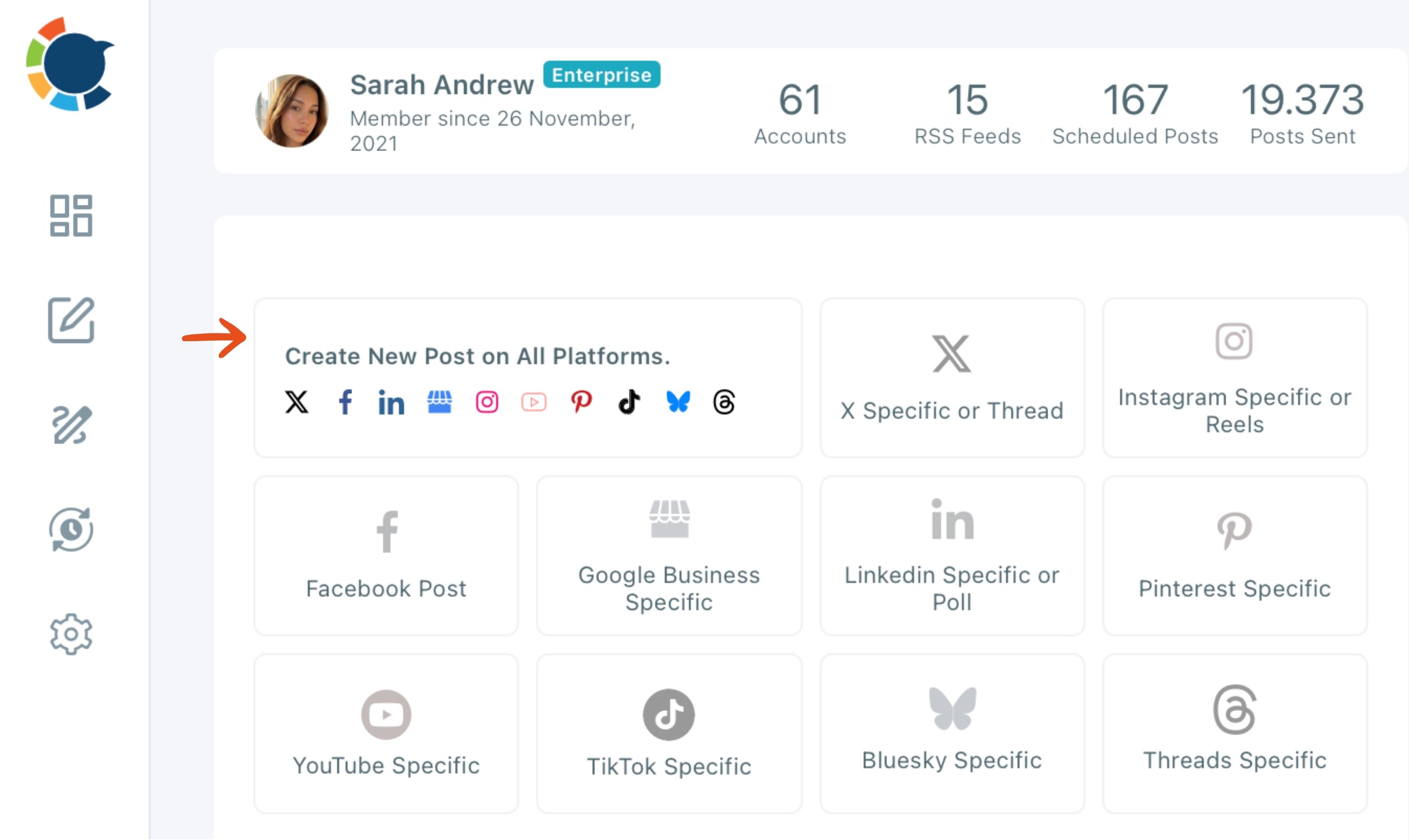
- Select the Page and the Instagram account, write the caption, add an image, check both tabs in Post Preview, and click Schedule.
Route 2: a different caption on each feed
- Open the Instagram Specific or Reels card, write the Instagram caption, add the image, and schedule it for your chosen date and time.
- Open the Facebook Post card, write the longer Facebook version, and schedule it for the same date and time.
Splitting the post at the composer level, instead of trying to edit one caption two ways, is what keeps both feeds accurate: each composer carries its own caption, and the matching schedule time keeps the two posts together.
Route 1 stays the faster default for anything that fits both feeds.
For the Facebook half of Route 2, the guide to scheduling Facebook posts is the companion read. Route 2 is also the one to choose whenever the Page post should carry its own call to action, since each composer keeps its caption and settings separate.
Five mistakes that break a shared Facebook and Instagram post
Most failed or awkward pairs come from the same small set of mistakes, and each one has a fix inside the routes above:
- A text-only update sent to both. Instagram needs an image or video, so a plain notice belongs on the Page alone or needs a picture added.
- Post to Queue used for a same-minute pair. The queue places each post in that account's next open slot, so the two feeds can publish hours apart.
- A first comment expected from the shared composer. Only the Instagram and Facebook composers let you write and schedule a first comment with the post.
- The wrong account ticked in a busy panel. With many accounts connected, a saved Share Group selects exactly the Page and the Instagram account you meant.
- The same text reused across many accounts. Identical posts on several accounts can count as duplicate content; give each its own version.
Most of these are caught before sending if you read both preview tabs and pick the route by the caption.
When a post does fail, the Outbox lists it under Failed Items with the specific error reason, and the post can be fixed and sent again instead of rebuilt. Saved drafts also help here: Save as Draft keeps the selected accounts, the text and the media, so a pair you are unsure about can wait until the second caption is ready.
Writing the second caption with the AI writer
Route 2 asks for a second caption, and that is where most of the time goes. The AI button in each composer covers it. With text already in the box, the AI popup offers one-click edits such as Condense, Rephrase for Clarity and More Punchier, plus a free-text field for your own instruction.
The detail that saves a rewrite: the AI writer does not apply a platform's character limit unless you tell it. Ask for "a version under 2,200 characters for Instagram" and it works toward that number; ask for "shorter" and it guesses.
Rewriting matters for more than length. Platforms treat identical posts across accounts as duplicate content, so a rephrased second caption is safer as well as better suited to the feed. If you want to weigh other assistants for the Facebook side, see the roundup of AI tools for Facebook.
For the writing itself, start with the Facebook version, since it is usually the fuller one. Then paste it into the Instagram composer and ask the AI for a photo-first version under the Instagram limit.
Starting long and cutting down is easier than padding a short caption into a Page post, and it keeps the facts identical across both feeds.
Same minute or best time: scheduling the Facebook and Instagram pair
Only when the news is time-bound. A same-minute pair makes sense for a product launch or a deadline at a set hour. For everything else, each account's own best time usually serves you better, because your Page and your Instagram account have different followers who are online at different hours.
The Schedule modal in each composer shows six suggested slots under "Pick your best post time," computed from that account's own followers. Circleboom ties posting at a suggested time to up to 300 percent more engagement than a random time, and that suggestion is made for each account separately.
There is also a third option for steady, non-urgent posts. Post to Queue drops a post into each selected account's next open recurring slot, set once in Time and Queue Settings, and Add Best Times to Post fills those slots with each account's suggested times. That is the core of how Circleboom Publish helps you automate social media posts without picking a time for every one.
Here is how that plays out for a launch. Say a new product goes live Monday at 9 a.m. The announcement goes to the Page and the Instagram account for 9 a.m. exactly, through Route 1 if one caption fits both or Route 2 if the Facebook post carries the full details. The follow-up reminders later in the week can then go out at each account's suggested slots, because nobody needs them at the same second.
Same minute for urgent news, each account's best time for the rest, the queue for evergreen posts.
Save your Facebook page and Instagram account as one Share Group
If this pair is something you post to every week, stop selecting the two accounts one by one. A Share Group is a saved bundle of accounts, and it can span platforms, so your Facebook Page and Instagram account become a single click. For a recurring pair, that is the shortest way to post on Facebook and Instagram at the same time.
Create it under Settings and Manage Share Groups, give it a name, and add the two accounts. In the Create New Post composer, the Select Accounts panel shows your groups under Select by Share Group.
Share Groups pay off most when you run more than one pair. An agency can keep one group per client, and a business with several branches can keep one group per location plus one with every account for company-wide news. The Outbox can be filtered by Share Group too, so one client's or one branch's schedule can be checked on its own.
A Share Group only speeds up selection. It does not give anyone else access; that is a separate Team Management setting.
Can a personal Facebook profile join the send?
No. Circleboom Publish connects Facebook Pages, not personal profiles, so only a Page can sit next to your Instagram account in a send. Posting to Facebook Groups is not available either; it was removed after Meta restricted third-party access.
If your audience is still on a personal profile, there are options outside this workflow. The guide on scheduling posts on a personal Facebook profile looks at that situation directly. For anything business-related, moving the audience to a Page is what makes the two-feed routine possible, and the Facebook post scheduler is built around Pages.
Your checklist for the next shared Facebook and Instagram post
Before you post on Facebook and Instagram at the same time again, run through this list:
- Confirm the Page and the Instagram business account both appear in the account panel.
- Decide whether the caption fits both feeds or needs two versions.
- Add an image or video, since Instagram will not post text alone.
- Check both tabs in Post Preview before you schedule.
- Choose the same minute for urgent news, or each account's best time otherwise.
Once those five checks become a habit, both feeds get every announcement in the form that suits them.
→ Manage your Facebook Page and Instagram account in one dashboard
What People Ask about one post on a Page and an Instagram account
Why does my Instagram account not appear when I try to select it?
It usually is not yet a business account linked to a Facebook Page. Circleboom Publish works with Instagram business accounts connected to a Page, so switch the account to a business profile, connect it to your Page in the Page's settings, and then add it in Circleboom Publish.
Can I send one Reels video to my Facebook page and Instagram together?
Yes. The Reels tab in the Instagram composer has an Add Facebook Account dropdown, and the Facebook composer's Reels tab has an Add Instagram Account dropdown, so one upload reaches both. Facebook support in this flow is Pages only, and Circleboom Publish takes Instagram videos up to 300 MB.
Will the same photos and text fit both platforms?
Not always. Circleboom Publish allows Facebook 5,000 characters and images up to 4 MB each, and Instagram 2,200 characters, 30 hashtags and images up to 8 MB each. Check the full media limitations for social platforms before you send one post to both.