
Most campaign calendars on X fall apart at the same place: the plan lives in a spreadsheet, and someone has to copy it into a composer one post at a time.
Twitter marketing automation closes that gap, as long as you build it as one connected pipeline and not as a pile of separate settings.
This guide builds that pipeline in order, from a CSV file to repost cycles.
Manual: hours of copying each campaign post into X, one date and time at a time. Circleboom: one CSV upload, validated and scheduled on X through official X Enterprise APIs, with an Outbox review before anything publishes.
→ Build your Twitter marketing automation pipeline from a CSV
Every step below has a limit attached, so you can plan around it.
Why campaign automation on X breaks at the handoffs
Setting up a campaign on X means passing the work through several stages:
- Writing
- Timing
- Loading
- Reviewing
- Resurfacing
Errors tend to appear where one stage hands off to the next, such as a date format that does not survive the import or a repost cycle that collides with new content.
This shows up most on launches. The copy gets a lot of attention, and the file carrying that copy gets almost none, so a single spreadsheet mistake turns into many publishing mistakes.
Connecting the stages is the job of this Twitter marketing automation setup. You can automate your Twitter marketing campaign in one workspace, and Circleboom keeps your X posts in the same place from import to review.
If you want background first, this explainer on how to make a Twitter X account automated covers the account side.
What Circleboom connects in this pipeline
Circleboom links three features into one Twitter marketing automation flow on X: Bulk Schedule loads the posts, the Outbox holds them for review, and Auto Retweet resurfaces the ones you choose.
Each part works by itself, so you can adopt only the stage you need.
This guide stays with one product and one flow. Readers still comparing options can look at this overview of social media automation tools before they commit a campaign to any of them.
Your account stays on approved ground throughout. Circleboom is an official X Enterprise developer, which matters when a campaign runs on a client's or a brand's live account.
Unlike retyping dates into a composer, this approach lets you read the whole campaign as a list before anything is scheduled.
To see the workspace before you start, you can set up your Twitter marketing automation in the planner.
What your CSV must contain before you upload it to X
The CSV needs the exact headers from Circleboom's sample template, so download that template first instead of building a layout from memory. Bulk Schedule shows it inside the import window, and following it is the safest way to get the columns right.
Each row needs text or an image URL, and both cannot be empty.
Check these limits while you fill it in:
- A single file holds up to 1,000 rows.
- Posting times use the YYYY-MM-DD HH:mm format and must be at least 15 minutes in the future at upload.
- Image URLs must be publicly accessible direct links.
- Labels must already exist in your account, or they are ignored with a warning.
- Each post must fit the character limit X permits for the connected account.
Images attached by URL follow the normal media limits: JPG or PNG up to 5 MB, and GIF up to 15 MB.
For a campaign that relies on visuals, this piece on how to bulk schedule tweets with images gives more detail.
Check the time zone and the sequence
Confirm the active account and its time zone before you enter a single date. A time that looks right in the spreadsheet can land hours off for your audience, and fixing a whole month of rows is slower than checking one setting.
Read the file once for sequence as well. A launch of 20 posts only makes sense in order, with teasers before launch day and follow-ups after it, and a spreadsheet lets you see that order at a glance.
Plan the mix while the file is still a spreadsheet. A month of 30 posts can hold tips, questions, threads and visual posts, and leaving two open slots a week keeps room for timely reactions.
How to set up Twitter marketing automation from a CSV
Here is the flow, in order. The nine steps run in three phases, and each phase can be repeated for later campaigns.
Connect the account and load the file
- Open Circleboom Twitter and connect the X account this campaign belongs to.
- Go to the X Post Planner menu, where the composer, Bulk Schedule and Outbox sit together.
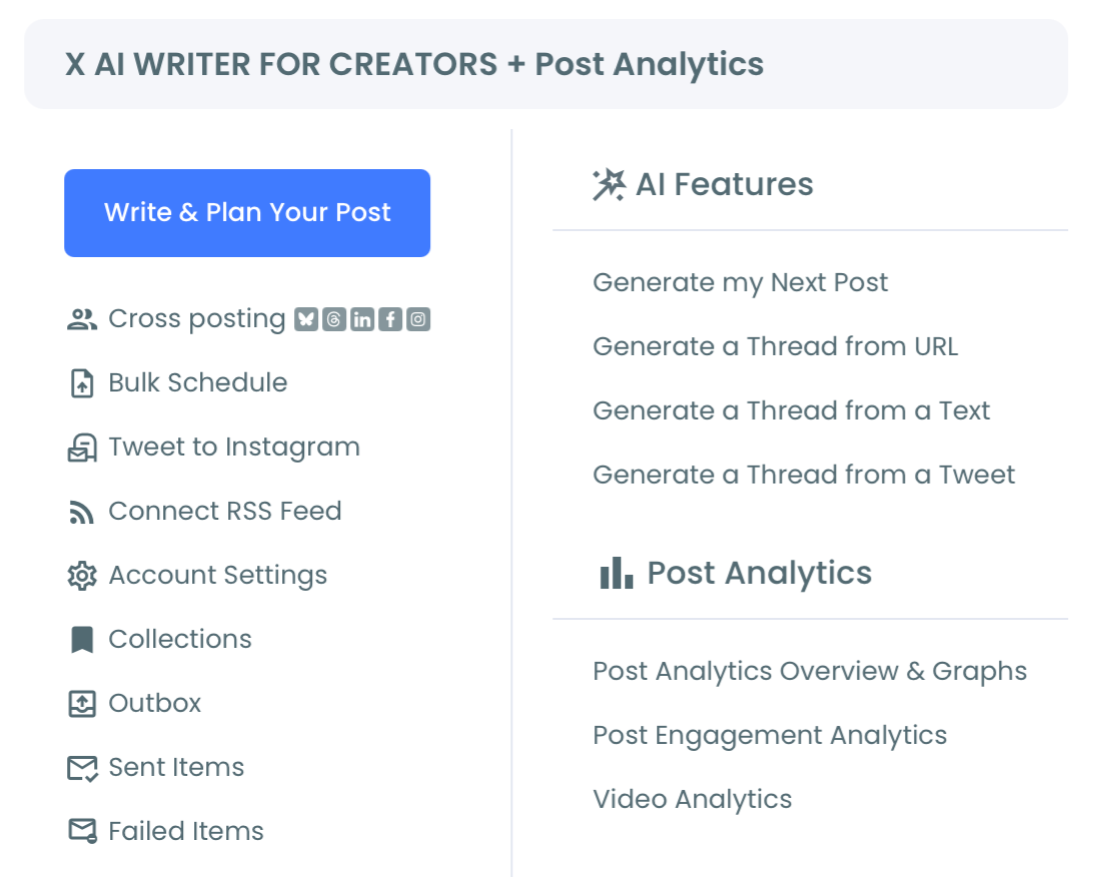
- Open Bulk Schedule and download the sample CSV template if you have not used it yet.
- Upload your CSV by dropping the file in or selecting it from your computer, then click Next.
Check the import before it reaches the schedule
- Read the validation summary, which counts valid and invalid posts.
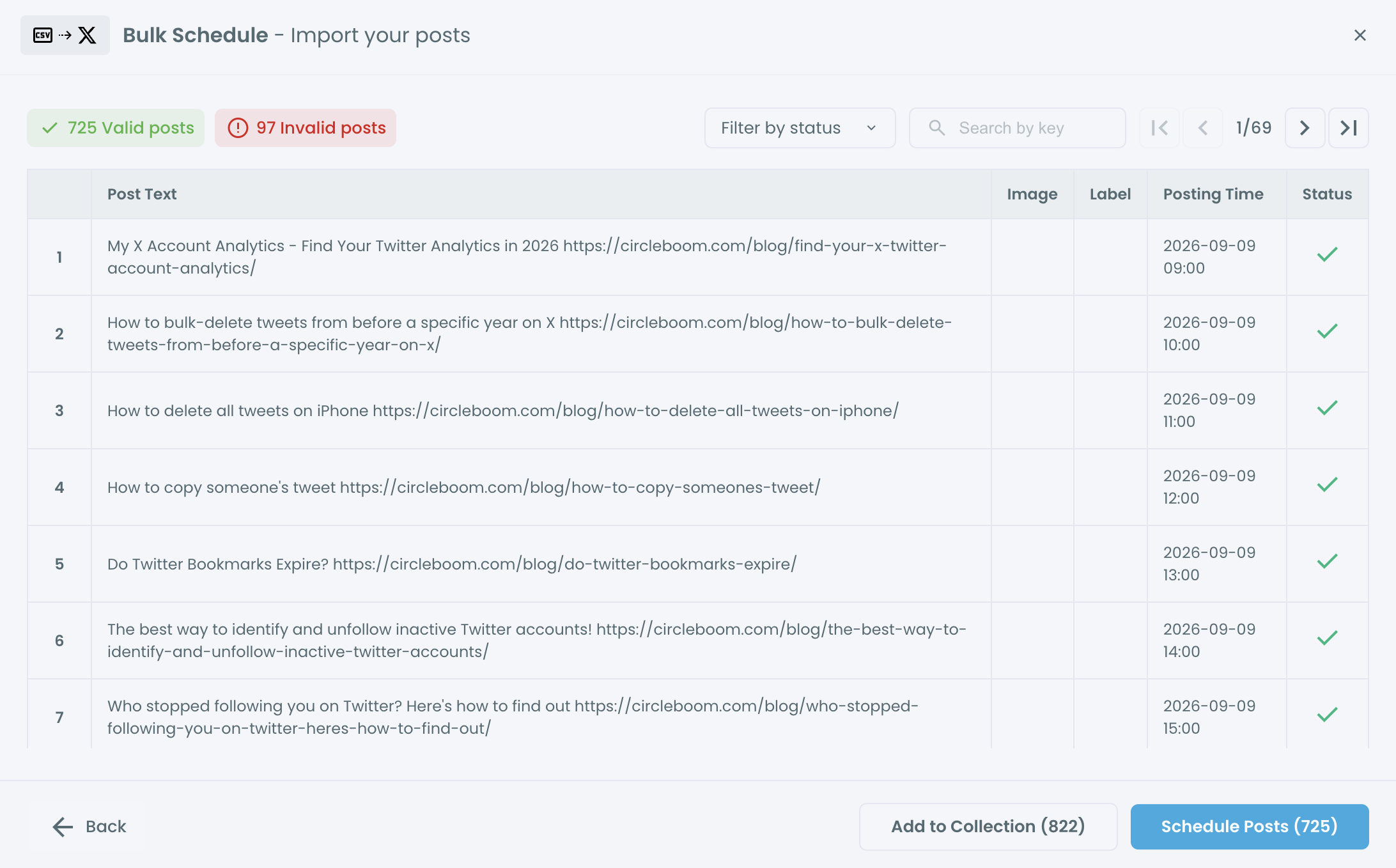
- Filter by status to find invalid rows, go back, and fix them in your spreadsheet.
- Choose Schedule Posts for approved content, or Add to Collection when the batch needs more work.
Review the queue and add repost cycles
- Review the imported posts in the Outbox, checking dates, links, sequence and tone, and edit any post individually.
- Add Auto Repost to selected evergreen posts in the post editor, using the RePost after, Un-RePost after and Repeat this cycle settings.
This order works because each phase protects the next. The template prevents format errors, validation stops bad rows before scheduling, and the Outbox gives a person the final read before the repost settings multiply anything.
Quick recap:
- Prepare the file from the template.
- Validate it and fix invalid rows.
- Review in the Outbox.
- Add spaced repost cycles to the posts that deserve them.
See it live: a single post, a bulk import and an auto retweet setup, one after another.
How to keep a scheduled campaign healthy on X
Now you have a scheduled campaign, and two habits keep it healthy.
Leave imported posts editable until you have read them, since each one can be changed in the Outbox before its publish time.
Then keep the account connected, because scheduling accuracy depends on it staying active and authenticated. A password change or revoked permission can interrupt repost cycles, so recheck the connection after any account change on your team.
A single post added between imports follows the same planner flow, including threads of up to 25 tweets.
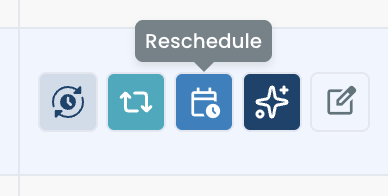
Posts that already ran can come back as well. The per-post Reschedule button in X Post Analytics pushes a published post back into the planner for a future slot, at least 15 minutes ahead.
For a small test, this guide on how to schedule tweets using the Twitter web app shows the native route. It handles one post at a time, which is the limit a campaign quickly reaches.
Some campaigns also pull from a live source. You can auto post multiple RSS feeds to Twitter alongside the CSV, which suits a publication with a steady flow of new articles.
How to space repost cycles without getting flagged
Space your cycles and keep them proportionate, because excessive automated reposting of the same tweet may be flagged as spam-like behavior under X's automation policies.
The same habit protects engagement, since frequent repeats to the same followers wear thin.
A workable starting point for an evergreen post is RePost after 4 hours, Un-RePost after 2 hours, and Repeat this cycle set to 3 times. That setup gives one tweet its original window plus three repost windows, and each repost comes off the profile before the next.
X's rules on this subject sit in its automation policy, which every campaign owner should read once.
High-frequency cycles across many posts at once may also reach API rate limits, so avoid switching cycles on for the entire file.
Three checks decide whether a post gets a cycle:
- It will stay accurate at every planned repost time.
- It has earned attention already, or it is a launch message still in date.
- Its reposts will not collide with other scheduled posts.
The tool does not check whether an announcement is still valid, so a dated post needs its last cycle to finish before the date passes.
For finer control, the auto retweeter page describes the cycle settings.
How to send the same campaign to LinkedIn or Instagram
Bulk Schedule can send imported posts to X and connected cross-posting destinations in one batch when cross-posting is configured.
Connect each destination first, because an expired or disconnected account can make those posts fail even when the X posts are valid.
Character limits differ by platform, and your file was probably written for X:
- LinkedIn allows 3,000 characters per post.
- Threads allows 500 characters per post.
- Bluesky allows 300 characters per post.
- Instagram allows 2,200 characters per caption.
- Facebook allows 63,206 characters per post.
Longer content has to be shortened for that destination before scheduling, so check Bluesky and Threads first when your posts run long.
You can read more about the setup on the cross post page.
Review each destination before you confirm. One wrong setting here affects many scheduled posts on several platforms, which is a bigger cleanup than a single bad row.
How to use X post results to plan your next campaign file
Open the post-level results once the campaign has run, and use them to rewrite your next CSV.
The Twitter post analytics view shows which content patterns earned engagement, and those patterns should shape the next file.
The mistake I see most often is treating Twitter marketing automation as finished once the queue is full.
A campaign is complete when its results have changed the next plan, and the spreadsheet makes this easy to do.
Your source file is the record, since Circleboom does not keep the CSV after import.
Mark the top performers in that spreadsheet, drop the formats that fell flat, and pick your next repost candidates from the winners.
Add a results column beside each row if that helps, because it turns the old file into a working brief.
The next campaign then starts from what your audience responded to, and the same template can be updated and imported again.
Results will vary with the post and the audience, so judge patterns across a campaign and not on one good day.
Your Twitter marketing automation checklist
I would run a first campaign small: 30 posts over a month is enough to test every stage of Twitter marketing automation, and Circleboom's preview and Outbox give you two chances to catch mistakes on X before they go live.
- Download the sample template and build a 30-row file.
- Upload it, then fix every invalid row in the spreadsheet.
- Read the Outbox as one person, in order, before the first publish time.
- Add spaced repost cycles to a few evergreen posts.
- Review post results, then update the template for the next campaign.
→ Launch Twitter marketing automation with your first 30-row CSV
Your X automation setup questions, answered
Can automation pick the best posting time for each tweet?
Not inside a CSV import: Circleboom's Bulk Schedule uses the posting times you enter and does not choose slots for the rows.
For individually scheduled X posts, Find your best posting time offers 6 suggested slots. The best time to post on Twitter report helps you decide which times to put in your file.
Will AI-written posts in my pipeline publish without me?
No. AI drafts in Circleboom wait for a person to choose Post Now, Schedule or Queue Up Next, so nothing written by AI reaches X without that action.
Can one CSV schedule posts across several X accounts?
The Bulk Schedule columns cover post text, image, labels and posting time, and none of them assigns a row to an X account. Confirm the active account in Circleboom before each upload and prepare the batch for it.
Cross-posting destinations are a separate setting that you review before confirming the batch.