
Twitter gives you no native way to export the members of a List. You can build a list of up to 5,000 accounts, scroll it endlessly, and still have no button to save that membership as a file. The moment you need the list as data, for a CRM, a report, or an ad audience, the platform leaves you stuck.
The fix is a dedicated export tool that reads your list properly.Circleboom reads X List membership through the official X API, not a scraper.It downloads every member as a CSV file that Excel opens directly.The file includes profile data X never shows in the list view, such as quality flags and account age.
Use Circleboom to export Twitter list members to Excel in a few clicks.
This guide walks through the full process, what the export contains, and how to work with the file once it is in Excel. Circleboom Twitter handles the entire operation in its web app, so no browser extension or List-ID copying is required.
Why Exporting a Twitter List Needs a Dedicated Tool
A Twitter List is a feed, not a file. Inside X, the membership exists only as a scrolling display: you can view each account but you cannot select the set, copy it, or download it. There is no menu item anywhere in the native interface that turns a list into a spreadsheet.
Third-party scrapers fill the gap by reading your logged-in session or hitting unofficial endpoints. That approach carries two problems. First, it asks for access to your account that X's automation rules treat as risky. Second, it tends to return partial data and break when the platform changes, since it was never an authorized reader to begin with.
Circleboom takes the sanctioned route instead. As an official X Enterprise developer, it retrieves list membership through X's documented List members API endpoint, the same channel X publishes for developers. The export is an operation X recognizes, which is the difference between a download that works once and a workflow you can repeat.
What the Exported File Contains
The CSV Circleboom produces is enriched, not raw. Before the file is written, each member's profile is read and tagged with signals the list view never displays. A single export can include these fields per member:
- ProfileId, Username, and display Name
- Follower count, following count, and tweet count
- Verification status and verified type (blue, business, government, or none)
- Quality flags for Fake/Spam, Inactive, Egghead, and Overactive accounts
- Account creation date, location, and bio text
These columns are what make the file useful in Excel. A scraped list of handles tells you who is on the list; an enriched export tells you which members are worth acting on. The same enrichment principle drives Circleboom's wider data tools, including its Twitter follower scraper alternative that pulls real, labeled data rather than a flat name dump.
A few of these fields reward attention. Verified_Type distinguishes a blue badge from a business or government one, so a press or partnership list can separate official handles from paid subscribers in a single sort.
CreatedAt holds the full account creation timestamp, which exposes recently spun-up accounts hiding inside a list that is supposed to represent established voices. The CountFriends column records following count, and paired with CountFollowers it lets you compute a follow ratio in Excel to spot broadcast-only accounts versus genuinely conversational ones.
How the Filter Options Panel Narrows the Export
The export does not have to include the whole list. Inside the members view, Circleboom exposes a Filter Options panel, and applying filters before you click Export means the CSV downloads pre-segmented. Each filter answers a specific question about who belongs in the file.
- Follower Quality screens out Eggheads, Protected, Fake/Spam, Inactive, and Overactive accounts
- Verification Status keeps only verified or only unverified members
- Follower, Following, and Tweet Count each accept a minimum and maximum range
- Follow Ratio isolates balanced accounts from lopsided ones
- Join Date, Location, Language, and Engagement narrow the set further by profile attributes
Filters stack, so a single export can target verified accounts in a chosen city with a follower count above a floor.
The Apply Filters button commits the selection, the Active Filters bar shows what is in effect, and Clear All Filters resets the view. Combining Engagement, Location, and Language filters is the standard recipe for preparing an outreach list, the same targeting logic people reach for when they want to automate Twitter outreach without maintaining a fragile script.
How to Export Twitter List Members to Excel
The steps below take you from login to an open spreadsheet. Follow them in order.
Connect Your Account and Open the List Manager
- open Circleboom Twitter and connect the X account that owns the list you want to export.

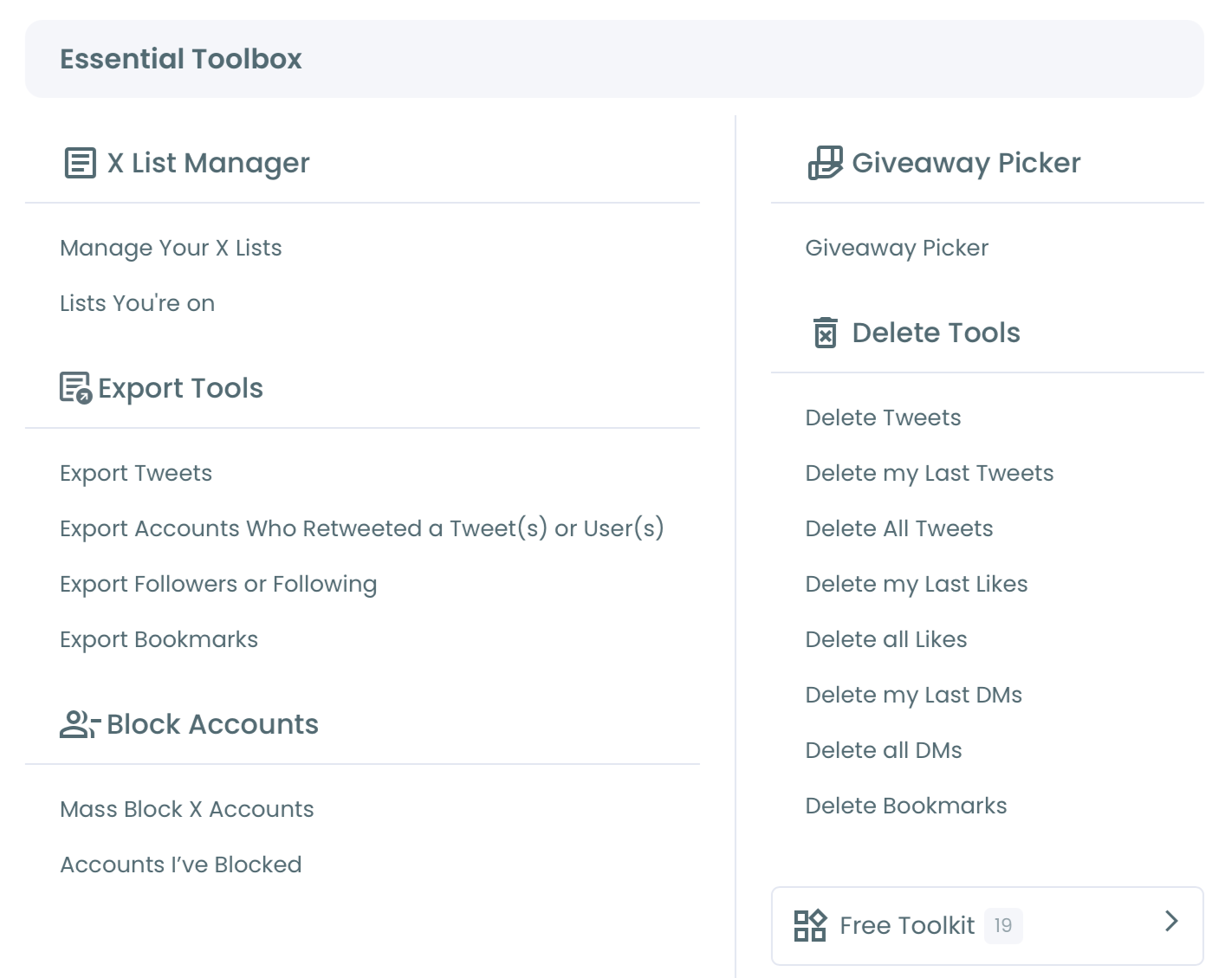
- Open the Essential Toolbox menu and select the X List Manager, which displays every list on your account in a grid showing member and follower counts.
Select and Filter the Members
- Click the list you want to export to open its members table, where every account loads as a row with its full profile data.
- Open the Filter Options panel if you want a subset, then narrow by criteria such as follower count, location, verification, or quality flags so the export reflects only the segment you need.
- Review the Active Filters bar at the top of the table to confirm the visible members match your intent before exporting.
Run the Export and Open It
- Click the Export button above the table, check the remaining token count displayed beside it, and Circleboom downloads the members as a CSV file.
- Double-click the downloaded CSV to open it in Excel, where each member occupies one row and each data field becomes a sortable column.
Completing these steps gives you a current, complete spreadsheet built from data X authorized, ready to sort, filter, or import without any cleanup of broken or duplicated rows.
Working With the Spreadsheet in Excel
Once the file is open, treat it as a dataset. Sort by follower count to rank members by reach. Filter the inactive column to isolate dead accounts for removal. Use a pivot table on the location field to map where a community list actually lives. Each operation that was impossible inside the scrolling list view becomes a single Excel action.
The file also serves as a record. Exporting a list before a major reorganization preserves the membership in case you need to rebuild it, and exporting on a regular cadence creates snapshots you can compare over time. This is the same record-keeping logic behind a routine export of Twitter analytics, where the value is having the data outside the platform when you need it.
Limits to Know Before You Export
Two platform limits shape what an export can do. A single Twitter List holds a maximum of 5,000 members, an X-enforced ceiling, so the largest export equals the largest possible list. The export itself is token-based, and the remaining token balance appears next to the Export button, with larger lists consuming tokens in proportion to their member count.
Neither limit requires a browser extension to work around, because the list-member export runs entirely through the official API in the web app.
If your goal is the following list behind an account rather than a list you built, Circleboom offers a separate Twitter following list export, and broader account exports run through the export Twitter accounts tool.
Both follow the same sanctioned path. That is why people moving off a scrape of a Twitter following list tend to switch once they see the difference in data quality, and the same reasoning draws in anyone trying to collect Twitter followers without coding instead of maintaining a fragile scraper.
What to Do With the Spreadsheet After the Export
A finished export is the input to a workflow, not the end of one. The first move is segmentation. Sort the file by follower count and split the membership into reach tiers, so a competitor list becomes a short roster of high-reach voices plus a longer tail you only monitor. Sort by CreatedAt to separate established accounts from new ones, and the list stops being a flat group and starts being a ranked dataset.
The second move is cleanup. Filter the Inactive column to isolate dormant accounts before a campaign, then rebuild a tighter list from only the live rows. The same fake and spam flags that label members in the file feed straight into a quality review, the kind of audit that powers a proper Twitter follower quality score check rather than a guess.
The third move is reuse. Drop the cleaned rows into a CRM, hand the file to a teammate for review, or feed the high-value accounts into a dedicated monitoring list you can re-export later. Because the export came through an authorized channel, that re-export behaves identically next month, which is what turns a one-off download into a repeatable process. New names you surface along the way can route in through the search of Twitter accounts tool and back into the same list.
Action Checklist
Run through these in order and the export is done:
- Connect the X account that owns the list in Circleboom.
- Open the X List Manager from the Essential Toolbox menu.
- Click the target list and apply any filters you need.
- Click Export and confirm your token balance.
- Open the CSV in Excel and start sorting.
Following this sequence turns a list you could only scroll into a file you can fully work with.
→ download your Twitter list as a spreadsheet
Walkthrough Video
This short video demonstrates the X List Manager, including where the export control sits once a list is open.
Watching the manager in action makes the steps above easier to follow on your first export.
Frequently Asked Questions About Exporting Lists
Is a browser extension required to export a Twitter List?
No. Circleboom reads list membership through the official X API inside its web app, so the list-member export needs no extension and no access to your browser session.
Can the export open in Excel directly?
Yes. The download is a CSV file, which Excel opens natively, placing each member on its own row and each profile field in its own column without any import wizard.
Will the export include accounts I cannot see in the list view?
The export returns the full membership of the list, up to the X limit of 5,000 members, with each account enriched by profile data such as follower count, account age, and quality flags.
Can I export only verified or active members?
Yes. Apply the verification or quality filters in the members view before clicking Export, and the resulting CSV will contain only the members that match those active filters.
How much does an export cost in tokens?
Exports draw from a token balance shown beside the Export button, for example "Remaining token: 1,505," and the cost scales with the member count. A 5,000-member list consumes more tokens than a 200-member one. Filtering down to the segment you need before exporting keeps you from spending tokens on rows you plan to discard.
How recent is the data the export pulls?
List membership syncs automatically within a 24-hour window, and the sync timestamp on the list overview tells you when it last refreshed. Changes made directly on X may not appear until the next sync, so run the export after a sync if you edited the list inside X moments earlier.
Can I re-export the same list later as it changes?
Yes, and the workflow stays stable. Because the read runs through the official X API rather than a session-scraping extension, re-exporting a maintained list next month works exactly as it did this month, with no tool to reinstall after an X update. Keeping each export gives you snapshots you can compare over time.