I would still start a monthly content plan in a spreadsheet, because a grid shows a whole month of posts faster than any other view. The trouble starts on publish day, when every row has to be copied into every platform by hand.
What should a social media calendar template in Excel include?
One row per post, with columns for the date, the platforms, the caption, the media and a status, plus a check that each caption fits every platform it is meant for. Circleboom Publish then schedules those rows to Instagram, X, Facebook, LinkedIn and six more networks from one composer, at each account's suggested best time.
→ Schedule every row of your Excel social media calendar in one session
What a spreadsheet calendar does well, and where it stops
A social media calendar template in Excel is good at the planning half of the job. It is free, everyone on the team already knows how to use it, and a month of rows fits on one screen, so gaps and crowded days stand out right away.
The planning half is also where most people spend too little time. A sheet forces you to name the platform, the date and the caption for every post before the week starts, which is most of the thinking.
The reach of a modern plan is the part a sheet struggles with. DataReportal's Digital 2026 global overview report puts the average at 6.75 social platforms used per person each month.
That is why a sheet that starts as one tab ends up with a tab per network and a caption column per platform.
A spreadsheet can plan a post, but it cannot publish one.
Every row still has to be copied, pasted and scheduled in each native app. When the plan gets busy, you can batch-schedule the posts sitting in your calendar template instead of opening each platform one at a time.
For the general structure behind any planner, the overview of a social media content calendar template covers what a calendar should track whatever tool it lives in.
How to build a social media calendar template in Excel
The fastest start is Excel's own calendar templates. Microsoft's guide to create a calendar by using a template shows the path. On Windows, search the online templates for "calendar" and click Create; on a Mac, use File, then New from Template, and search "Calendar".
Those templates give you a date grid. The social columns are yours to add, and the order below keeps the sheet readable.
Set up the grid and the columns
- Create one tab per month and freeze the top row, so the column names stay visible as you scroll.
- Add the core columns from the table below, one row per post.
- Turn Platform and Status into drop-down lists with Excel's Data Validation, so nobody types "Insta" in one row and "IG" in the next.
- Add a Theme column for recurring days, such as a tip every Tuesday or a customer story every Friday.
The core columns:
| Column | What goes in it | Example |
|---|---|---|
| Date | Publish day | 3 November |
| Platform | One network per row | |
| Caption | The final text | Three ways to style a shelf |
| Media | File name or link | shelf-reel-01 |
| Status | Draft, Ready, Scheduled | Ready |
One platform per row looks wasteful at first, but it is what makes the later checks work. A row that says "Instagram, X, LinkedIn" hides three different captions inside one cell.
Keep the template easy to share
Save the social media calendar template in Excel as one shared workbook, not as copies sent around by email. Two versions of the same month are worse than none, because nobody knows which one the team is following.
Add an Owner column if more than one person writes posts. The owner is the person who moves the row from Draft to Ready, and a row without an owner tends to stay a draft.
Fill the theme and hashtag columns
A theme column makes a month easier to fill, because each day already has a job. The ideas in hashtags for days of the week work well as a starting set for those recurring slots.
If one network carries most of your plan, give it a tab of its own. The guide to a Twitter content calendar shows how a platform tab can hold threads and replies that do not belong on the main sheet.
Add a limit-check column before the sheet lies to you
Most Excel templates have a caption column and no idea how long a caption is allowed to be. The sheet will happily plan a 500-character post for X, and nobody notices until the post fails to fit on publish day.
A limit-check column fixes that. Excel's LEN function counts the characters in a cell, so one formula per row compares the caption with the limit of the platform in that row.
The limits to put in your sheet
These are Circleboom Publish's own per-platform text limits, the numbers its composer applies on the main networks:
| Platform | Text limit |
|---|---|
| X (standard accounts) | 280 characters |
| Bluesky | 300 characters |
| Threads | 500 characters |
| 1,300 characters | |
| 2,200 characters | |
| 5,000 characters |
This is the column most templates skip, and it is the one that makes an Excel social media calendar safe to hand to someone else.
Put this table on a separate tab called Limits, with the platform names in column A and the numbers in column B.
The formula for the check column
With the caption in column C and the platform in column B of your calendar tab, this formula returns a warning when a caption is too long:
=IF(LEN(C2)>VLOOKUP(B2,Limits!A:B,2,FALSE),"Too long","OK")
Copy it down the whole column and add conditional formatting so "Too long" turns red. Treat it as a first filter, not the final word, because links, emoji and line breaks can count differently on each network.
The cheapest fix for a post that does not fit is the one you make while planning.
Media needs the same care. Instagram needs at least one image or video, while a text-only post is fine on X, so add a Media check that flags an empty media cell on any Instagram row.
A week of example rows
Here is one week for a small home-decor shop posting to Instagram, Facebook and X. The values are an illustration of the layout, not a recommended schedule:
| Date | Platform | Theme | Status |
|---|---|---|---|
| Monday | New arrival | Ready | |
| Tuesday | Styling tip | Ready | |
| Wednesday | X | Quick poll idea | Draft |
| Thursday | Customer photo | Ready | |
| Friday | Weekend offer | Scheduled |
Each row also carries its caption, media and limit check, which are left out here to keep the table readable.
Other industries fill the same columns differently. A plan for a social media calendar for real estate leans on listings and open houses, but the structure of the sheet stays the same.
Seasonal rows are worth planning a month ahead. A list of Valentine's Day social media posts shows how one date can fill several rows across platforms.
How to move your social media calendar from Excel into a scheduler
Circleboom is listed on X's Enterprise customer directory, so the X rows of your sheet publish through access X has approved.
The same composer covers Instagram, Facebook, LinkedIn, Pinterest, Threads, Bluesky, TikTok, YouTube and Google Business Profile. That is how you move your social media calendar from Excel into a scheduler in one sitting.
The point is not to retype the sheet. It is to work through the Ready rows once, with the accounts, preview and best times in the same window.
Watch it work: ten days of planned Instagram posts written and scheduled in about twenty minutes.
The process, step by step, with your calendar tab open beside it.
Connect the accounts your platform column names
- Log in to Circleboom and connect every account in your Platform column from Manage Social Accounts, using CONNECT NEW ACCOUNT.

- Save a Share Group under Manage Share Groups for accounts that always appear together in your sheet, such as the shop's Instagram and Facebook Page.
Write each ready row once
- Open the pencil icon and choose Create New Post on All Platforms. You can also click the "+" on an empty day in the Outbox Calendar View to start a post for that date.
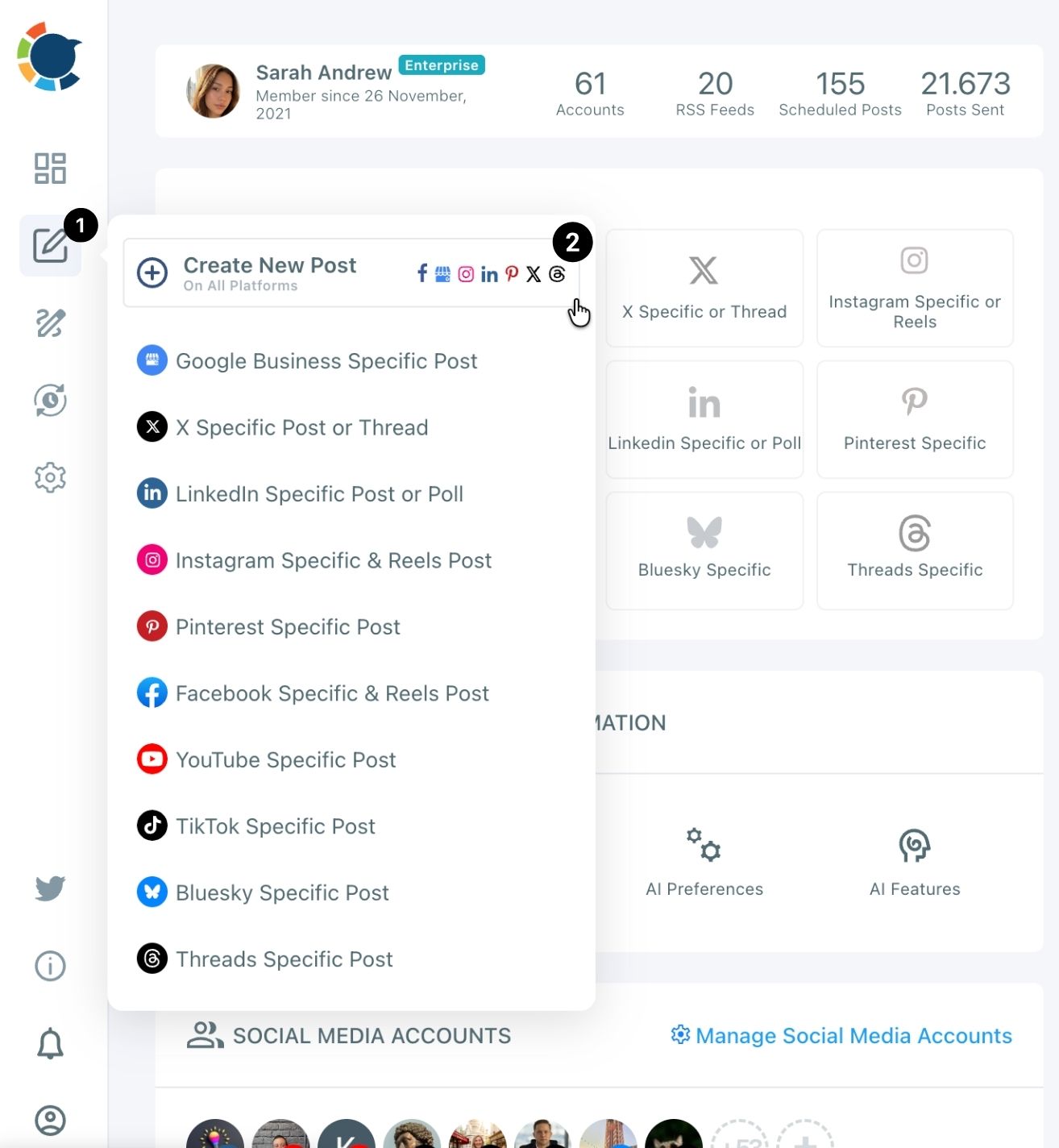
- Select the accounts and paste the caption from the row, then add the media named in the Media column.
- Check the Post Preview for each network, which shows the truncation your limit-check column was guarding against.
Schedule the row and mark it done
- Click Schedule, pick the date from the row, and choose one of the suggested best post times for that account, or use Post to Queue to fill the account's next open slot.
- Change the row's Status to Scheduled so the sheet and the scheduler stay in step.
This order matters because the accounts decide where each row can go, the preview catches what the formula missed, and the status update keeps the sheet honest. Skip the preview and the first truncated caption shows up on your feed instead of in the composer.
If you only post to X
An X-only plan has a shorter path.
X Post Planner from Circleboom Twitter offers a Bulk Schedule that takes a CSV of many tweets at once, so an X calendar saved as a CSV goes in as a file. See X Post Planner for that route.
The walkthrough to bulk schedule tweets with images covers the media side of the X upload. In Circleboom Publish, the same result comes from scheduling the rows one after another in one sitting.
What Excel cannot do for your calendar
A social media calendar template in Excel can show the plan, but four jobs sit outside it:
- Publishing: every row still needs a person to post it.
- Failure alerts: a sheet cannot tell you a post never went out, while the Failed Items list in Circleboom Publish shows each failed post with its error reason.
- Timing: a sheet holds the time you typed, not the time your followers are online.
- One post to many accounts: each row goes to one place unless someone copies it.
The native schedulers do not close that gap either. LinkedIn's help page on scheduling Page posts allows posts from one hour to three months ahead, but polls and posts with multiple photos cannot be scheduled there, so those rows stay manual.
The math gets clear quickly. Four planned posts sent natively to seven accounts across four platforms is 28 separate publishes. In one composer it is four sends, about ten minutes in total.
For recurring posts with no fixed date, a posting Queue is often simpler than a dated row. You can automate social media posts by giving each account a set of time slots and letting new posts fill them.
Is it worth leaving the spreadsheet?
The most common objection is simple: "My team already lives in Excel, and a new tool is one more login." That is a fair point, and the answer is that you do not have to leave the sheet.
Keep the social media calendar template in Excel for what it does best: planning the month, assigning themes and catching captions that are too long. Move only the publishing into the scheduler, where the preview, the best times and the failure list live.
The sheet stays the plan, and the scheduler becomes the place the plan actually happens. Your Status column becomes the only bridge between them, and that bridge takes seconds per row.
→ Schedule the month your Excel calendar planned
Spreadsheet calendar questions
Which accounts do I need to connect before I start scheduling rows?
Connect every account that appears in your Platform column before the first session. The help page on connecting your social accounts walks through each network.
What happens if a post is too long for X?
It cannot go to X as written. Shorten it with the AI writer by asking for a version under 280 characters, or leave X out of that send and post a shorter version from the X composer.
Can I see the planned month as a calendar, like my sheet?
Yes. The Outbox Calendar View in Circleboom Publish shows every scheduled post by week or month, and you can filter it by platform, account or Share Group to compare it with a single tab of your sheet.