

Searching tweets within a specific date range on Twitter looks straightforward until the results need to leave the screen. The native search box scopes a window but offers no export, no account list, and inconsistent reach into older dates. This guide covers both the native method and the Circleboom method, then walks through the full export workflow step by step.
Two methods exist for date-range tweet search.X Advanced Search and the `since:` / `until:` operators show date-scoped results on screen, view-only.Circleboom's Historical Tweet Search collects the same window into an exportable tweet-and-account dataset.Circleboom also reaches deep history reliably, where native search thins out.
Use Circleboom when you need to search tweets in a specific date range on Twitter and keep the results.
The problem with native date search
Twitter's Advanced Search does support date filtering. Its Dates section has From and To fields, and the `since:yyyy-mm-dd until:yyyy-mm-dd` operators do the same job from the search bar. For finding a single old post, this is enough.
The problem appears at scale. Native search has three limits that matter for any real date-range task:
- No export: results can be read but not downloaded.
- No account view: there is no deduplicated list of who posted the matching tweets.
- Uneven history: older windows return thin, inconsistent sets because the index favors recent activity.
When the date window is the core of the research, these limits turn a quick search into a manual copy job. The alternative is to search a Twitter date range in a tool that exports the results, which the next sections explain and walk through.
What Circleboom adds to date-range search
Circleboom's Historical Tweet Search is built for exactly this task. It accepts a plain-language query, applies filters, scopes the window, and returns both the tweets and the accounts behind them.
The data source is the key difference. Circleboom operates as an official X Enterprise developer, so it queries the sanctioned historical dataset rather than scraping the public front end. That is why a window from a year ago returns as fully as one from last week.
The output is two linked views of one search: a tweet view with full engagement metrics and timestamps, and a profile view listing every unique account. Both export to CSV, which is what makes it practical to pull a date-scoped tweet set on Twitter and reuse it later. For the underlying mechanics of getting posts out, this guide to top tools to search Twitter bios and profiles covers the profile-first side of the same workspace.
How to search tweets in a specific date range on Twitter
Follow these steps to run a date-scoped search and export the results. The flow groups into setup, search configuration, and output.
Set up the workspace
- Log in to Circleboom using the X account you want to run the search from.

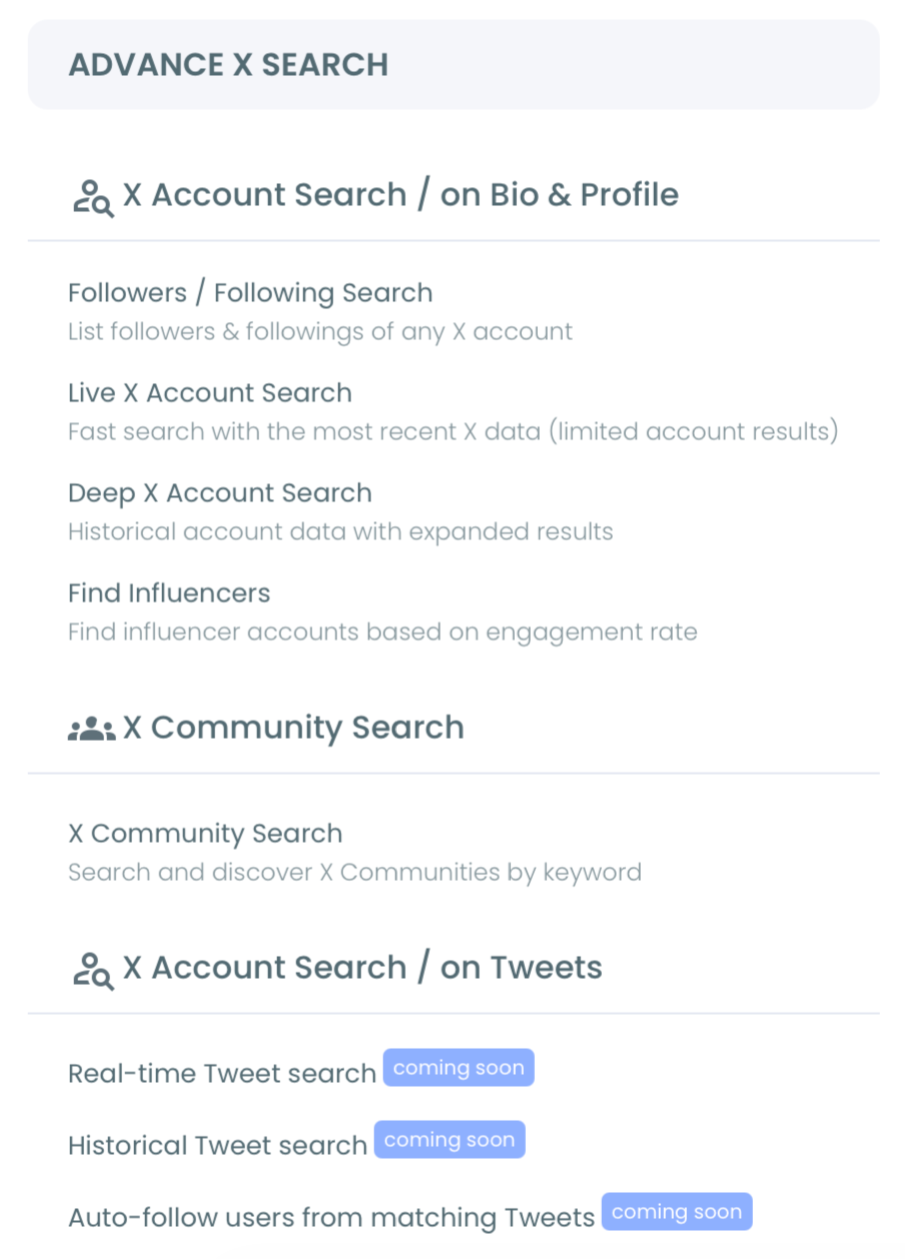
- Open the Advanced X Search menu and select Historical Tweet Search from the options.
Configure the query and the window
- Enter the search in plain language, such as a product name, hashtag, or the phrase people use when describing a specific situation.
- Open the Filters panel and set exclude terms, language, replies, links, verified-only, media type, and engagement minimums to control quality.
- Choose the date range from Last 30, 60, 90 days, 1 year, or set custom From and To dates for an exact window.
- Select how many tweets to collect, which determines the size of the pull against the token balance.
Collect and export the results
- Run the search and review the matching tweets in the Tweet view, sorted by any column you need.
- Click "Display Profiles of this search" to switch to the deduplicated list of accounts behind the tweets.
- Export either view as CSV, or apply per-row actions like follow, add to a Twitter List, whitelist, or blacklist.
Completing these steps turns a date window into a portable dataset rather than a temporary screen. The export is what makes the search usable for reporting, outreach, or analysis. For accounts specifically, this walkthrough on how to search Twitter accounts by join date shows a related way to scope discovery by time.
What each filter is actually for
The Filters panel is where a date-range search goes from rough to precise, so it helps to know what each control does. The filters fall into three jobs: defining the term, cleaning the result, and ranking by signal.
- Keyword match type: choose exact phrase, contains, or partial to decide how strict the term is.
- Exclude terms: drop the homonyms and off-topic mentions a bare keyword always pulls in.
- Language and verified-only: restrict to the audience you can actually use.
- Replies, links, hashtags, cashtags, media type: keep or remove specific content shapes.
- Engagement minimums: set a floor on likes, retweets, or impressions so only tweets that traveled survive.
The order to think about them is window first, then term, then noise removal, then ranking. A wide keyword in a tight window still returns thousands of incidental mentions, and the engagement floor plus a couple of exclude terms is what cuts that down to a list worth reading. Skipping this step is one of the mistakes to avoid while performing Twitter search, because a date alone never makes a search precise.
What lands in the two exports
The output is two linked files, and each answers a different question. The tweet export carries the post text, a direct link to the original tweet on X, the creation timestamp, and the full engagement row: impressions, likes, retweets, quotes, bookmarks, and replies. That file is built for content and narrative analysis, where the wording and reach of each post is the point.
The profile export is the prospecting file. Each unique account appears once, with follower count, following count, follow ratio, total tweet count, account join date, and an active-or-inactive classification. Because the list is deduplicated, an account that posted twenty matching tweets in the window still shows up as a single row, which keeps the outreach list clean. Both files import into a CRM or spreadsheet without reformatting.
Choosing the right date window
The window itself is a strategic choice, not just a setting. A few common patterns make date-range searches productive:
- Event windows: scope to a conference, launch, or news moment to capture participants.
- Incident windows: target the days around a competitor's outage to find publicly frustrated accounts.
- Trend windows: compare an older window with a recent one to see how a narrative changed.
Each pattern depends on accurate, complete coverage of the window, which is where the Enterprise data source matters most. To go deeper on building queries, this guide to how to search for keywords in Twitter profiles pairs profile keywords with the content-and-date approach here.
Acting on the results
A date-scoped export is a starting point for a workflow, not the end. Once the CSV is in hand, accounts can be enriched, segmented, or contacted.
The natural next step depends on the goal. To broaden a list, the export Twitter accounts tool handles bulk account data, while the Twitter account lookup tool verifies individual profiles before outreach. When the question is simply where to begin, this primer on how to find someone on Twitter maps the discovery options.
A common and effective next step is to build a Twitter List from the window. The profile view lets you add selected accounts to a Twitter List in bulk, which turns a one-time dated pull into a feed you can monitor without changing your follow graph. Lists scale well for this, and the practical limits are worth knowing before you load a large window, covered in this look at how many accounts you can add to Twitter Lists. For event participants, competitor critics, or recurring topic voices, a list is usually the cleanest home for the result.
Understanding collection size and limits
Date-range searches in Circleboom run on a token system, and understanding it prevents surprises. Each search consumes GetTweetTokens in proportion to the number of tweets collected, so the requested tweet count is also a budget decision.
A few rules keep collections predictable:
- Tweet count sets collection size, not account count: 500 tweets from 50 accounts returns 50 profiles.
- Partial results are saved: if tokens run out mid-collection, the tweets gathered so far remain accessible.
- Export consumes tokens separately: check the remaining balance before exporting a large set.
Knowing this, the practical approach is to start a date-range search with a modest tweet count, confirm the window and filters are returning relevant results, then widen the collection only once the query is dialed in. That keeps tokens focused on windows that actually matter.
Action checklist
Use this checklist to run a complete date-range tweet search from start to finish:
- Log in to Circleboom with the X account for the research.
- Open Historical Tweet Search under the Advanced X Search menu.
- Write the query in plain language and add exclude, language, and engagement filters.
- Set the exact date window using preset or custom From and To dates.
- Export the tweet view and the profile view as CSV, then act on the accounts.
Working through the checklist guarantees the search produces a portable, account-level dataset instead of a view-only screen. That is the outcome native date search cannot deliver, and it is the reason a date-range search is worth running through a dedicated tool rather than the search box.
→ run a date-range tweet search on Twitter
Frequently asked questions
Can I set an exact start and end date for a tweet search?
Yes. Circleboom's Historical Tweet Search offers preset ranges and a custom From and To window, and X Advanced Search has equivalent date fields. Only Circleboom lets you export the resulting tweets and accounts.
Why are older tweets missing from my native search?
X's native search favors recent and popular results, so older date windows return incomplete sets. Circleboom queries the indexed historical dataset, so a window from months or years ago returns as completely as a recent one.
Does the search return accounts as well as tweets?
Yes. After running a date-scoped search, the "Display Profiles of this search" button produces a deduplicated list of every account behind the matching tweets, which exports to CSV alongside the tweet view.
Is any of this scraping?
No. Circleboom retrieves only publicly available tweets through the sanctioned X Enterprise pipeline. Private, protected, and deleted tweets are never included.
Can I revisit a past search without spending tokens again?
Yes. Results are stored under a search log and can be reopened without re-consuming GetTweetTokens, so a window you collected last week is still there when you need it. Export, however, draws tokens separately from the search, so check the remaining balance before downloading a large set a second time.
Does the tweet count equal the number of accounts I get?
No. The tweet count sets collection size, not account count. If 500 collected tweets come from 50 accounts, the profile view returns 50 deduplicated rows, while 500 tweets from 500 different accounts returns 500 rows. Plan the count around the volume of conversation, then read the profile view for the true account total.
Can I turn a one-time window into ongoing tracking?
Yes. A historical pull is a snapshot, but the same keywords can feed continuous monitoring with the keyword and hashtag tracker, which watches the term going forward instead of looking back. Use the dated search to reconstruct the past and the tracker to keep up with the present.




)


